


Beta verzia novej dokumentácie.
Home Automation via API Automation via API Audio-to-text transcription on request
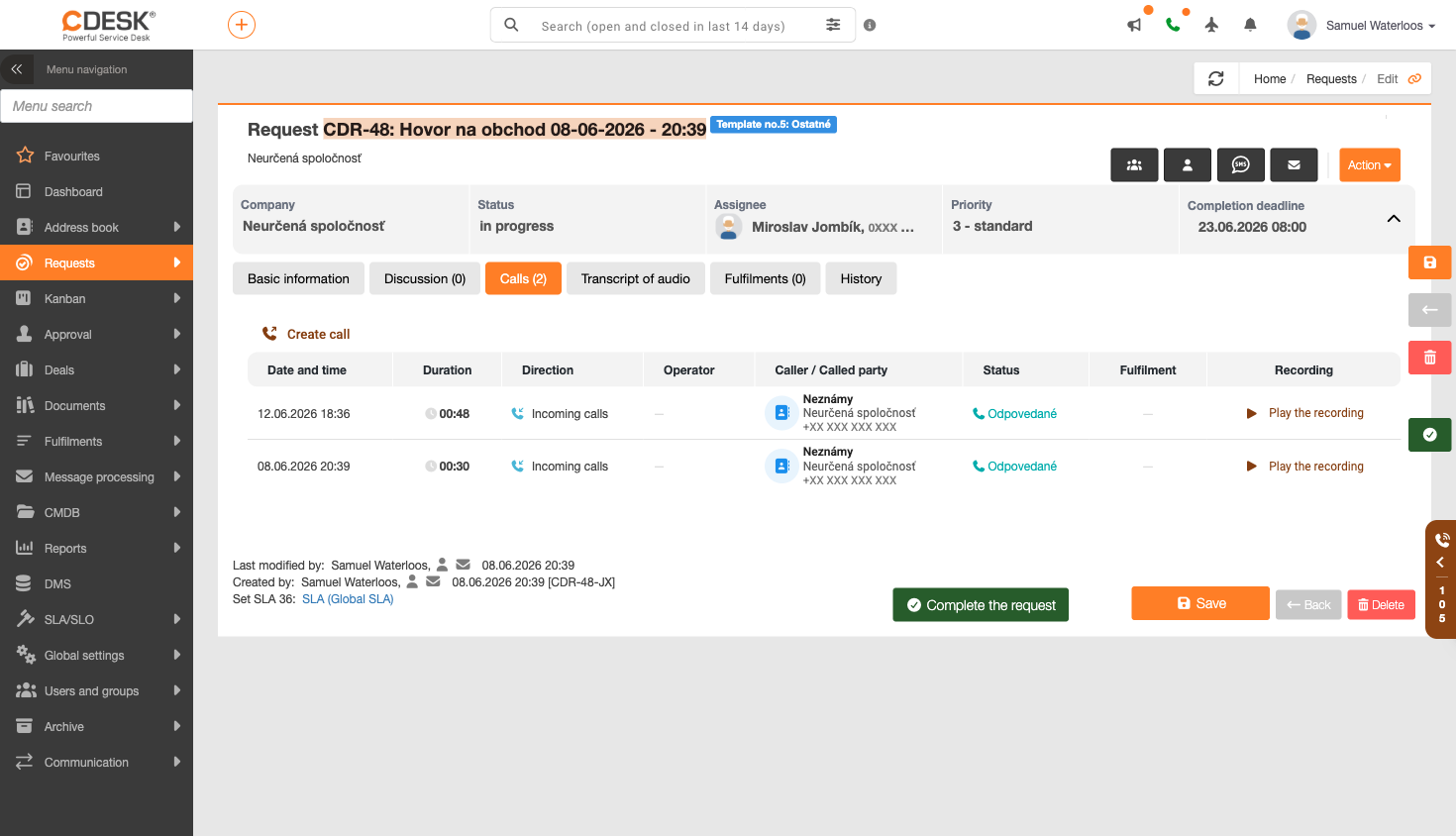
When a request arises from a call, the call is not moved to a separate list – it remains directly linked to the request. There are two tabs in the request detail for this purpose.
The ‘Calls’ tab contains all calls relating to the request in question, and the quantity of calls is shown in brackets in the tab’s name. A single request may therefore include multiple calls – for example, the customer’s initial call and a subsequent call back from the operator – and in this tab you can view the entire call history for a single case in one place.
For each call, the table shows the date and time, duration, call direction, operator, caller or recipient along with their company, call status, any fulfilments and a recording. You can play back the recording directly from the request via the link in the last column. Use the ‘Create Call’ button in the tab header to create another call for the request.
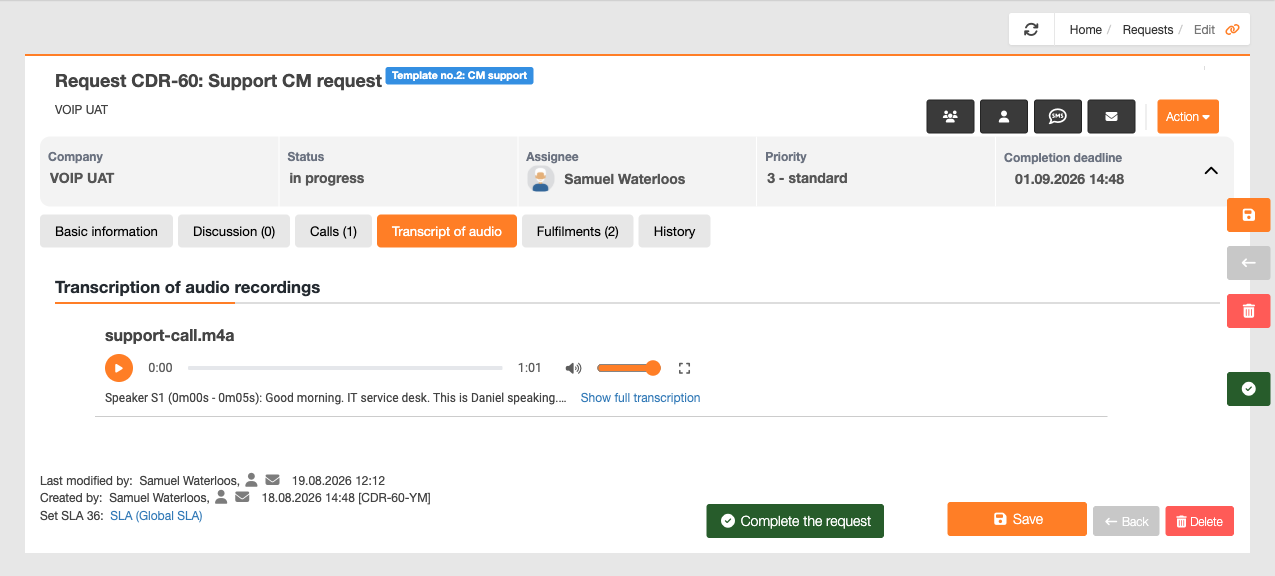
The ‘Audio-to-Text Transcript’ tab contains a text transcript of the recordings associated with the request. If the AI function is enabled in the environment and a recording exists for the call, you can run the transcription in this tab. Access to the tab can be controlled via permissions.
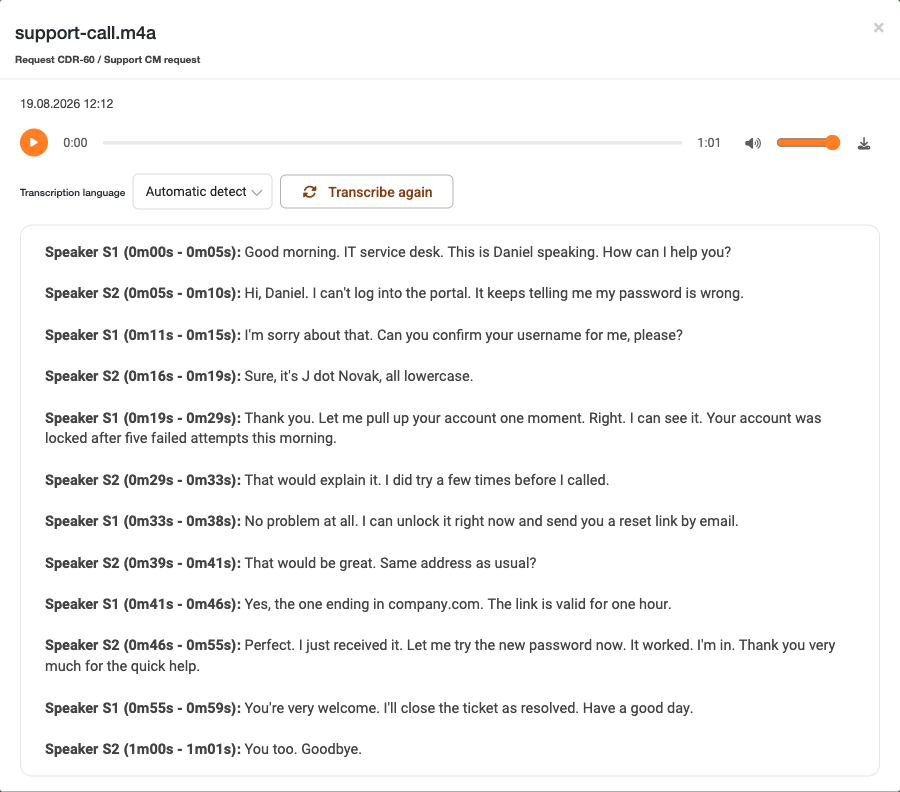
Once the transcript is complete, the tab displays the name of the recording, a player showing its duration, and the start of the text. The transcript is divided by speaker – Speaker S1, Speaker S2 – and each utterance is accompanied by the time interval in the recording during which it was spoken. This allows you to quickly locate a specific place in the call without having to listen to the whole thing.
In the tab, the transcript is shortened to the first line of dialogue. Clicking the ‘View full transcript’ link opens the recording details page, which includes the full transcript, a player and a button to download the record. It also includes a ‘Transcription language’ field, set to automatic recognition by default, and a ‘Transcribe again’ button, which allows you to regenerate the transcription – for example, after a change in language or after adding to your custom dictionary.
Home Automation via API Automation via API Audio-to-text transcription on request
Na tejto stránke