


The call log includes incoming, outgoing and overdue calls. The call status is shown for each record – Answered, Busy, Cancelled, No Answer, Failed, Overload or Voicemail.
The call details page contains basic information about the call, its attributes, data from CDESK and system information, an internal note and a note on dropping a call. The call recording can be played directly from the details page or downloaded. The details also include links to the contact, company and request, so you can access related records from the call.
Each record shows both the date and the time of the call. If the call has a relationship with a request or a fulfilment, the row contains links that take you directly to them, and for your own unprocessed calls, there is also a button to process the call. A form that is being edited is selected with a pencil; when you hover your mouse over it, you will see when it was last edited.
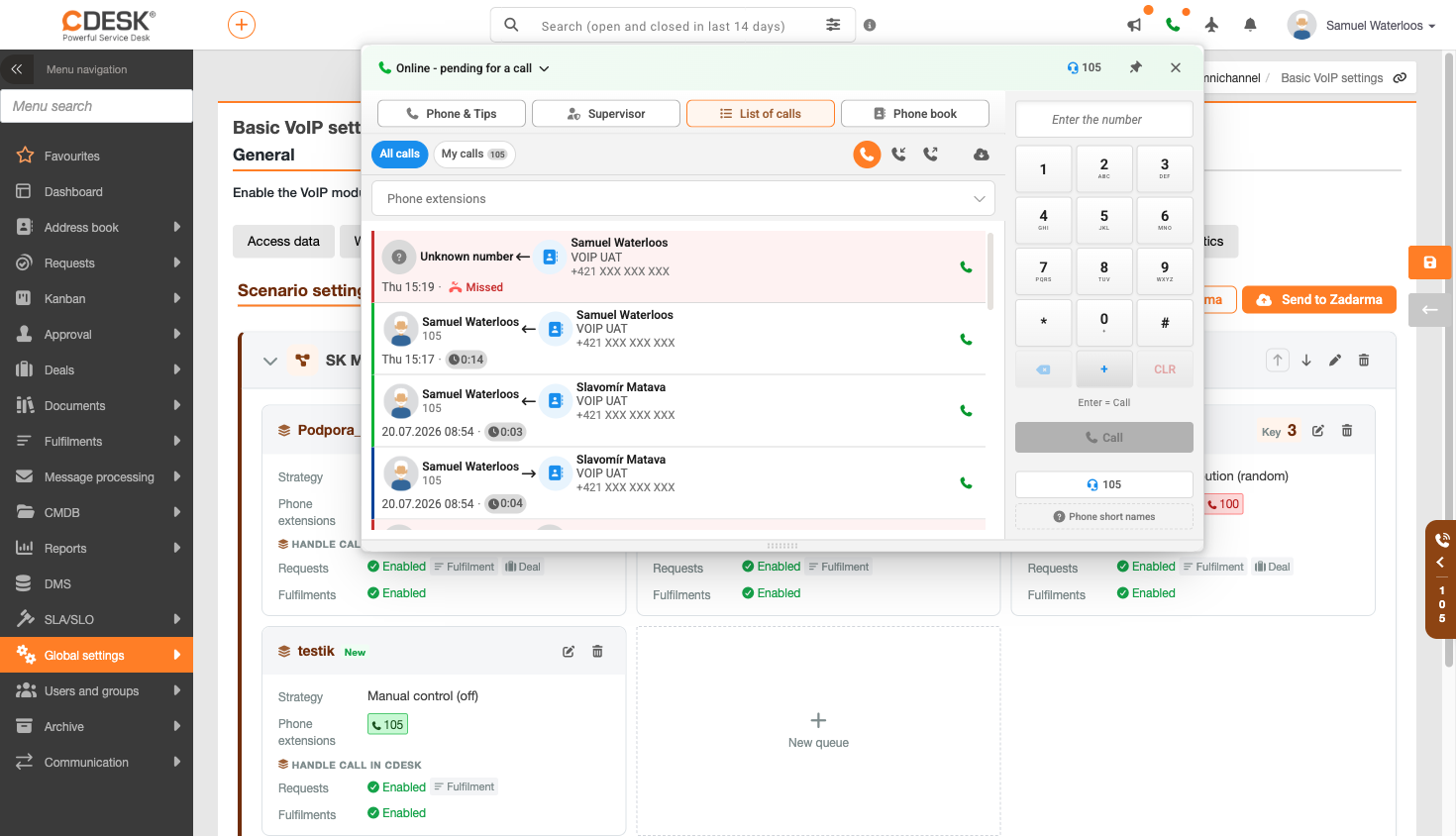
In the All Calls tab, each row shows both sides of the call with a direction arrow – outgoing as an extension → number, incoming as an extension ← caller, and internal as an extension ← extension. If a call had a duration of zero, no recording exists for it and the player is not displayed.
You can work with the records in the list using these buttons. Call back dials the number from the record. Play recording plays the recording directly in the list. Process call opens the call handling form for an unprocessed call, and Renew reloads the list.
The range of the list is determined by the My calls and All calls filters, the direction filters Incoming, Outgoing and All directions, and the list can also be narrowed down using the Extensions filter. The Load more button adds older records; once the end is reached, the message ‘View all calls’ appears.
Note: If you answer a call directly on the voice device whilst CDESK is disabled, it will only appear in the list once synchronisation has taken place. This can be run manually in the call settings; otherwise, it will take place automatically in the background.
Overdue and outstanding calls
To ensure that operators do not miss any calls they were unable to answer, CDESK highlights them in several places. In the ‘Phone & Tips’ list, an overdue call is selected in red and indicated by a missed call icon. Next to the telephone icon in the top bar, the quantity of overdue calls is displayed; this disappears when you open the list.
An unanswered call to a task of which you are a member is recorded as overdue even if you were offline and no one else answered it – it will appear in the list of outstanding calls and in the red counter next to the telephone icon.
In the list of outstanding calls, you can see for each call what action was taken – a link to the request with its status and to the individual fulfilments. This makes it clear at a glance which calls have already been dealt with and which are still pending.
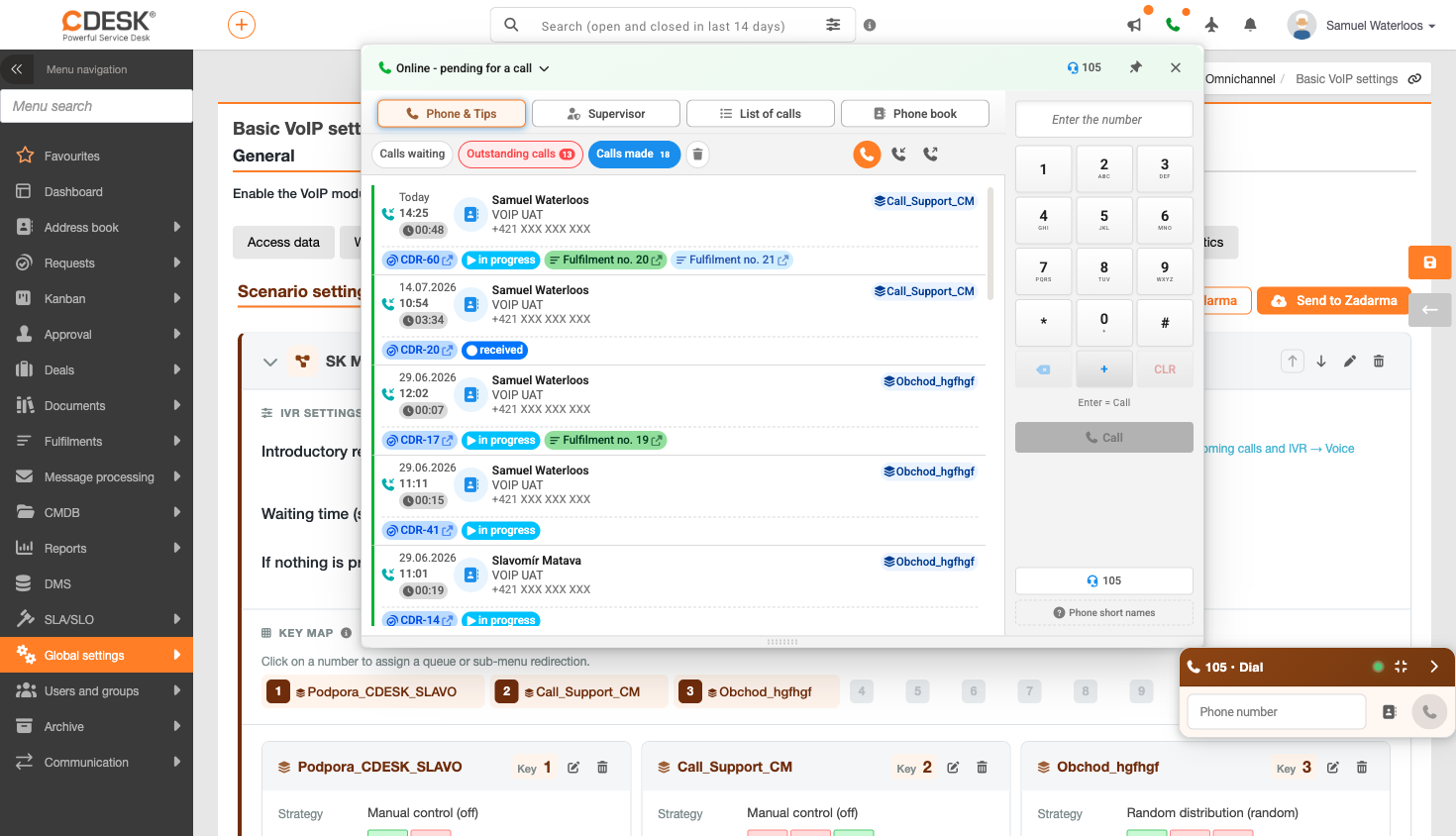
You can drop a call and complete it with a note, which will move it to the ‘Dropped’ folder. There is also a bulk delete option, where you can choose to delete all calls, overdue incoming calls, unanswered outgoing calls or done calls, or calls older than a specified quantity of days, and complete the optional reason. Dropped calls form a separate fourth tab marked with a bin icon and can be renewed. You can also quickly delete an individual call by holding down the Ctrl key (⌘ on macOS) whilst clicking.