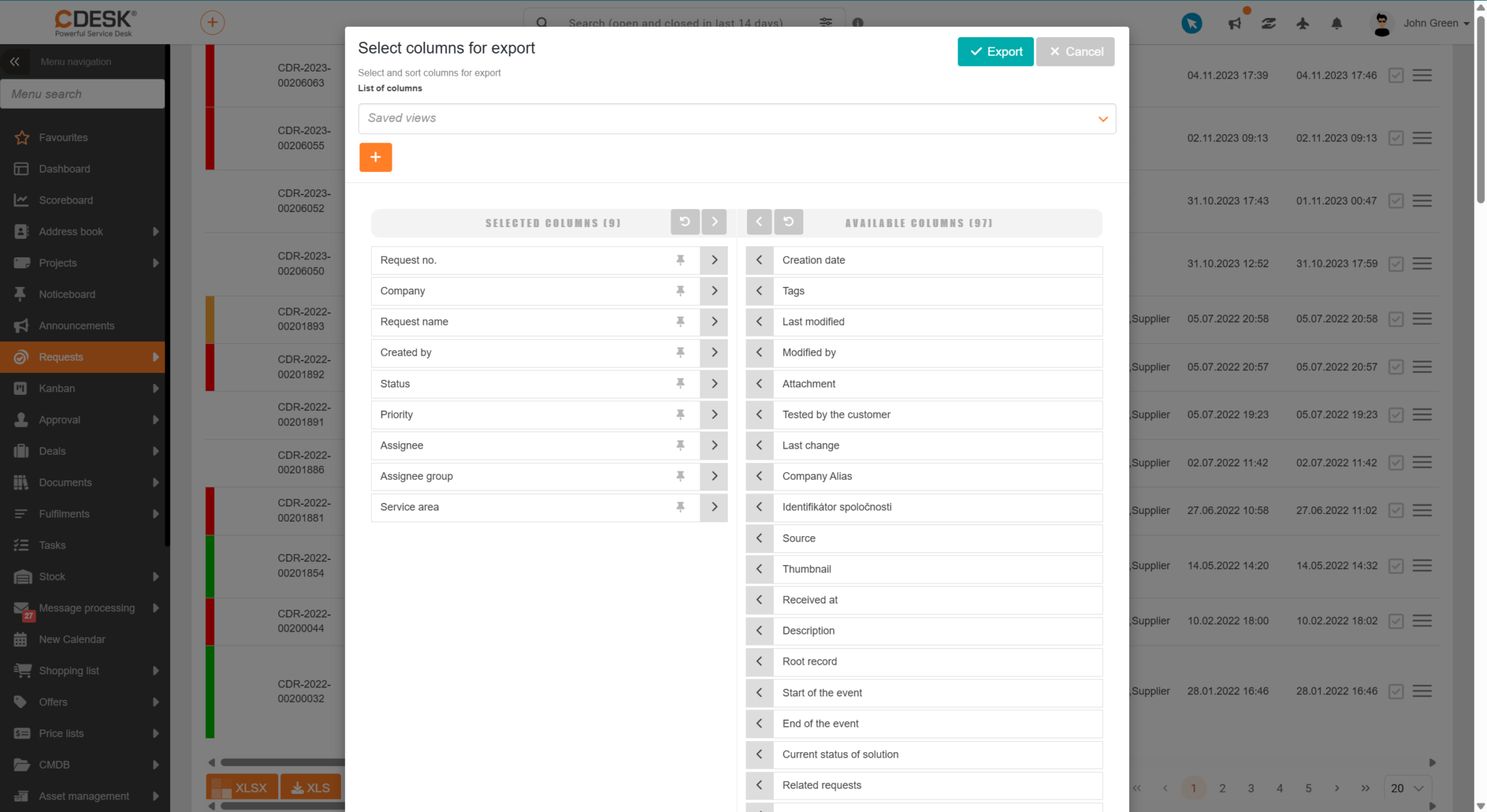
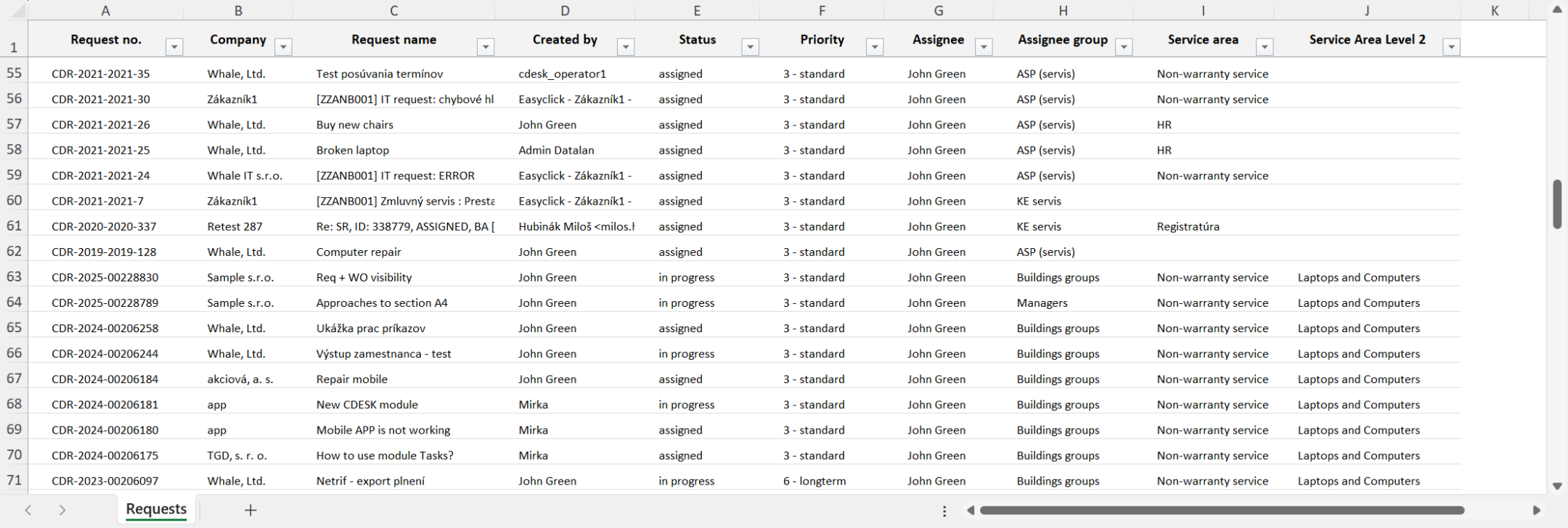
Exporting the list of requests lets you create an overview of the currently displayed records in XLS or XLSX format. Before creating the export, you can customise its content.
To export the list of requests, click the XLS or XLSX button below the list of requests. This will open a new window where you select the columns to export. If you wish to export all columns, you do not need to select them individually. Clicking the
icon in the Available columns section moves all columns to the Selected columns section in one go. The order of the columns in this list also determines their order in the export. You can change this order as you wish. If you want the columns in their default order, click the
icon above the list of columns and the columns will be sorted. You can also choose columns that will be pinned for XLSX by clicking the
icon in the relevant row.
Examples of column names you may come across when exporting the list of requests*:
- Number
- Name
- Description
- Note
- Approval before request resolution
- Approval during request resolution
- Status selection restriction
- Type selection restriction
- Request type – editing during creation
- Request type – editing during modification
- Default request type
- Area selection restriction
- Service area – editing during creation
- Service area – editing during modification
- Default 1st-level service area
- Default 2nd-level service area
- Selecting an object from the CMDB
- Allowed items from main groups and types
- Restricting the selection of closure reasons
- Restricting the selection of resolution methods when closing a request
- Restricting the selection of causes
- Priority
- Priority – editing during creation
- Priority – editing during modification
Assignee - Assignee – editing during creation
- Assignee – editing during modification
- Change after missed response to (assignee)
- Prioritise assignee
- Co-assignees
- Co-assignees – editing during creation
- Co-assignees – editing during modification
- Responsible person
- Responsible person – editing during creation
- Responsible person – editing during modification
- Time to Own (TTO)
- Response deadline
- Time to Alternative Solution
- Completion deadline
- Custom fields
- Custom fields – subject to approval
- Link to a tile from the request catalogue
- Work orders
- Companies by type
- Assigned companies
- Visibility – Job positions
- Visibility – User groups
- Who is requesting field
- For whom is requesting field
* – The availability of columns depends on the environment configuration.
Once you have selected the columns, create the export by clicking the Export button, located in the top-left corner and also in the bottom-left corner of the window. When you click it, you will be prompted to select a location for the file on your local device. Selecting the Cancel option returns you to the list of templates without creating the export.
The format of time data in the report (such as the request creation date) depends on the Date display format and Time display format settings in your profile.