The CDESK Pro mobile app is designed to help technicians carry out their work directly at the customer’s premises. Technicians can use it to view their assigned service requests, complete a service record for the equipment, generate a service protocol and send it to the client. Logging into the app and basic examples of how to use it are described in the documentation section Getting Started → Try out the mobile app.
List of requests
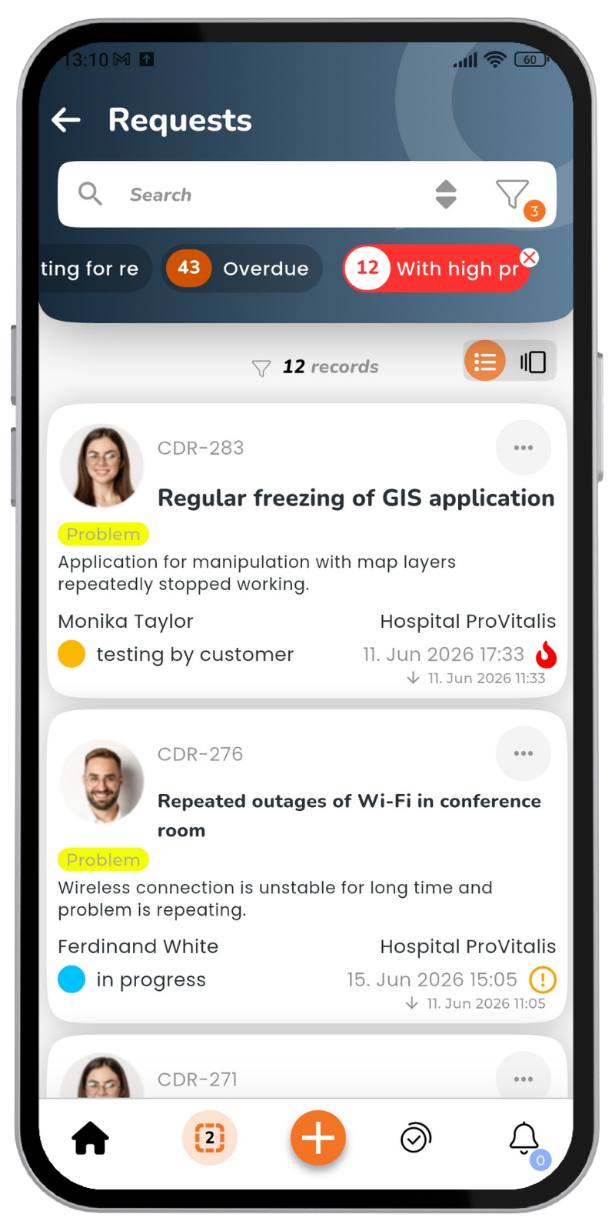
The Requests section is used to manage service actions. It can be opened from the top bar on the home screen or by tapping one of the tiles showing the quantity of requests, such as My Pending Tasks (service tasks assigned to a specific technician) or Overdue. Once open, a list of requests is viewed; tapping on a request opens its detail.
Image: List of requests in the phone app
Request detail
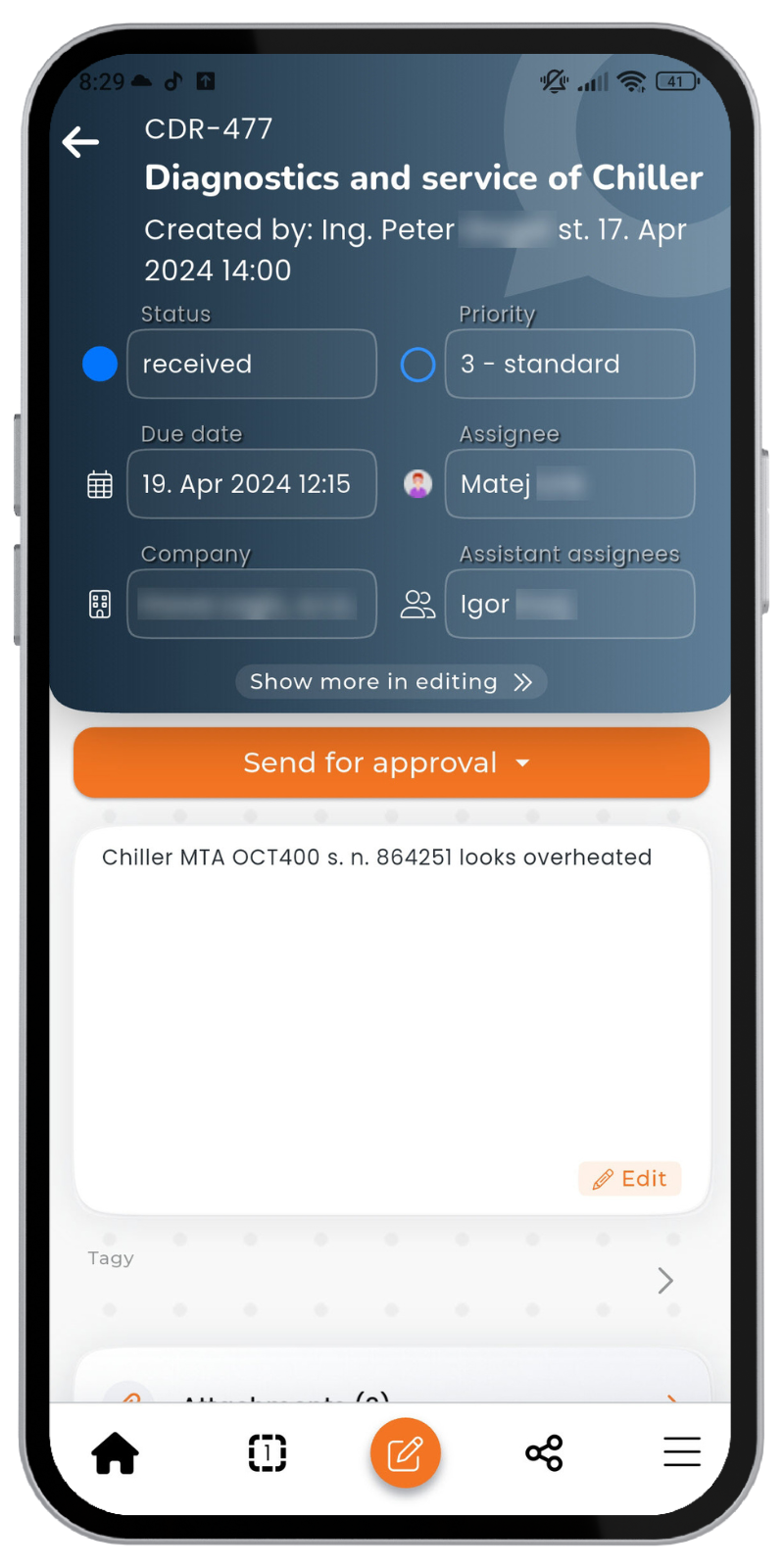
When a request is opened, its basic details are viewed first. Their meaning is the same as in the web interface.
Status – The status of the request, for example, ‘received’, ‘in progress’ or ‘completed’. If the situation changes, the technician updates the status; for example, when work begins, the status changes from ‘received’ to ‘in progress’.
Priorities – The urgency of the request, ranging from 1 (critical) to 6 (long-term).
Completion deadline – The date to which the request must be resolved.
Start date – The date from which the request is to be addressed.
Assignee – The technician responsible for resolving the request.
Company – The company to which the service relates. Tapping the company name and then View details views the customer’s contact details and address. Tapping the navigation icon next to the address opens the navigation app installed on the phone.
Supporting Assignees – Other technicians assigned to resolve the request, such as colleagues on a joint call-out.
Figure: Request detail – Status, Priority, Date, Assignee, Company and Co-assignees
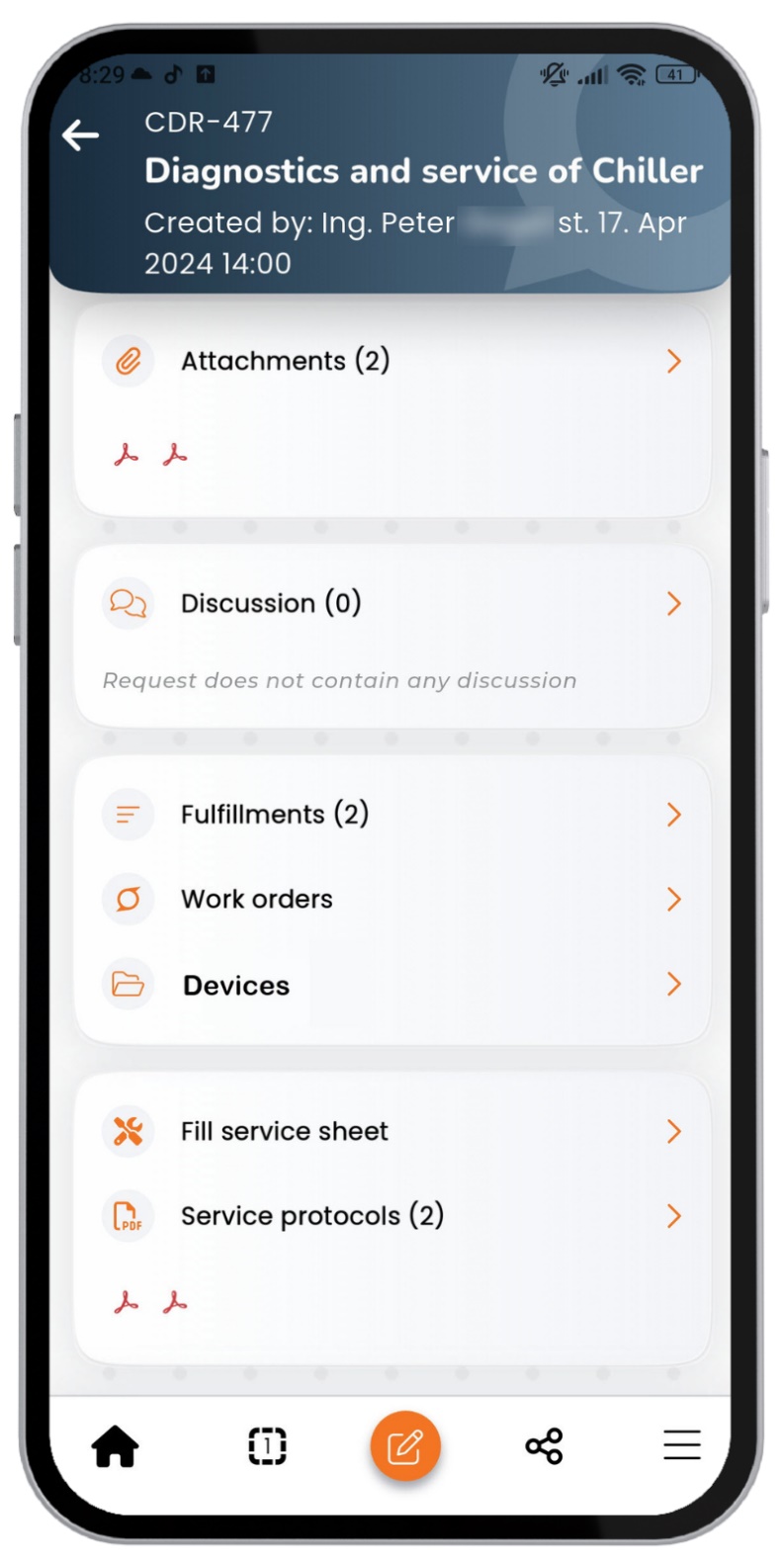
Further sections are listed below in the request detail:
Attachments contain files related to the request, such as photographs or documentation.
The discussion section contains posts relating to the request and also allows you to add a photograph or attachment. The internal discussion (blue) is used for communication with coordinators and other technicians and is not visible to the customer. The customer discussion (green) is used to communicate with the customer. You can switch between them by tapping the discussion icon.
Selecting Mark as available offline allows you to view and edit the request even without an internet connection. Changes will be saved the next time you connect. This is mainly used in places with a weak signal.
The Fill in service record and Service protocols buttons open the service-related jobs described on the following pages.
Image: Request detail – Attachments, Discussion and the ‘Complete service record’ and ‘Service protocols’ buttons
Was this page helpful?
Thank you for your feedback.
Manage your cookie settings
To provide the best possible experience, we use technologies such as cookies to store and/or access information about your device. Consent to these technologies allows us to process data such as browsing behavior or unique identifiers on this site. Refusal or withdrawal of consent may adversely affect certain features and functions.
Functional cookies
Always active
Technical storage or access is strictly necessary for the legitimate purpose of enabling the use of a specific service explicitly requested by the subscriber or user, or for the sole purpose of transmitting a communication over an electronic communications network.
Preferences
Technical storage or access is necessary for the legitimate purpose of storing preferences that the subscriber or user has not requested.
Statistical cookies
A technical storage facility or access used exclusively for statistical purposes.Technical storage or access used exclusively for anonymous statistical purposes. Without a subpoena, voluntary cooperation from your Internet service provider, or additional records from a third party, information stored or retrieved for this purpose alone cannot usually be used to identify you.
Marketing cookies
Technical storage or access is required to create user profiles for the purpose of serving ads or tracking users on a website or across multiple websites for similar marketing purposes.