
Signature on the service record
Last updated
By signing, the customer confirms that the work listed in the service record has been done. The signature is usually entered by the technician on site in the customer’s presence. The customer signs with their finger on a tablet or with a mouse; alternatively, an image of the signature is uploaded. The signature is always assigned to the client’s contact record, not to the CDESK user who entered it. Only an active, unsigned record can be signed, and this requires ‘Entry’ authorization.
Each service record must be signed separately. It is not possible to sign multiple records at once, for example, all devices related to a single request.
How to sign a record
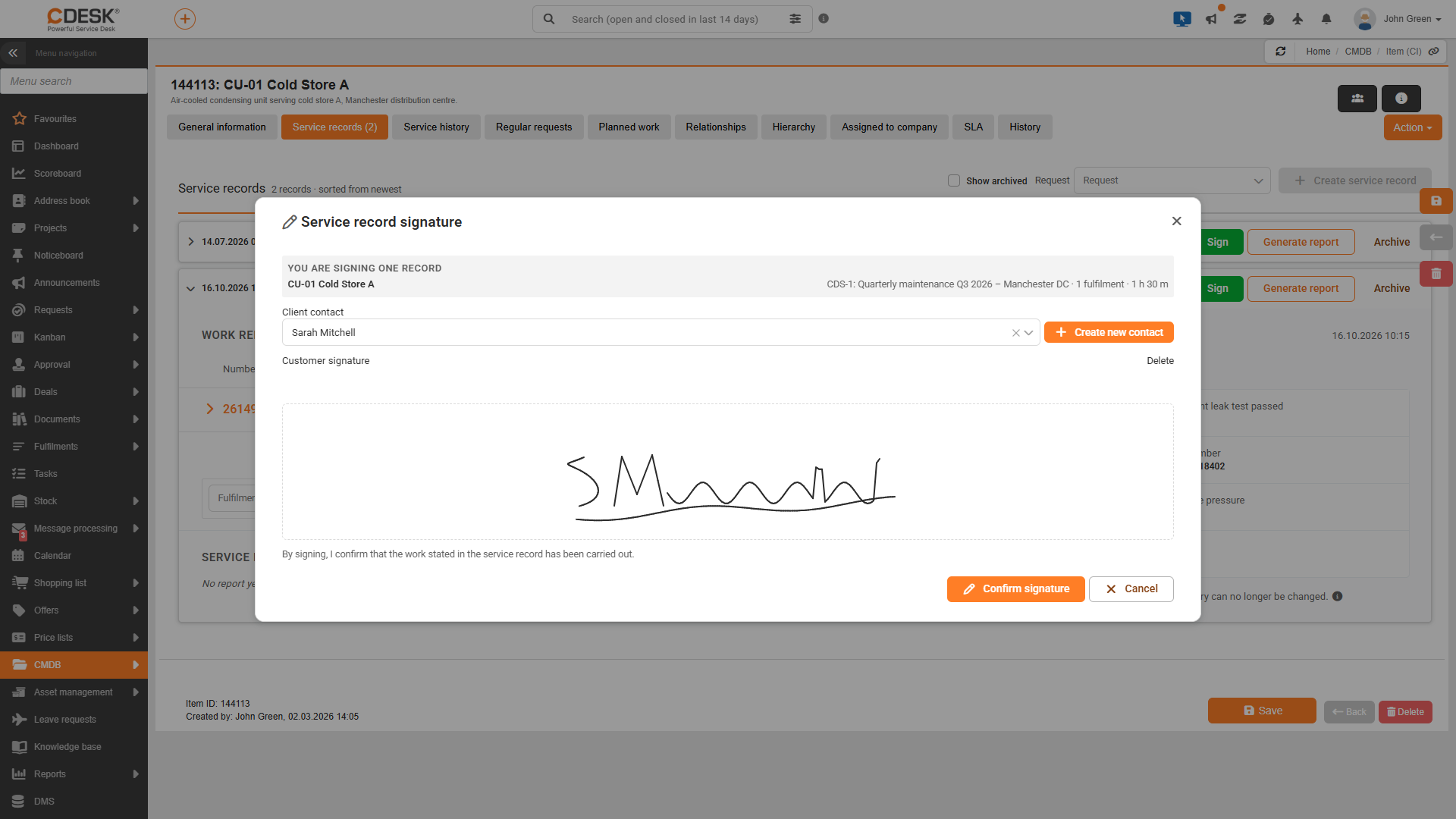
- In the record row, click the ‘Sign’ button. The ‘Service Record Signature’ window will open, displaying the text ‘You are signing 1 record’, along with the CI name and the request.
- In the Customer Contact field, check who you are signing on behalf of. Contacts from the company to which the request is addressed are suggested, and the contact from the Requested For field, or the Requested By field, is pre-filled. If the contact is not in the system, you can create one directly from this window by clicking the + Create new contact button.
- The customer signs in the Customer Signature area using a finger or the mouse. Instead of drawing a signature, it is possible to upload an image of a signature in PNG or JPG format by clicking the Upload Signature button. The button is available until something is drawn on the canvas. An unsuccessful signature can be deleted by clicking Clear.
- If the selected contact has a signature saved in their customer account profile, a Signature preview showing the contact’s name will be viewed instead of the drawing area. Check that this is the correct signature.
- Click the ‘Confirm signature’ button. The text above the button explains what the signature means: ‘By signing, I confirm that the jobs specified in the service record have been carried out.’ An alert stating ‘The service record has been signed’ will appear.
The following situations may also be viewed in the window:
- If no contact is selected, the signature will be assigned to the contact from the ‘Requested By’ field, and the window will display the warning: ‘If no contact is selected, the signature will be assigned to the ‘Requested By’ field from the request: …’. If the ‘Requested By’ field in the request is not filled in, the text ‘The request does not have a value in the ‘Requested By’ field, so you must select a contact’ will be viewed.
- If the company has no contact, the message “The company to which the request is addressed has no contact” will be viewed. A contact can be created by clicking the + Create new contact button.
Where does the signature come from?
Some customers have their own customer account in CDESK, in which their signature is stored. CDESK therefore determines, based on the selected contact, whether to apply the stored signature or to have the signature entered on the spot.
| Situation | What will happen | Text in the window |
|---|---|---|
| The contact has a customer account with a saved signature | The signature from the account profile will be applied. It cannot be changed in this window. | “The signature saved in this contact’s account profile will be applied. It cannot be changed or overwritten here.” |
| Contact has a customer account without a signature | The signature must be drawn or uploaded. This does not change the account profile. | “The contact has a customer account that does not have a saved signature. Upload or draw the client’s signature – this will not change anything in their profile.” |
| The contact does not have an account or the contact is not selected | The signed user’s signature is offered by default. It is possible to replace it by drawing or uploading the client’s signature. | “Your saved signature will be applied by default. You can replace it by drawing or uploading the customer’s signature.” |
What will change once the agreement has been signed?
Once the signature has been confirmed, the service record is locked to ensure it remains in the status in which the customer signed it.
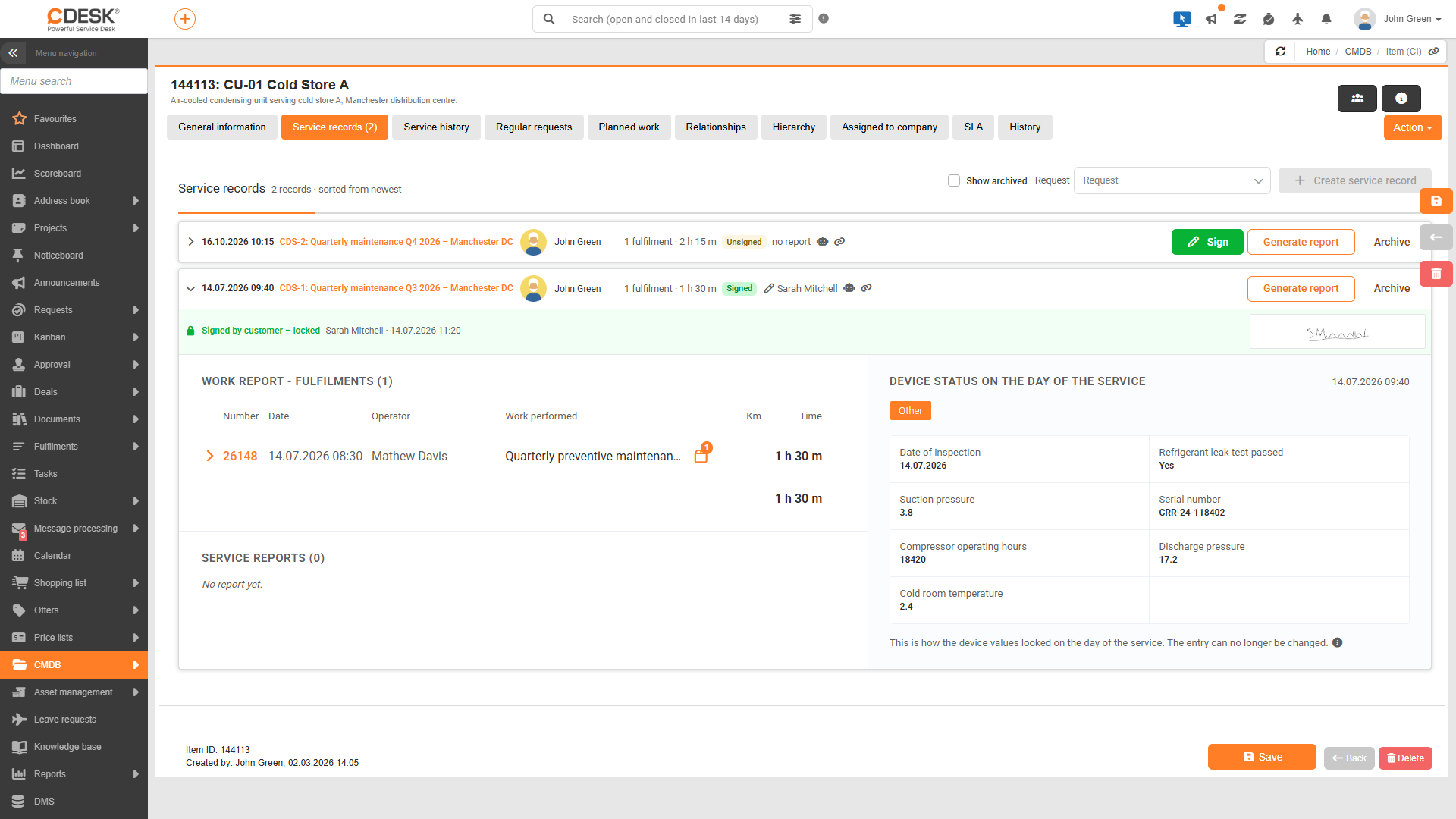
- The record changes to the Signed status. The date and time of the signature, who submitted the signature and for which contact are recorded.
- A Signed by customer – locked bar is displayed above the record details, and an icon with the contact’s name is displayed in the record row.
- The saved device condition can no longer be updated, the list of fulfilments cannot be changed, and the record cannot be signed again.
- Protocols can still be generated, sent and deleted, and the record can be archived.
- The saved signature remains associated with the record even if the signature in the customer account profile is subsequently changed.
The protocol generated before signing is not automatically updated after signing and contains an empty signature line. If the client is to receive a signed protocol, you must click the Generate Protocol button again after signing.
Once signed, the service protocol is generated and sent, as described on the following pages.
Was this page helpful?
Thank you for your feedback.