
Work report in the service record
Last updated
The work report shows what work the technician did whilst servicing the equipment. It consists of the fulfilments done in relation to that particular piece of equipment. The technician records these against the request in the same way as for routine work, including time, mileage and materials used. The service record views them all together for the equipment and specifies which ones relate to the service.
The technician can record materials in the fulfilment in two ways. The first is by entering text in the ‘Materials used’ field, for example, ‘2 litres of oil topped up in the compressor’. The second is a stock issue note linked to Fulfilment. The issue note may be ‘real’, where the materials are issued from a selected warehouse based on stock items and their quantities, or ‘fictitious’, where stock cards and quantities are selected without monitoring stock levels. A fictitious issue note is used, for example, when the stock is managed by an accounting system. The creation of fictitious issue notes is enabled in Global Settings → Fulfilments via the ‘Create fictitious issue note’ field. Both methods are viewed in the fulfilment details within the service record.
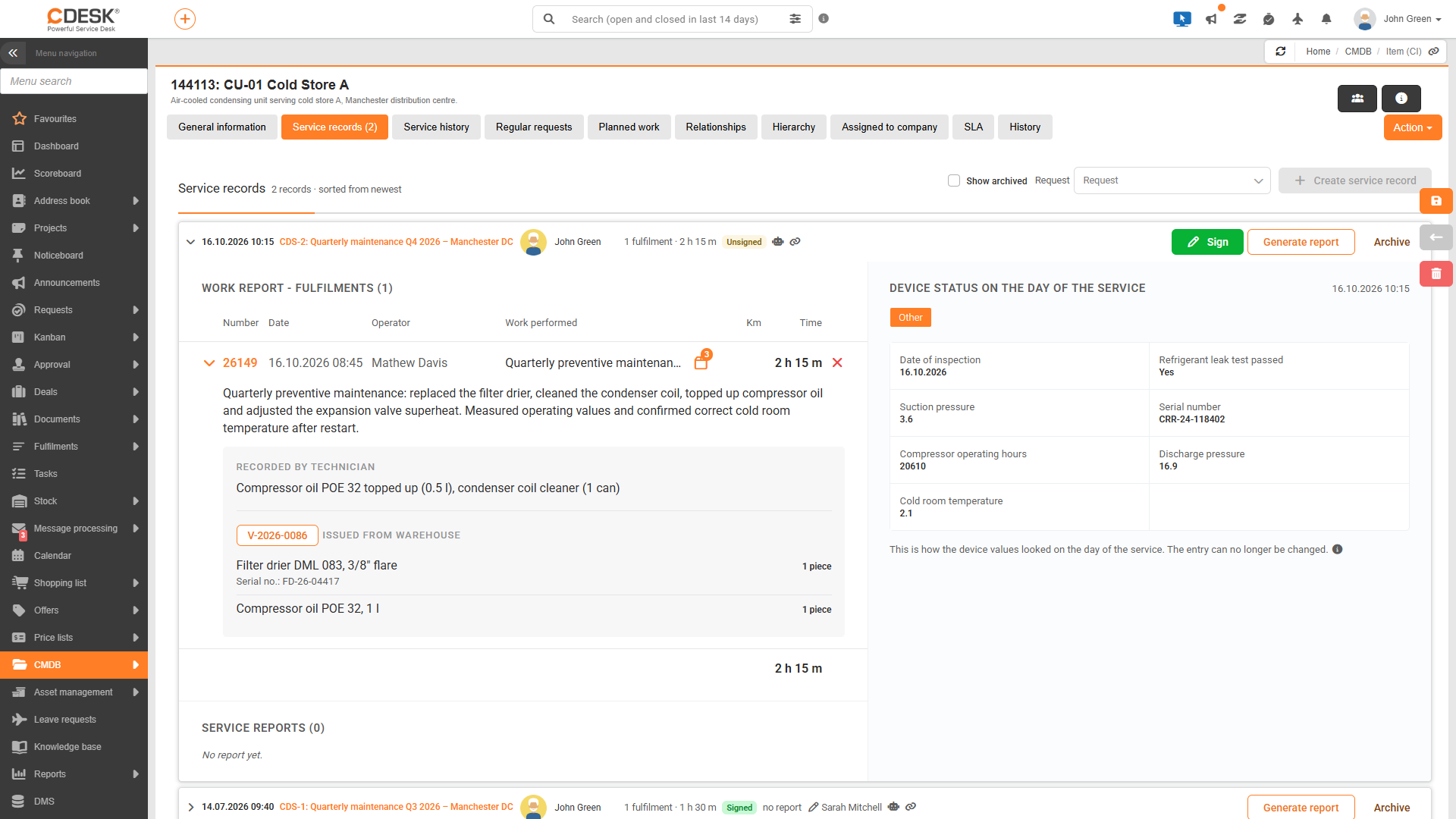
Table: Work Report – Fulfilments
For each fulfilment, the table contains the following details:
- Number – Fulfilment number. Clicking on this opens the fulfilment in a separate window.
- Date – Date of the task fulfilment.
- Technician – The person responsible for the fulfilment.
- Work carried out – A brief description of the fulfilment.
- Material – An icon showing the quantity of items issued from stock.
- Km – Kilometres from the job.
- Time – Fulfilment time.
- ✕ – Removal of the fulfilment from the service record. Only displayed for unsigned records and with ‘Entry’ authorization.
At the bottom of the table are the totals for kilometres and time, and a ‘Add fulfilment’ link. If there are no fulfilments for the item in the request, the text ‘There are no fulfilments for this CI in the request’ will be displayed.
Fulfilments details
Clicking on the arrow next to the order number labelled View order details will expand the order and display its full contents. Clicking on Hide order details will collapse it again. The details consist of the following sections:
- The Description of work carried out is the whole text of the job.
- Recorded by technician views the contents of the Materials used field, if the technician has filled this in on the job.
- Issued from stock displays the items from the issue notes linked to the fulfilment process, separately for each issue note. For each issue note, there is a button displaying its number, which opens the issue note, and a list of items showing the name, code, quantity and serial number. This section is only visible to users with permission for issue notes.
Which fulfilments should be included in the record?
A service record may only contain fulfilments of the same request that are linked to the relevant piece of equipment. Draft fulfilments and leaves entries are not included in the record. The list of fulfilments is handled as follows:
- When a record is created, all fulfilments for the request linked to the equipment are included in it.
- A fulfilment that a technician adds to the request at a later date is not automatically added to the record. It will appear in the Add Fulfilment list and can be added with a single click.
- A fulfilment can be removed from the record by clicking on ✕. CDESK will view the prompt: “Are you sure you want to remove the fulfilment from the service record? The fulfilment itself will be retained.” Withdrawn fulfilment can be added again later.
- For a signed and archived record, the list of fulfilments cannot be changed and the ✕ and Add Fulfilment buttons are not displayed.
The service record only remembers which fulfilments are associated with the service, not their details. The fulfilment details – i.e. the description, time and materials – are always viewed as they currently stand. If a fulfilment is subsequently amended, the change will also be reflected in the record. If a fulfilment is deleted or its link to the device is removed, it will disappear from the record.
Link between performance and equipment
Whether a task is displayed in the service record depends on which equipment it is linked to. The relationship is influenced by three task settings in Global Settings → Tasks:
- Disable automatic CI assignment from the request – if this box is disabled (default status), a new fulfilment for which the technician does not select a device will be automatically linked to all devices in the request. Such a service call will then appear in the service record for each of them. If the box is enabled, the device must be selected manually.
- Restriction on object (CI) selection for fulfilments – determines which devices can be selected for fulfilments. The options are No restriction, Only configuration items (CI) from the request and Mandatory selection of a single configuration item (CI) from the request. With the last option, each fulfilment corresponds to exactly one device and therefore to a single service record.
- Mandatory selection of CIs from the fulfilment request – if enabled and the request contains devices, at least one of them must be selected for the fulfilments.
Internal fulfilments are viewed in the record according to fulfilment authorizations. However, they are only included in the protocol if the Include internal fulfilments in data box is enabled in the NETGRIF connector. Fulfilments in the record and in the protocol may therefore differ.
Was this page helpful?
Thank you for your feedback.