
The ‘Service Records’ tab
Last updated
The Service Records tab in the CI details screen is where service records are managed. It displays all service records for the relevant device, from the most recent to the oldest, and allows you to create, view and sign them, generate protocols from them, and archive them.
Where is the tab located?
The tab is viewed in the details of a saved CI, where service records are enabled for that type, for users with ‘Access’ permission. The tab’s name includes the quantity of active records in brackets, for example, Service Records (2). Archived records are not included in this quantity.
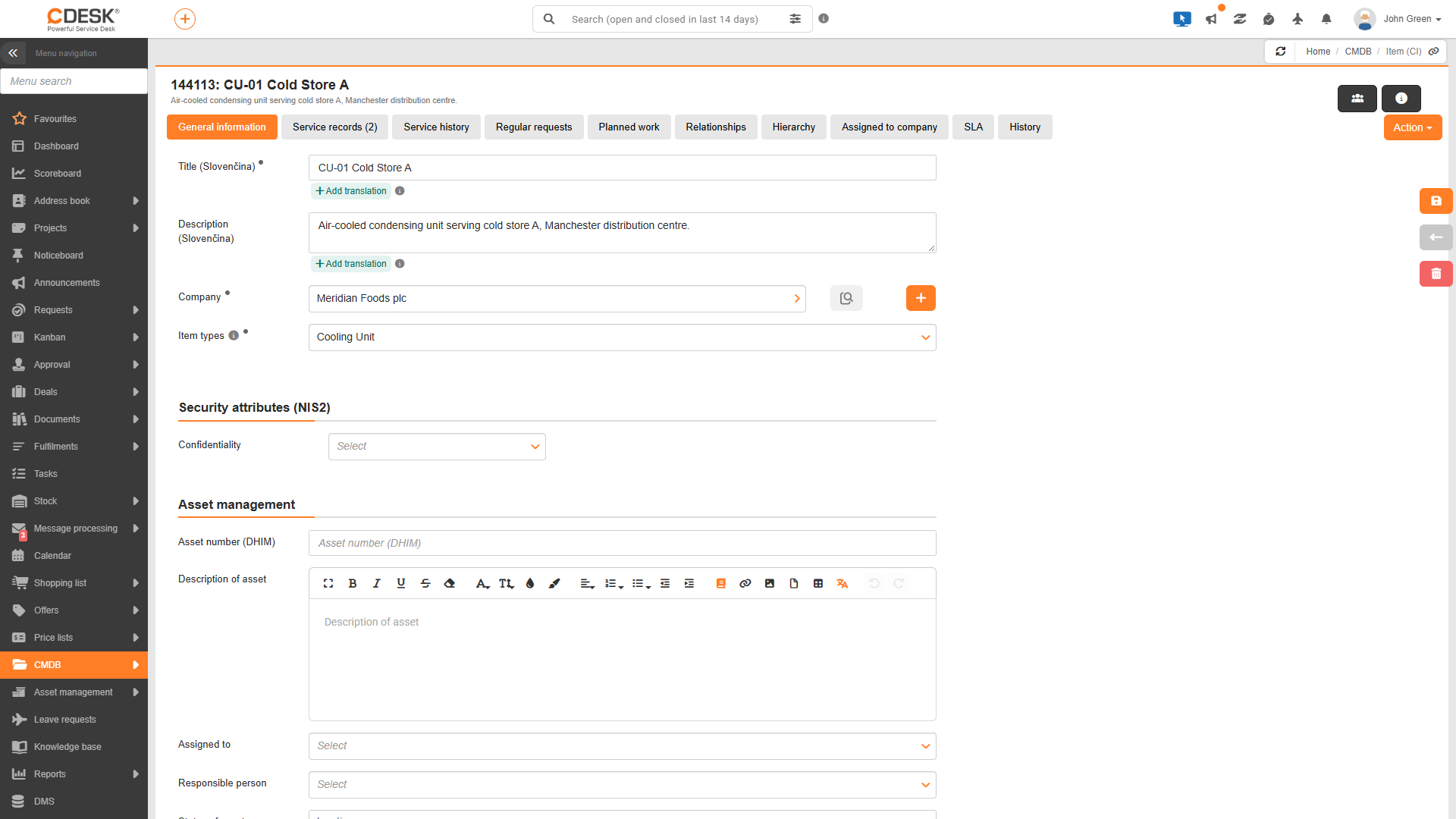
When service records are enabled, the order and names of the tabs in the CI details view also change. The Service Records tab appears immediately after the General Information tab, and the original Records tab is renamed to Service History.
| Bookmark | What it is used for | When it is viewed |
|---|---|---|
| General information | Basic CI data and user-defined fields. | Always |
| Service records | Service records for the equipment, as described on this page. | The CI type has service records enabled and the user has ‘Access’ permission |
| Service history | The original Records tab with additional records for the CI. When service records are enabled, it is simply renamed. | Depending on the authorizations for the ‘Records’ tab |
| Regular requests | Regular requests linked to the CI. | Depending on permissions for the |
| Other tabs | By CI category. The SLA tab appears before the History tab. | by CI category and permissions |
Tab header
The tab header contains an overview of records and controls for switching between lists and for creating a record manually.
- The title ‘Service Records’ displays a summary, for example ‘2 records · sorted by most recent’.
- The View archived tick box switches the list to view archived records. Active and archived records are not displayed together.
- The Request field and the + Create service record or Update service record button are used to create and update records manually (see the Manual creation and updating page). These are only visible to users with ‘Write’ permissions.
If there are more records, click the ‘View more’ button to load the rest. If the device does not yet have any records, the text ‘No service records exist yet’ will be displayed; in the archive, the text ‘There are no service records in the archive’ will be displayed.
Record row
Each record is viewed in the list as a row with a brief summary. The row shows which request the record relates to, who created it, how much work it involves, and whether it has been signed. Clicking on a row expands the record and views its details. Only one record can be expanded at a time.
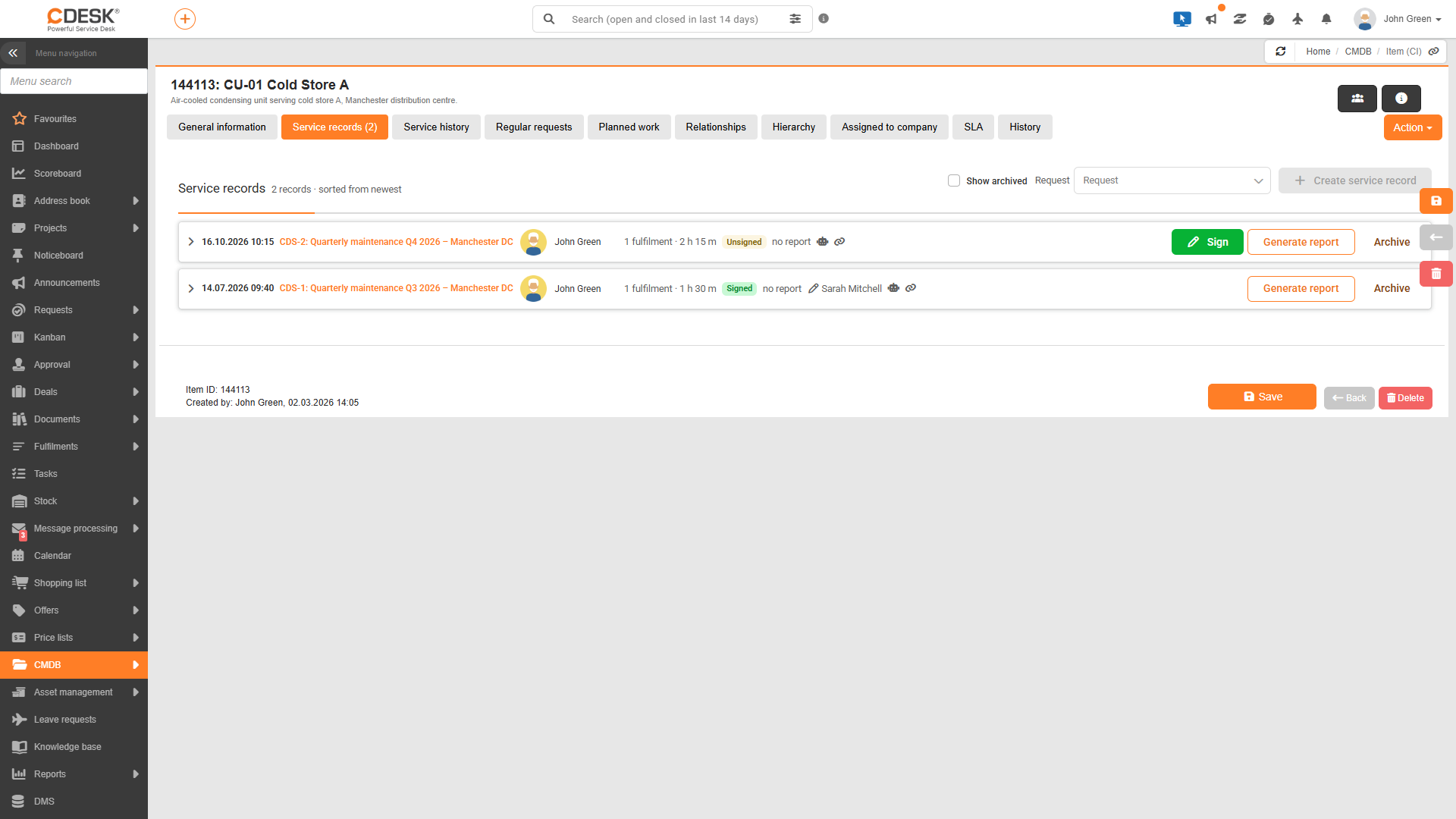
- Date and time – Time of creation or last update of the record.
- Request – The number and name of the request. Clicking on this opens the request in a separate window.
- Author – The user who created or last updated the record.
- Summary – Quantity of fulfilments, total time and kilometres, for example ‘2 fulfilments · 1 h 30 m · 24 km’.
- Status labels – Unsigned (yellow) or Signed (green). For archived records, Archived (grey) is also displayed.
- Protocols – Quantity of protocols, for example ‘2 protocols’ or ‘no protocol’. Viewed when the row is collapsed.
- Signature – A pen icon with the name of the contact who signed the record.
- Automatic creation – An icon labelled Automatically created.
- Link – The Copy hyperlink to record icon copies a link that opens the CI directly on this record. The link can be sent, for example, to a colleague.
The action buttons are located on the right-hand side of the row. They are only viewed by users with ‘Edit’ permissions, and only when the action is available for the record in question.
| Button | When it is viewed | What it does |
|---|---|---|
| Sign | When an unsigned record is active. | Opens a window for the client to sign (see the Service Record Signature page). |
| Generate protocol | If the appropriate NETGRIF connector is configured, even for signed and archived records. | Generates a service protocol (see the Service Protocols page). |
| Archive | For active records, whether signed or unsigned. | Archives the record without further confirmation. |
| Delete service record | For archived records. | The record is deleted upon confirmation. |
Record details
When you expand a row, the record details are viewed, divided into two sections. The left-hand section contains the work carried out during the service, i.e. the work report and protocols. The right-hand section shows the condition of the equipment on the date of the service. For a signed record, a bar labelled Signed by the customer – locked appears above both sections, displaying the signatory’s name, the date and an image of the signature.
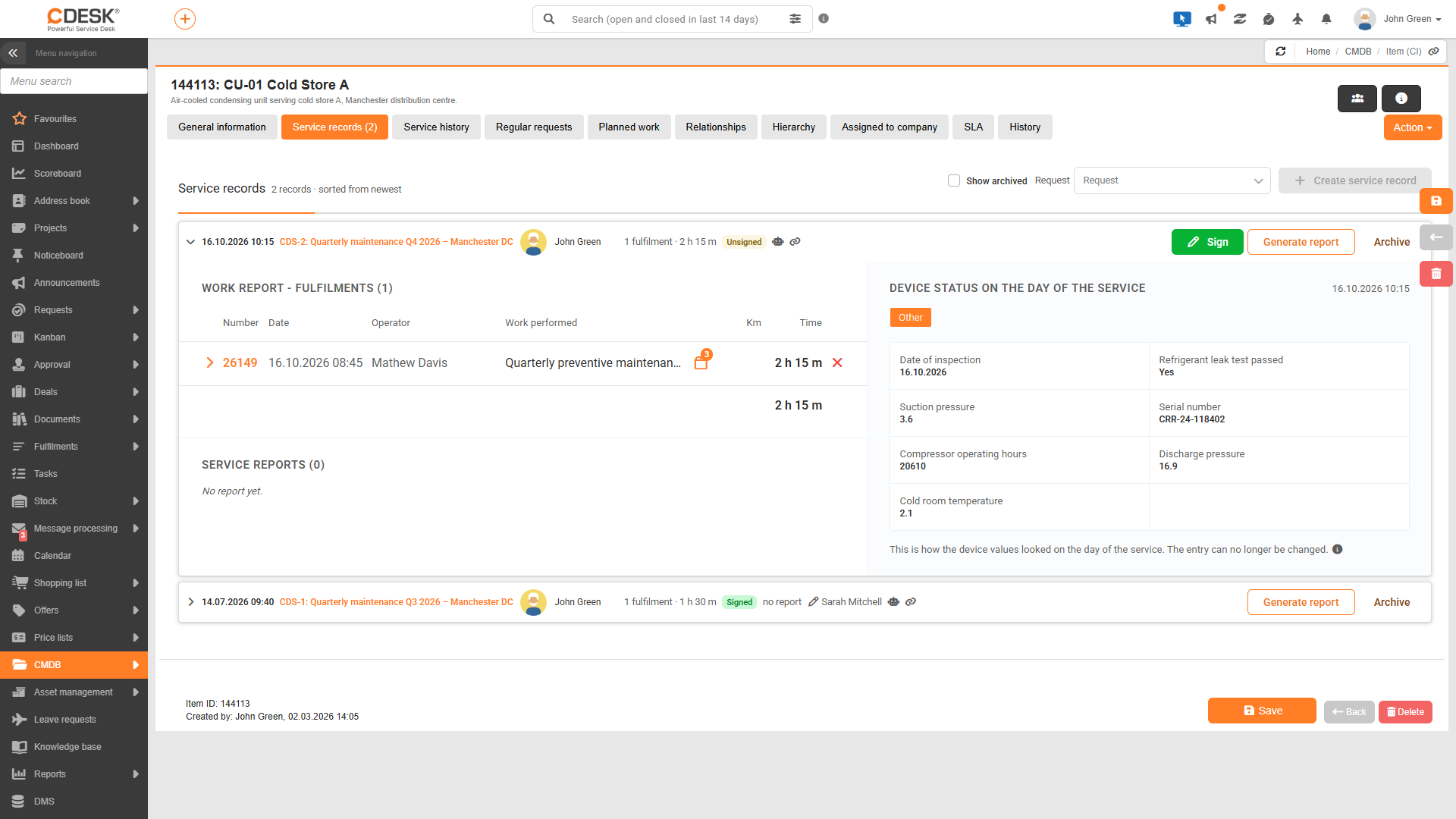
Left-hand section – Work Report and Protocols. The Work Report – Fulfilments (N) section contains a table of the fulfilments included in the record and is described on the Work Report in Service Record page. The Service Reports (N) section contains a list of generated protocols and is described on the Service Reports page.
Right-hand section – Device condition on the day of the service. This section displays the values of the CI fields stored in the record. Above them is the title Device condition on the date of service with the date and toggle buttons corresponding to the field tabs for the CI type, or the Other button. Clicking a button views the fields from the relevant tab. Below the values is the comment: “This is what the device values looked like on the date of the service. The record will not be changed.” This serves as a reminder that this is a saved status: if the values on the CI change later, the original values will remain in the record. If the record has no fields, the text “The record does not contain any user-defined fields” is displayed.
Was this page helpful?
Thank you for your feedback.