
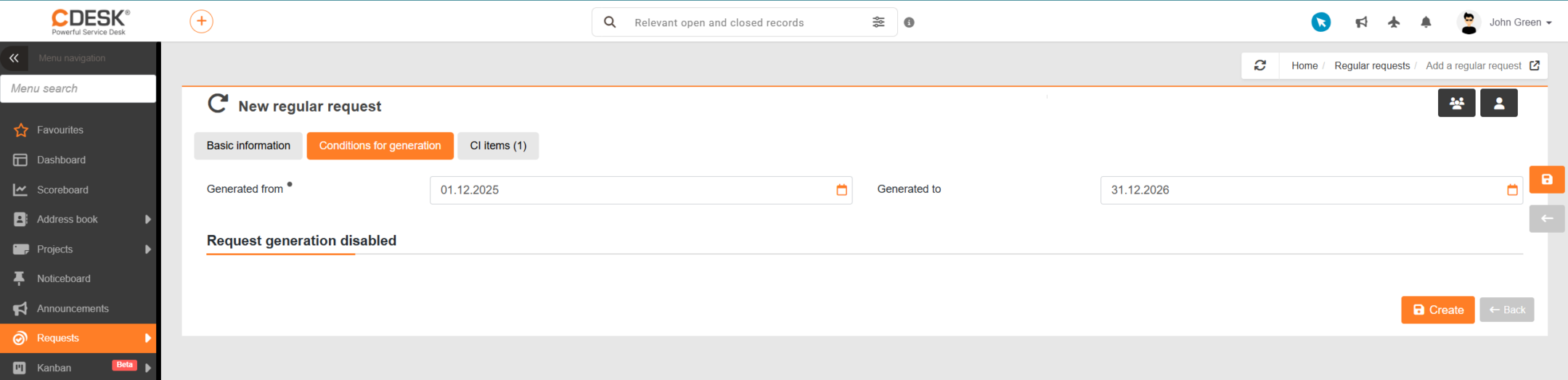
Part of setting up a regular request involves setting the settings for how and at what intervals it is generated. You can set these settings on the ‘Condition of generation’. There are several options to choose from,
- according to a schedule
- by parameter
- by schedule and parameter
- generation disabled
When creating a regular request, you can set a time limit on the period during which the request will be generated. You can set the exact validity period using the ‘From’ and ‘To’ fields at the top of the form,
- Generation from – the start date from which the regular request will start to be generated.
- Generate until – the date up to which the regular request is to be generated. If you leave the field blank, the regular request will be generated at the specified intervals until the generation of requests is disabled.
Generation according to the schedule
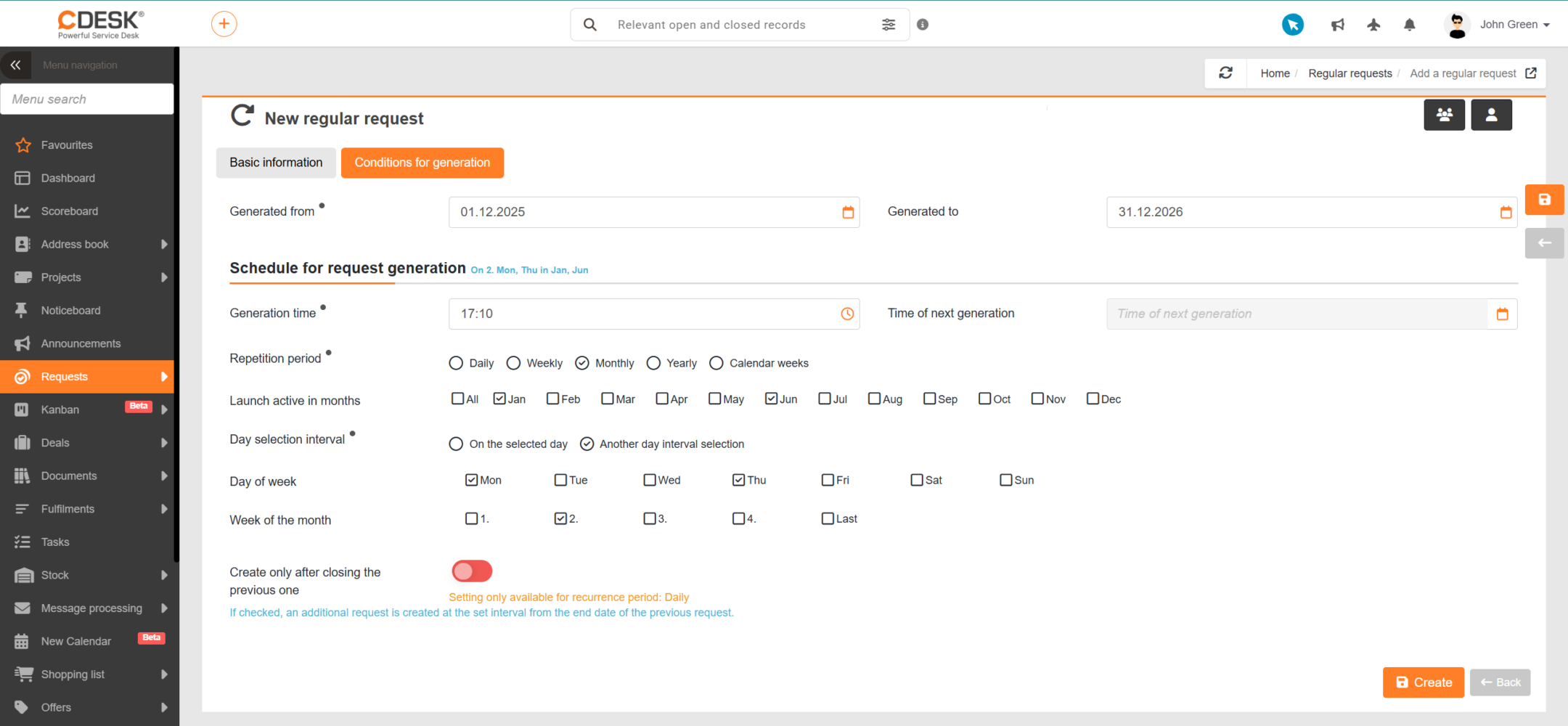
Do you carry out actions that occur at regular intervals? Scheduled generation allows you to set up the generation of a request, for example, only on certain dates of the week, or in selected weeks or months of the year, whilst also giving you the option to specify the exact time of generation.
You can set the generation schedule in a form that includes the following fields:
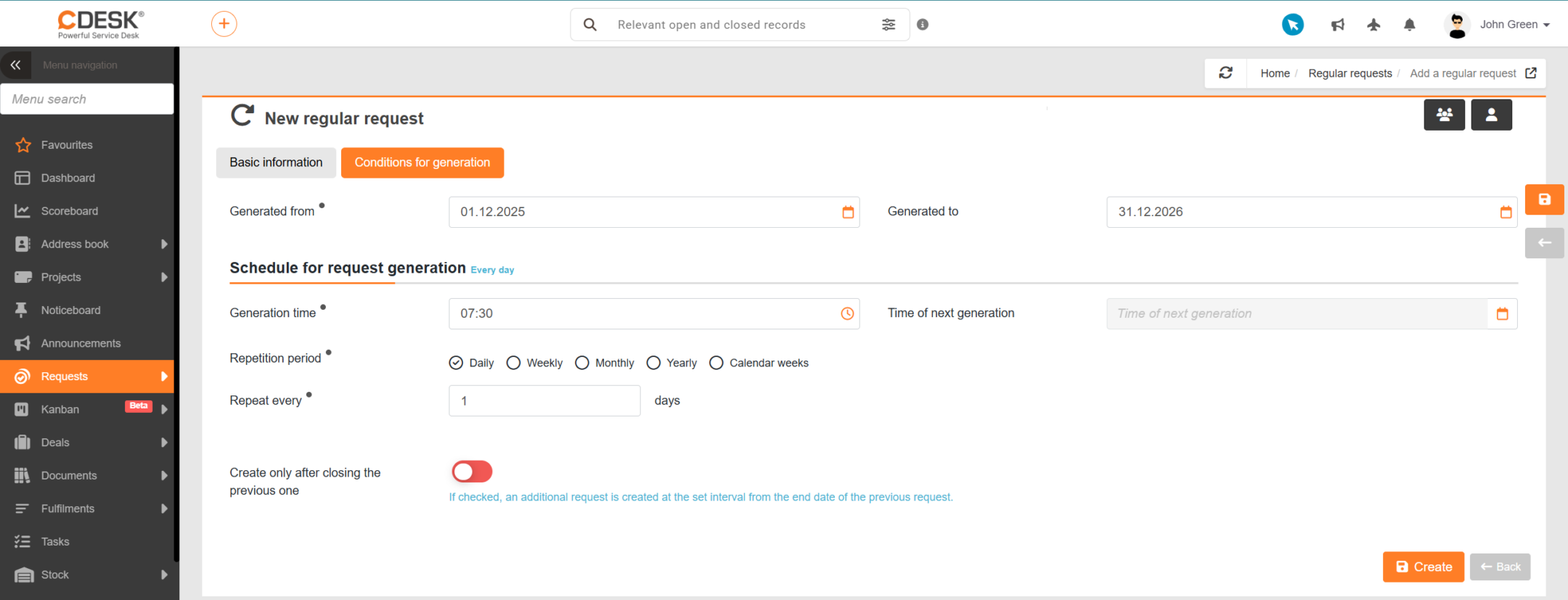
- Generation time – the time at which the request is to be generated.
- Next generation – once you have selected the recurrence period and saved your settings, the date of the next request to be generated will be viewed.
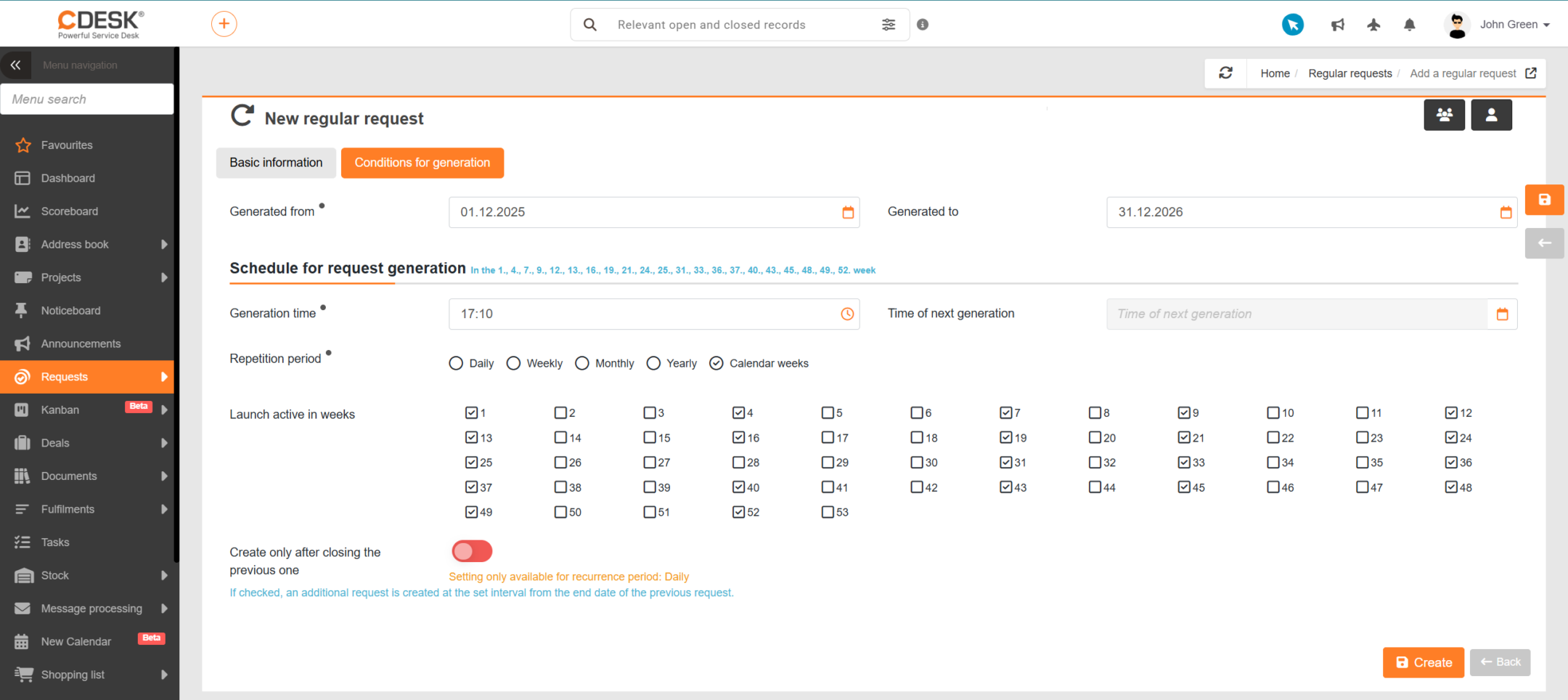
- Recurrence period – the interval at which the regular request is to be generated:
- Daily – specify the interval in dates.
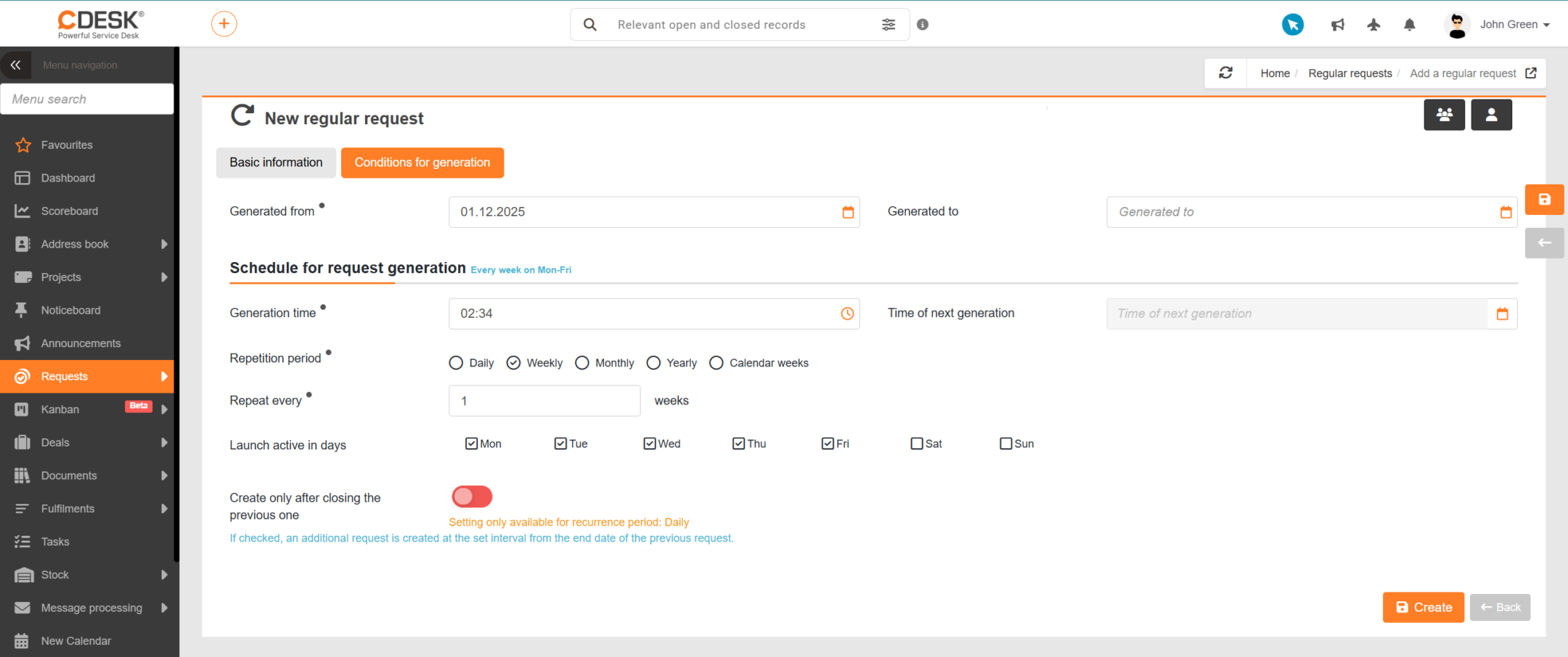
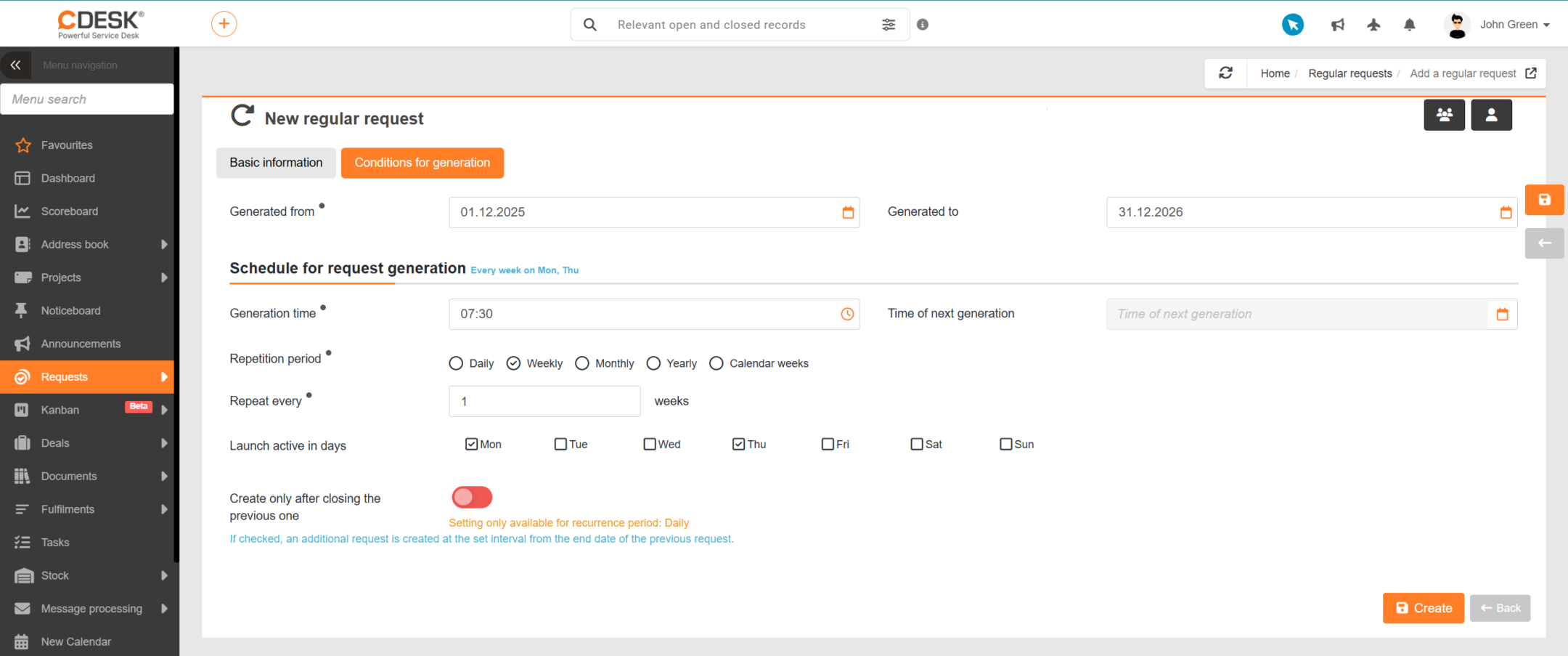
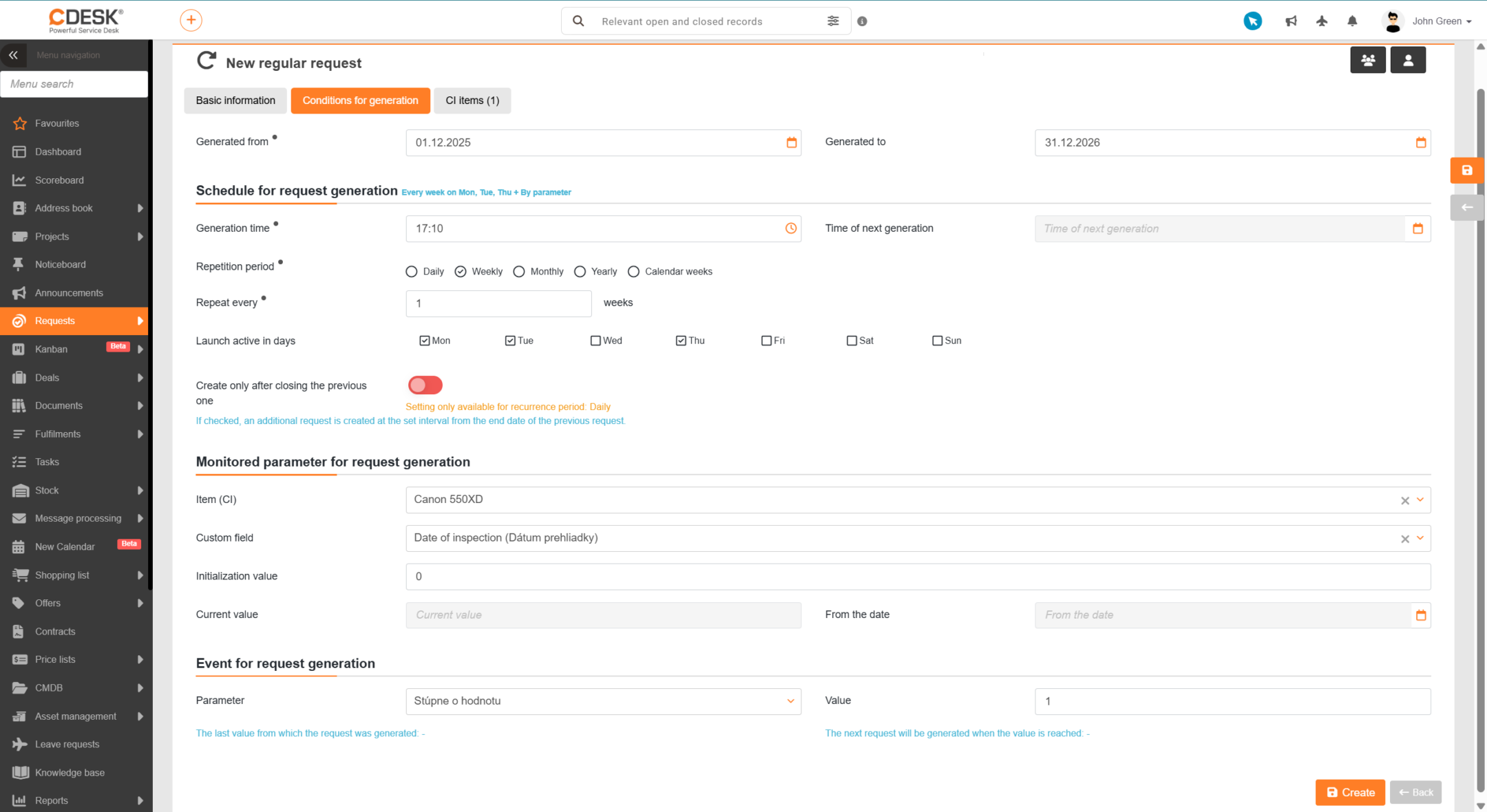
- Weekly – specify the interval in weeks and select the day, or days, of the week on which the request is to be generated. If you do not select a day, the generation date of the next request will be calculated based on the ‘Generation from’ date.
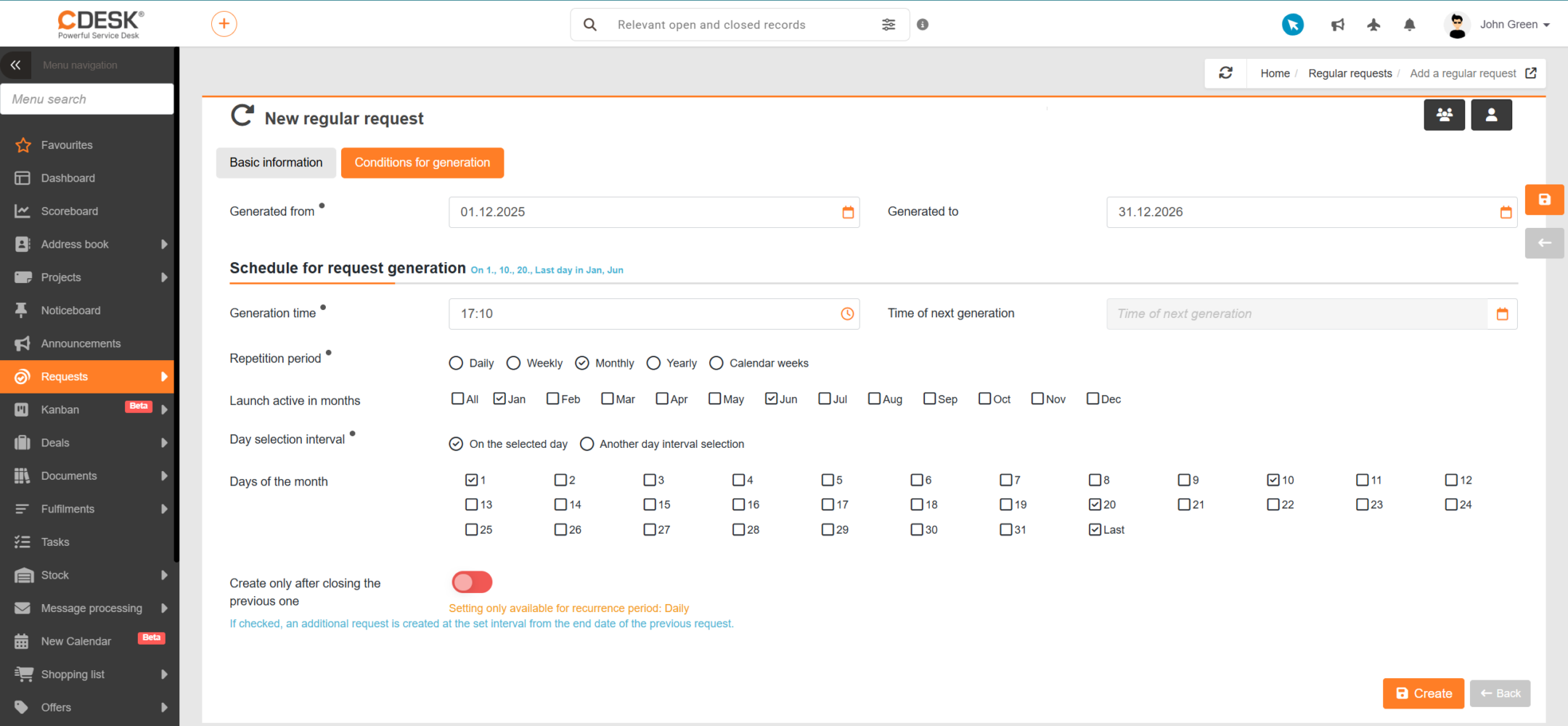
- Monthly – select the months in which the request is to be generated. Further options allow you to select a specific date of the month or a specific date in a selected week of the month.
- Annually – specify an interval in years. The date for generating the next request will be calculated based on the ‘Generate from’ date.
- Calendar weeks – a regular request will be generated on the first date of the selected calendar weeks.
- Recurrence every – specifies the period after which the request should start being generated again. This field is available in the settings for the recurrence period:
- ‘Active on the following dates’ – this field is available if the recurrence period is set to ‘weekly’. It allows you to select the dates of the week on which the request will be generated.
- Run in months – this field is available if the recurrence period is set to monthly. It allows you to select the months of the year in which the request generation will be active.
- Date selection interval
- On a selected date – makes the field for selecting days in the months available.
- Other date selection interval – makes the field for selecting the date of the week and the week of the month available.
- Day of the month – allows you to select a date of the month by date. This field is available if the request generation recurrence period is set to monthly and Day selection interval has been set to ‘On a selected date’.
- Day of the week – allows you to select a specific date of the month. This field is available if a monthly recurrence period for request generation is set and the Day selection interval has been set to ‘Other day selection interval’.
- Week of the month – allows you to select a specific week of the month. This field is available if a monthly recurrence period for request generation has been set and the date selection interval has been set to ‘Other date selection interval’.
- Schedule running in weeks – this field is available if the recurrence period is set to calendar weeks. It allows you to select the weeks in the calendar year during which request generation will be active.
Generation by parameter
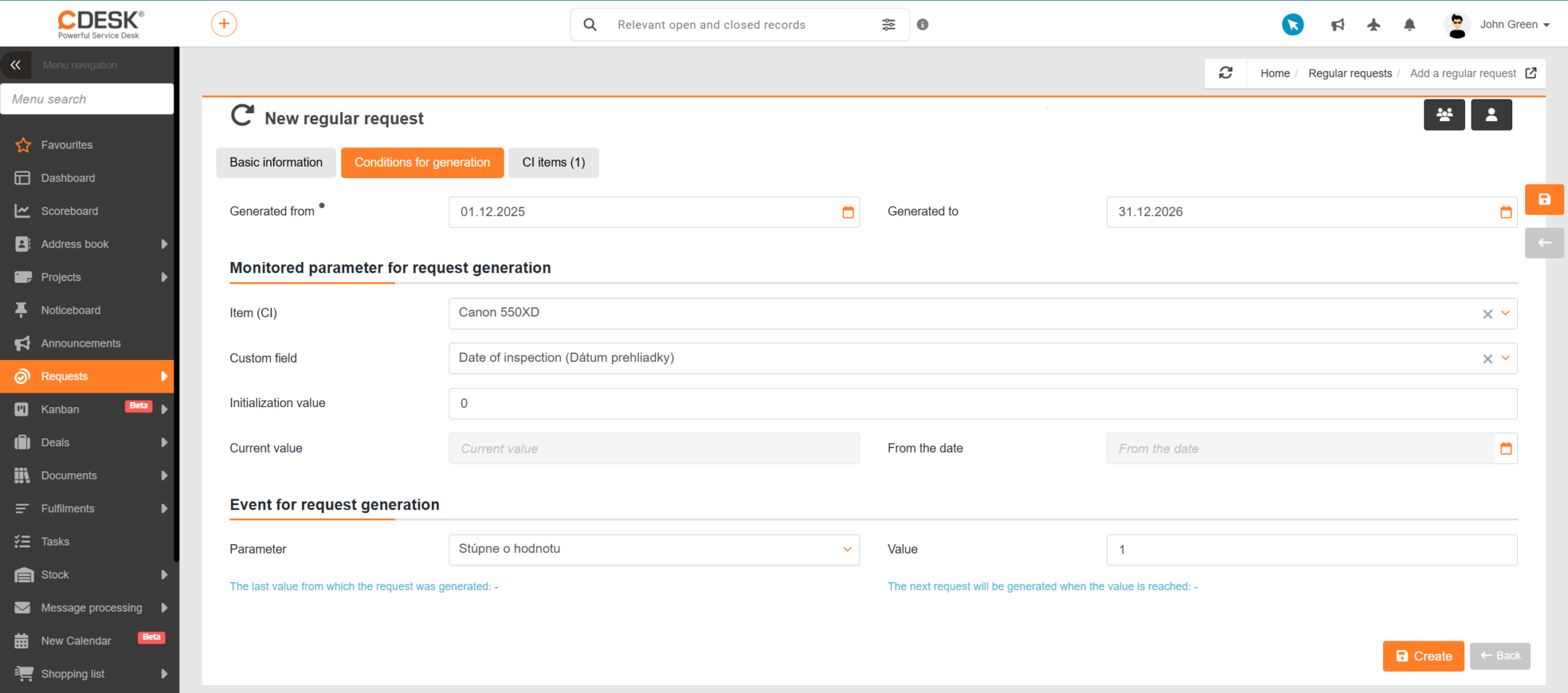
Generation based on a parameter makes it easier for you to create requests that depend on the value of a specific object’s property. This ensures that requests are generated regularly without you having to manually check the object’s current value; CDESK takes care of this for you.
You can set up parameter-based generation using the following fields:
- Object – a field for selecting the configuration object that is accessible to the customer named on the request. The selection of properties on which the generation of the request will depend is determined by the selected object.
- Property – selection of properties available for the selected object.
- Initialization value – enter the value from which the count-down will start.
- Current value – displays the value currently held in CDESK for the given property.
- From date – the date to which the displayed current value relates.
- Event for generating requests
- Parameter – you can select one of the following mathematical operations:
- Increase by a value
- Increases by a value
- Decrease by value
- Fall below a multiple of the value
- Value – enter the number to be applied to the selected mathematical operation.
In the form on the left-hand side, you can see the last value from which the request was generated. On the right-hand side is the calculated value at which it will be generated again.
Generation based on schedule and parameters
This method involves a combination of generating requests based on the criteria described above. If requirement generation is set to be based on both the schedule and a parameter, fields will become available on the tab that are applied when configuring requirement generation based on both the schedule and the parameter. The meaning of these fields is explained in the text above.
Generation of regular requests disabled
If request generation is disabled, only the fields for setting the time period during which the request will be generated will be available on the Condition of Generation tab.
By clicking the Save button, you will create a rule for generating recurring requests. The generated requests are available under Requests → List of requests, and will be marked as ‘Regular request’.