




Beta verzia novej dokumentácie.
Home Approval Use of approvals List of Approvals
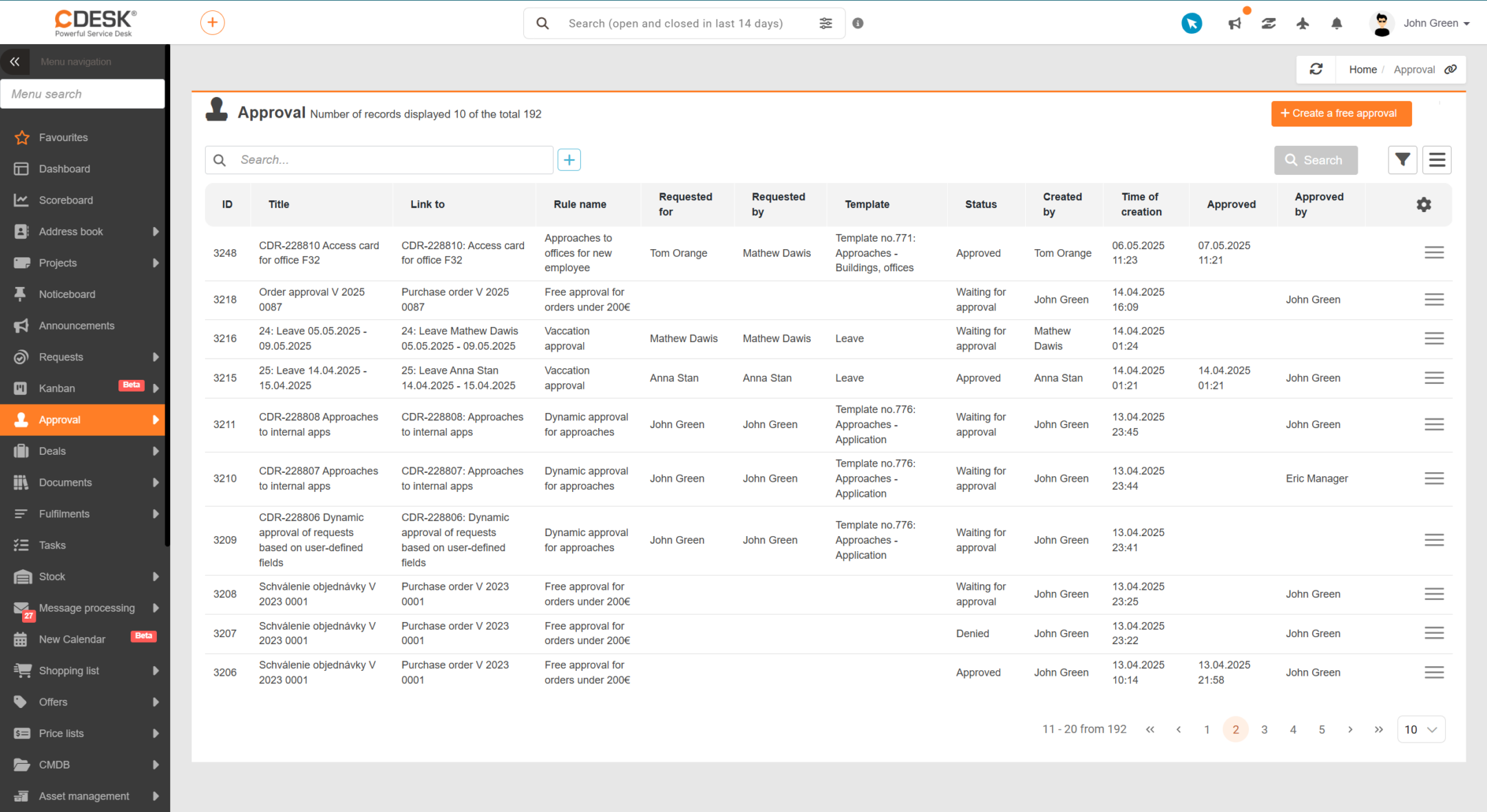
All approvals recorded in the system are available in the main menu under Approval → Approval. If the Approval item is not found in the main menu, you need to verify the permissions for accessing this module in the user details (under Users and Groups → Users) on the Permissions → Approval tab.
The header of the approval list window displays the number of records shown out of the total number; it also contains controls for creating an open approval and searching using an advanced filter, along with the option to save it. This is followed by a list of approvals based on the currently set filter or search results. The list currently displays the following columns:
Double-click the row for the relevant approval, or click the hamburger menu at the end of the row and select the option Edit to open the approval details.
For an effective search by entering the desired term, you can use the Search field located above the list of approvals. This so-called full-text search searches the following columns:
If you need to search for approvals based on multiple criteria, you can use the advanced search filter, which you can apply by clicking the button + next to the field Search. In this filter, you can specify specific search conditions for the following columns:
Depending on the column type, you can choose between “contains” or “does not contain” conditions for the search term or part of it; for dropdown lists, select one of the available values. You can freely combine and expand search conditions using the logical operators AND (and) and OR (or). You can save frequently used or otherwise specific filtering conditions under a name of your choice, and they will be available with a single click above the approval list for future use.
For more information on how to use filters effectively in CDESK, see Search and filtering.
Home Approval Use of approvals List of Approvals
Na tejto stránke