



Beta verzia novej dokumentácie.
Home Approval Use of approvals Approval of Leave Requests
The approval feature can also be used in conjunction with leave requests. Using the Leave Requests module, you can track any type of leave, whether it be vacation, compensatory time off, or other types of leave (sick leave, parental leave, etc.), which you can configure as needed. Each of the listed leave requests is defined by a template with detailed parameter settings for individual leave types. For each template, you can also define an approval workflow with approval steps, giving you control over leave allocation.
You can configure the various types of leave requests in the section Global Settings → Leave Requests. For each type of leave, you must create a template in which you specify the basic details (number of days, time unit, public holidays, and others), select the users, and define the approval parameters. We cover the module settings as well as the actual submission of leave requests in detail in a separate section of the documentation.
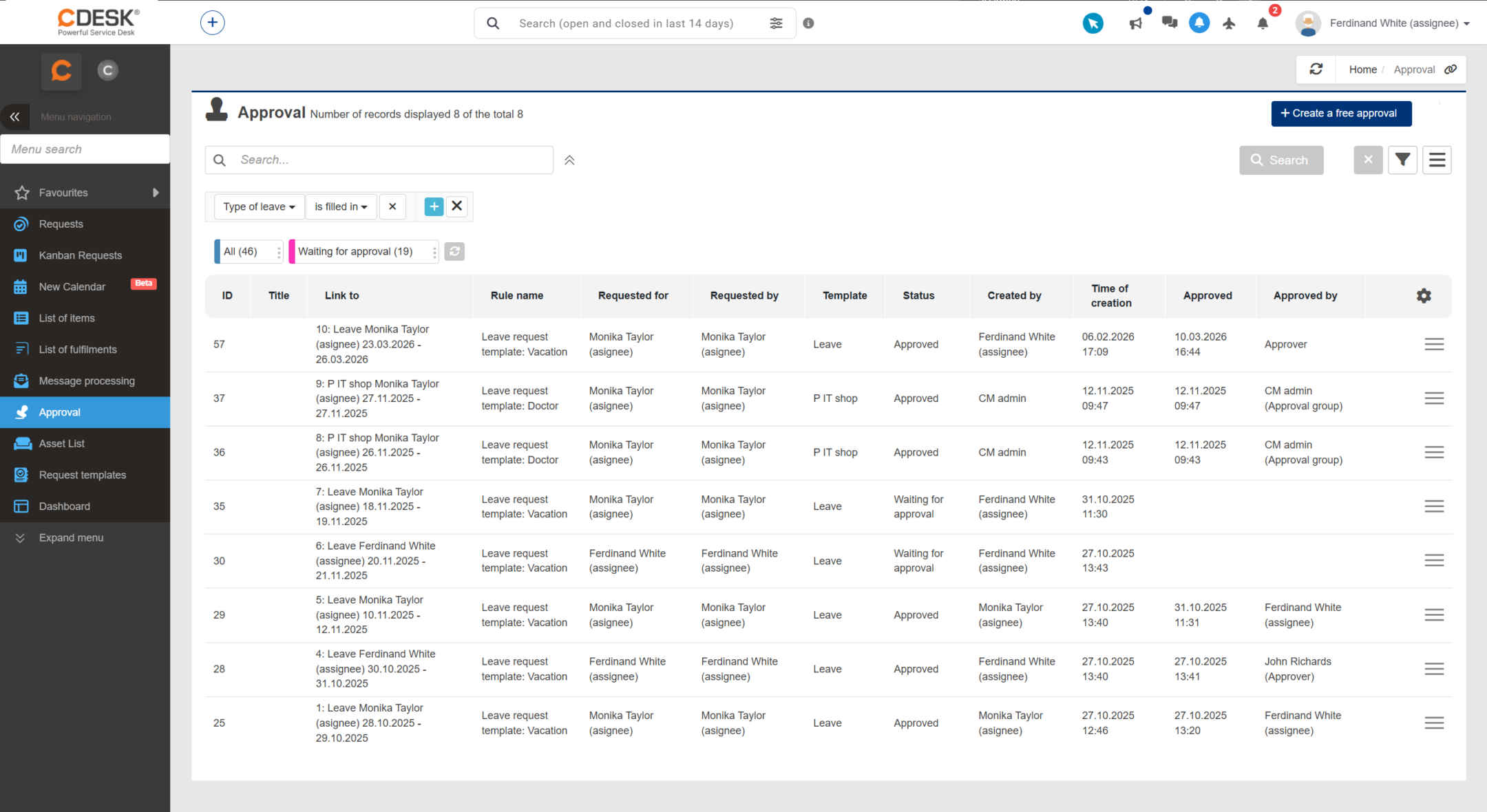
Once the module has been configured, it’s time to put it into practice—specifically, the submission and approval of leave requests by CDESK users. All registered requests are available in the section Leave Requests. Requests subject to approval (depending on the leave template settings) are also available in the section Approval → Approval, since for this type of leave, an approval process is automatically created upon submission of the request, which awaits a decision from the designated approver or multiple approvers.
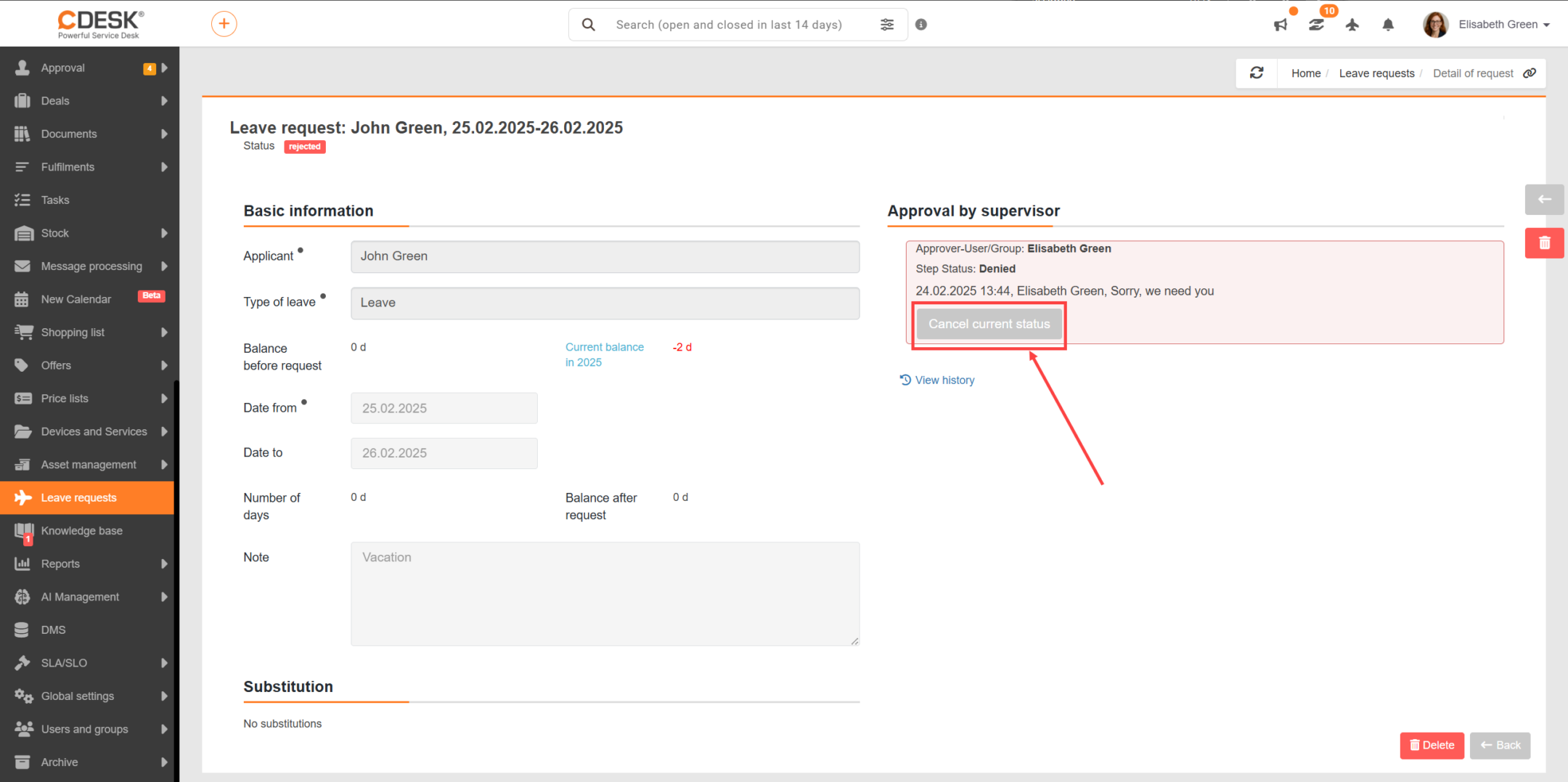
A leave request that requires approval automatically enters the awaiting approval status upon creation. The approver receives a request for approval notification. When you open the record details, information about the approval process and the approval steps is displayed. The number of approvals, required steps, and approval method depend on the leave template settings.
Once approved, the application status is automatically changed to pending disbursement (or disbursed depending on the current status). In case of denial, the application status is denied. Approvers also have the option to revoke their decision and subsequently comment again on the approval step, which may affect the overall approval result. It is possible to change the decision by clicking the Revoke the current status button in the relevant approval step.
An application for which the drawdown period has already begun cannot be edited, nor can its approval status be revoked. If changes are made to the details of an approved application for which the drawdown period has not yet begun (e.g., a change to the drawdown period), that application is automatically resubmitted for approval.
Home Approval Use of approvals Approval of Leave Requests
Na tejto stránke