


Beta verzia novej dokumentácie.
Home Connectors Authentication to CDESK using Google
Authentication using Google serves to increase security and simplify logging in to CDESK. Connecting CDESK with Google requires no settings outside CDESK itself and is therefore very simple. To use this feature you must have your own CDESK / CM Server domain.
Users who have a Google e-mail assigned to their CDESK account can log in. The system also allows new customer accounts to be created automatically. If your e-mail address or domain is among a company’s allowed domains, you can create an account without an administrator’s involvement. You can read more about this feature in the article Self-service creation of customer accounts.
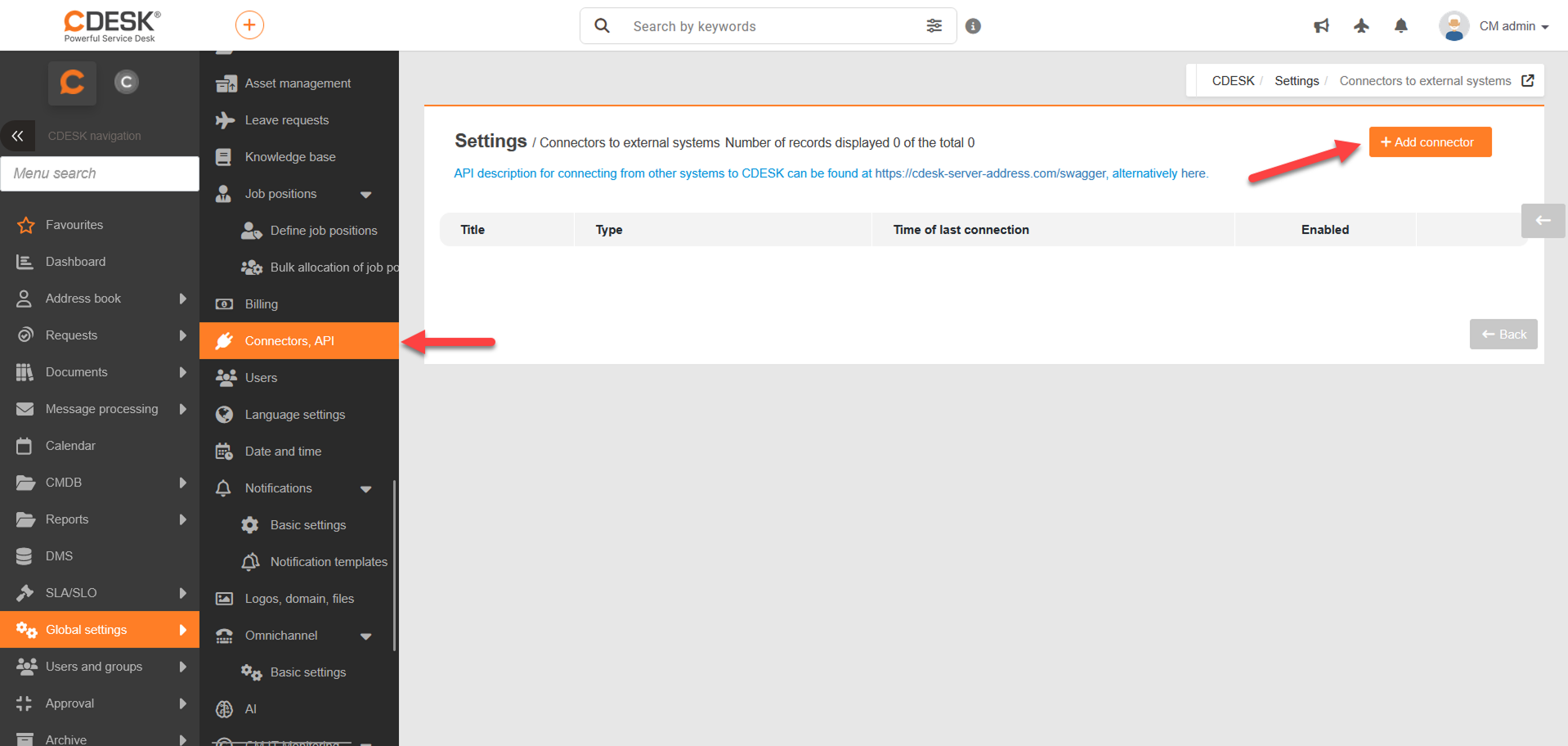
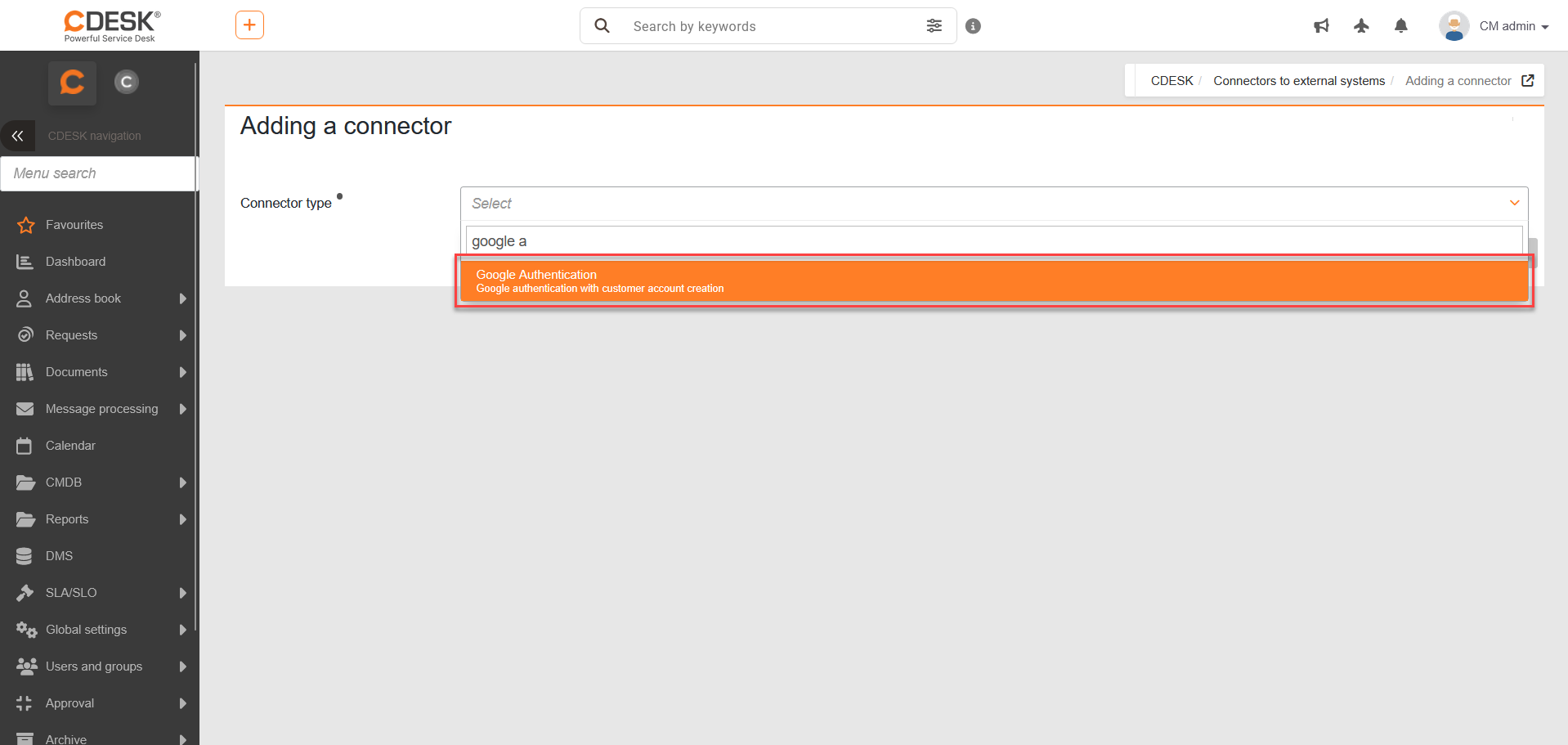
The setup procedure is described below.
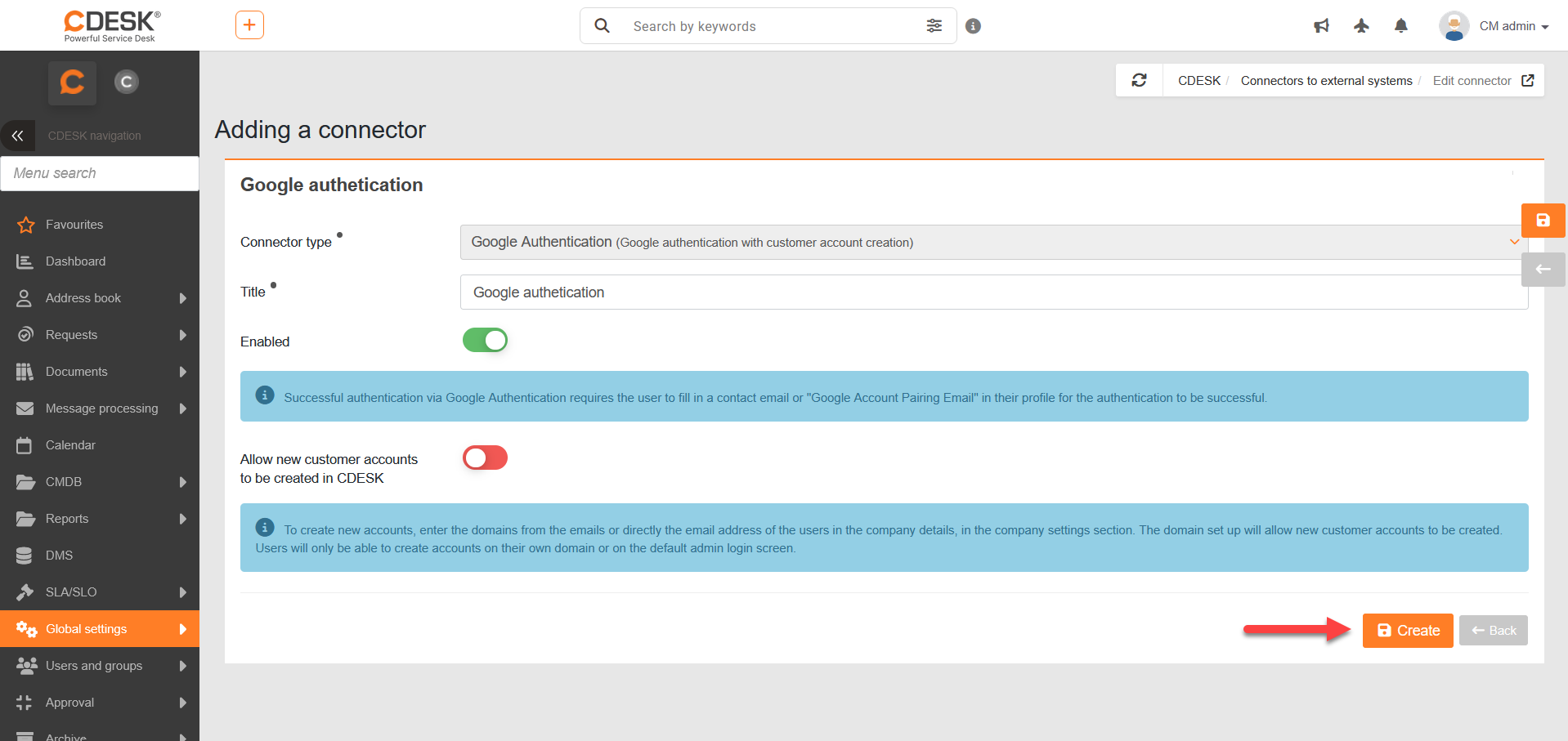
The form for configuring the Google Authentication connector then opens. Fields marked with • are mandatory. Description of the individual fields:
Connector type • – The connector you selected in the previous step, filled in automatically.
Title • – The name under which the connector will be shown in the list of connectors.
Enabled – Switches the connector’s activity on or off. If you do not want to use the connector, turn this switch off.
Allow new customer accounts to be created in CDESK – When switched on, users from allowed domains who do not yet have a CDESK account will be able to create a user account after successfully authenticating via Google. Configuring this feature is described in more detail below in the article Self-service creation of customer accounts.
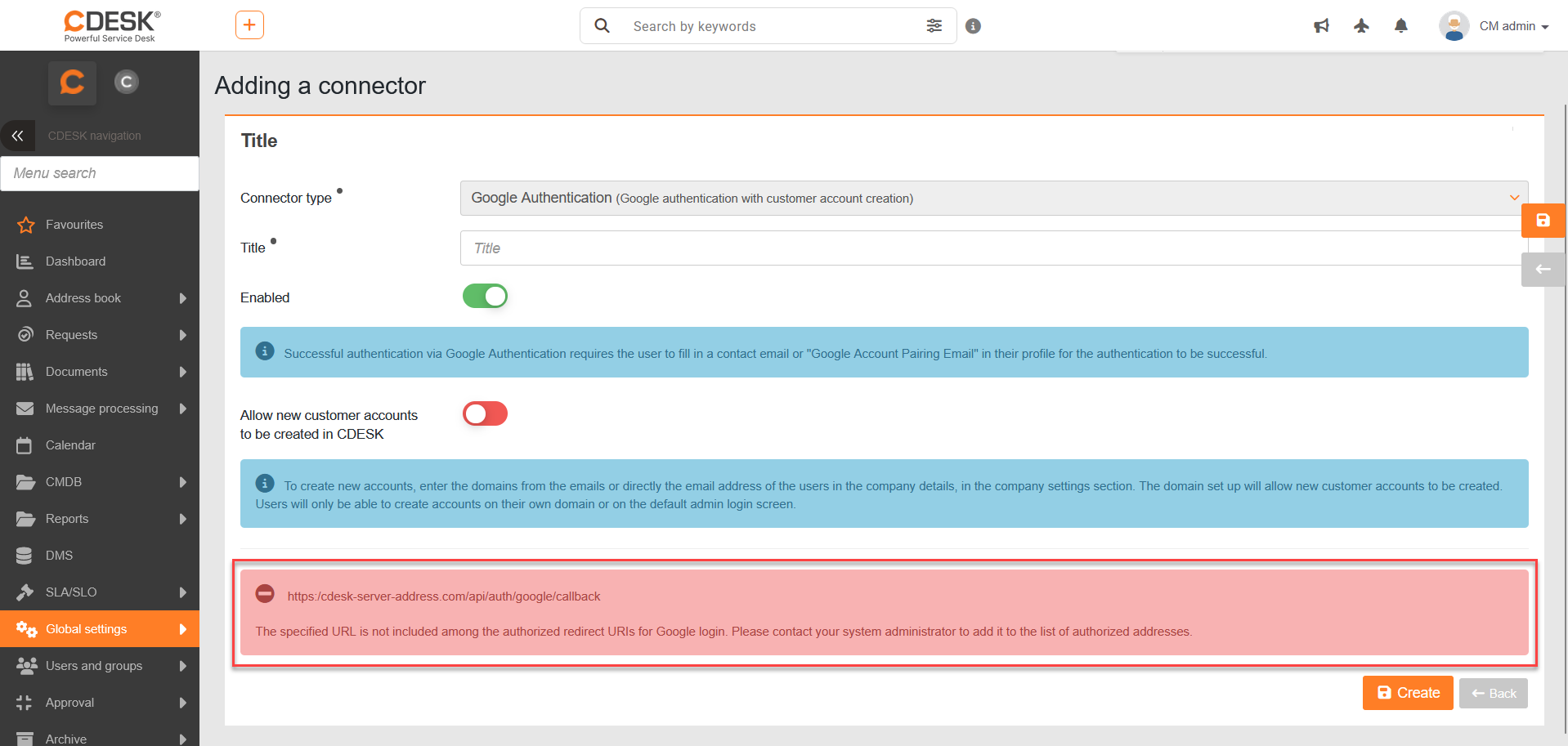
Note: If the message The specified URL is not included among the authorized redirect URIs for Google login. Please contact your system administrator to add it to the list of authorized addresses, is displayed, ask your administrator to add your domain to the list of allowed domains.
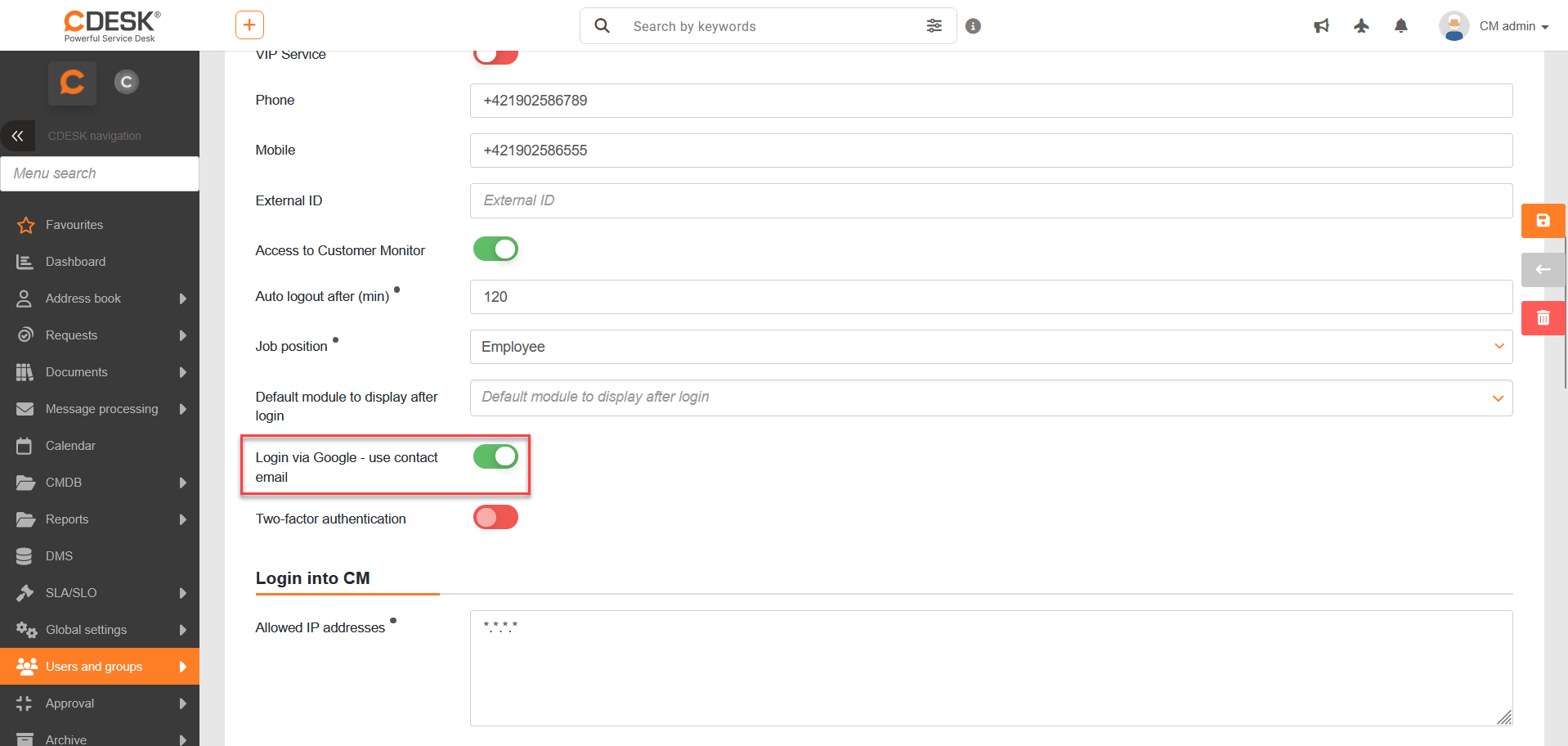
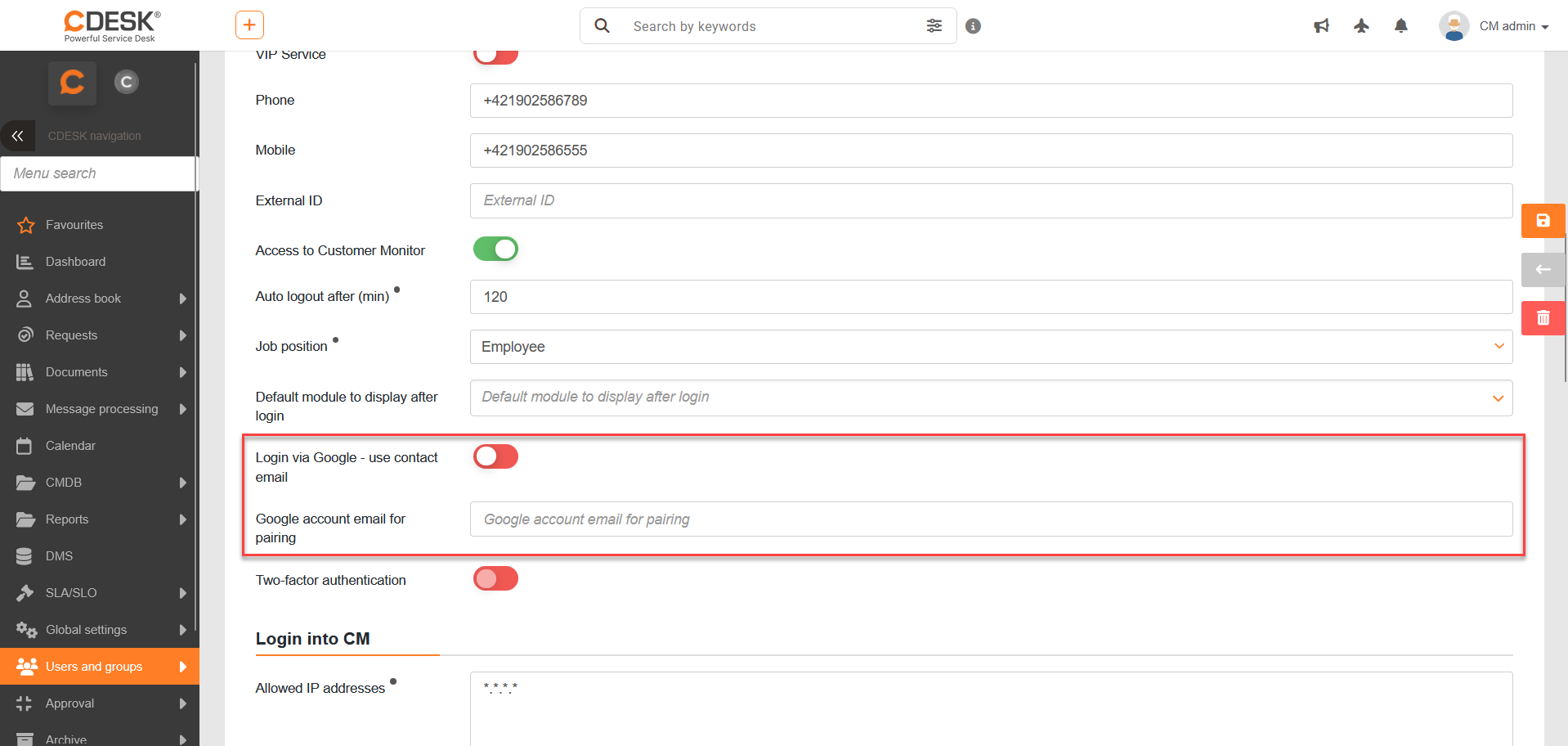
Go to Users and groups → Users. In the list, open the user account you want to link and scroll down on the General settings tab.
Once configuration of the Google Authentication connector is complete, the Logging in via Google – use the contact email switch is on by default in all accounts, meaning the contact e-mail that has been set is used for authentication.
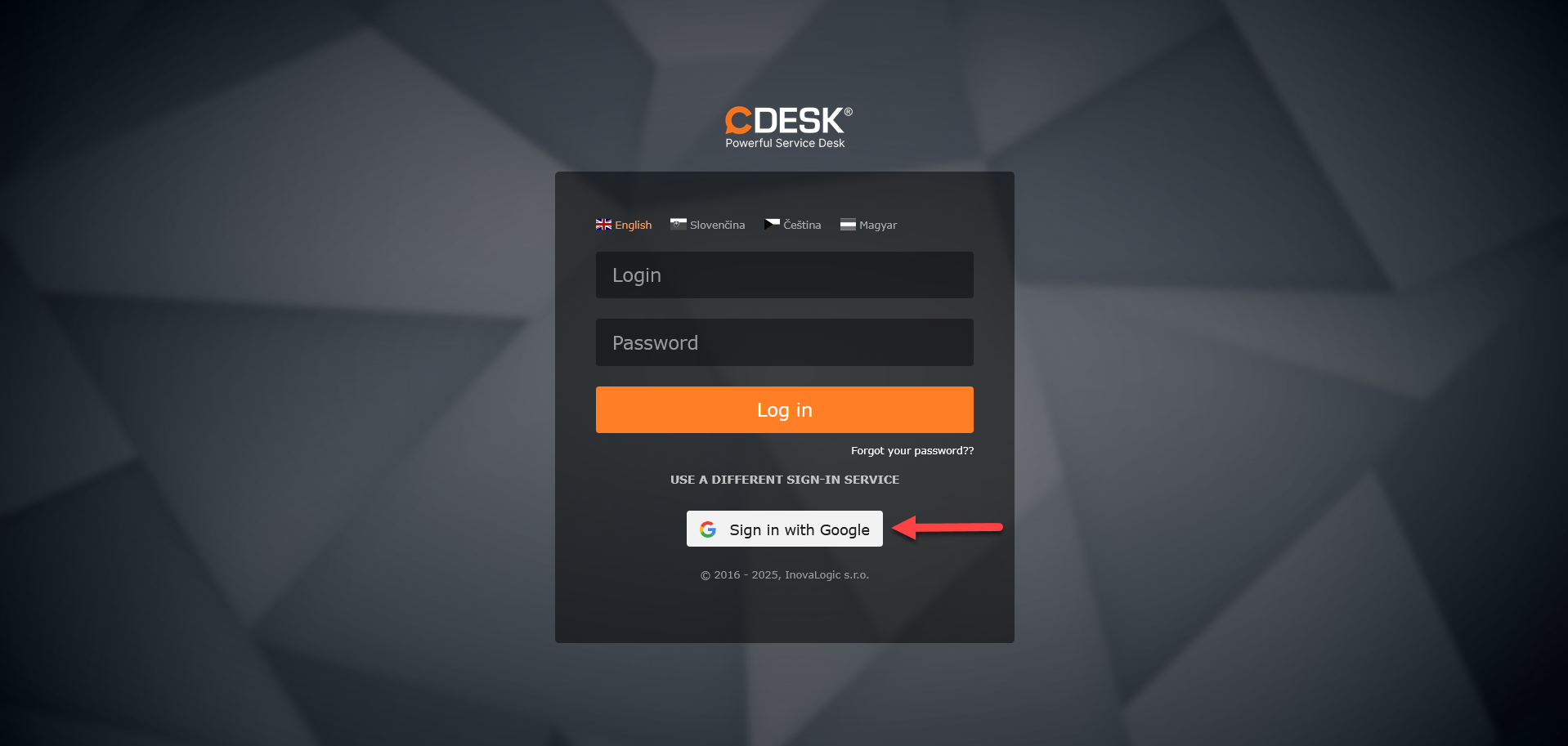
Once the Google Authentication connector has been configured, a button for logging in via Google appears on the CDESK login screen.
After clicking it you are redirected to the Google login page, where you verify your identity with your login details. If you are already logged in in the browser, authentication takes place automatically and you are redirected to CDESK immediately, without having to enter your login details again.
Home Connectors Authentication to CDESK using Google