Why use the Money S4/S5 connector
If you already use Money S4/S5 software for your records and at the same time want to take advantage of what CDESK offers, you do not have to rewrite data from CDESK into Money by hand. For that purpose we have developed the Money S4/S5 connector, which links Money S4/S5 with CDESK. In its current state the connector makes it possible to:
- load and link companies from Money into CDESK
- load stock cards from Money into CDESK
- write orders in Money based on data from CDESK
Communication between CDESK and Money S4/S5
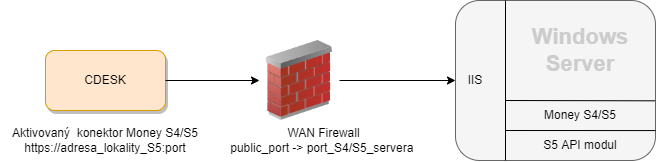
Communication is initiated by CDESK, which connects to the Money S4/S5 API.
Communication between CDESK and Money S4/S5 works through the API of the Money S4/S5 software. CDESK only sends REST API calls to that software. The basic components involved in the communication are shown in the following diagram.
Preparation on the Money S4/S5 side
The API has to be installed on the Money S4/S5 side; you can read more about it directly on the Money S4 website.
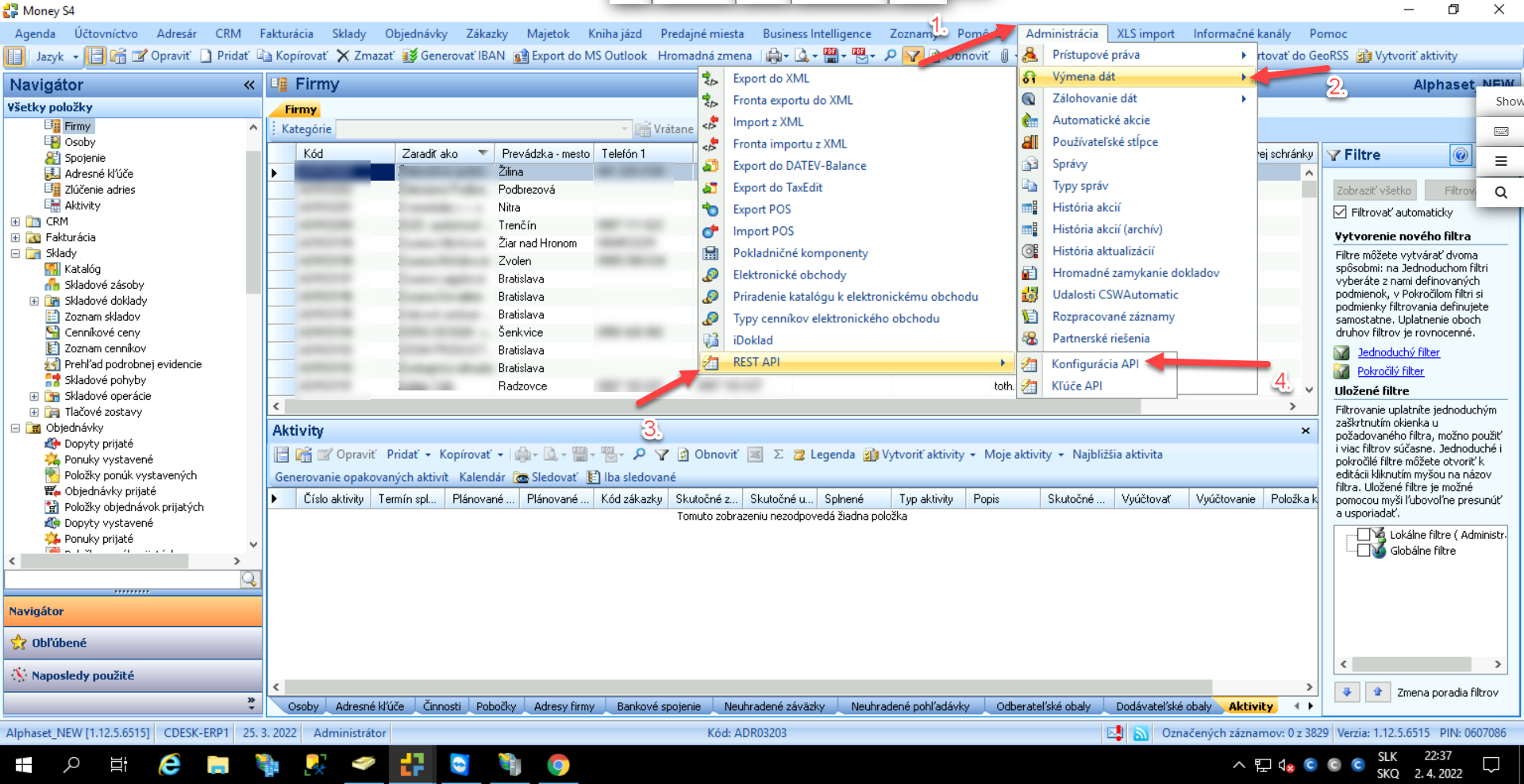
Once the REST API has been installed successfully, open Money S4/S5. Then click Administration -> Data exchange on the top bar, and if the REST API installation went correctly the REST API option will be in the list. In the REST API section, first select the API configuration option.
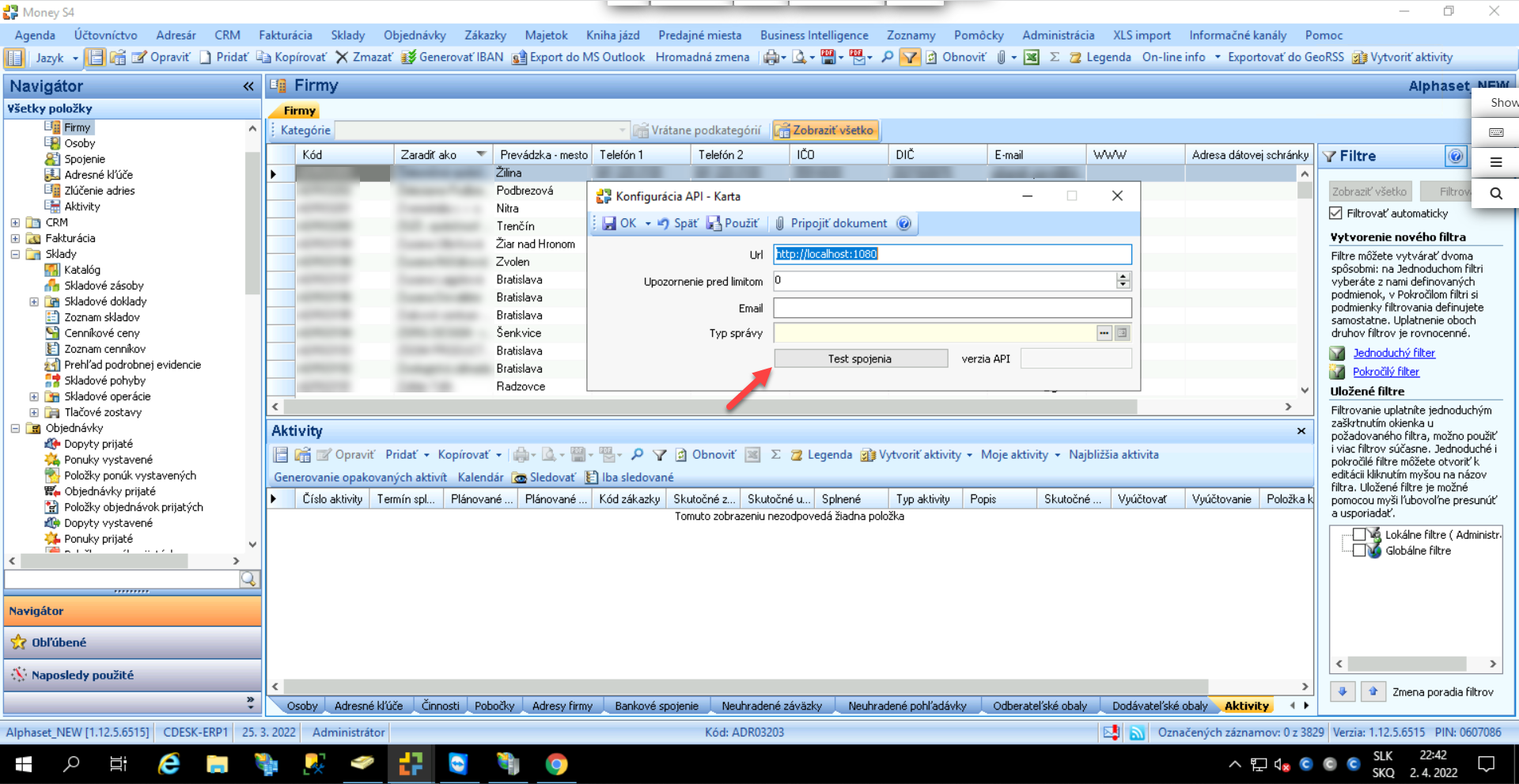
After clicking, a modal window appears in which the URL address of the Money Server has to be entered, including the port number. The URL address may be in the form, for example: http://localhost:1080. Then click the Test connection button. If the address has been entered correctly, a message appears saying that the test was successful.
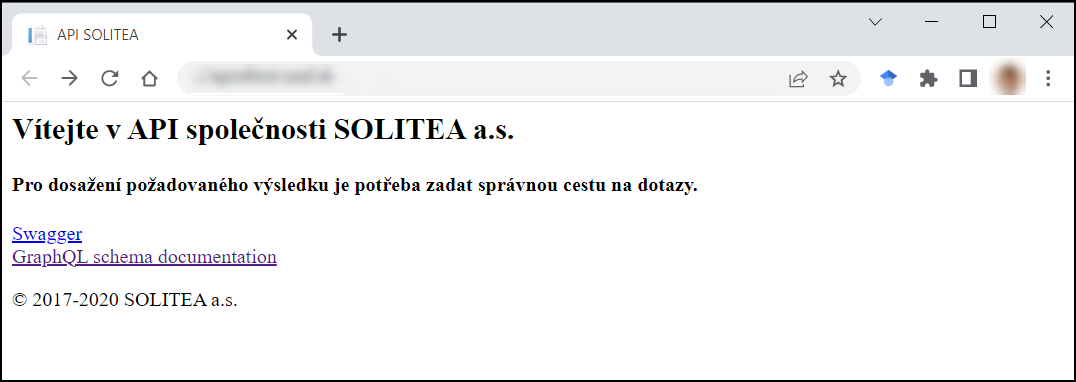
If the S5 API interface has been configured correctly, the following response will be shown on the page on which the API is to run:
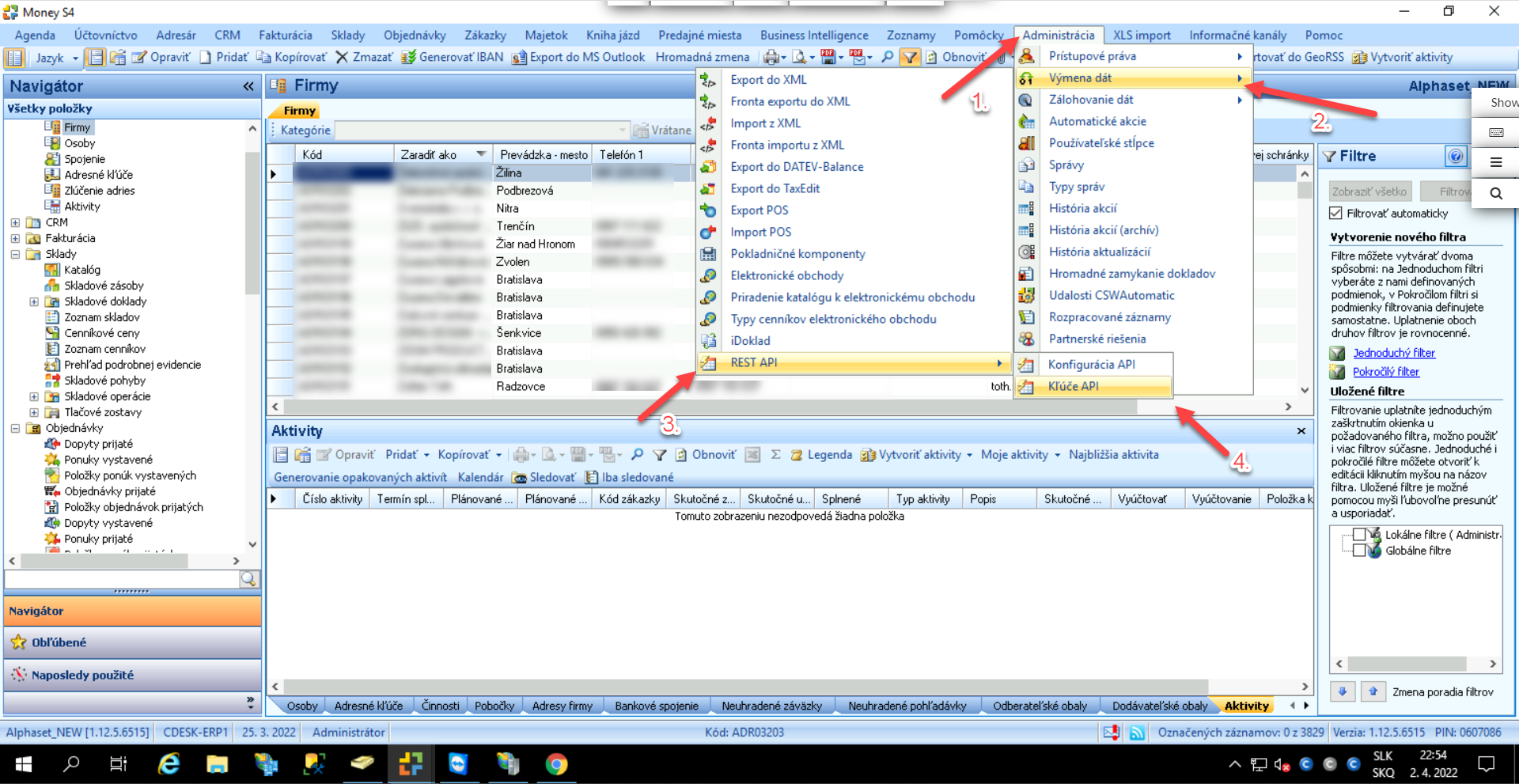
Once the test has succeeded, the API keys that will be entered into CDESK when configuring the connector can be obtained. To obtain the key in Money S4/S5, click Administration -> Data exchange -> REST API -> API keys on the top bar.
After clicking, a new window appears containing the Client ID and Client Secret. columns These values will be entered into CDESK when configuring the connector.
Setting up the connection between CDESK and Money S4/S5
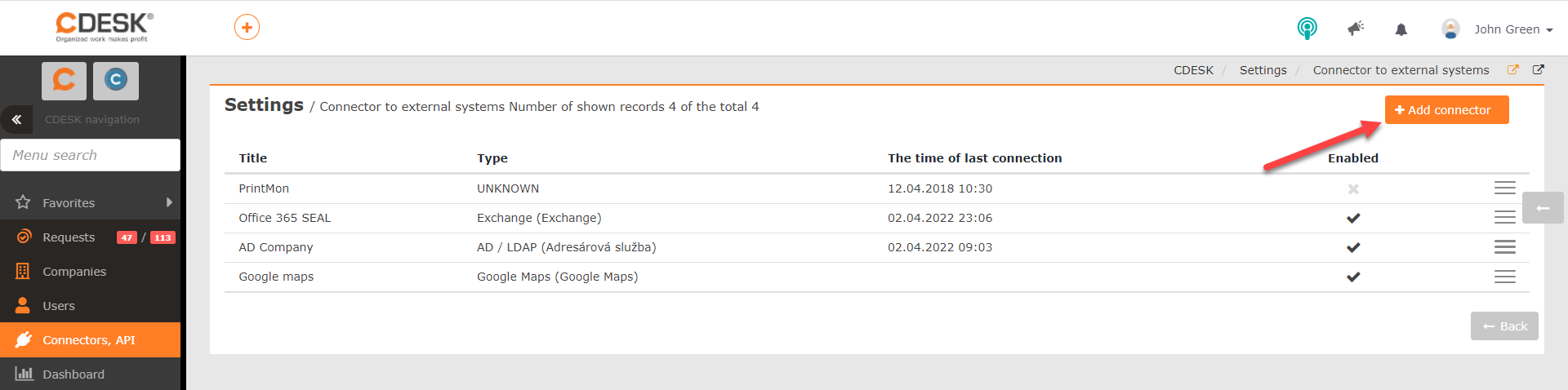
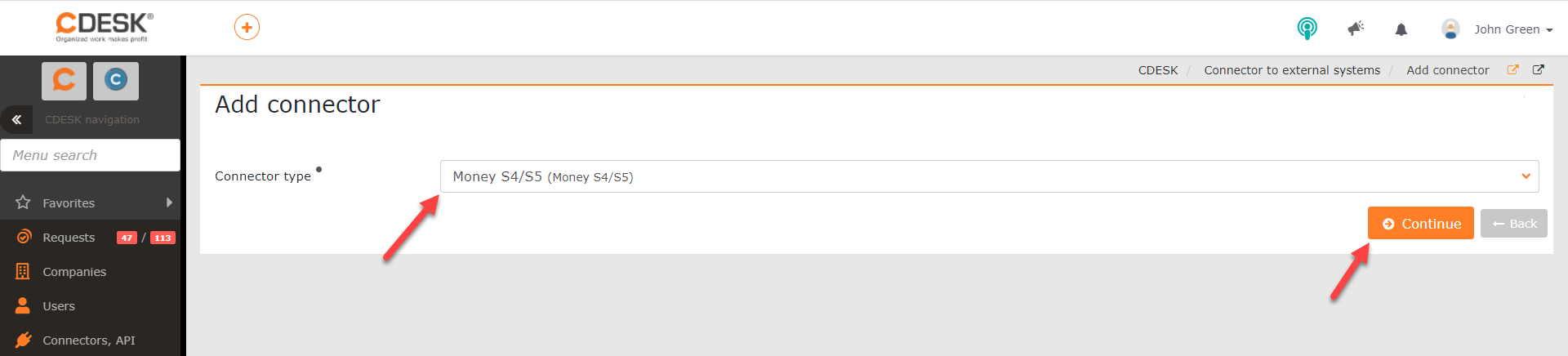
Once the configuration on the Money S4/S5 side has been set up, the connector can be added to CDESK.
Adding the Money S4/S5 connector in CDESK and activating the Money S4/S5 REST API
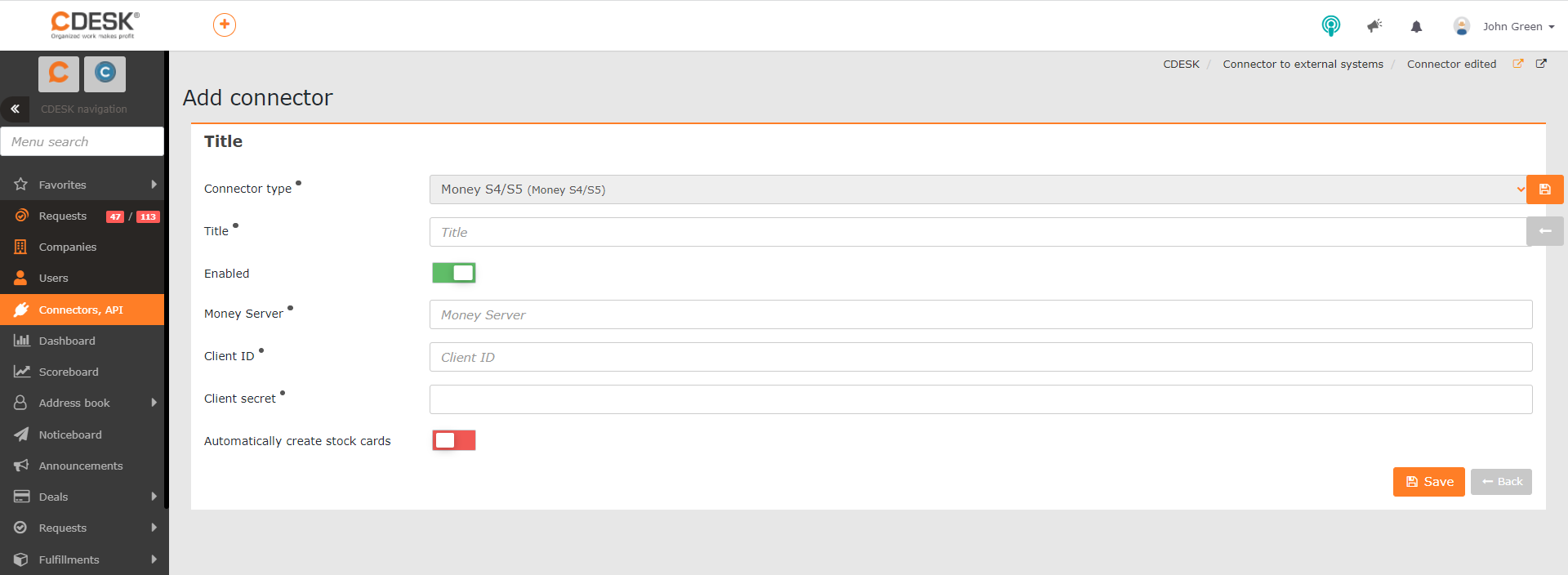
The form for configuring the connector then appears, containing these fields:
Connector type – when adding the Money S4/S5 connector, Money S4/S5. is pre-filled in this field This setting is not editable and is merely information for the user about which connector they are adding.
Name – the name under which the connector is shown in the list of connectors. Any name can be entered.
Enabled – the connector can only be used if the switch is set to the on position
Money Server – enter the URL address at which the Money S4/S5 interface (the S5 API module) is configured.
Client ID – enter the Client ID code, which you will find in Money S4/S5 under Administration -> Data exchange -> REST API -> API keys , after you have successfully configured the REST API on the Money S4/S5 side.
Client secret – enter the Client secret code, which you will find in Money S4/S5 under Administration -> Data exchange -> REST API -> API keys , after you have successfully configured the REST API on the Money S4/S5 side.
Create stock cards automatically – if the switch is in the on position , after synchronisation with Money S4/S5 stock cards will be created automatically in CDESK based on the items from the catalogue in Money S4/S5.
Once all the fields have been filled in, save the settings by clicking the Save button in the bottom right-hand corner. The data from Money S4/S5 is then loaded and new tabs for further settings appear.
Linking a Money company with a CDESK company
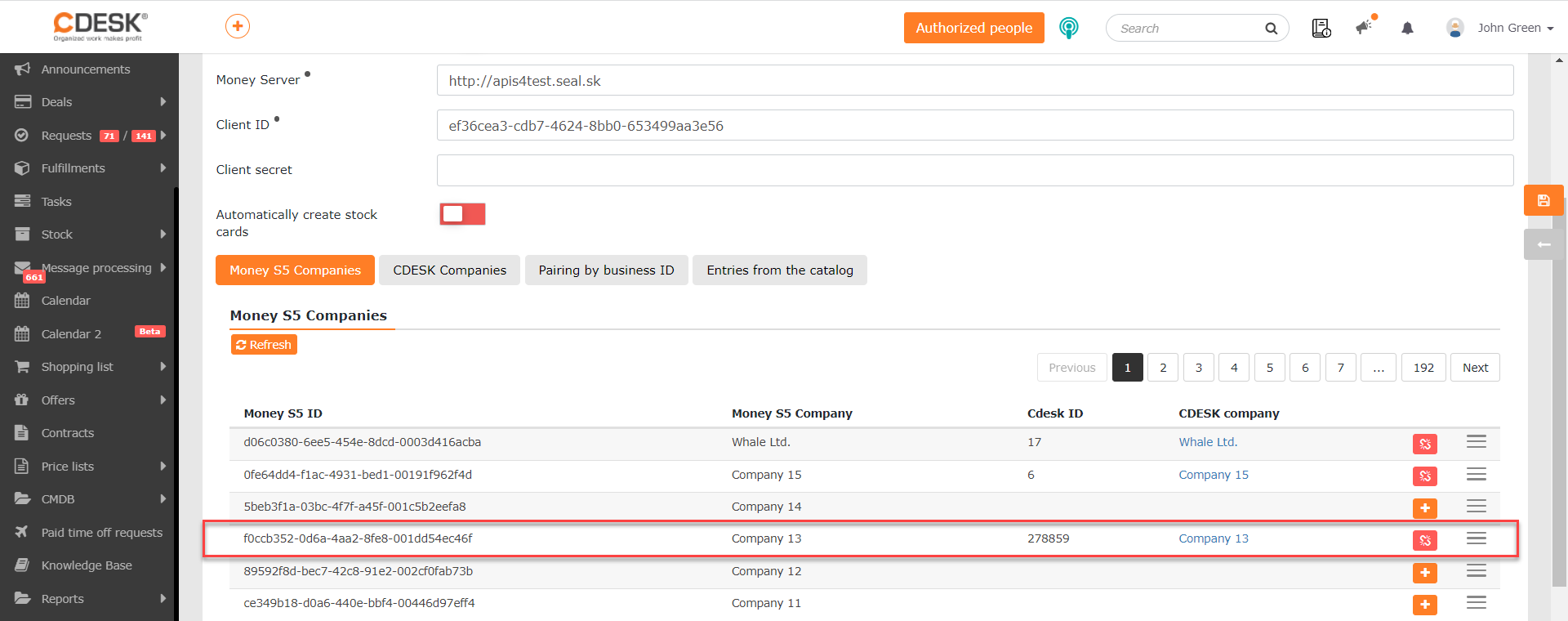
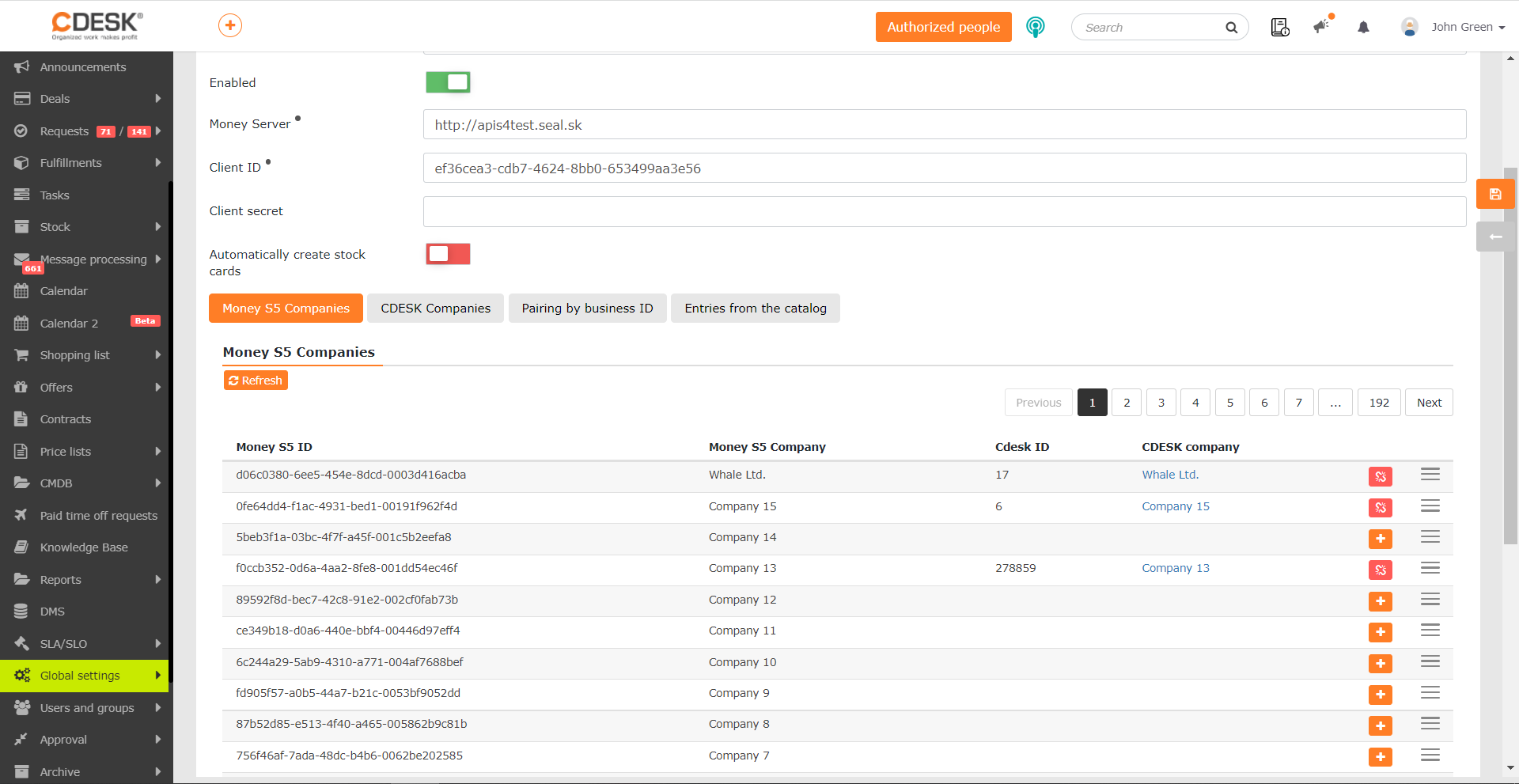
After synchronisation, the Money S5 companies tab loads all the companies registered in Money S4/S5, with the list showing their Money ID and the name under which they are registered in Money S4/S5. Above the list, in the left-hand corner, there is a Refresh button, which is used to start synchronisation if changes have been made to the connector settings. In the top right-hand corner there is a tool for paging through the individual pages of the list.
In the list it is possible to link a Money company with a company in CDESK, or to create a new company in CDESK based on a record from Money S4/S5.
To link a Money company with a company that already exists in CDESK, click the menu icon at the end of the row of the company you want to link and select Link with an existing company.
After clicking, the list of companies in CDESK appears. This is the list you find in CDESK under Address book -> Companies . You select a company by clicking its name. Once paired, the name and ID of that CDESK company appear in the Money company’s row.
If you need to create a new company in CDESK based on a Money company, click the + icon in that Money company’s row, or go to the menu and select Link with a new company.
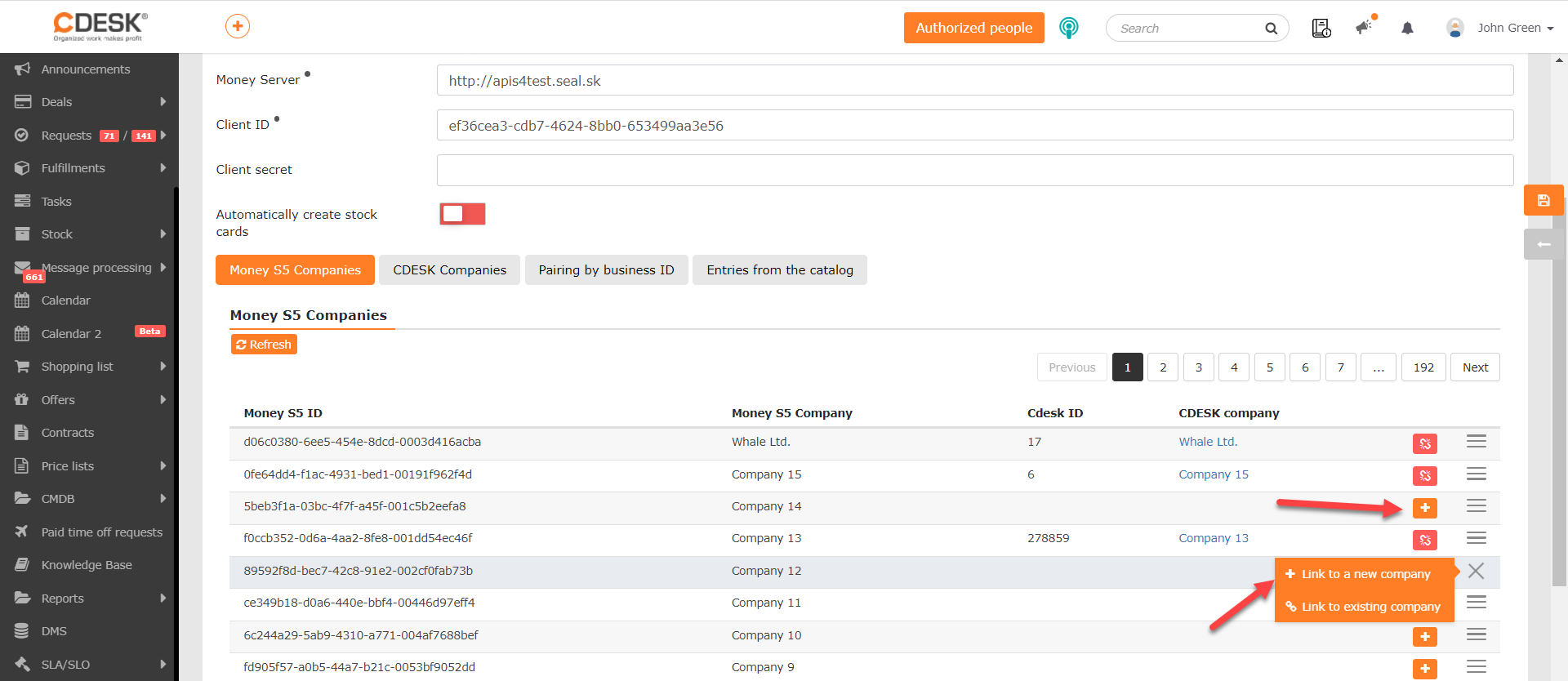
After clicking, the form for creating a new company appears, with all the fields that the given Money company has filled in pre-filled. You can change any of these pre-filled values as needed. A detailed description of this form, and instructions on how to work with the CDESK company you have created, can be found in a separate article. You save the company by clicking the Save button in the bottom right-hand corner of the form. As with linking to an existing company, in this case too the name and ID of that CDESK company appear in the Money company’s row.
If necessary, the connected company can be edited. To edit it, click the menu icon at the end of the row of the company with the linked company you want to edit and select Edit the linked company.
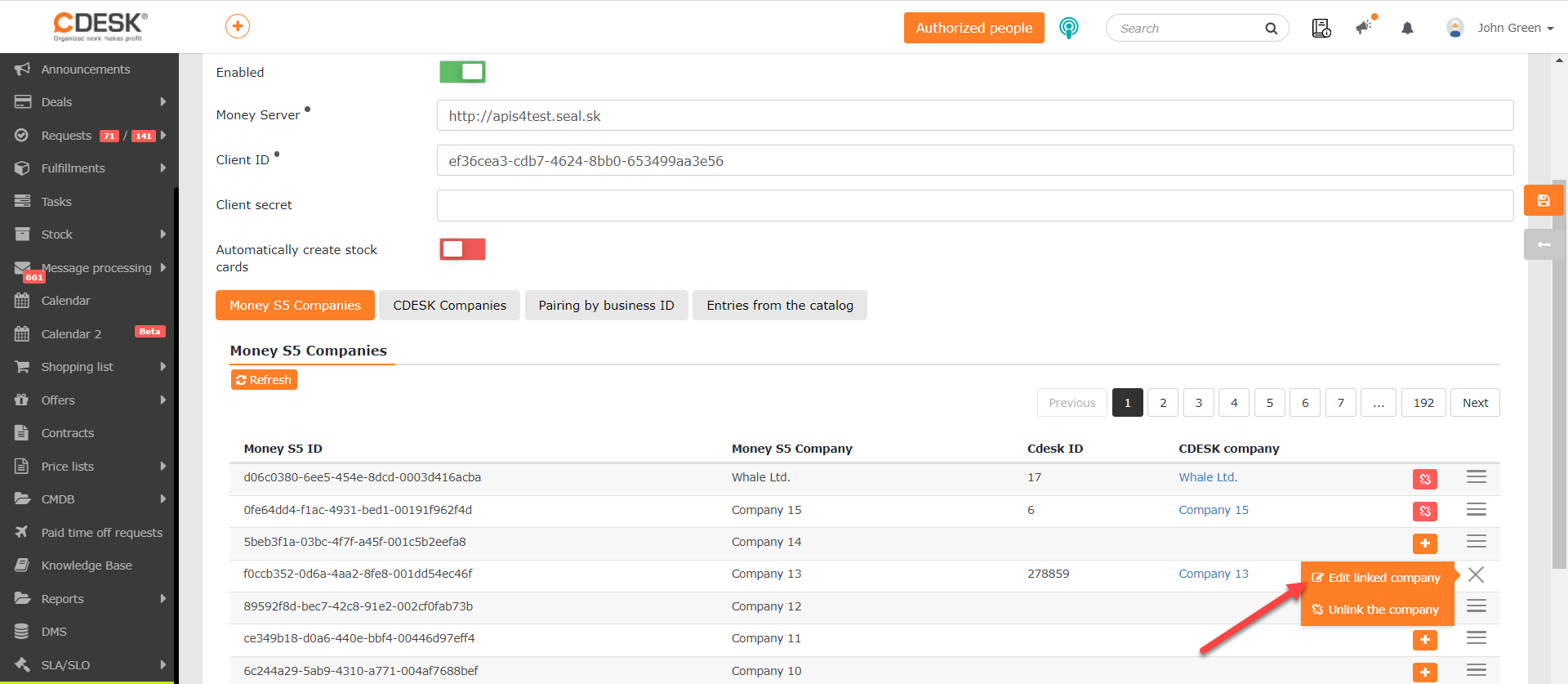
After clicking, the company form appears. Editing a company is described in detail in the article devoted to CDESK companies. Only a user with the appropriate permission can edit companies. So if you cannot edit the company form, check the permissions in Users and groups -> Users -> the particular user -> Permissions -> Address book -> Companies -> Records.
If you need to remove the link, click the icon, or click the menu icon
and select Remove the link with the company.
Creating companies in Money S4/S5
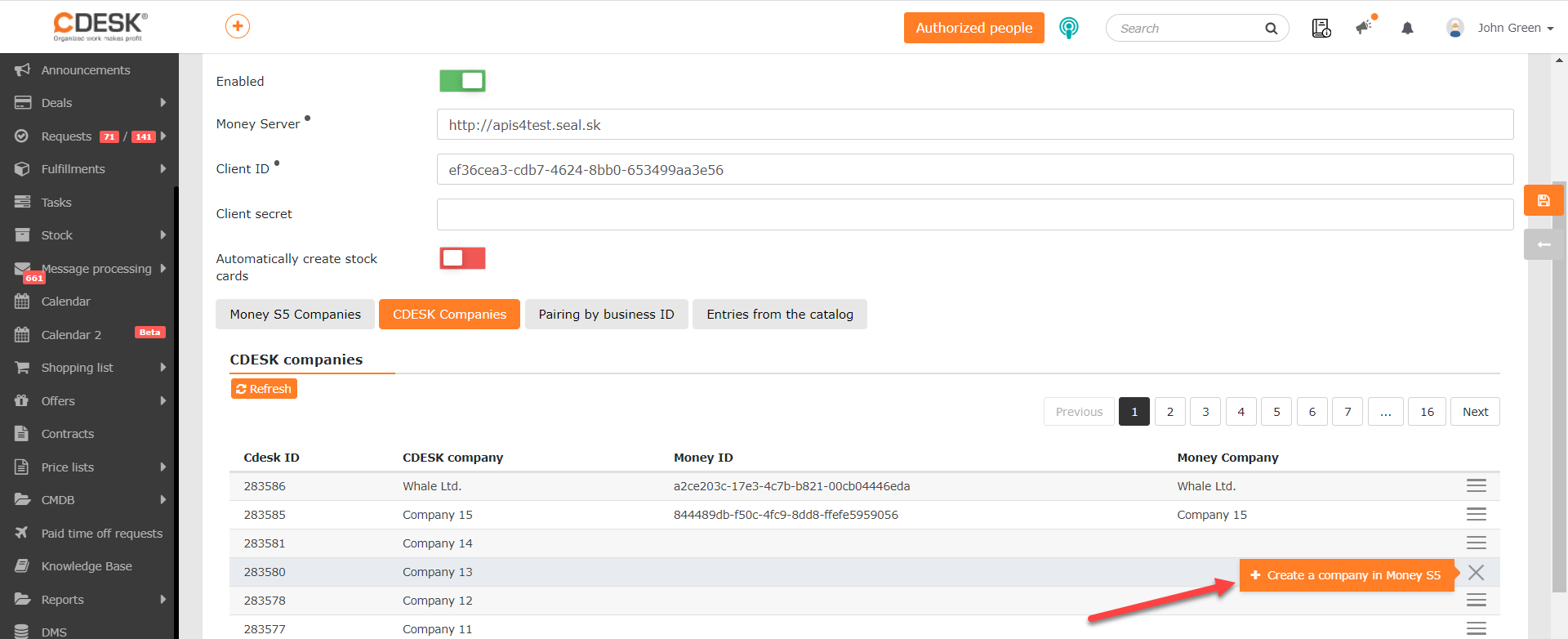
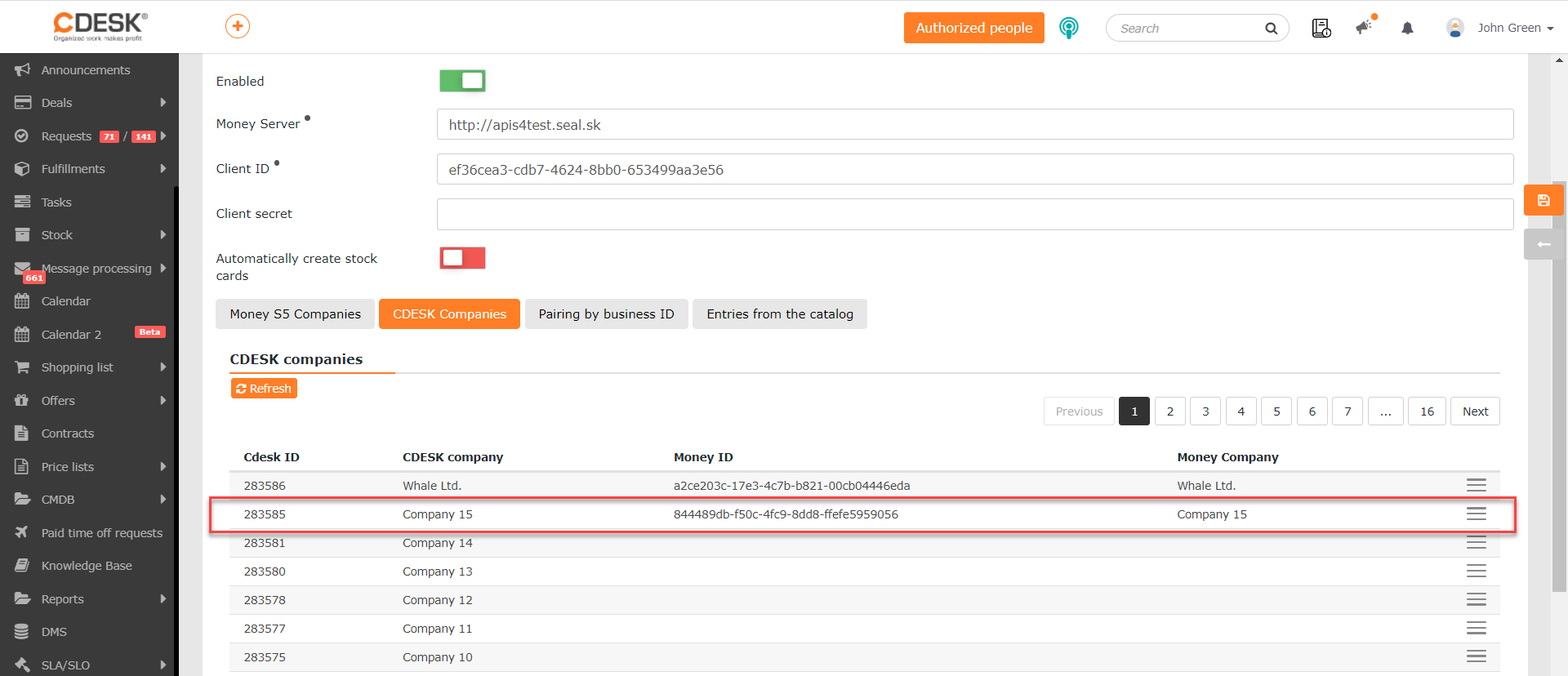
Money companies can be created from CDESK companies on the CDESK companies tab, which appears after synchronisation with the Money server. The tab shows the CDESK companies registered in Address book -> Companies, with the list showing their CDESK ID and the name under which they are registered in CDESK. Above the list, in the left-hand corner, there is a Refresh button, which is used to start synchronisation if changes have been made to the connector settings. In the top right-hand corner there is a tool for paging through the individual pages of the list.
To create a company in Money S5, click the menu icon at the end of the row of the CDESK company you want to register and select Create a company in Money S5.
Once the company has been created in Money S5, its Money ID and name appear in the row of the CDESK company it was created from.
If necessary, this link can be removed. Click the menu icon and select Remove the link with the company.
Pairing by company registration number (IČO)
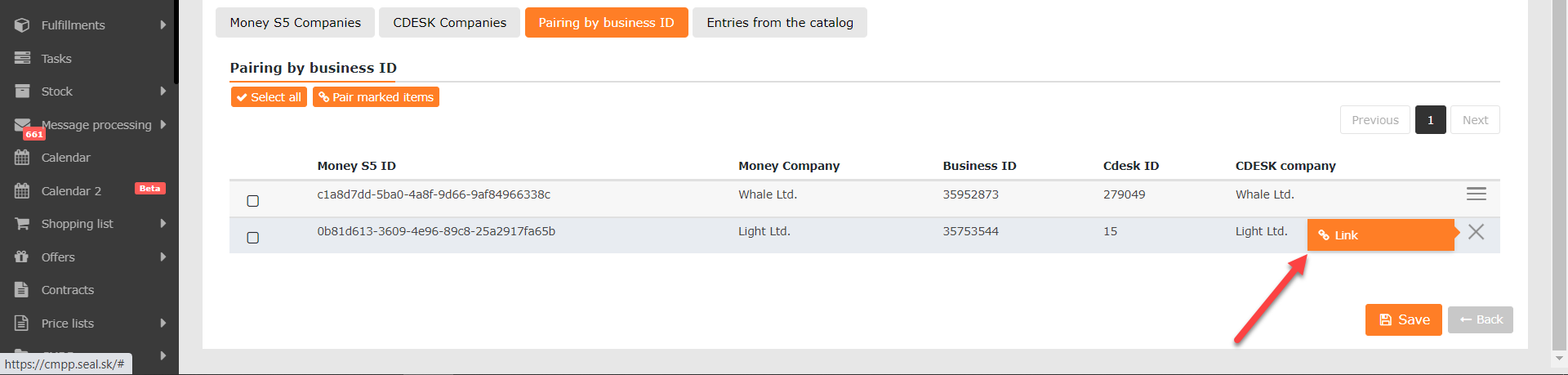
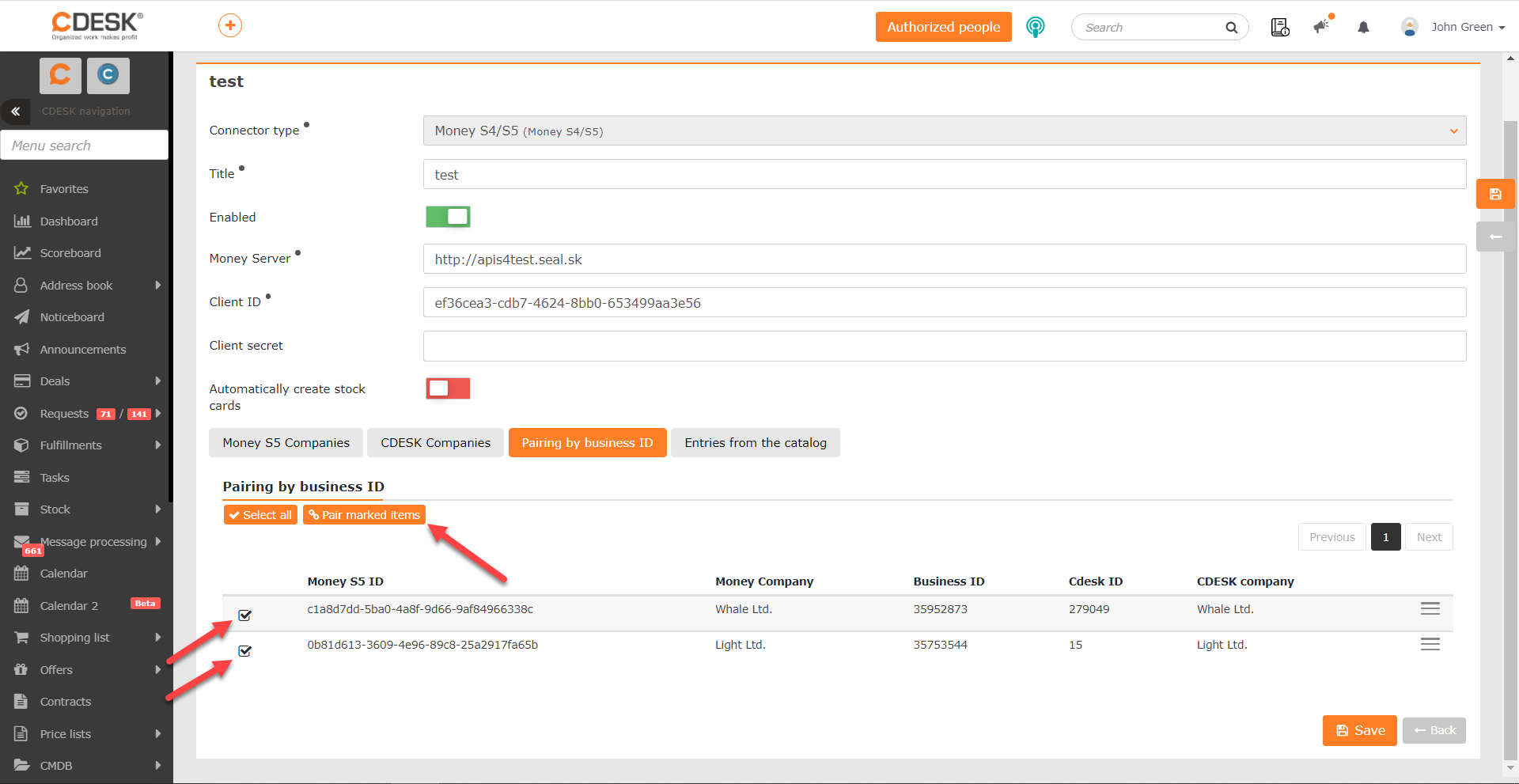
If, during synchronisation of CDESK and the Money server, it is found that companies from these two systems have the same IČO registered, those companies are shown on the Pairing by IČO tab.
Companies can also be linked in bulk. Tick the companies you want in the list by clicking the icon and then click the Pair selected button above the list. If you want to link all the paired companies in the list, click the Select all button and then Pair selected.
Creating stock cards from records in Money S4/S5
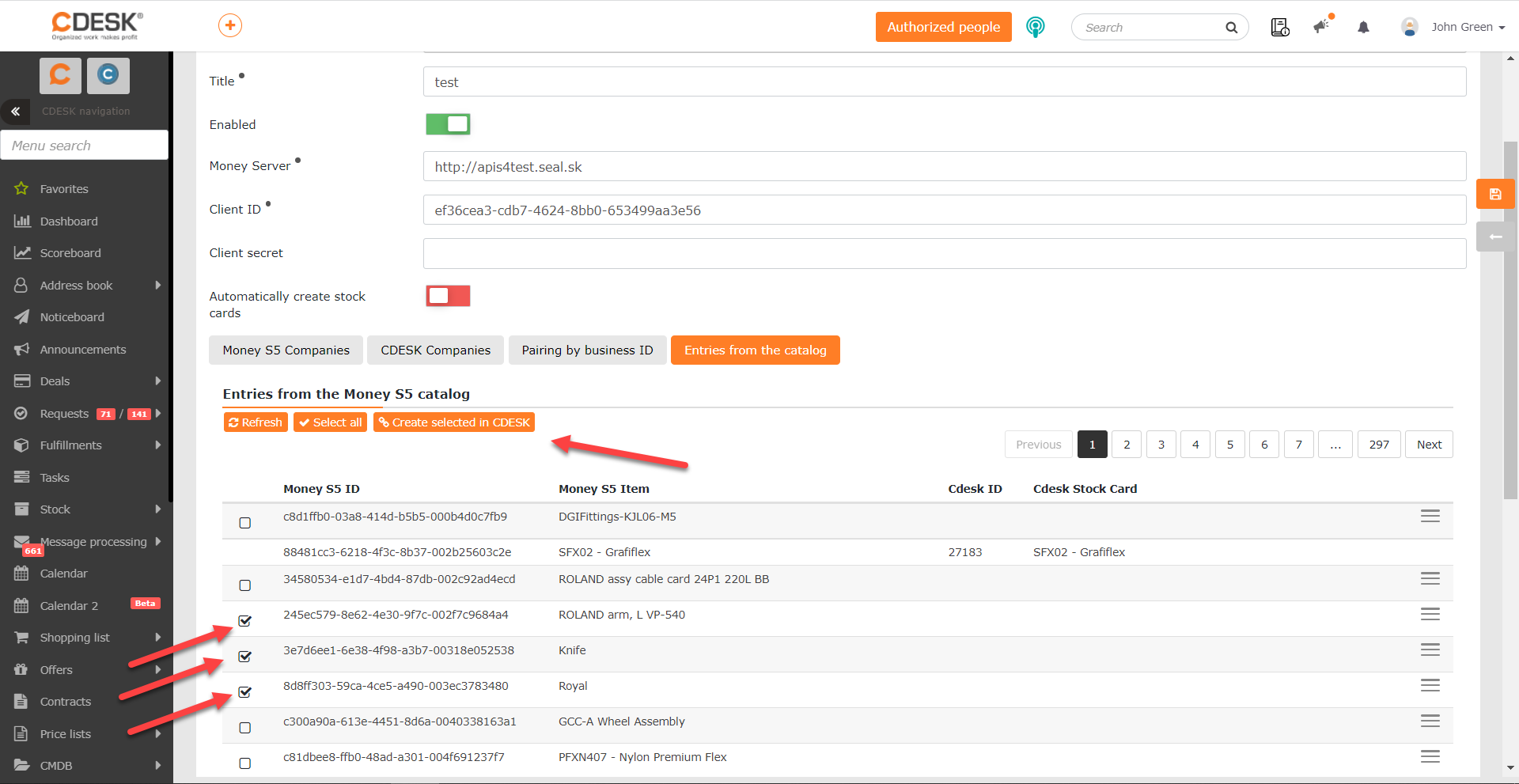
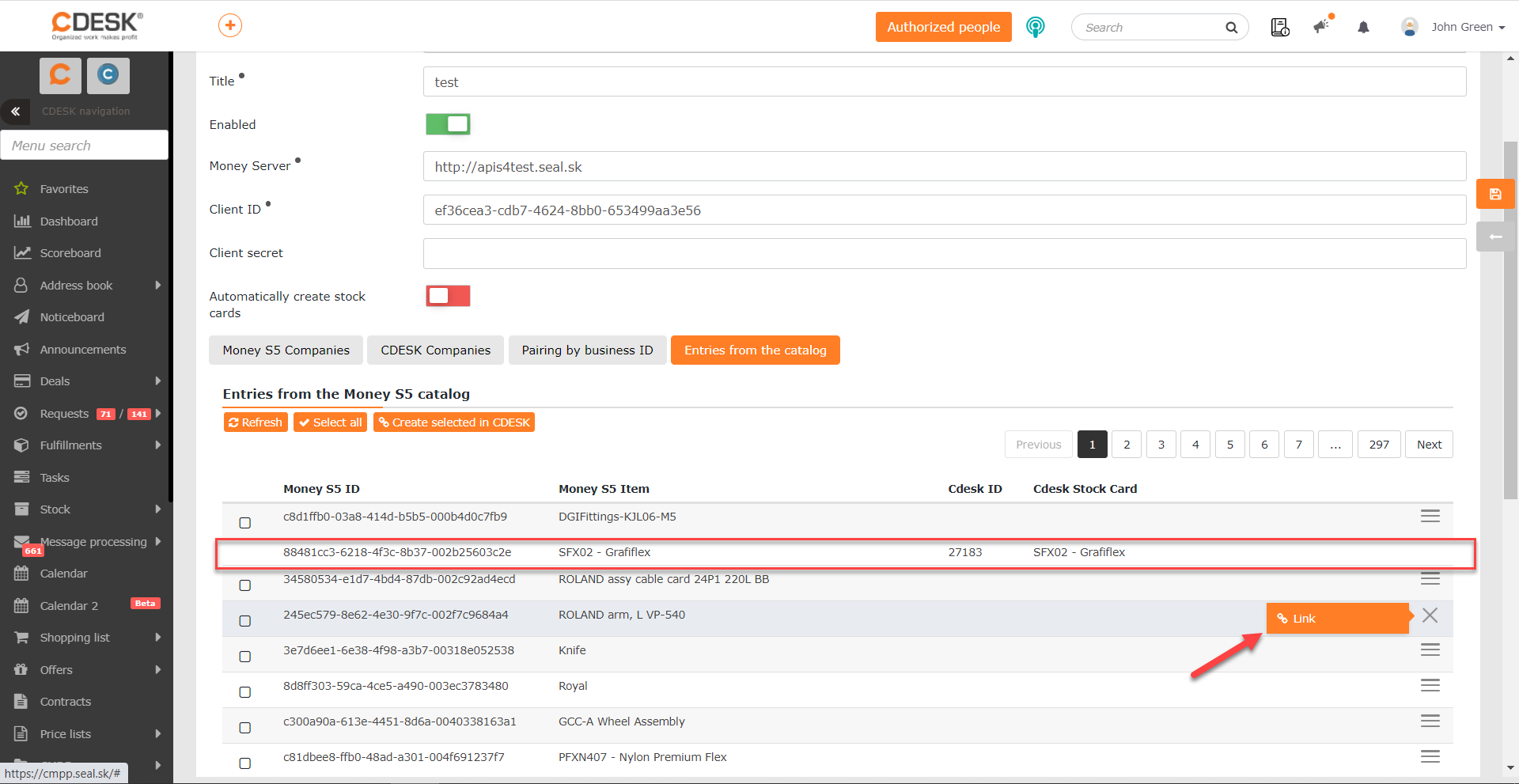
Stock cards are created in CDESK automatically during synchronisation with Money S4/S5 if you switched on the Create stock cards automatically. option when configuring the connector If you did not switch this option on, you can create stock cards manually on the Catalogue items tab. The tab contains the stock cards loaded from Money S4/S5. If the list contains no items, click the Refresh button in the left-hand corner, which is used to start synchronisation. In the top right-hand corner there is a tool for paging through the individual pages of the list.
To create a stock card, click the menu icon and select Link. After clicking, the details of the newly created CDESK stock card appear in that Money S5 item’s row
Using the Money S4/S5 connector – creating orders for invoicing
In the previous sections the connection between CDESK and Money S4/S5 was configured, on the basis of which CDESK knows the companies from Money S4/S5 and the stock cards registered there (the Catalogue). This allows CDESK to write documents into Money S4/S5 that can be processed directly without any further rewriting.
In the current version 3.1.0 the connection is used to create Orders in Money S4/S5 from the Request account in CDESK.
- The order will be created for the company stated in the CDESK request (the CDESK company must be paired with a Money S4/S5 company, which is explained in the text above).
- The stock items created from the stock cards loaded into CDESK from Money S4/S5 are also transferred into the order. (Transferring stock cards is described in the text above.)
- Work will be transferred into the order with the text and the rate specified in the CDESK accounting item. (You will find the accounting item settings in the following text.)
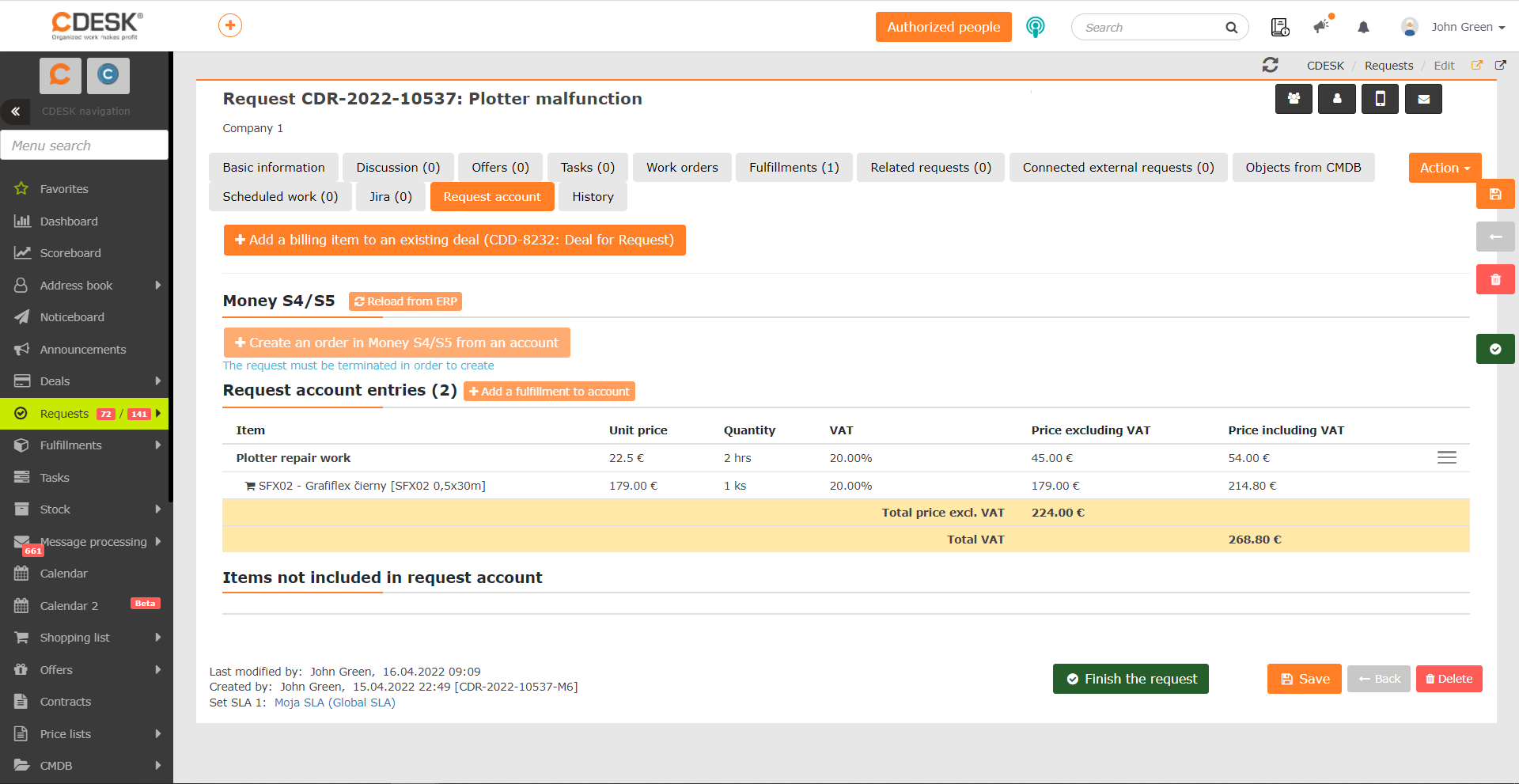
To create a Money order, open a request that is for a company with a link to a Money S4/S5 company, has a deal attached and contains fulfilments. Then go to the Request account tab.
If no deal is attached to the request, the + Add a deal with an accounting item button appears at the top. After clicking, a window then appears for entering the deal name and then for configuring the accounting item. The company from the request is automatically pre-filled as the customer on such a deal. You will find more about configuring the accounting item in this text. If the request already has a deal added, the + Add an accounting item to an existing deal button appears at the top of the tab. This makes it possible to change the accounting item on the attached deal.
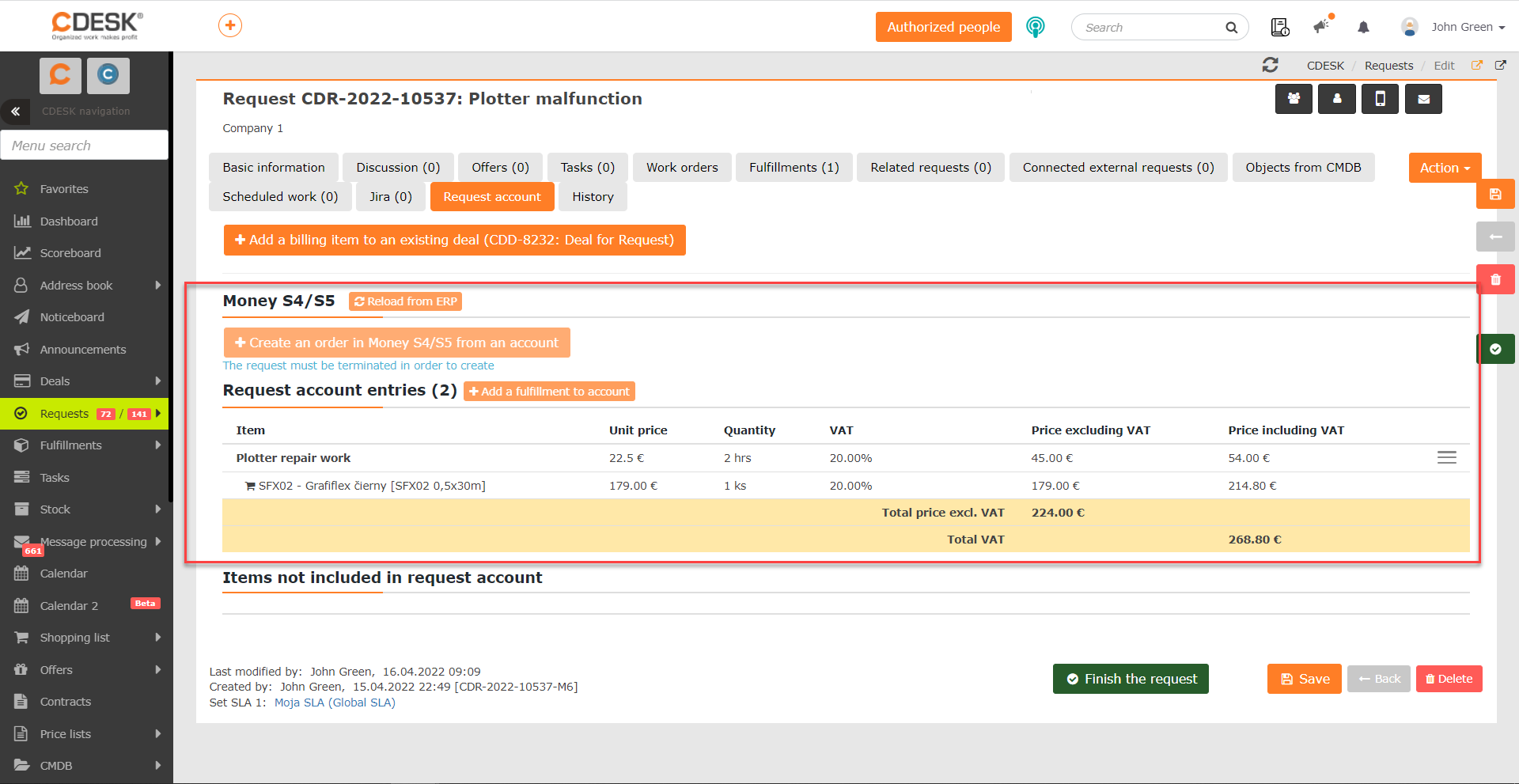
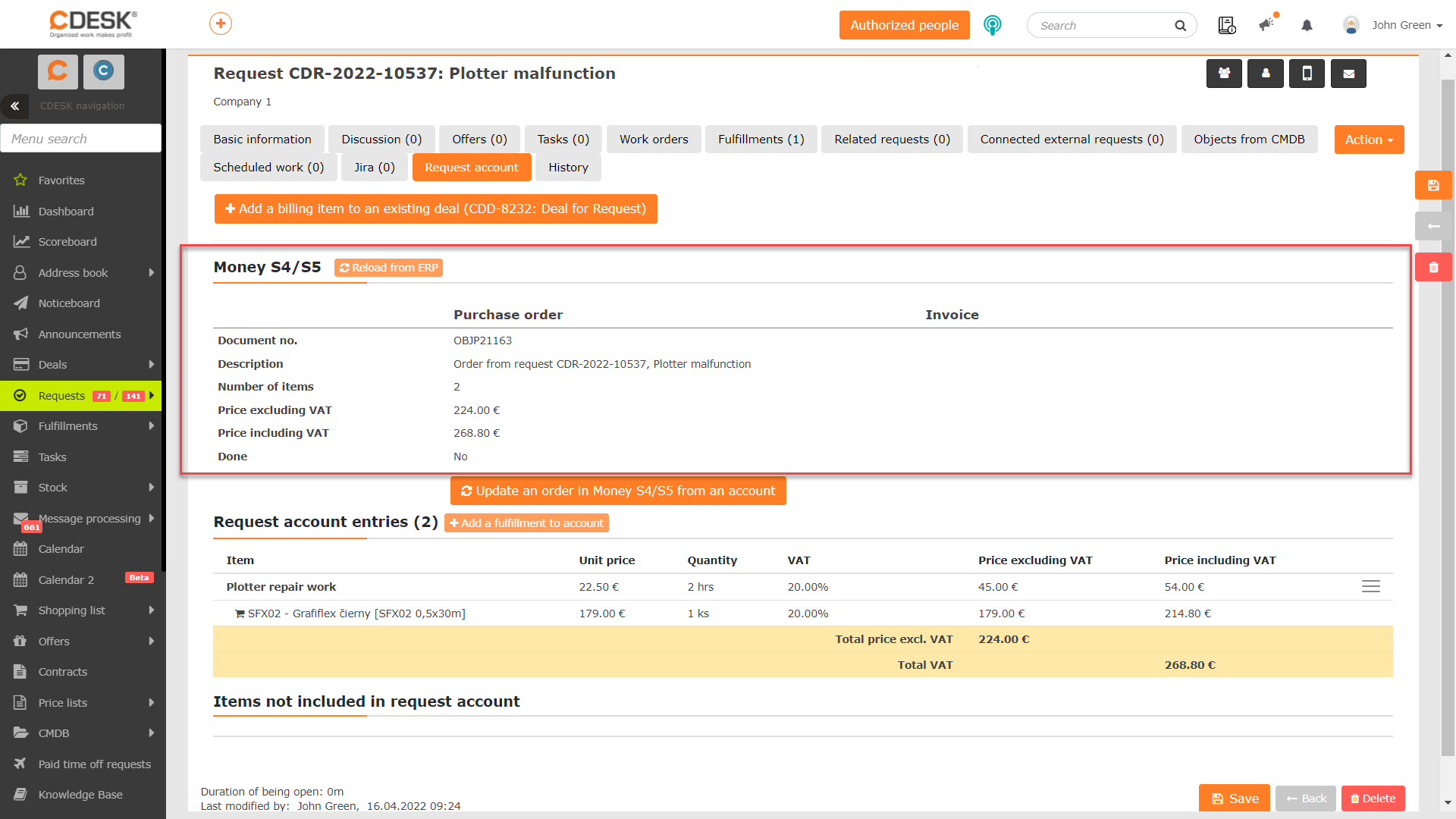
The items that will be included in the account are in the Request account items section. These are fulfilments with an accounting item and the stock issue notes attached to them, which were created by linking Money catalogue items and Stock cards in CDESK. The Items not included in the request account section contains items from fulfilments that are not linked to any accounting item. They therefore do not reach the Money S4/S5 order. If you want to include them in the order, assign an accounting item to the fulfilment on which those items are. You will find more about working with fulfilments in a separate article.
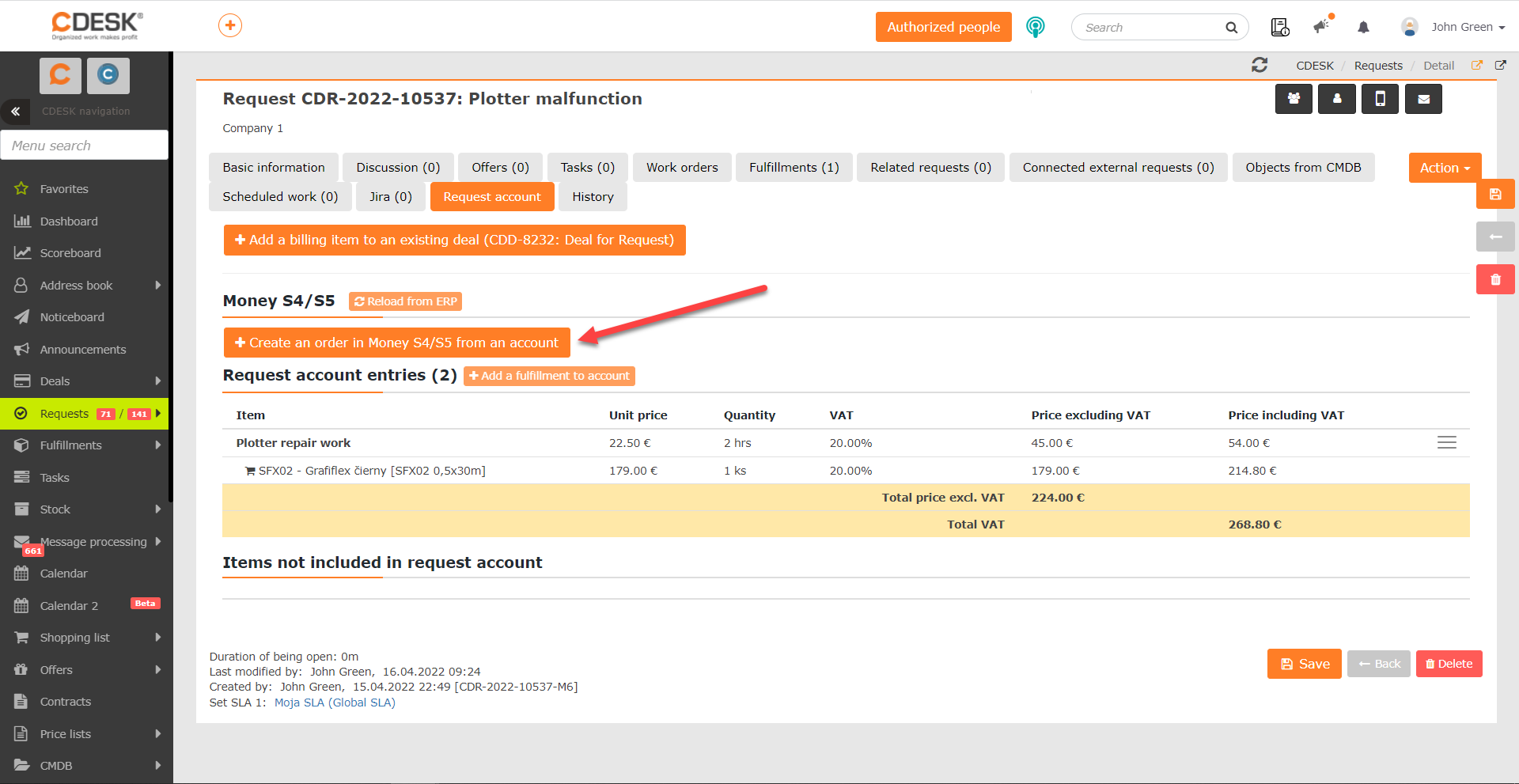
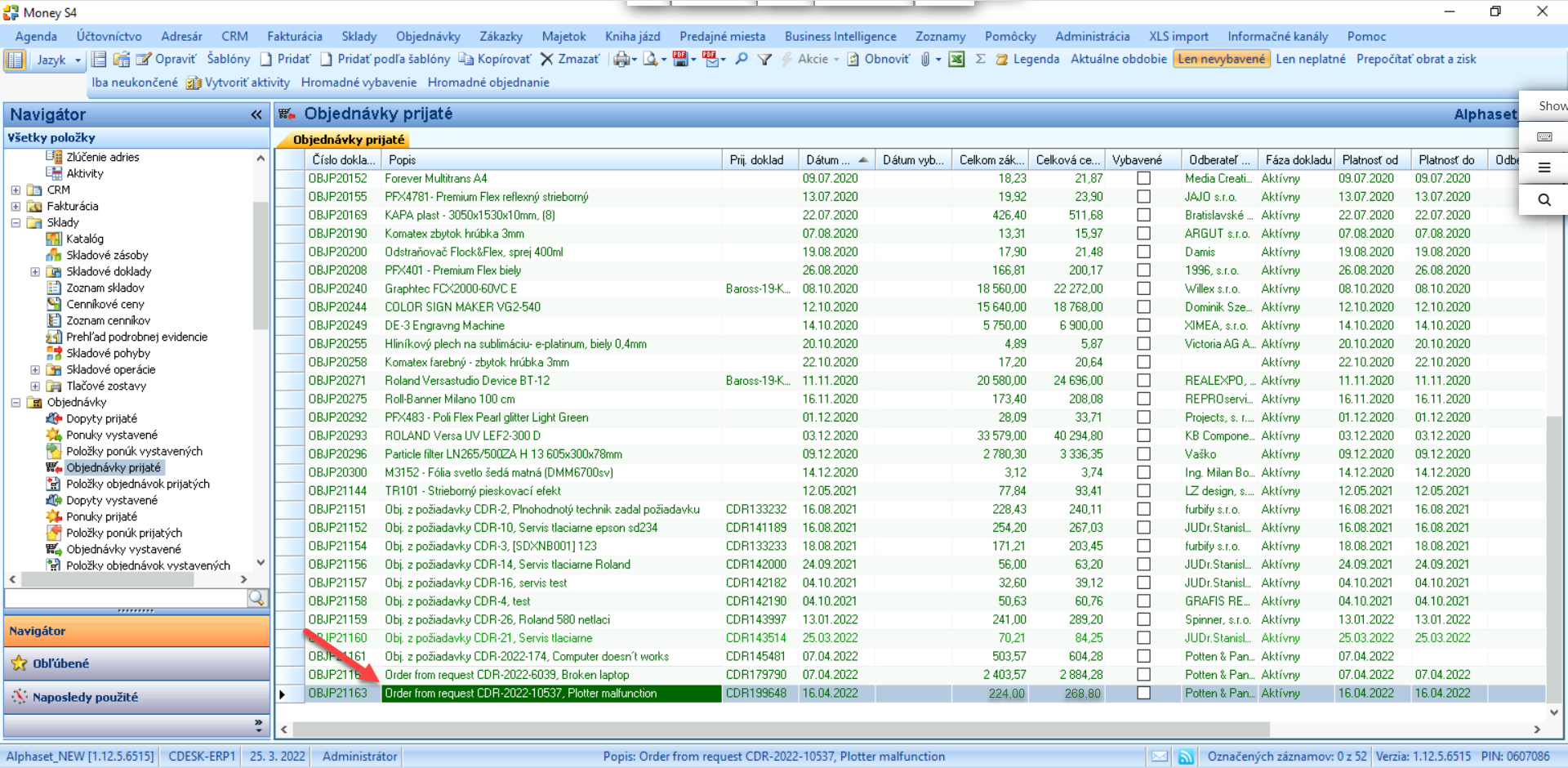
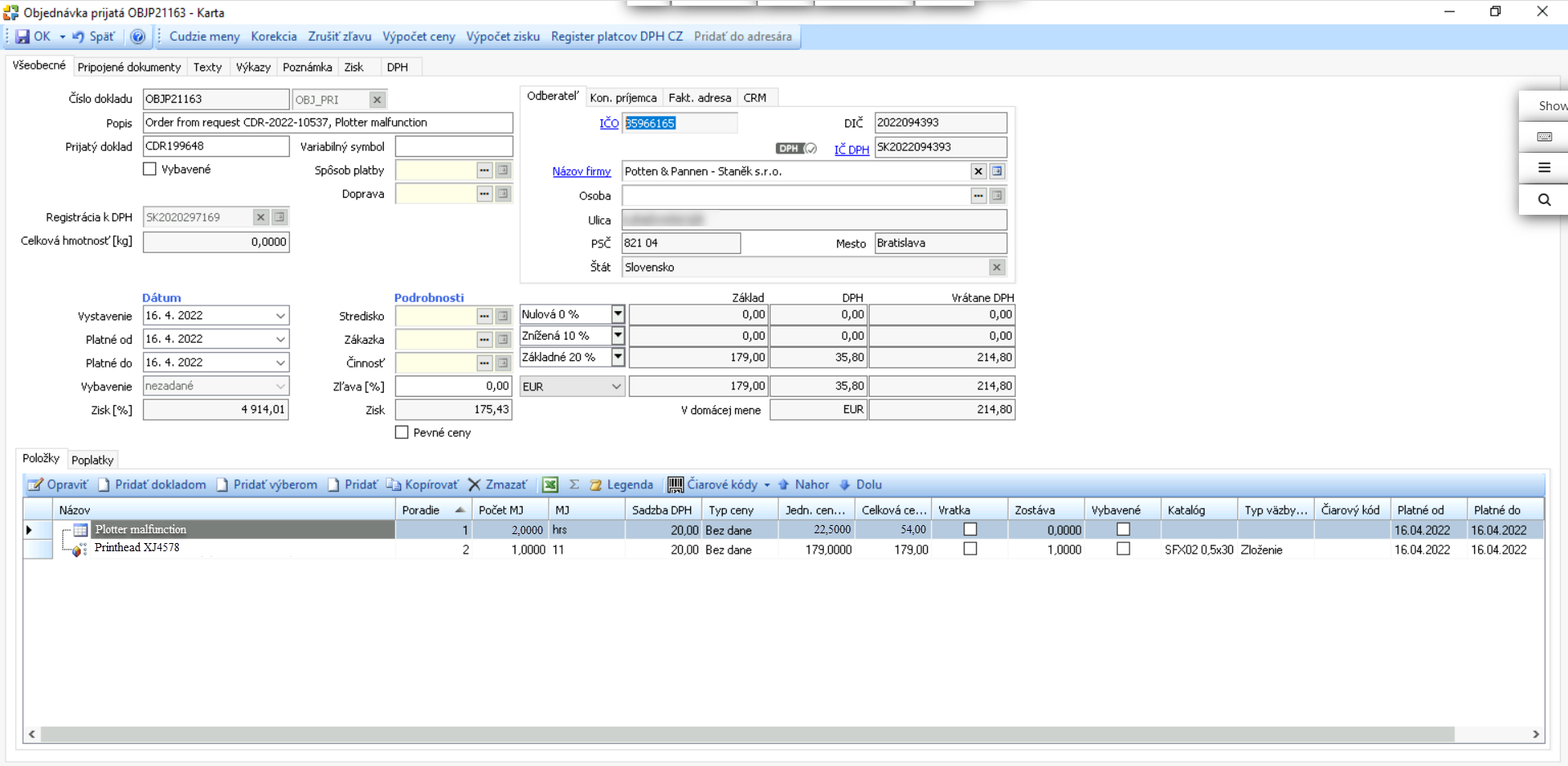
After clicking, a message appears saying that the order has been created in Money S4/S5. At the same time a summary of the order appears in the Money S4/S5 section. Clicking the Update the order in Money S4/S5 from the account button updates the content of the Money S4/S5 order based on the latest changes in the request.