


This manual describes the complete setup of logging in to CDESK via Active Directory Federation Services (AD FS) using the SAML 2.0 protocol. Login only works when both sides are configured and know each other, which is why the document consists of two parts:
- in Part A you configure the connector on the CDESK side,
- in Part B you configure the AD FS service itself.
The two parts follow on from each other — the values created in CDESK (ACS and EntityId) are entered into AD FS.
Roles in SAML: In this scenario CDESK is the service provider (Service Provider, SP) and AD FS is the identity provider (Identity Provider, IdP). CDESK does not authenticate anyone itself — verification of the name and password (or automatic login for an account signed in to the domain) is handled by AD FS, and CDESK only verifies and processes the result.
How it works
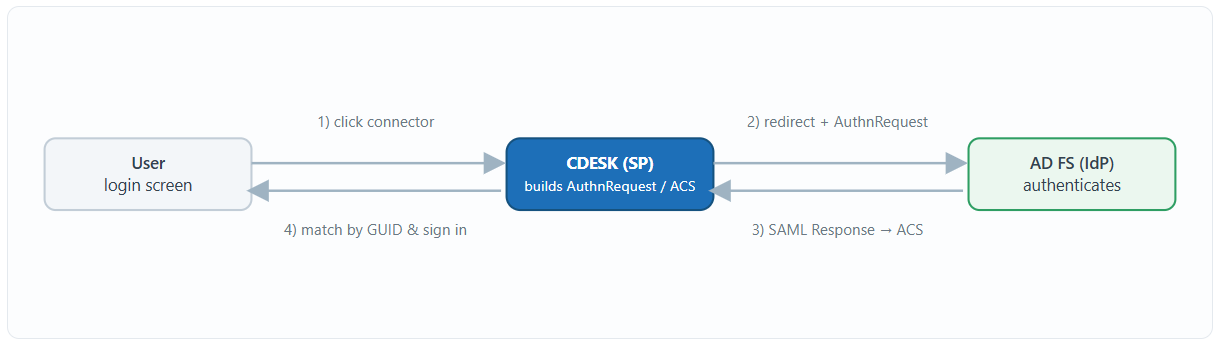
Login takes place as an SP-initiated SAML flow. On the CDESK login screen the user clicks the connector button, CDESK creates an AuthnRequest and redirects the browser to AD FS. Once the identity has been verified, AD FS sends a signed SAML response back to the CDESK Assertion Consumer Service (ACS) address, where CDESK verifies it, extracts the user’s unique identifier (GUID) from it and uses that to find and log in the account in CDESK.
Prerequisites
- A working AD FS server with administrator access (the AD FS Management role) and a running federation endpoint (e.g. https://adfs.domena.com).
- CDESK available over HTTPS on its own domain.
- The signing public X.509 certificate from AD FS (token-signing certificate) as a string (without the BEGIN/END CERTIFICATE headers).
- Users who are to log in via SSO must have a unique identifier (id_external) filled in in CDESK matching the value sent from AD FS — otherwise CDESK cannot pair them after login. This is typically the ObjectGUID from Active Directory.
Key pairing condition: SSO does not log users in on the basis of a name, but on the basis of the GUID. If an account in CDESK does not have the corresponding id_external filled in, the login ends with a redirect carrying the user_not_found flag. The GUID usually reaches CDESK through synchronisation via the AD / LDAP or Microsoft Entra ID connector.
Part A – Configuring the connector in CDESK
- You add the connector under Global settings → Connectors, API with the + Add connector button, where you select the type SSO (AD FS & SAML 2.0) and confirm with the Continue button. Fill in the following fields and save with the Create button:

- Name – any name for identifying the connector in the list (e.g. ADFS SSO). It is also shown as the caption of the button on the login screen.
- EntityId – the identifier of CDESK as the SP (URI). On first save CDESK generates it automatically from the server name and the administrator, in the form urn:federation:<host>-<admin>; once created, the field is editable. You use the same value in AD FS as the Relying party trust identifier. Example: urn:federation:example-com.
- IdP URL – the base address of AD FS without a trailing slash, e.g. https://adfs.domena.com. CDESK appends the path /adfs/ls to it when logging in.
- Public x509 certificate – the public signing certificate of AD FS (a Base64 string). It is used to verify the signature of the SAML response.
- Unique identifier – determines what the user is paired by: ObjectGUID (default) or a custom attribute.
- Name of the attribute containing the unique identifier – shown only when custom attribute is selected. You state the name of the claim in which AD FS sends the identifier.
- Automatic login from the login screen – switches on True SSO, i.e. CDESK redirects to AD FS automatically once the login screen opens. The redirect can optionally be delayed using the Delay automatic login by a number of seconds field.
- Assertion Consumer Service (ACS) – shown only after saving (the field is read-only). This is the address to which AD FS sends the SAML response, and it is entered into AD FS. Form: https://<host>/api/auth/adfs/acs/<connector-GUID>.
- Link to the login screen without automatic login – shown after saving if automatic login is switched on. This is an address with a parameter that disables the redirect and shows the standard form (for logging in with a name and password without SSO).
Order of steps: You only know the ACS address after saving the connector (before that the field is not shown). So first create the connector in CDESK, copy the ACS and EntityId from it, and only then go on to configure AD FS.
Part B – Configuring the AD FS server
On the AD FS server, create a new relying party trust (Relying Party Trust) and set the rules for issuing claims. The following steps correspond to the Add Relying Party Trust Wizard.
- Add Relying Party Trust → click Start.
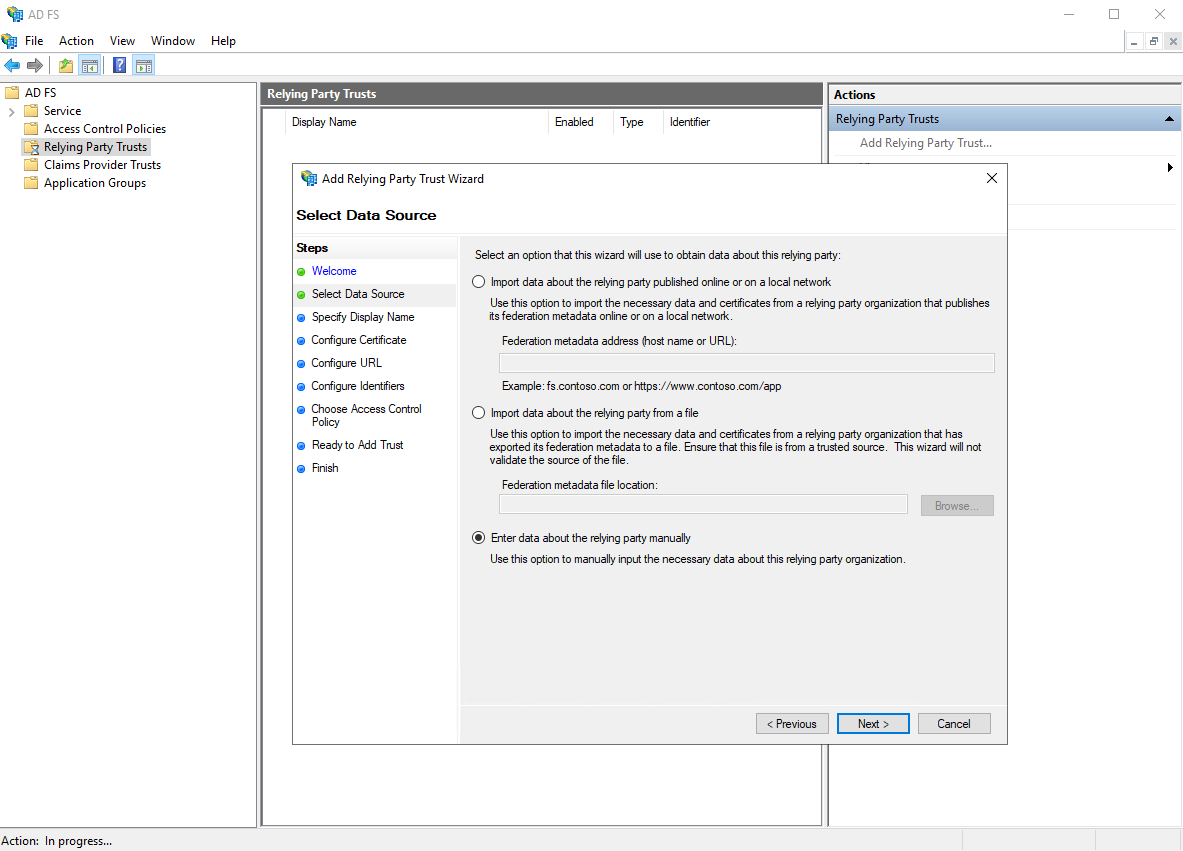
- Select Data Source: choose Enter data about the relying party manually → click Next.

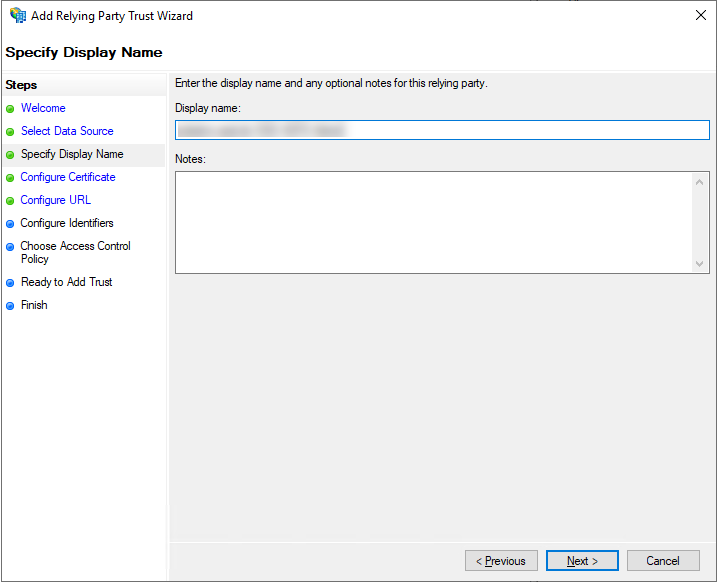
- Specify Display Name: enter a name (e.g. SSO CDESK) → click Next.

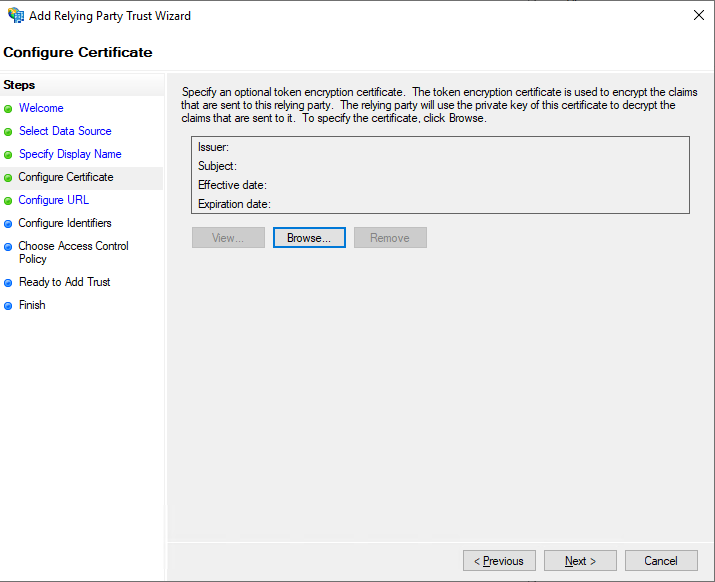
- Configure Certificate: skip with the Next button (the SP certificate is not used).

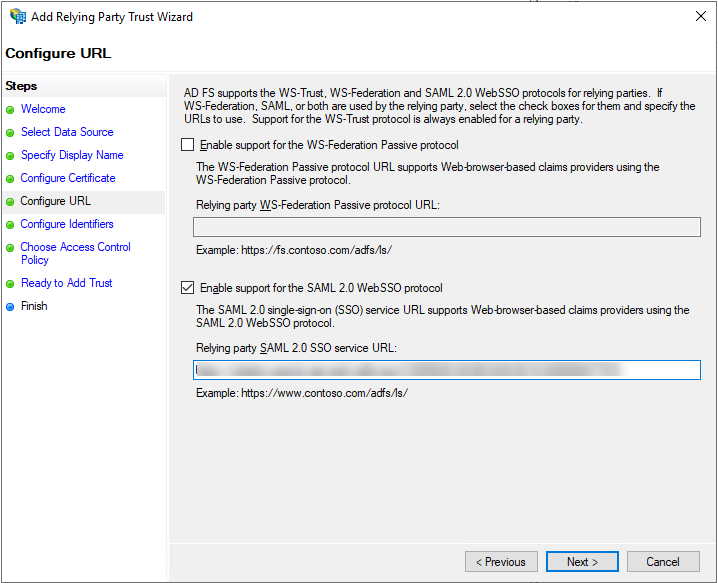
- Configure URL: tick Enable support for the SAML 2.0 WebSSO protocol and enter the ACS address from the CDESK connector → click Next.

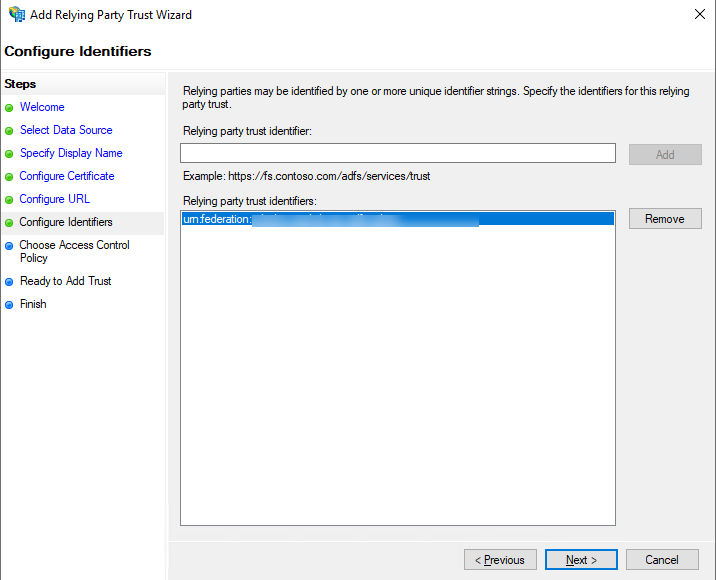
- Configure Identifiers: in Relying party trust identifier enter the EntityId value from the CDESK connector (e.g. urn:federation:example-com) and add it with the Add button → click Next.

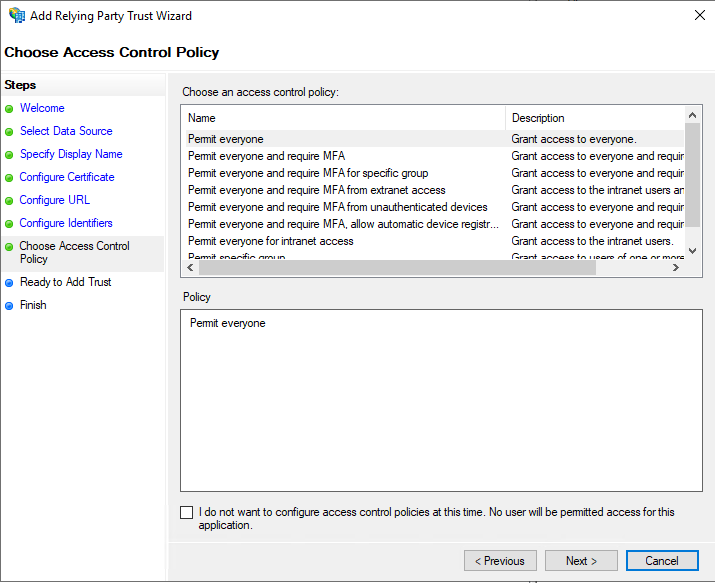
- Choose Access Control Policy: Permit everyone → click Next.

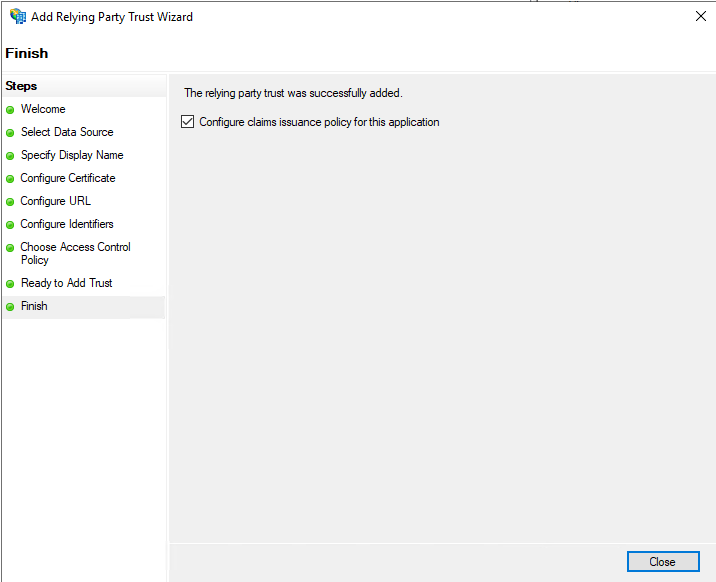
- Ready to Add Trust → click Next → Finish (leave Configure claims issuance policy for this application ticked).



Claim Issuance Policy rule
In the Edit Claim Issuance Policy window, use the Add Rule… button to add one rule of the type Send LDAP Attributes as Claims (Attribute store: Active Directory).


Then map these attributes:
- ObjectGUID → claim GUID – mandatory. CDESK pairs the user by this value (against id_external).
- E-Mail-Addresses → claim E-mail Address – used only to identify the user in the CDESK logs.
- an attribute holding the employee’s personnel number (e.g. cn or samAccountName) – optional, for later verification against the personnel number. It is advisable to check now whether AD FS is able to send it.

Setting the user’s unique identifier using ObjectGUID:
When using the LDAP attribute ObjectGUID we recommend mapping this attribute in ADFS to an outgoing claim named GUID. With the default unique identifier setting “GUID attribute“, CDESK expects precisely this claim.
If you want to use a different LDAP attribute to identify the user (e.g. employeeID or a custom attribute), map that attribute in ADFS to the corresponding Outgoing Claim Type. Then, in the CDESK settings, enter the same claim name in the Attribute name field (e.g. employeeID) or its full URI form:
(e.g. http://schemas.xmlsoap.org/ws/2005/05/identity/claims/employeeID). CDESK supports both ways of entering it.
Practical note on ObjectGUID:
The ObjectGUID attribute may not be available in the LDAP attribute drop-down list in the Send LDAP Attributes as Claims rule. In that case it has to be entered manually into the LDAP Attribute field.
CDESK SAML configuration (SP parameters for configuring ADFS)
In this scenario CDESK acts as the SAML Service Provider (SP). The following values define the CDESK SAML parameters that need to be used when configuring the Identity Provider (ADFS).
- SP EntityId – the value from the EntityId field, with which CDESK identifies itself to ADFS.
- ACS URL / binding – /api/auth/adfs/acs/{guid}, HTTP-POST. ADFS sends the verified SAML response to this address after the user has logged in successfully.
- IdP SSO URL / binding – {IdP URL}/adfs/ls, HTTP-Redirect. The address of the ADFS login endpoint.
- IdP signing certificate – the value from the Public x509 certificate field, which CDESK uses to verify the signature of the SAML response it receives.
- NameID Format – urn:oasis:names:tc:SAML:1.1:nameid-format:unspecified.
- Signing / digest algorithm – RSA-SHA256 / SHA256.
Internal SP validation settings (CDESK):
- strict – false
- wantAssertionsSigned – false (CDESK does not require the Assertion element to be signed separately; it verifies the signature against the configured certificate).
How CDESK processes the response (technical details)
The SAML response arrives at the endpoint POST /api/auth/adfs/acs/{guid}, where {guid} is the connector identifier. Processing takes place in AdfsController::postAcs() and uses the OneLogin SAML2 library:
- Verifying the response – the response is validated against the SP/IdP settings and the signature (the public certificate from the Public x509 certificate field). If verification fails, CDESK redirects to the login screen with the thirdparty_not_verified flag.
- Obtaining the GUID – the GUID claim (or a custom attribute, depending on the setting) is read from the response attributes. If it is an ObjectGUID encoded in Base64, CDESK converts it to a hexadecimal string (e.g. olW/vipj5UeGUVRezrAa+w== → a255bfbe2a63e5478651545eceb01afb).
- Pairing the user – CDESK looks for an active account whose id_external equals the GUID obtained and which belongs to the given administrator (their account or subordinate accounts). If none is found, it redirects with the user_not_found flag.
- Login – once the account has been found, CDESK creates a login token (type WEB_APP), records the login (method ADFS) and sets the login cookies.
Testing
A button with the connector’s name (e.g. ADFS SSO) appears on the CDESK login screen. After clicking it the browser is redirected to AD FS. If the user is signed in to the domain, AD FS usually logs them in automatically and CDESK lets them in once verification is complete. With automatic login (True SSO) switched on, the redirect to AD FS starts as soon as the login screen opens; to log in without SSO, use the Link to the login screen without automatic login.
Troubleshooting
- user_not_found – the GUID from AD FS does not match any active account in CDESK. Check whether the user has id_external filled in and whether AD FS is sending the correct ObjectGUID (the Send LDAP Attributes as Claims rule).
- thirdparty_not_verified – the SAML response could not be verified. Most often this is an incorrect or out-of-date signing certificate, or a mismatch of EntityId/ACS between CDESK and AD FS.
- “The connector is not configured or enabled” – no connector with that GUID exists, or it is inactive. Check the connector’s status in Connectors, API.
- Empty GUID value – AD FS did not send the GUID claim. The Send LDAP Attributes as Claims rule is missing or incorrectly configured.
Logging: The course of SAML response processing is written to the log under the extsys-adfs channel (including the NameID, attributes and any errors). When debugging the configuration this is the first place worth looking.
Note on the examples: The addresses and the certificate in this manual are illustrative. In your own installation use your real CDESK domain, AD FS address and the certificate from your environment.