


Changing permissions does not end with switching a value in the tree. The following sections describe how to copy permissions from another account or group, how to save or undo changes, and when the changes take effect for the affected user. Switching the values themselves is described above under the permission states.
Copying permissions from another account or group
Permissions do not have to be entered from scratch. Above the tree there is a field used to copy permissions from an existing record – for a user it is User selection for setting permissions, for a group Group selection for setting permissions. After choosing the template, start copying with the Set permissions of the selected user button, or the Set permissions of the selected group button respectively.
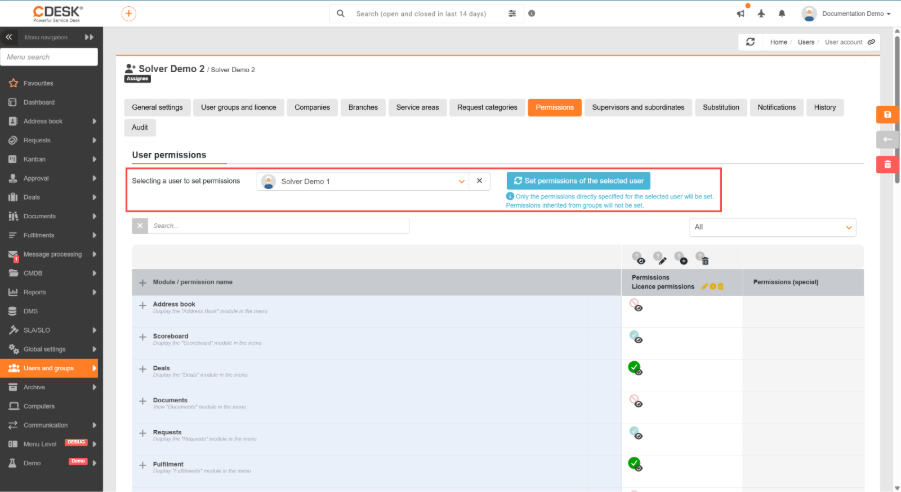
Only the permissions assigned directly to the chosen template are copied. Permissions that the template itself inherits from its groups are not transferred. This procedure is useful when creating an account or group with a similar scope of access; after copying, you only need to fine-tune the differences.
Note: The copied values are only filled into the tree. For them to take effect, the record must be saved.
Saving and discarding changes
Changes in the permissions tree are saved together with the user or group form, i.e. with the Save button. Until they are saved, they can be reverted to their original state with the Discard changes button below the list. Both buttons are active only when there is an unsaved change in the tree.
Discarding changes returns the whole tree to the state it was in when it was last loaded or saved. This also applies to values copied from another account or group, as long as they have not been saved yet.
Please note: Permissions are loaded when the application starts and are kept for the whole time you work in the system. A change of permissions therefore does not take effect for the affected user immediately – they have to reload the page. In some situations, refreshing the page may not be enough, and it is more reliable to log out and log back in to the system.