


Beta verzia novej dokumentácie.
Home VoIP (Zadarma) Working with the phone Work after the call has been quit
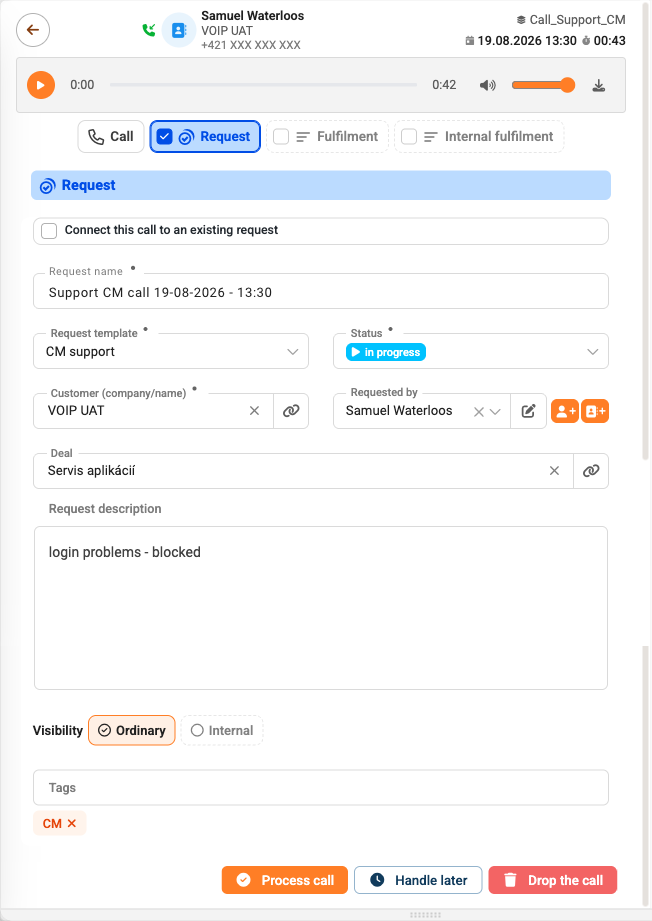
Once the call has ended, the Call Details window opens. The header shows the caller’s identity, the line through which the call was received, the date and time of the call, and its duration. Above the form is a recording player with a download option; if no recording exists, a message stating that it is unavailable appears in its place.
Use the toggles at the top to select what will be created from the call – Call, Request, Fulfilment and Internal Fulfilment. You can enable more than one at a time, so you can, for example, create both a request and a Fulfilment from a single call. Each enabled option is viewed below and is colour-coded.
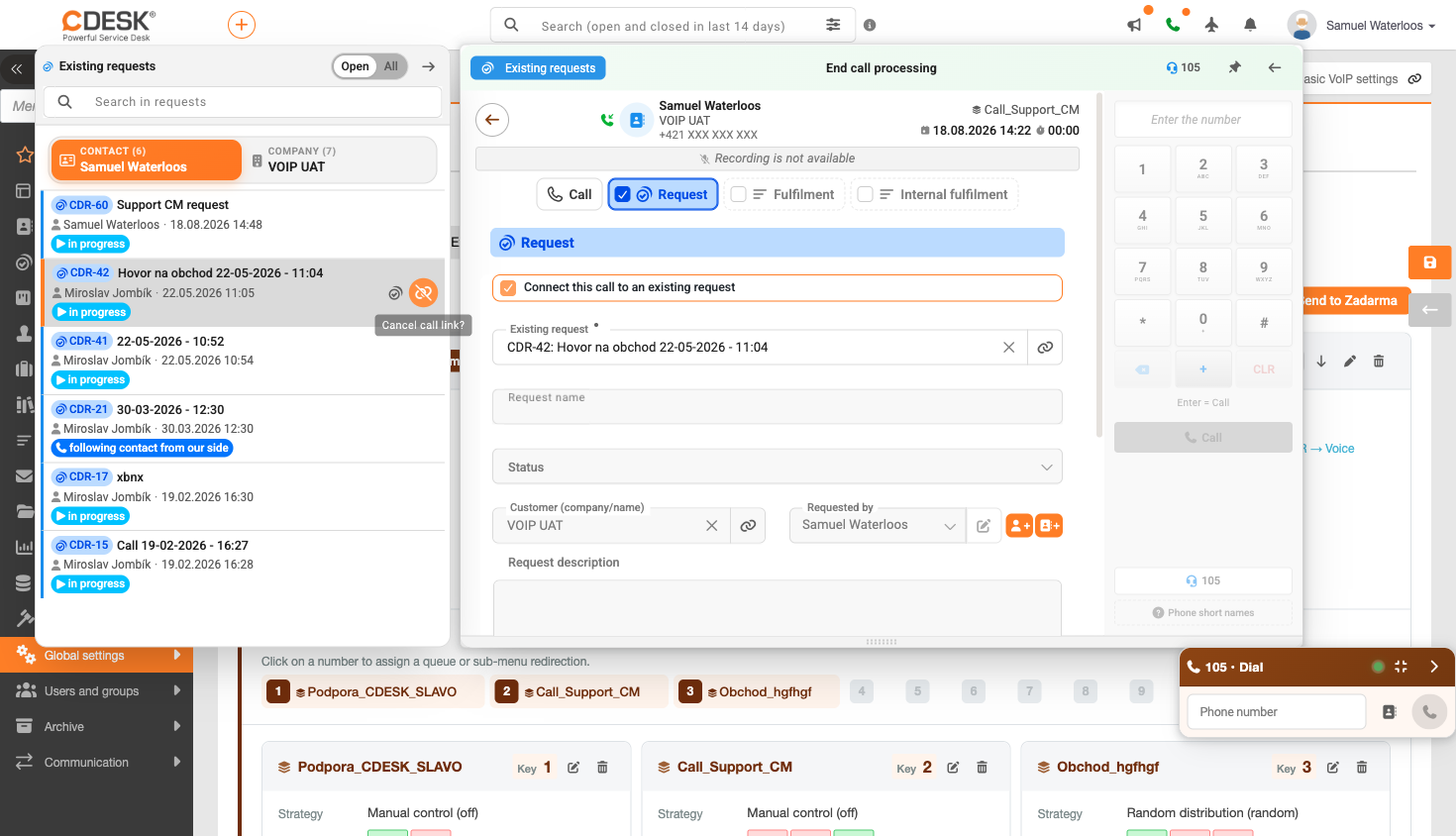
In the Request section, you can either create a new request – specifying the name, status, Customer, requester and description of the request – or tick the Link this call to an existing request box, or select a request directly from the left-hand panel using the Link request button. Once you have ticked the Existing Request field, it will be displayed, from which you can select a request; the fields for a new request will remain blank as they will not be applied. You can cancel the connection using the icon next to the field or next to the record in the left-hand panel of existing connections.
This is the quickest way to link a further call to a case that is already being dealt with – if a customer calls a second time regarding the same request, the call will be linked to it rather than a new one being created.
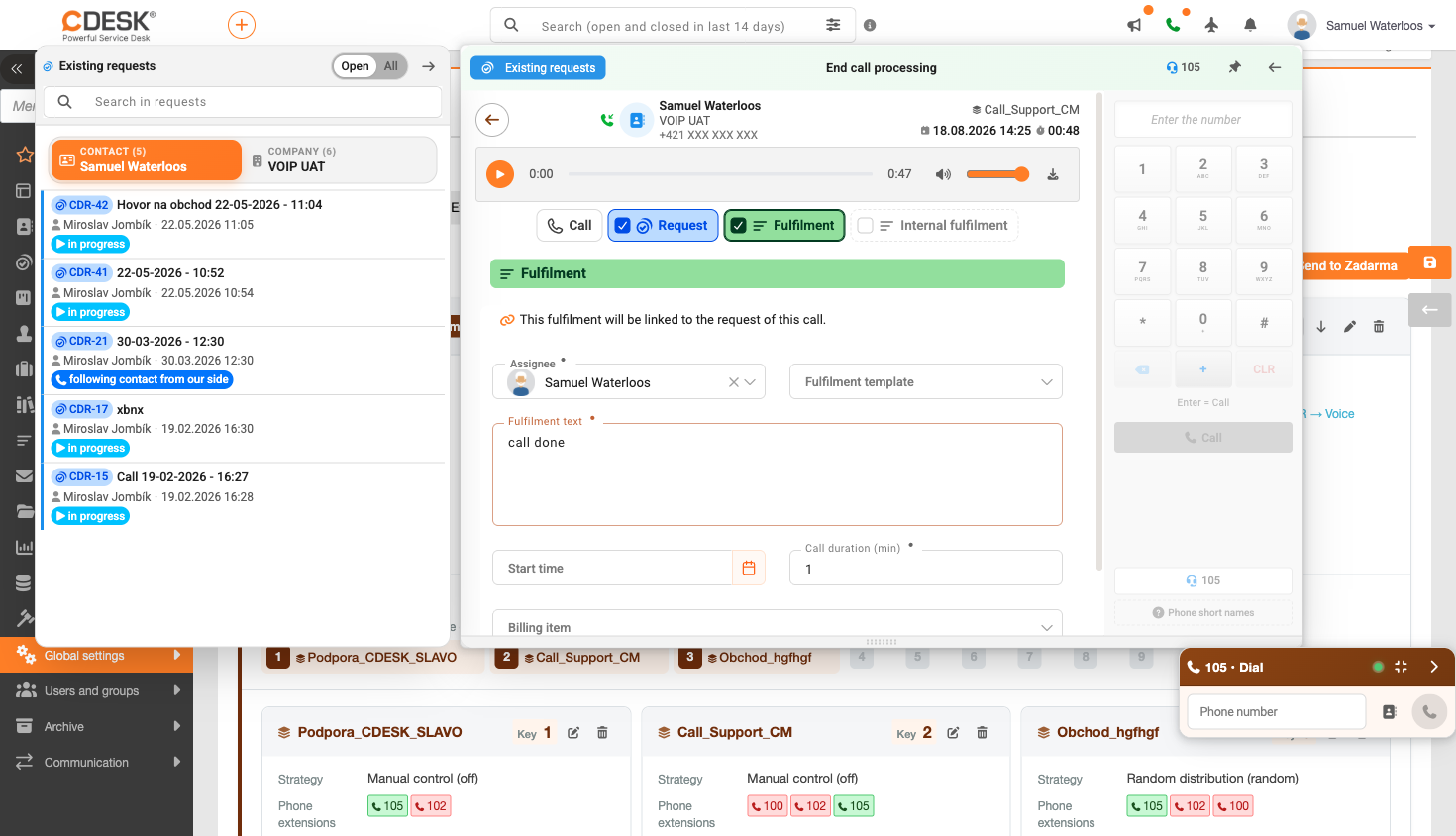
The ‘Fulfilments’ section indicates that the fulfilments will be linked to the request for this call. The handler must enter the relevant details, including the fulfilment template (if applicable), the fulfilment text, the start time, the call duration in minutes and the billing item. The duration is pre-filled based on the length of the call.
A separate fulfilment without a request will also process the call.
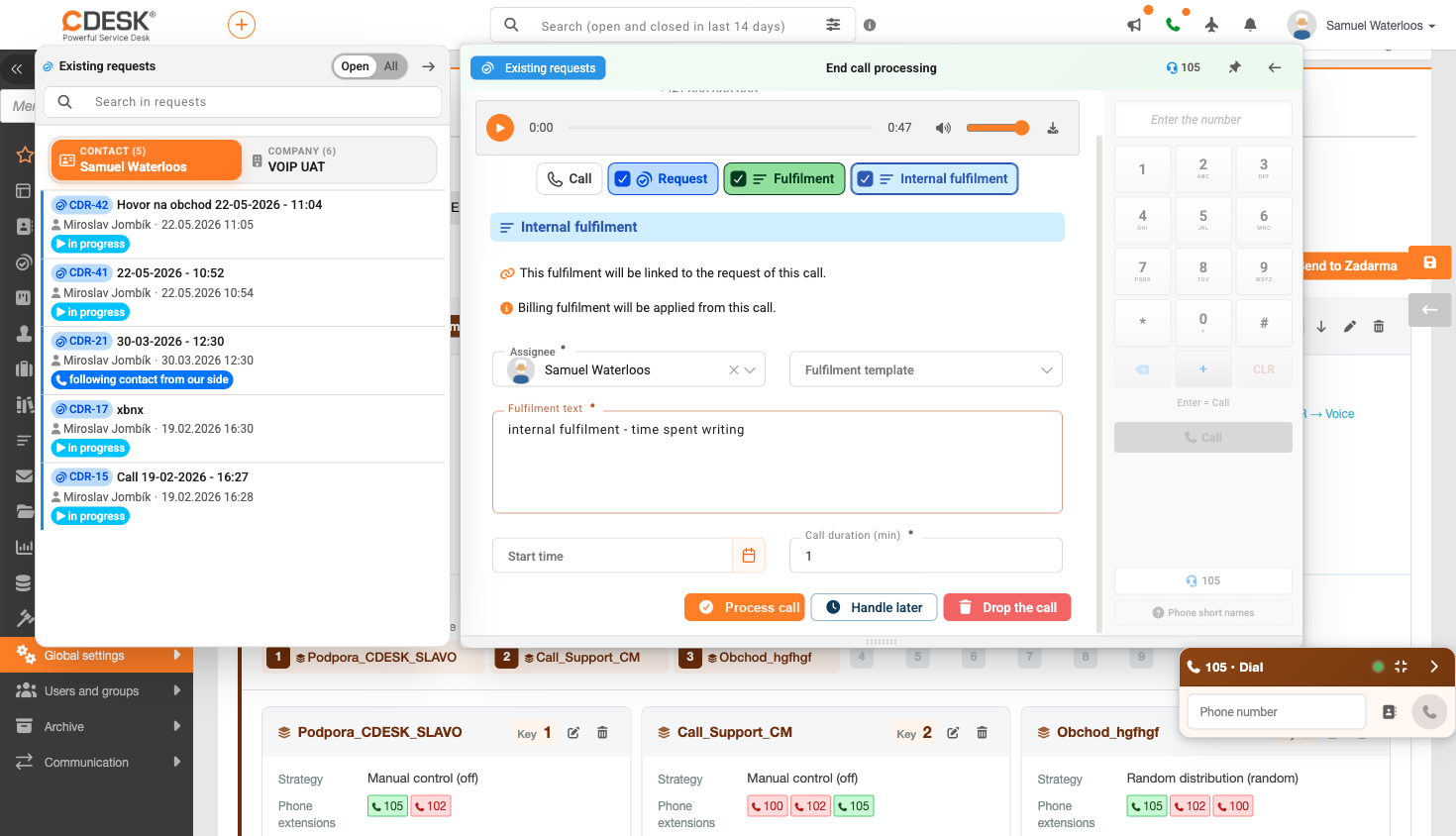
An internal fulfilment is completed in the same way as a common fulfilment and is also linked to the call request. Furthermore, it indicates that the billing fulfilment relates to this call – it is therefore used to record internal work separately from entries for clients.
You can complete the entry using one of the three buttons at the bottom of the window:
Home VoIP (Zadarma) Working with the phone Work after the call has been quit