This section of the so-called introductory tutorial introduces the CDESK web interface and its main features. The goal is to help you navigate the system environment before you begin working with the individual modules. In addition to the web interface, desktop and mobile applications are also available—separate sections of the documentation are dedicated to these system platforms.
To access the system, you must log in at the URL provided in your registration confirmation. If you are logging in for the first time (test access), the account has the rights of the main administrator. This account has the highest privileges and allows you to configure the new environment not only for yourself but also for other users.
After logging into the CDESK web interface, you can work with all available modules in their default settings. The interface is designed to provide quick access to key functions, record search, and user profile management. By default, the Home Overview is displayed, which contains links to the most important elements and an overview of activities. The view can be customized according to your preferences by editing the widgets.
Main controls
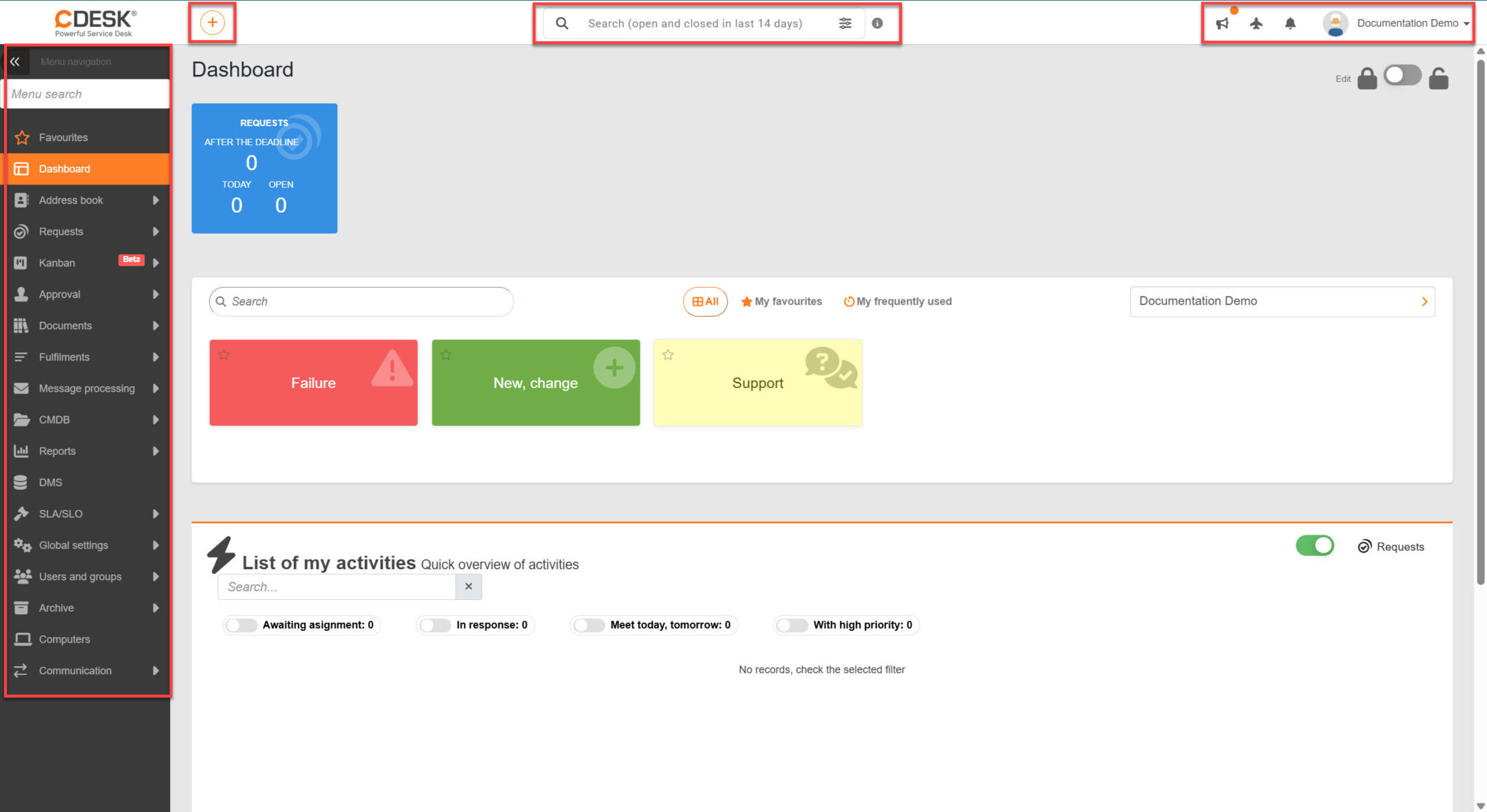
These elements are used for basic navigation and orientation within the system. The controls include the top bar, which contains quick add, central search, notifications, and logged-in user profile management. On the left side is a menu where we recommend creating your own favorites menu.
System top bar
At the top of the interface is a toolbar providing quick access to selected system functions. The top toolbar includes:
- a button for quickly adding records (e.g., + Add Request),
- central search for objects in the system,
- notifications of new events,
- user profile with access to account settings.
Some elements of the toolbar may appear differently depending on the user’s permissions or the modules that are enabled.
Quick Add
The Quick Add button allows you to create new records in the system without having to navigate to a specific module. When clicked, a menu of available actions within the predefined test environment appears:
Add a request
Add a request from the request catalog
Add a fulfilment
Create an open approval
The options displayed depend on the user’s permissions and the enabled modules.
Central Search
The central search field allows you to quickly search for objects throughout the entire CDESK system. The search applies to active records and records closed within the last 14 days. Within the predefined test environment, the search scans the following modules:
- Requests
- Items (CI)
- Fulfilments
- Contacts
- Companies
Search results display up to 10 records of each type, sorted by the time of the last modification. Search results can be effectively narrowed down by using keywords. Clicking in the search field without entering any text displays a list of the most recently modified records. A more detailed description of the central search is available in the documentation section Central Search.
Notices
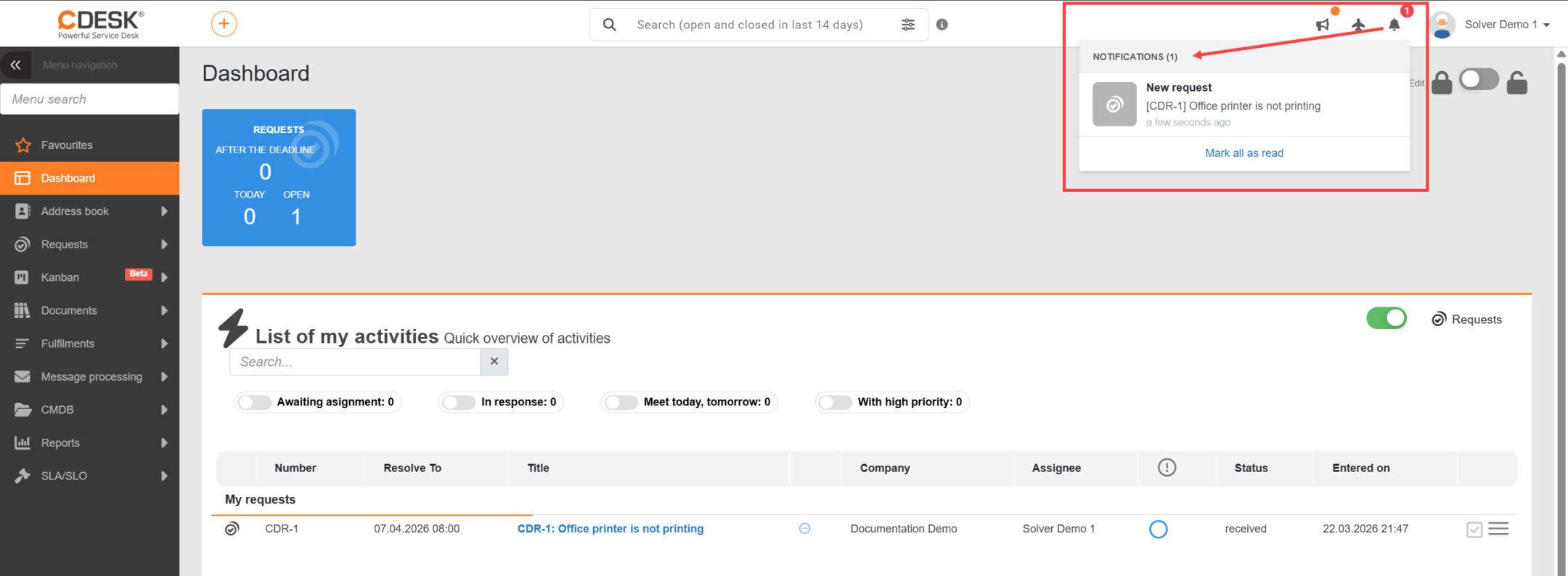
The CDESK system notifies users of important events via notifications. Within the predefined test environment, three categories of notifications are available:
- Notifications – inform users of new events, such as new messages in discussions, changes in request status, or the assignment of a request to a specific user. Clicking on a notification opens the corresponding record in the system.
- Days Off – information about active substitutions with the option to view the calendar and a list of all substitutions.
- CDESK News – provides a brief overview of the latest improvements, new features, and changes to existing system options.
User Profile
Clicking the profile icon on the right side of the top bar displays the user account menu. Within the predefined test environment, users can, for example:
- edit profile settings
- create a substitution
- go to global system settings
- change the interface language
- log out of the system
Main Menu
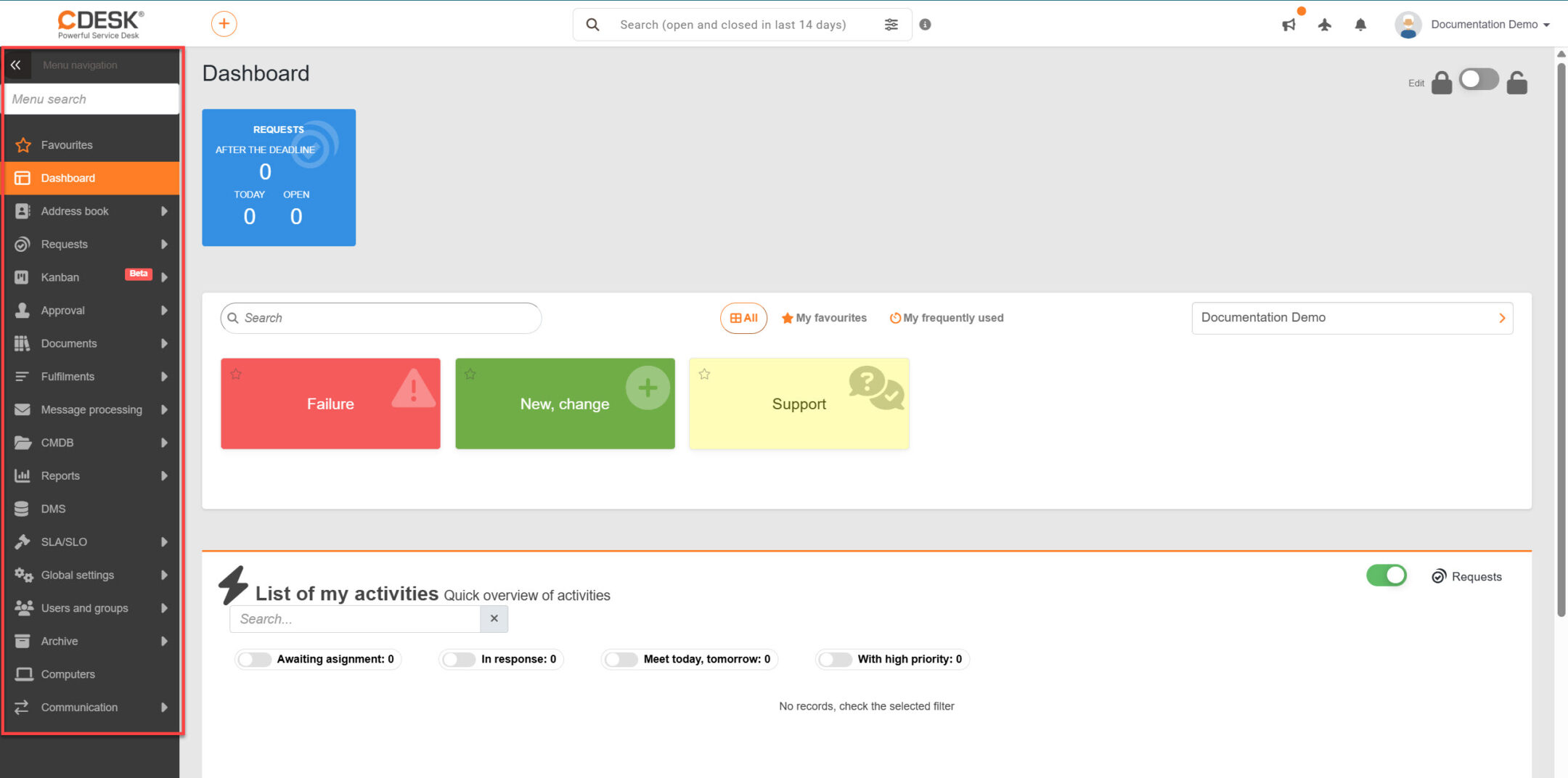
The main menu is located on the left side of the screen and provides access to the system’s individual modules, such as:
- Requests,
- Fulfilments,
- Configuration Management Database (CMDB),
- Global Settings,
- Users and Groups,
The availability of individual menu items depends on the enabled system modules and the permissions of the logged-in user. Clicking a menu item displays the corresponding list or form for that module. Within the menu, you can search using the Menu search field at the top. To maximize window space, you can minimize the entire menu, in which case only the icons for each module will be displayed in the sidebar. Use the double-arrow icon at the top of the menu () to do this.
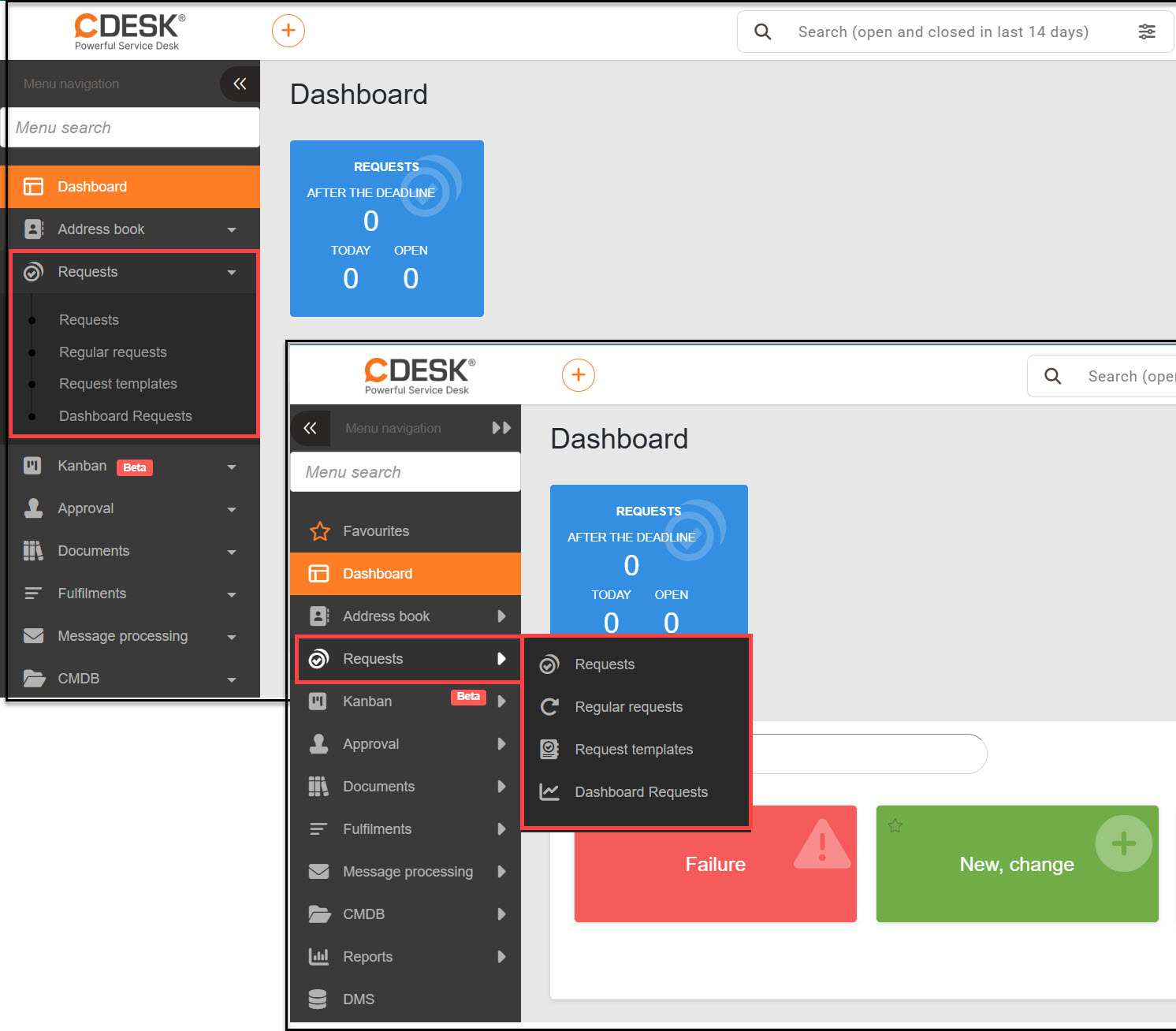
The system offers two different menu display styles:
- Drop-down menu – in this style, menu items expand downward,
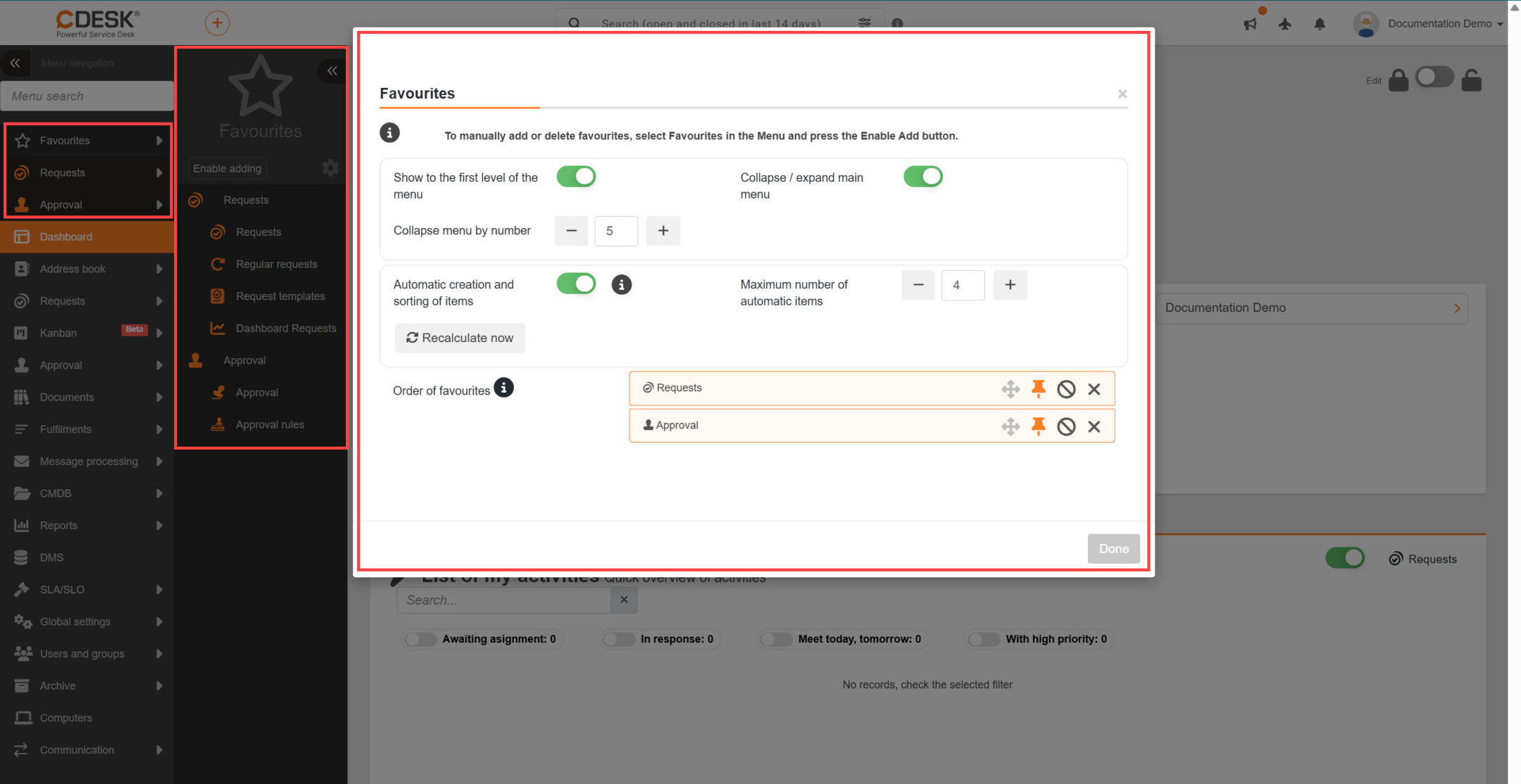
- Slide-out menu – menu items slide out to the right; in this menu style, you can also create a list of favorite menu items.
Menu Favorites
CDESK allows you to create your own menu, which we call Favorites. It can be displayed directly in the first-level menu or remain collapsed. The goal is to make frequently used functions available with a single click.
For newly created accounts, there are no items in the favorites list. Items are added automatically (the most frequently accessed items over the past 24 hours) or the user can organize items manually according to their needs (by enabling the option Enable Adding and clicking the star icon ( ) in the row of the relevant item). Favorites and their display can be freely configured—more information about these options is available in the documentation section Favorites and the drop-down menu in CDESK.
Now that you are familiar with the main controls and layout of the CDESK interface, you are ready to move on. In the following section, Creating Your First Records,you will learn how to create users, requests, and other types of records so you can try working with lists, filtering, and the system’s basic functions.