



Beta verzia novej dokumentácie.
Home Asset Register Mobile Asset Tracking App Access to the application and the user interface
The mobile app is primarily used for performing inventory tasks—specifically, scanning. We recommend editing items via the web.
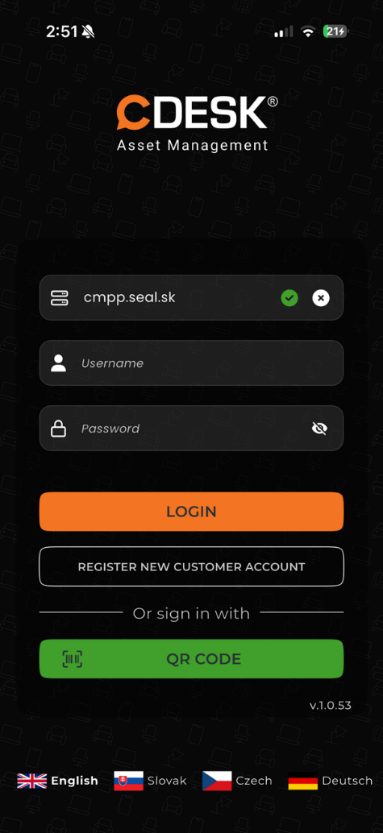
To log in to the application, you must enter the required login credentials. Confirm the login by clicking the Log in button.
At the bottom of the screen, you can also change the app’s language by clicking on the corresponding flag.
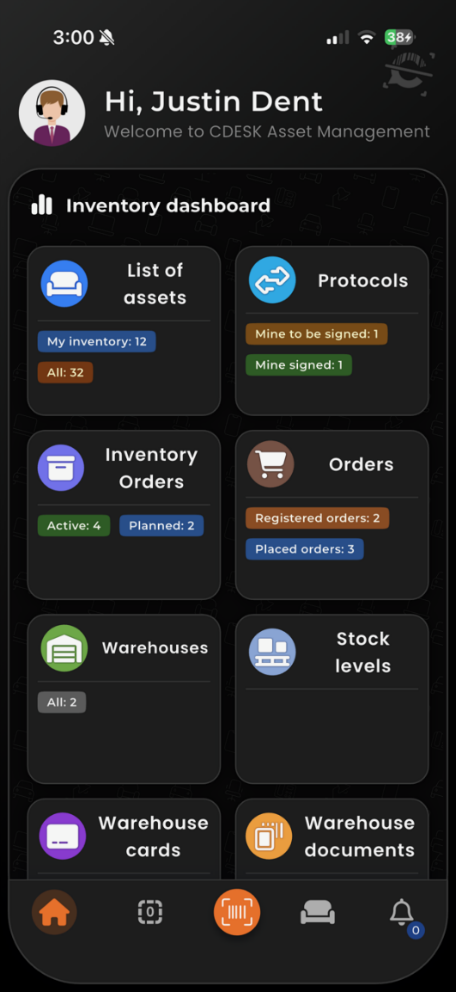
The dashboard serves as an overview of the most important information in the app. It provides users with a quick snapshot of the current status.
Clicking the profile icon in the upper-left corner opens the details for that profile. Here, you can change information such as Email, Phone, and Password in the profile settings. In the app settings, you can change the language, theme, colors, and style. You can also change your password, upload or edit a signature for print reports, log out, and log back in as a different user.
Home Asset Register Mobile Asset Tracking App Access to the application and the user interface