


Cloud CDESK MCP is the CDESK MCP that we operate, available at a fixed web address. There’s nothing to install: simply enter the address into your AI application once, log in with your CDESK account, and from then on the assistant will be able to work with the CDESK system. It takes about two minutes.
Preparations before connection
Please have the following details to hand:
- CDESK MCP address: https://mcp.cdesk.eu – copy it exactly as it is, without adding anything after it. This is not your CDESK address; it is the place where CDESK MCP itself runs. You will need both addresses: this one goes into your AI application, and your own CDESK address will be required later on the login page.
- Your custom CDESK address and your login and password
Confirm whether your AI application supports connectors
Your AI application must be able to connect to the connector at the web address. These products change frequently, so please also refer to the documentation for the application itself.
| The app | Can it do it? | Comments |
|---|---|---|
| Claude – web and desktop app | Yes | The most convenient option. Requires a paid plan (Pro, Max, Team or Enterprise) |
| Claude Code | Yes | A single work order – see Connecting from Claude Code, Gemini CLI or Codex CLI |
| ChatGPT | Usually yes, depending on the plan | The settings are hidden behind developer mode – see Connecting from ChatGPT |
| Gemini CLI | Yes | See Connecting from Claude Code, Gemini CLI or Codex CLI |
| Gemini web app (gemini.google.com) | No | There is no field for the connector address. Apply the Gemini CLI or Claude |
| Microsoft Copilot | Only via Copilot Studio | The common chat in Copilot cannot add a connector; an agent created in Copilot Studio can |
If your application is not in the list, look in its settings for ‘connectors’, ‘custom connectors’, ‘MCP servers’ or ‘integrations’ and confirm whether it accepts a web address. If so, apply the address from the ‘Preparation before connection’ section above.
Please never enter your CDESK username or password into the AI chat. The only place they belong is the CDESK login page, which opens in your browser when you connect to the MCP server. That page is the only place where we ask for them. The assistant itself never needs them, and whatever you type into the chat goes to the AI provider just like any other message – so if anyone ever asks you for your CDESK password during a conversation, do not give it to them.
Log in via Claude (website or desktop app)
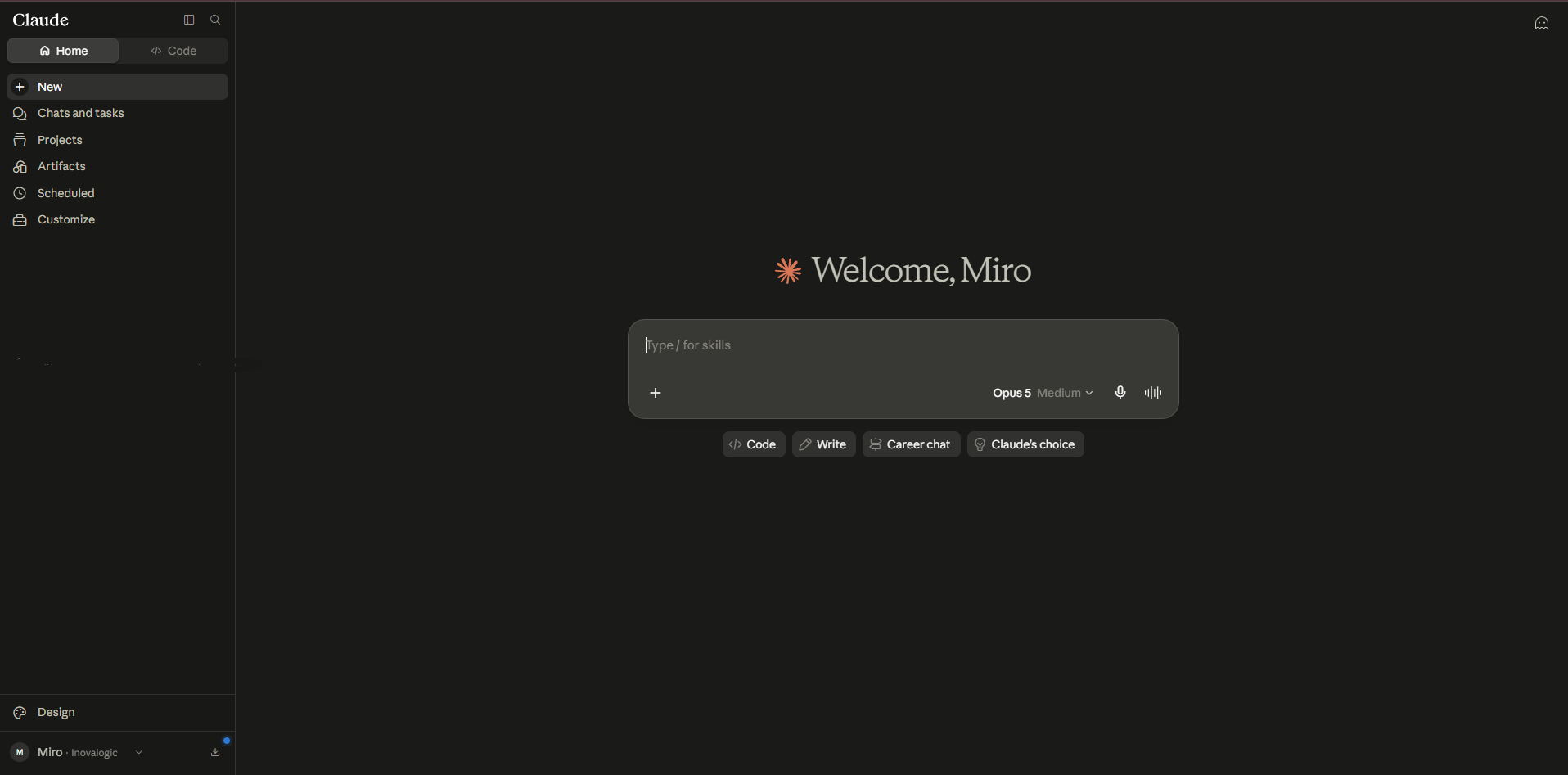
1. Open Settings by tapping your name in the bottom left-hand corner.
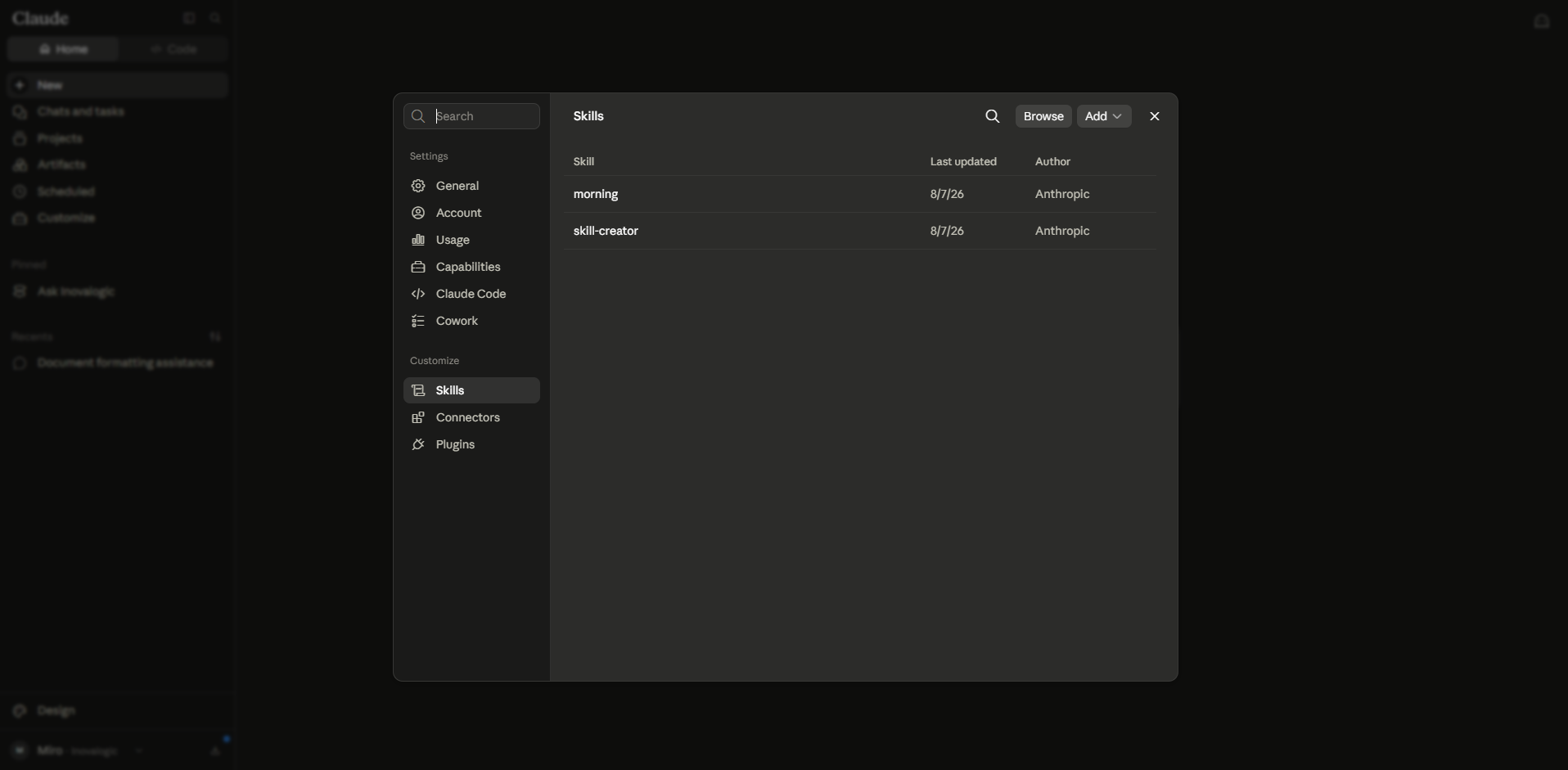
2. In the ‘Customise’ section, select ‘Connectors’.
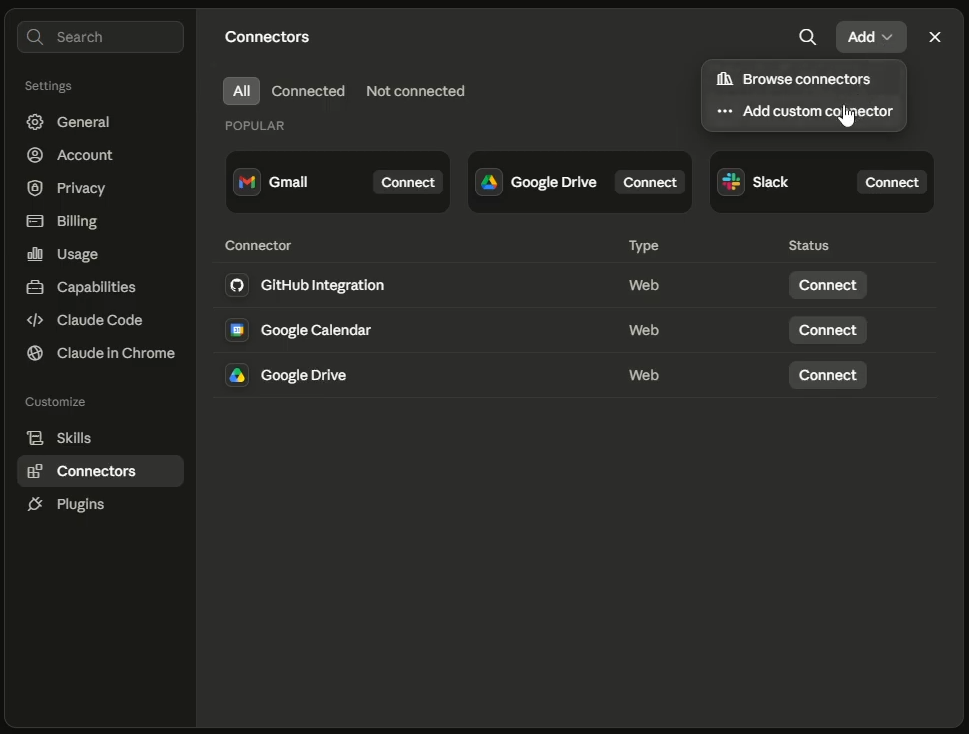
3. In the top right-hand corner, open the Add menu and select Add custom connector.
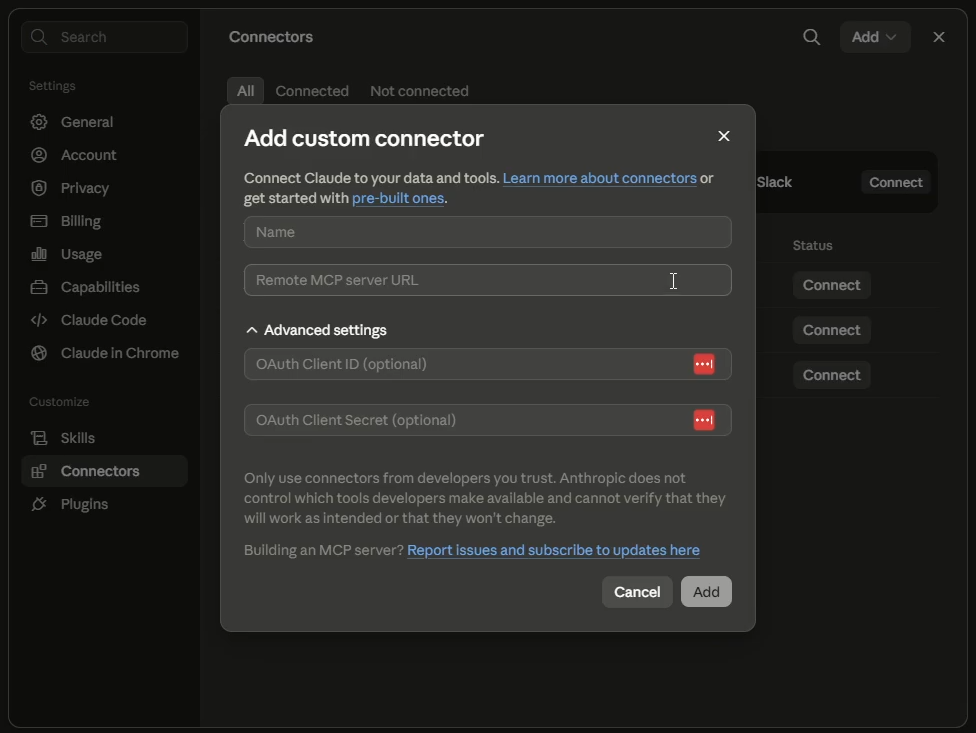
4. Enter Name (for example, CDESK), insert https://mcp.cdesk.eu in the Remote MCP server URL field, and click Add. Leave the fields under Advanced settings blank – these will be filled in automatically when you log in in the next step.
5. The login page will open in your browser. It logs you into CDESK, but this isn’t the CDESK login screen you’re familiar with: it looks simpler, asks which CDESK you’re using, and does so in two steps.
- First, enter the address of your CDESK server and click ‘Verify server’. The page will confirm the address and then view the rest of the form.
- Then enter your CDESK login and password and click ‘Sign in’. If you’ve entered the wrong address, click ‘Change’ next to it and start again.
Please check your email address before logging in. Your username and password will be sent to the address provided there, so a typo could result in them being sent somewhere you didn’t intend.
- If your CDESK uses Microsoft sign-in, once the email address has been authenticated, a blue ‘Sign in with Microsoft’ button will appear below the form – in the same place as on the CDESK login screen. It will only appear on CDESK instances that actually offer this feature, so if you cannot see it, the server in question is not enabled for it.
- If the page states that it was unable to confirm the server, you can still log in – authentication is a helpful feature, not a requirement.
6. Claude will ask you to approve the connector. Approve it.
Now confirm that it works – see the ‘Authentication of the connection’ section below.
Link from ChatGPT
In ChatGPT, the connector is added as a plugin, and this option only appears when developer mode is enabled. Whether you have it depends on your plan and workspace.
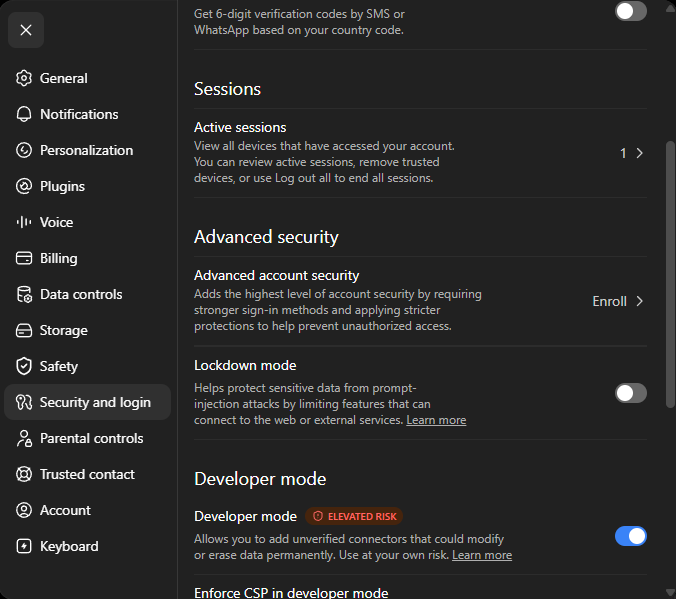
1. Open Settings → Security and login and enable Developer mode. It is selected as ‘elevated risk’ because it allows you to add connectors that OpenAI has not reviewed – CDESK MCP is one of them.
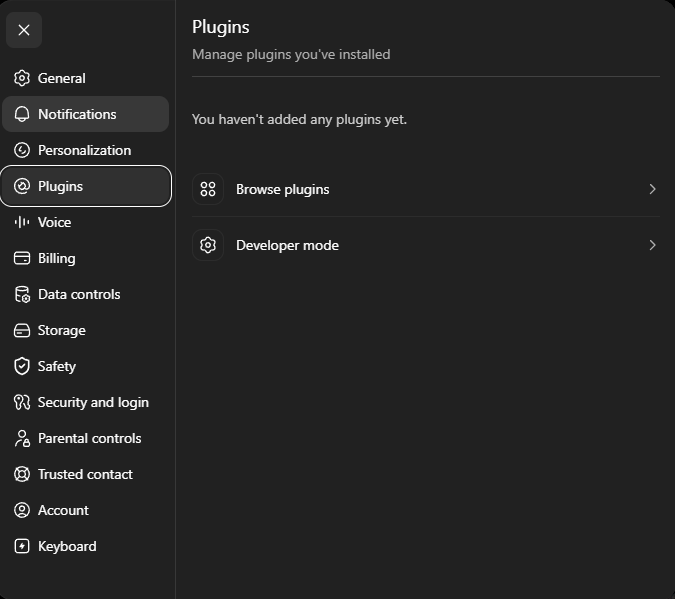
2. Go to Settings → Plugins. With developer mode enabled, you will now see ‘Browse plugins’ and ‘Developer mode’ here.
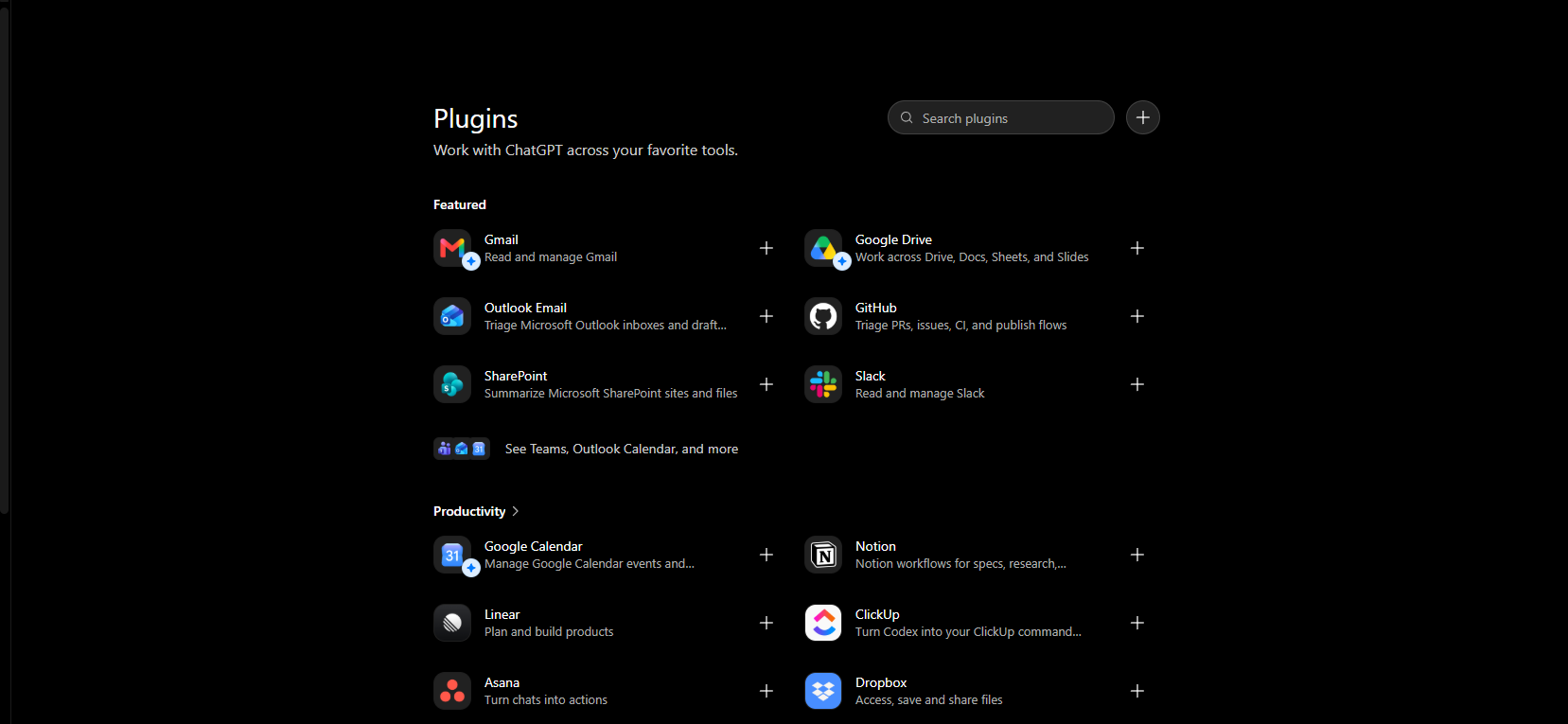
3. On the Plugins page, click the + button in the top right-hand corner.
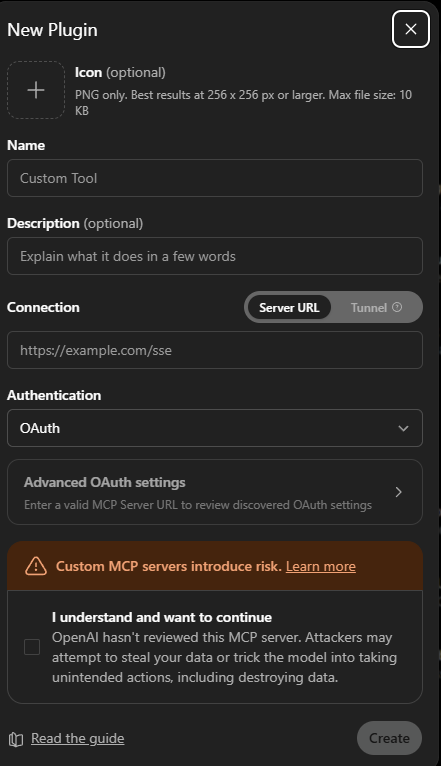
4. Fill in the New Plugin form:
- Name – anything you recognise, for example CDESK.
- Connection – leave it set to Server URL and enter https://mcp.cdesk.eu.
- Authentication – select OAuth and leave the advanced settings as they are; they will be filled in automatically from the address.
- Tick the box for the risk warning and click Create.
5. When the page appears in your browser, log in to your CDESK account exactly as described in step 5 of the ‘Connecting from Claude’ section above.
If you cannot find developer mode at all, it has not been enabled for your account – please contact your administrator. Business and Enterprise spaces often require the administrator to enable custom connectors first.
Now confirm that it is working – see the ‘Authentication of the connection’ section below.
Connecting from Claude Code, Gemini CLI or Codex CLI
Claude Code – a single order:
claude mcp add --transport http cdesk https://mcp.cdesk.euGemini CLI – in the .gemini/settings.json file in your user folder:
{
  "mcpServers": {
    "cdesk": {
      "httpUrl": "https://mcp.cdesk.eu"
    }
  }
}
Codex CLI – support for connectors at a web address varies depending on the version. See `codex mcp –help` and the application documentation.
When you apply the CDESK assistant for the first time, the login page from step 5 of the ‘Connecting from Claude’ chapter will open in your browser.
Connection authentication
Ask the assistantAsk CDESK for information about the server.
An answer containing "status":"ready" means you are connected.
If you want to see what you’ve got, open the list of tools in the app – in Claude, this is the icon below the text field – and expand ‘cdesk’. You should see the CDESK tools listed there. If they’re there, you’re all set.
This is just a check. You never need to select anything from that list: simply say what you want in your own words – “which tickets do I still have open?” – and the assistant will select what it needs itself.
Troubleshooting issues
The login page does not appear. Check the address – it must be exactly https://mcp.cdesk.eu, with nothing following it – and confirm that your application actually accepts the connector at that web address (Confirm that your AI application supports connectors).
“CDESK sign-in failed. The CDESK username or password was incorrect.” Exactly as it says: enter them again and, to be on the safe side, try the same combination on the CDESK web interface. If they work there but not here, the account most likely has 2FA enabled and the password won’t pass through it. Apply the ‘Sign in with Microsoft’ button, if your CDESK offers it, or contact your administrator.
“Could not reach CDESK. Check the server and try again.” The CDESK address you entered did not respond. Check it for typos, confirm that it is the address you are using in your browser, and confirm whether it requires a VPN to which you are not currently connected.
“Too many attempts.” The login page limits the number of attempts. Please wait a minute and try again.
You are logged in, but nothing is working. Ask your administrator to confirm that your CDESK is version 3.2.12 or later and that your CDESK account licence permits this level of access – if this is the problem, the error message will state so. Neither of these issues can be resolved on the CDESK MCP side.
It was working yesterday, but today it’s asking me to log in again. This is common once your CDESK session has expired or after the service has been restarted. Please log in again; if the problem occurs again, please let your administrator know.
Everything is unreachable. The CDESK MCP cloud itself may be down – please contact your administrator.