


Beta verzia novej dokumentácie.
Home VoIP (3CX) VoIP settings (3CX) Extension settings
Extensions are created in the 3CX PBX and CDESK retrieves them from there. The task of this tab is to assign each extension to a CDESK user. Only once an extension has been assigned does CDESK know who the call belongs to; it then tracks it in real time and views it in the top panel of the relevant operator.
Calls on extensions without an assigned CDESK user will not appear in the ‘Outstanding Calls’ list. The quantity of unassigned extensions is displayed in the tab name and in the notice above the list.
The list is loaded automatically when the page opens; by clicking the Renew from 3CX button, you can retrieve the current state directly from the PBX (otherwise, the list from the cache – which is no more than one minute old – will be applied). You can narrow down the list using the filters All, Pending Assignment, Assigned and Unregistered (each showing the quantity of entries) and by searching by extension, name or email address. If the PBX has AI agents, the quantity of agents is displayed above the list.
Extension – the extension number. An icon indicates if the extension is disabled in 3CX.
Status – the status of the extension on the PBX. A registered extension displays its status in 3CX, for example, Available, Away or Do Not Disturb (the same names as the status options in the top panel). Unregistered means that no device or application is logged in. This does not refer to the operator’s online status in CDESK.
Queues – the quantity of queues to which the extension belongs (hover over them to see their names), or information indicating that it has been removed from the queues.
Role in 3CX – the user’s role in the PBX; read-only. The roles Supervisor, Department Administrator, Manager, Owner, System Administrator and System Owner grant access to the Supervisor tab in CDESK. Unknown means that 3CX has not returned the role (older version or API client without permission to read roles) – in this case, the Supervisor tab is controlled solely by the Access to third-party calls authorization.
Name in 3CX – the extension name from the PBX.
CDESK user – the assigned user. The extension behind which the PBX AI agent is located is labelled AI agent and is not assigned.
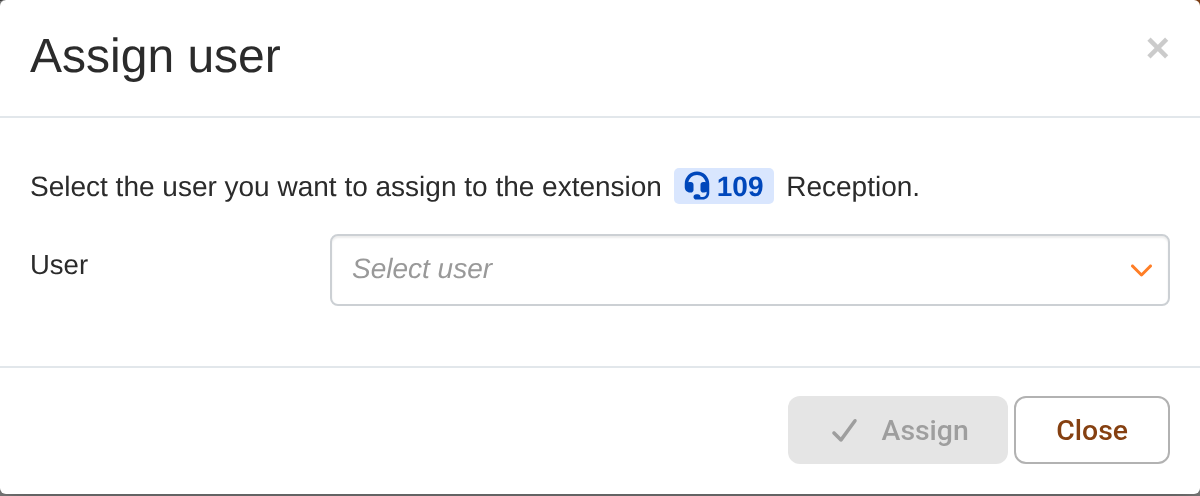
The Assign button in the extension row opens the User Assignment window. Select the active CDESK user in the User field and confirm by clicking the Assign button. Once an extension has been assigned, the ‘Change Assignment’ and ‘Cancel Assignment’ icon buttons appear in the row. A user can only have one extension – if they already have one, CDESK will display a warning “The user already has an extension assigned … Please remove it first.” Any change to the assignment – including cancellation – is only saved by clicking the Save or Save and Apply button on the page.
The new or last modified extension assignment will take effect for the user after they log in to CDESK again, or after refreshing the page.
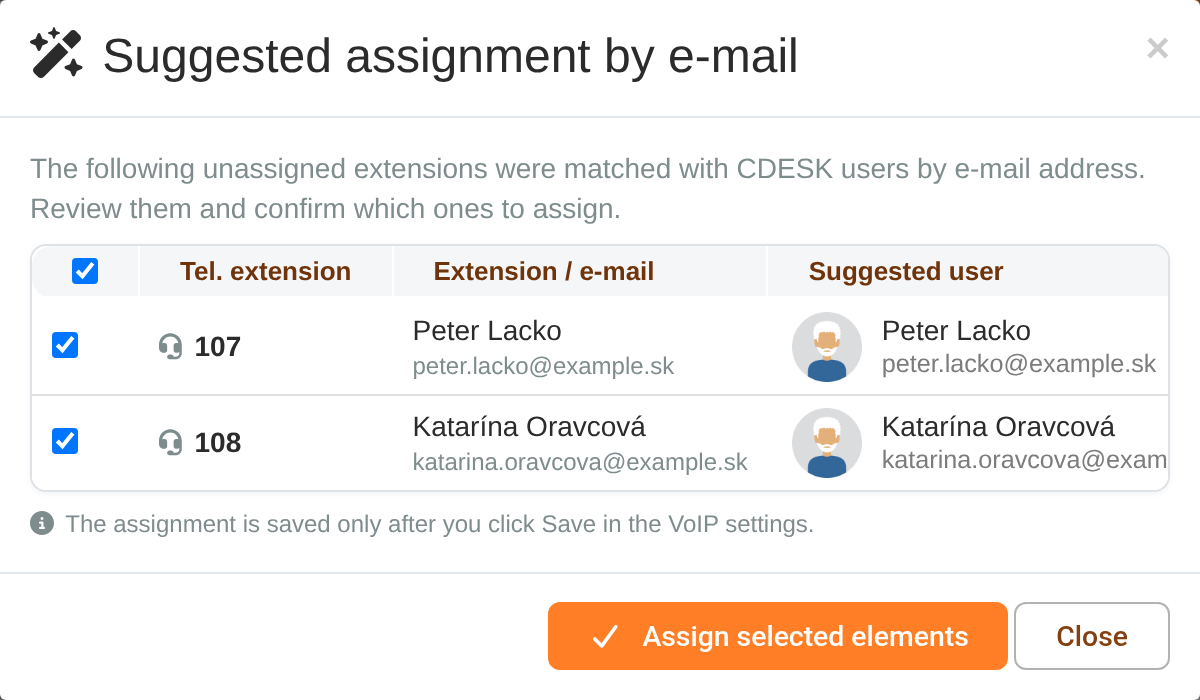
If there is a large quantity of entries, it is advisable to apply the ‘Suggest assignment by email’ button. CDESK will compare users’ email addresses in 3CX and CDESK (regardless of upper and lower case) and, in ‘Suggest Assignment by Email’ window, will offer matching pairs, all pre-selected. Drafts apply only to unassigned extensions that are not AI agents and have an email address in 3CX. A user who already has an extension will not be suggested, and an email address that has multiple active users in CDESK will not be matched. Selected drafts are assigned by clicking the ‘Assign Selected’ button. The assignment will only be saved once the VoIP settings have been saved.
Home VoIP (3CX) VoIP settings (3CX) Extension settings
Na tejto stránke