


The entire telephony configuration can be found under Global Settings → Omnichannel → VoIP (the Basic VoIP Settings page). The VoIP tile is only active if the ‘Enable Omnichannel module’ checkbox is enabled in the Omnichannel settings. Viewing the settings requires access to global settings and Omnichannel and VoIP permissions; saving them requires write permission for global settings. Without this, the save buttons will not appear.

Enabling the module
At the top of the page, enable the ‘Enable VoIP module’ switch.
In the ‘Connection’ tab, select ‘3CX’ in the ‘Provider’ field – ‘Your own custom 3CX PBX (in the cloud or on-premises); CDESK connects via its API. Managing the PBX requires your own custom technical infrastructure.”
Enter your access data (see below) and save the settings by clicking the ‘Save and Apply’ button. The page will refresh and the ‘Confirm Connection’ button and further tabs will appear.
The other tabs – Extensions, Tips, Calls, Top Bar and Synchronisation – will be viewed once the access data has been saved and the page has refreshed (‘Save and Apply’ or ‘Apply Settings Now’ button). The Debug tab is available immediately after selecting the 3CX provider. The browser remembers the last tab that was open.
Changes to the VoIP settings take effect after the page is refreshed. The ‘Save and Apply’ button saves the settings and refreshes the page immediately. After saving with the ‘Save’ button, you can apply the settings using the ‘Apply Settings Immediately’ button.
The ‘Apply settings immediately’ button is displayed in a yellow notice above the status bar. If there are unsaved changes on the page, the buttons are labelled ‘Unsaved changes’.
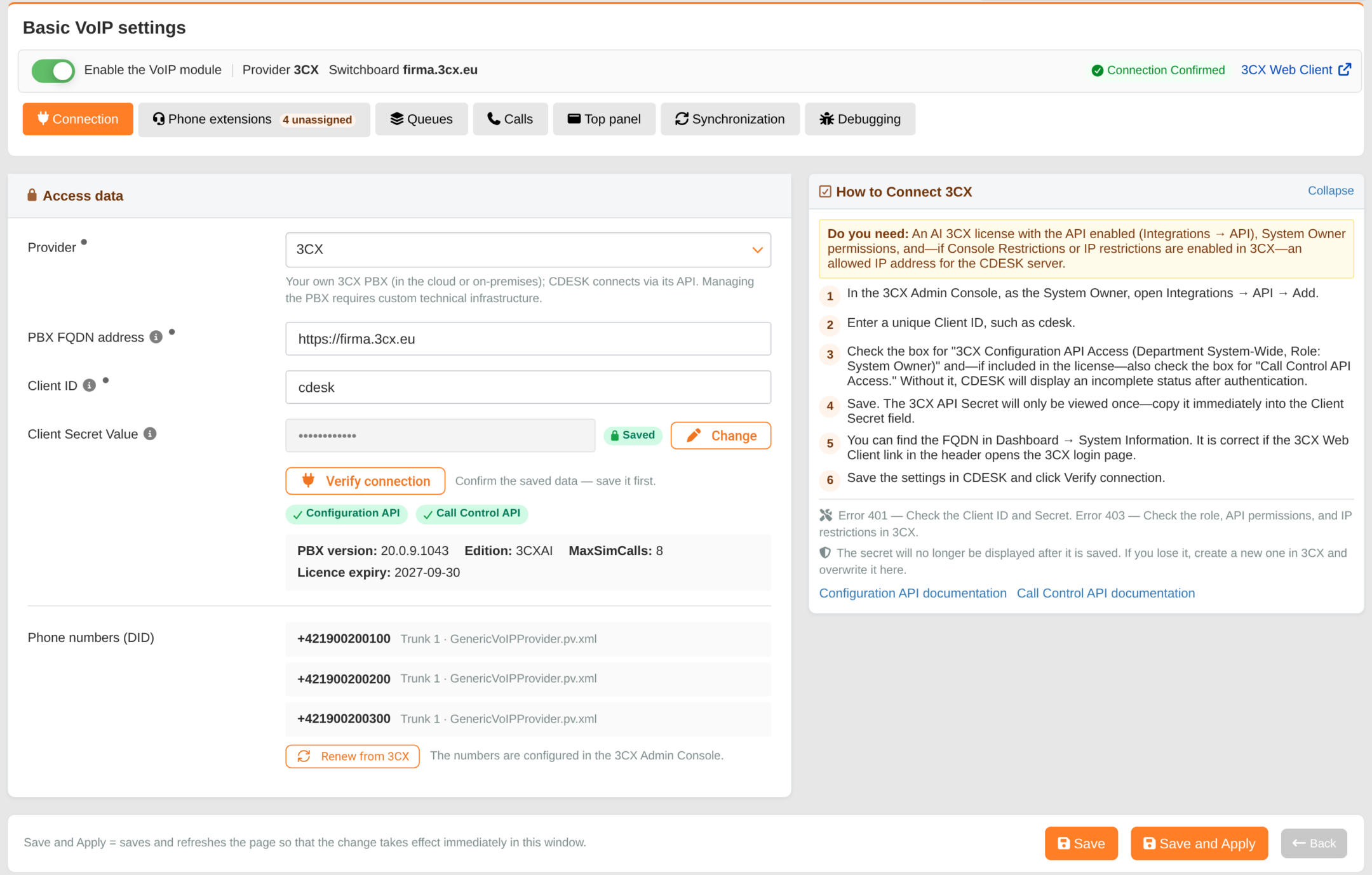
Access data
PBX FQDN – the full address of your 3CX PBX, for example https://firma.3cx.eu. If you enter the address without https://, CDESK will complete it automatically. Required field.
Client ID – The Client ID of the API client created in the 3CX Admin Console under Integrations → API; maximum 128 characters. Mandatory field.
Client Secret Value – the API secret viewed by 3CX when the API client was created; minimum 8 characters. Once saved, this information is no longer displayed: the field is masked and marked as ‘Saved’. You can enter a new secret using the Change button; clicking the ‘Keep saved Client Secret’ link will cancel the change.
If the details are incorrect, the settings will not be saved and a message will appear, for example: ‘The FQDN address of the 3CX PBX is invalid’.
The procedure for obtaining the data is described in the ‘API Access for CDESK’ section and, in brief, in the ‘How to connect 3CX directly’ tab on the settings page.
Authentication
When you click the ‘Confirm Connection’ button, CDESK will attempt to log in to the switchboard and test both interfaces – the Configuration API and the Call Control API. The authentication process uses saved data, so please save your settings first – the button will only be viewed once the access data have been saved. The authentication result is only saved for users with write permission to global settings.
The status bar at the top of the page always displays the PBX address, a link to the 3CX Web Client and a label showing the connection status. Detailed results are viewed below the ‘Confirm Connection’ button: the ‘Configuration API’ and ‘Call Control API’ labels (green = available; hover over them to see the reason) and information about the PBX:
Connection confirmed – both interfaces are available. Below the button, the PBX version (PBX Version), Edition, maximum quantity of concurrent calls according to the licence (MaxSimCalls) and Licence Expiry are viewed. After refreshing the page, the status bar displays ‘Connection verified’ along with the date and time of the last authentication.
Connected without Call Control – only the Configuration API is available. The PBX does not permit Call Control via the licence or the client’s API role; therefore, real-time call information, dialling, call forwarding, hanging up and taking calls do not work. Extensions, groups, telephone numbers and call history are functional. After refreshing the page, this status is also displayed as ‘Connection verified’ with the date.
Connection failed – a message will be viewed below the button, for example “Client ID or Client Secret is incorrect”, “3CX has declined access. Check the API client role or Console Restrictions/IP restrictions” or “The 3CX PBX is unreachable. Check the FQDN address or network/IP restrictions”.
Connection not authenticated – authentication has not yet taken place, or the access data (FQDN, Client ID or Client Secret) have changed.
Error 401 indicates an incorrect Client ID or Client Secret. Error 403 means that the PBX has declined access – check the API client role, the selected API access permissions and IP address restrictions in 3CX.
If 3CX repeatedly declines the login, CDESK will temporarily suspend further attempts (for 5 minutes, 30 minutes, 2 hours and 24 hours respectively) to prevent the PBX from blocking the CDESK server’s IP address. Once the correction has been implemented in 3CX, click ‘Confirm connection’ – a single click will allow an immediate retry.
Telephone numbers
The Connections tab also views a list of telephone numbers (DIDs) assigned to the PBX, along with the trunk and template for each number. The list is loaded automatically; click the Renew from 3CX button to reload it from the PBX. In CDESK, it is read-only – numbers are edited in the 3CX Admin Console.