Each call can be handled by creating a request or completing a fulfilment, or it can be dismissed with an optional reason.
Call Handling Form
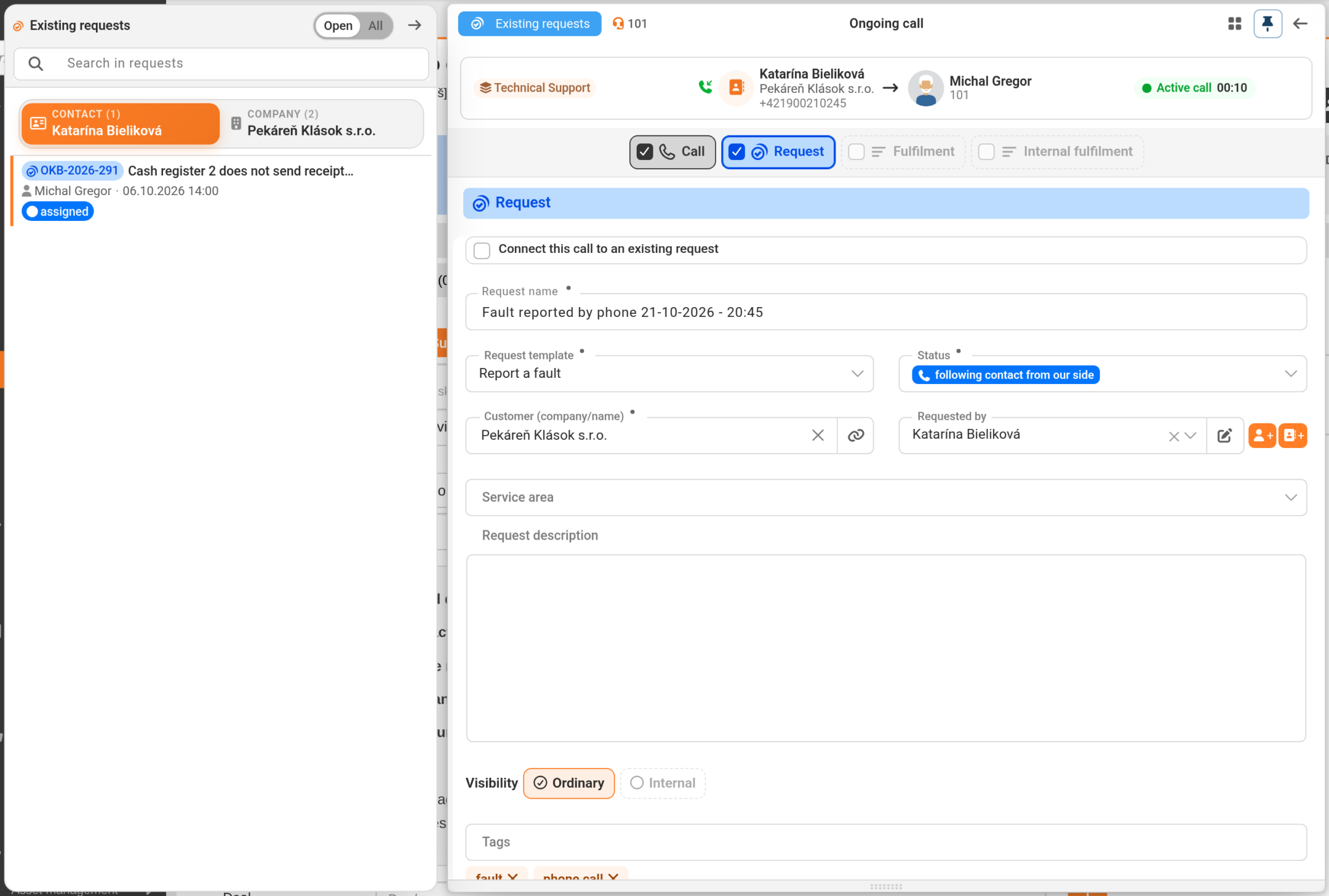
The form opens automatically when a call is received, from the bubble of an ongoing call, in the Calls tab via the ‘Process call’ icon (if ‘Edit call processing’ is done), or from the Call list. It has the tabs Call, Request, Fulfilment and Internal Fulfilment. The Call tab contains the Call Description field and is always ticked – as every call is processed, it cannot be disabled. Furthermore, the tab that is currently open is highlighted in colour. The other tabs are enabled by ticking or by clicking ‘Add Request’, ‘Add Fulfilment’ or ‘Add Internal Fulfilment’ buttons. If the queue settings do not permit creation, the tab will not be displayed. The company name is pre-filled based on the recognised caller; otherwise, it is based on the queue settings. The template, name and tags are pre-filled according to the queue settings; for calls outside the queue, they are pre-filled according to the settings for incoming or outgoing calls. The administrator can lock changes to the company or template.
Request – a new request is created from the call. The call can also be linked to an existing request from the caller.
Fulfilment and Internal Fulfilment – the work done is recorded against the call, for example, during a telephone consultation.
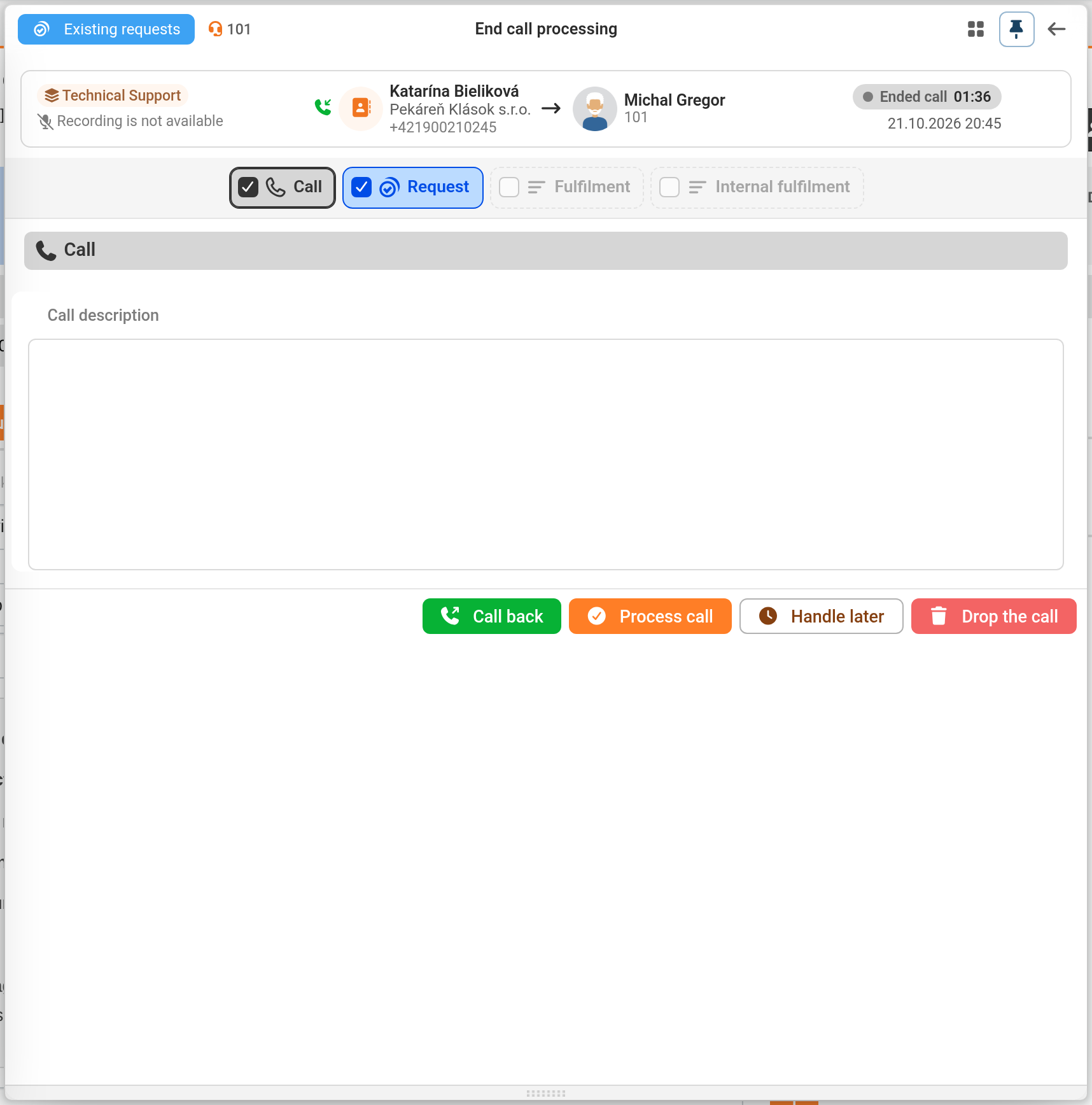
The form is saved automatically whilst the call is in progress. Once the call has ended, it is closed by clicking the ‘Complete Call’ button – this is active when at least one of the ‘Request’, ‘Fulfilment’ or ‘Internal Fulfilment’ tabs is selected. If the operator does not have time to handle the call immediately, they can postpone it by clicking the ‘Handle Later’ button – it will remain among the outstanding calls with the label ‘DRAFT’. A call that does not need to be logged is discarded by clicking the ‘Discard Call’ button. Once the call has ended, the form also features a ‘Call Back’ button, and CDESK is pending for approximately 15 seconds on the switchboard recording. If no recording is received, the message ‘Recording not available’ is viewed. In a resolved call, there is an ‘Unpair’ button for both the request and the fulfilment.
A request arising from a call has the telephone as its source and the operator as its assignee. When performing fulfilments for a request arising from a call, the assignee is also the operator; the start time is the moment the call is answered, and the duration is taken from the actual call. Setting the visibility to ‘Internal’ creates an internal request, for which no emails or text messages are sent to the customer. A call cannot be handled twice – if a colleague or an operator has handled it in the meantime in another browser tab, CDESK will send you a warning.
Tags selected in the processing form are not currently saved by the 3CX provider for either the call or the request. If you need them for the request, please complete them directly on the request.
Call recording and information
If ‘Attach call recording’ is enabled in the settings, a recording from the switchboard will be attached to both new and existing requests, provided the switchboard has one. When ‘Include call details in request description’ is enabled, the called queue, contact, telephone number, date, time and duration of the call will be added to the start of the description of a new request.
The recording will be attached as a WAV file with the date, time, number and extension included in the name. It is only attached if the switchboard has already made it available at that moment – if the operator handles the call earlier, the attachment will not be created and cannot be completed later. It can be played back later in the call list.
Call history in the ‘Calls’ tab
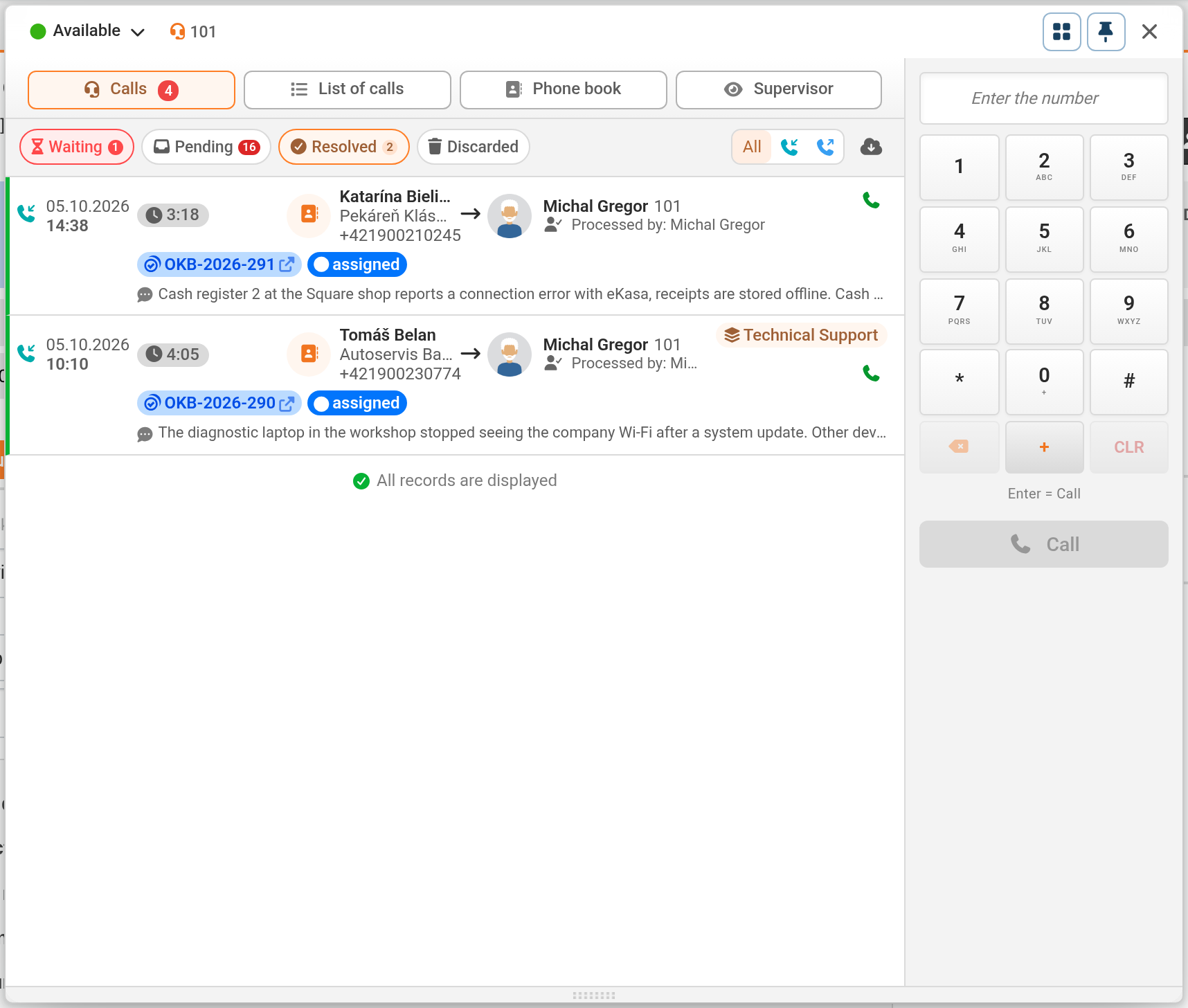
The ‘Calls’ tab in the top panel categorises calls into ‘Pending’, ‘Outstanding’, ‘Resolved’ and ‘Dropped’. The quantity of calls is shown for ‘Pending’ and ‘Outstanding’. The Calls tab itself displays the number of new missed calls in red, and the number of pending calls in grey. The ‘Pending’ section contains the operator’s custom calls and missed incoming calls from their line or extension that no one has yet picked up (depending on the ‘Missed Calls’ settings) – whoever acts on the call first is assigned it, whilst it disappears for the others. A call from a queue that has been done by a colleague is listed under ‘Resolved’.
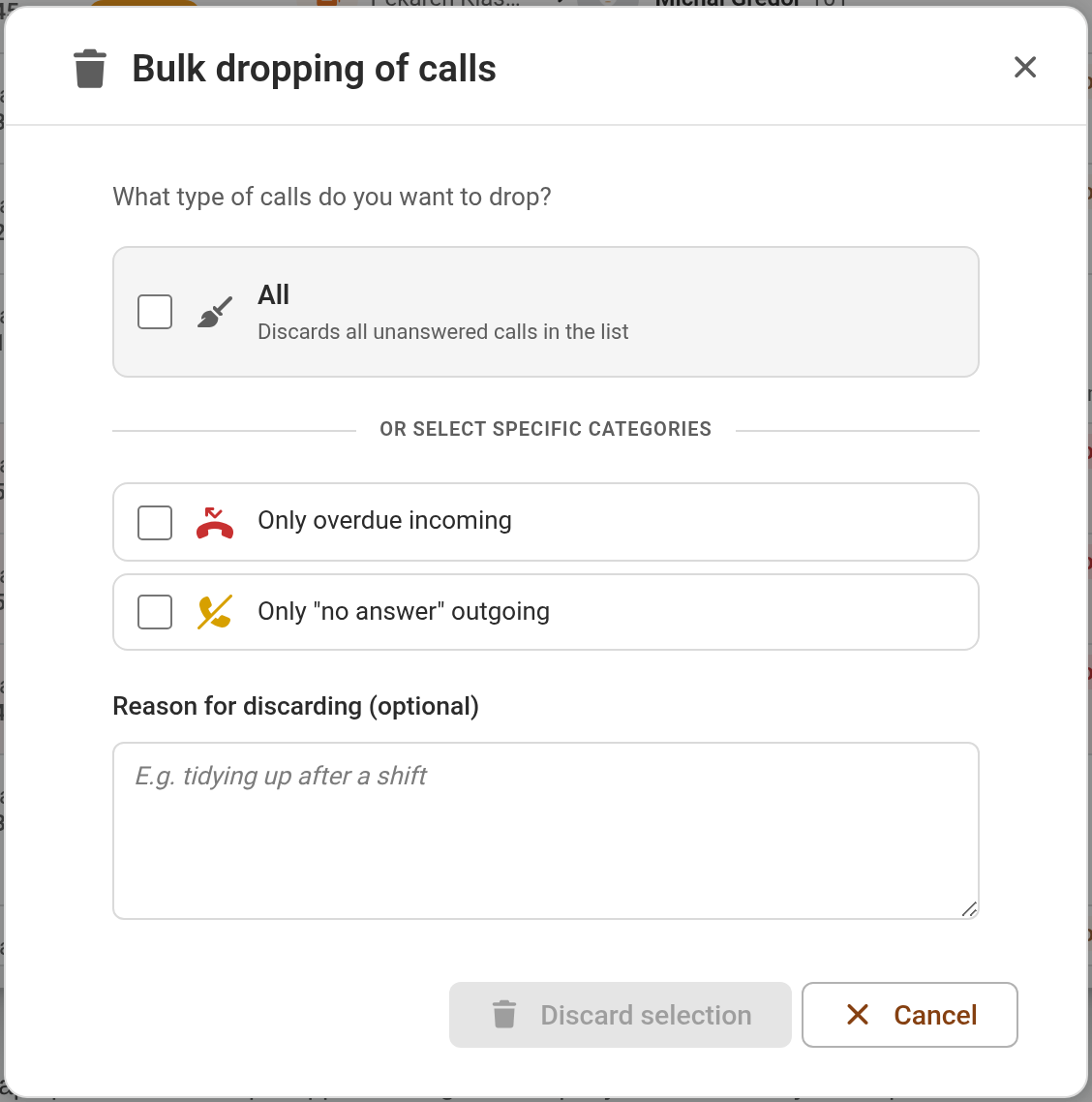
The direction filter allows you to view only incoming or outgoing calls. The ‘Synchronise calls from 3CX’ icon retrieves the latest call history from the PBX and completes the call history with any calls that CDESK did not capture. Only an operator with an extension can run this; it has recurrence after one minute. The bin icon next to a call opens a window with a ‘Reason for rejecting (optional)’ field; pressing Ctrl/⌘ drops the call immediately. In the ‘Dropped’ section, each call shows the reason and a ‘Renew’ button. In the ‘Outstanding’ calls section, bulk rejection is available (broom icon): ‘All’, or ‘Only overdue incoming’ and ‘Only “no answer” outgoing’, with an optional reason.