


CDESK manages calls via the switchboard, but the call itself takes place on the operator’s telephone. Therefore, when making a call from CDESK, the operator’s telephone rings first, and the number being called is only dialled once the call has been answered.
Calls from CDESK
You can make a call from the Selection list in the top panel by clicking the Call button (or pressing the Enter key), from the phone book, by clicking the Call Back button, or by clicking on a phone number in CDESK (for example, in a contact or a request). If you click on a number outside the CDESK panel, you will first be asked to confirm (Call this number…?). Calls made from the selection list, the phone book and the Call Back button are made without confirmation. Once the call is sent, the alert ‘Dialling call’ appears, along with an ‘Outgoing call’ bubble prompting you to ‘Answer the call on your device to connect to the number dialled’. Dialling from CDESK is available if ‘Allow calls to be made’ is enabled in the settings.
You can click on a telephone number, for example, in a request detail, in a work order, during approval, in the user overview or in the user information window. In the request detail, there is also a ‘Make Call’ button on the ‘Calls’ tab. A call initiated from a request is automatically linked to it, and when the request is processed, the details are pre-filled so that a new request is not created.
If the operator does not answer their phone, no call is made. If they have the 3CX app running on multiple devices, the phone will ring on all of them. This behaviour is determined by the PBX and cannot be changed from CDESK.
Completion of a call
You can also quit an ongoing call on your own extension from CDESK by clicking the Quit call button below the call handling form.
Call forwarding
A connected call can be forwarded using the Forward Call button. In the Forward to menu, select a colleague – extensions are categorised as Available (a colleague on a call is marked as On a call), Do Not Disturb or Away, and Not Registered – or enter any number in the Extension or number field. Call forwarding is direct: the call is transferred to the recipient without prior consultation. Until the colleague accepts the call, the button displays Call forwarding to …. Any call currently in progress is transferred to the colleague.
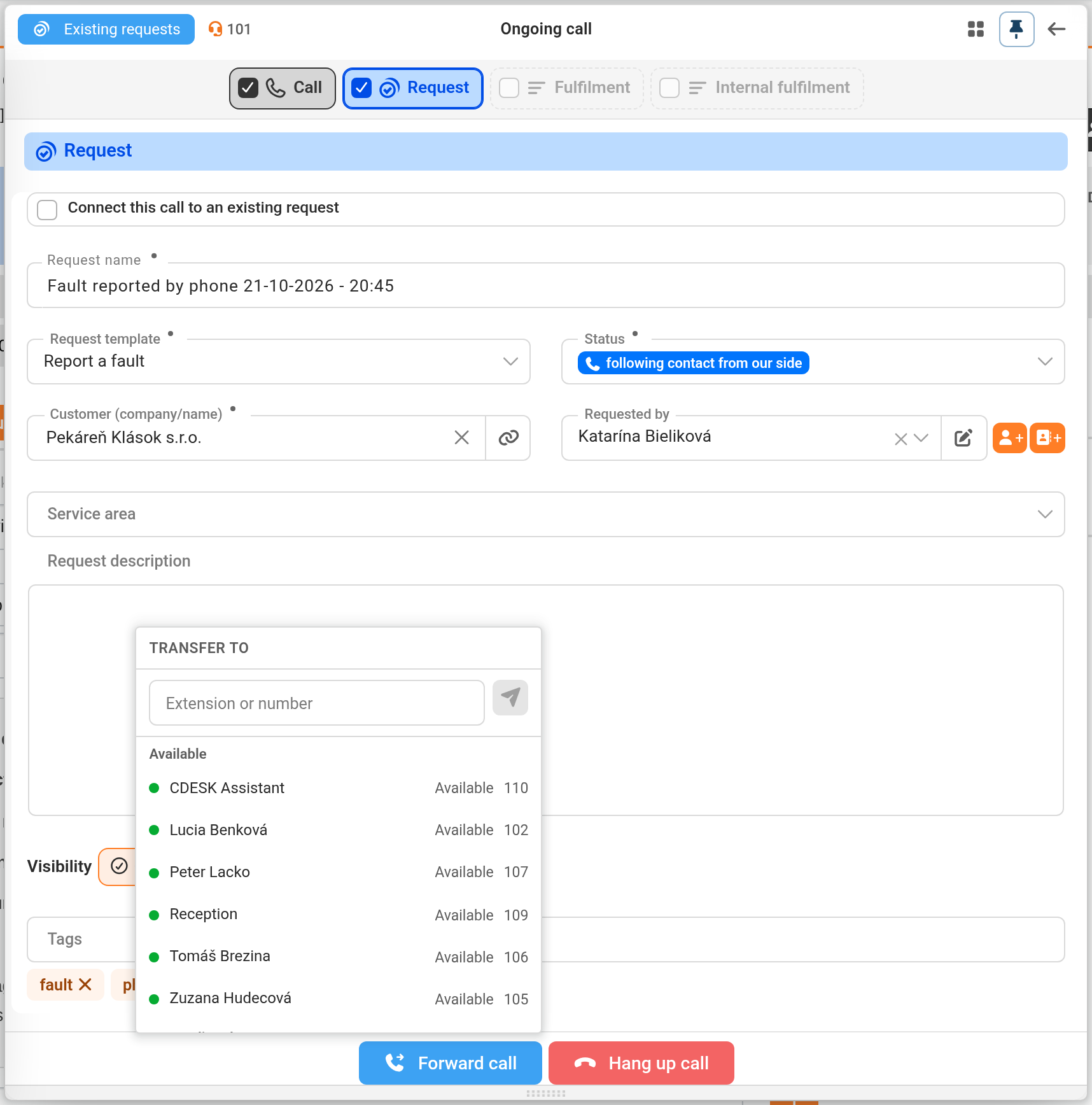
Taking a call from the queue
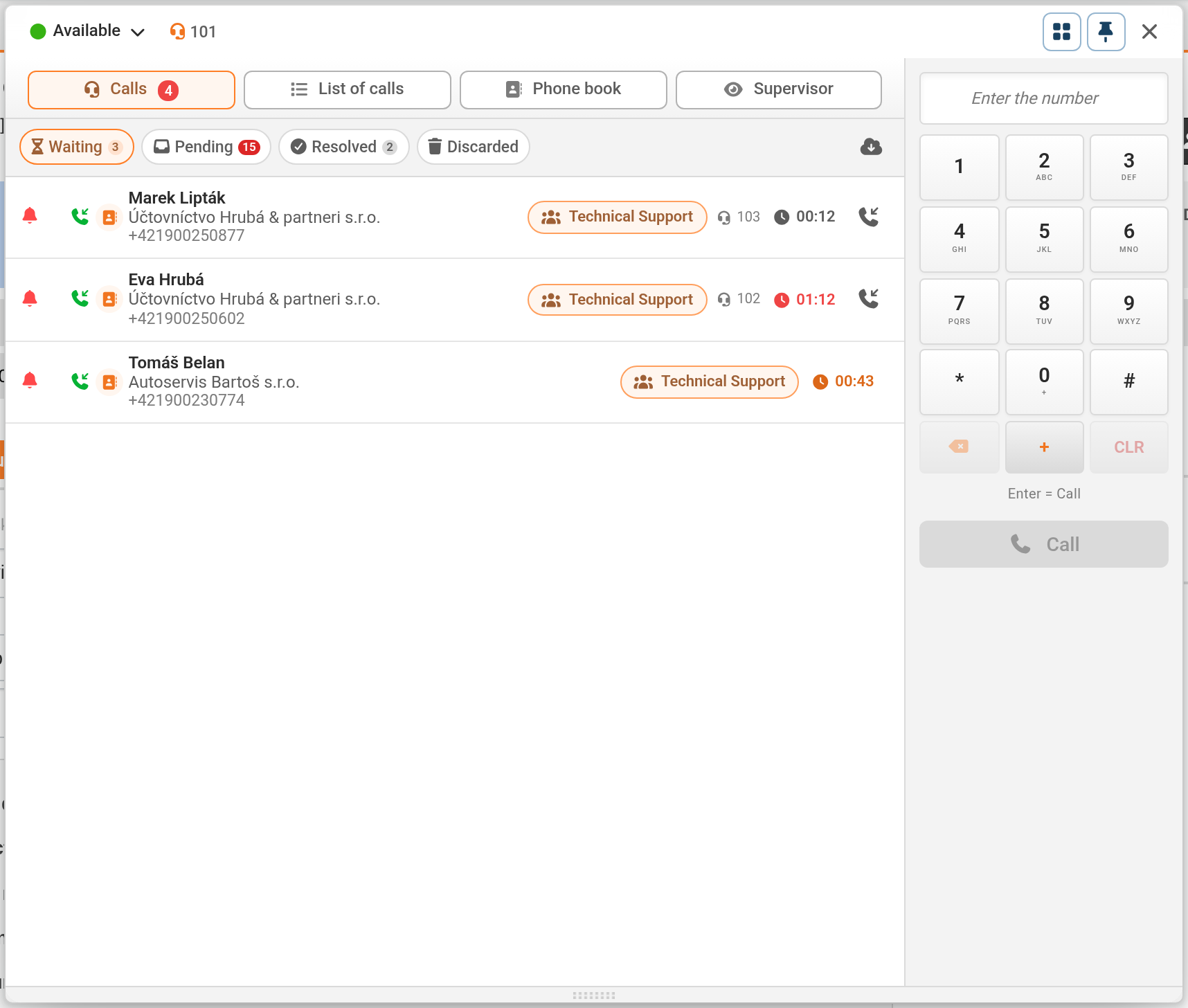
In the Calls tab, under On Hold, you’ll find calls on hold in queues of which the operator is a member or a listener. It displays the caller, the queue, the extension on which the call is ringing, and the waiting time – after 30 seconds it is highlighted in orange, and after 60 seconds in red. If a call is currently ringing on a particular extension, the operator can take it by clicking the green Take call to my extension icon – their phone will ring and, once answered, they will be connected to the caller. A call that the switchboard has not yet offered to anyone cannot be taken. If another operator has answered it in the meantime, CDESK will view “Unable to take the call – it has probably already been received by someone else”.
When a call is taken, the colleague’s extension from which the call is being taken is displayed on the phone screen, not the caller’s number – this is how the switchboard handles call transfer. If the operator does not answer their phone, the call remains in the queue.
Call hold, mute and conference functions are managed on the device or in the 3CX app. Call transfer uses the PBX’s default transfer code *20*, so do not change this in 3CX.