Every operator who makes calls via CDESK needs their own custom extension in 3CX. Extensions, queues and call recording are configured in the PBX, and CDESK retrieves this information from it. The more carefully the settings are configured in 3CX, the easier it is to assign them later in CDESK.
Users and extensions
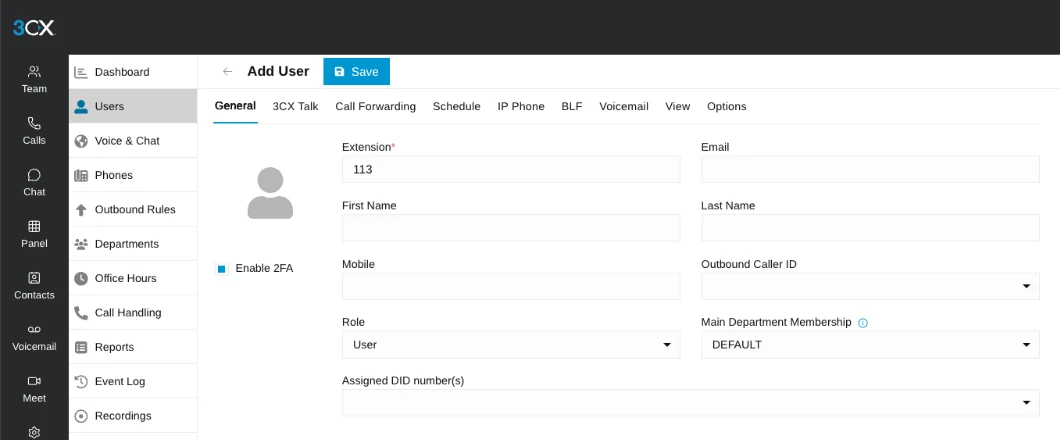
A new user is created under Admin → Users → Add User. Enter the extension number, name and email address – based on the email address match, CDESK can later suggest an extension assignment for the CDESK user (Extensions tab, Suggest assignment by email button). Next, set the user’s role and the department to which they belong. Each user will receive a welcome email with access to the 3CX applications.
To receive calls, an operator needs 3CX equipment or an application – an IP phone, the Windows application, the web client in a browser, or the mobile app.
A role in 3CX also affects CDESK. If an extension assigned to a CDESK user in a particular department has the Supervisor role (from 3CX V20 Update 7 onwards), Department Administrator, Manager, Owner, System Administrator or System Owner, the user will have a ‘Supervisor’ tab in the top panel. The User and Receptionist roles do not grant access to this tab.
Queues
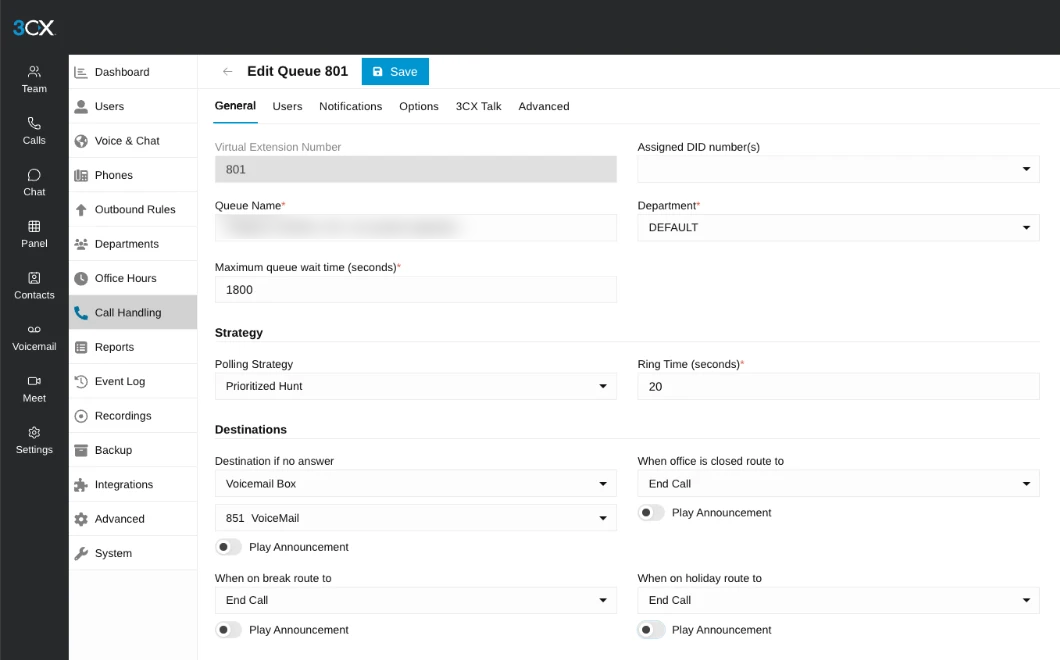
A queue distributes incoming calls amongst several operators, for example by department. It is created in Admin → Call Handling → Add Queue, where the call distribution strategy, ringtone duration, queue members and assigned telephone numbers are configured. Operators must be logged into the queue. The way in which calls from the queue are handled in CDESK is configured in CDESK under the Queues tab.
Set up the voice menu, working time, on-hold music, behaviour of an empty queue and voicemail in 3CX. CDESK neither reads nor changes these settings.
A ringtone set or group
3CX offers two ways to distribute a call amongst several people. The difference between them has a direct impact on how CDESK handles the call.
- Queue (Queue) – the caller waits in the queue and the PBX routes them to operators according to the selected strategy, for example, on a first-come, first-served basis or to the operator who has been idle the longest. The waiting queue can be configured in detail: hold music, queue announcements, maximum waiting duration, operator login and logout, and call recording.
- Ring Group (Ring Group) – a call rings simultaneously or sequentially across a group of extensions, without waiting in the queue. There are fewer settings available.
CDESK retrieves only queues from the switchboard. A call received via a ring group is recorded by CDESK as a direct call to the extension that received it. It is processed according to the settings for incoming calls in the ‘Calls’ tab, not according to the queue settings. For such a call, therefore, queue monitors, queued calls, call takeover from the queue and queue statistics are not available.
To distribute calls amongst operators working in CDESK, use the ‘Queues’ feature in 3CX. This feature offers more settings within the PBX, and CDESK applies all of its call-handling functions.
Call recording
If CDESK is to attach recordings to requests, recording must be enabled in the switchboard – either for the user (Admin → Users → user → Options) or in line. CDESK does not modify or delete recordings in the switchboard. It plays them directly from the PBX and, if the ‘Attach call recording’ option is enabled, saves a copy as an attachment to the request. For hosted PBXs, a storage limit for recordings applies in accordance with the licence.
CDESK does not display whether call recording is enabled on the PBX. If a customer expects recordings to be included with requests, confirm the settings in 3CX and also how long the PBX retains the recordings – in the call list, they are played back directly from the PBX. A permanent copy is retained only for requests to which a recording was attached as a file. Call recording constitutes the processing of personal data; therefore, the caller should be informed of this, for example via an alert in the PBX’s voice menu.
Caller ID in 3CX
If you enable contact synchronisation in CDESK, the PBX will recognise the names of callers from the CDESK phone book. The 3CX applications will then view the caller’s name and company during a call, rather than just their number.
When searching for a caller in your 3CX phone book, the system does not compare the entire number, but only the end of it – for example, the last 9 digits. A caller with the number +421 900 123 456 will therefore be matched with a contact even if they are stored in the directory as 0900 123 456. The quantity of digits to be matched is set in the 3CX administration panel under the phone book settings. CDESK simply views this in the Synchronisation tab in the text “3CX matches the caller based on the last N digits”. These settings have no effect on caller identification in the top panel of CDESK.