Queues and their members are managed by the 3CX switchboard. In CDESK, settings are configured for each queue to determine how its calls are handled – for example, which request template and company are pre-filled, or who is authorised to monitor calls from that queue. Technical support, for example, may therefore have a different procedure to the sales department.
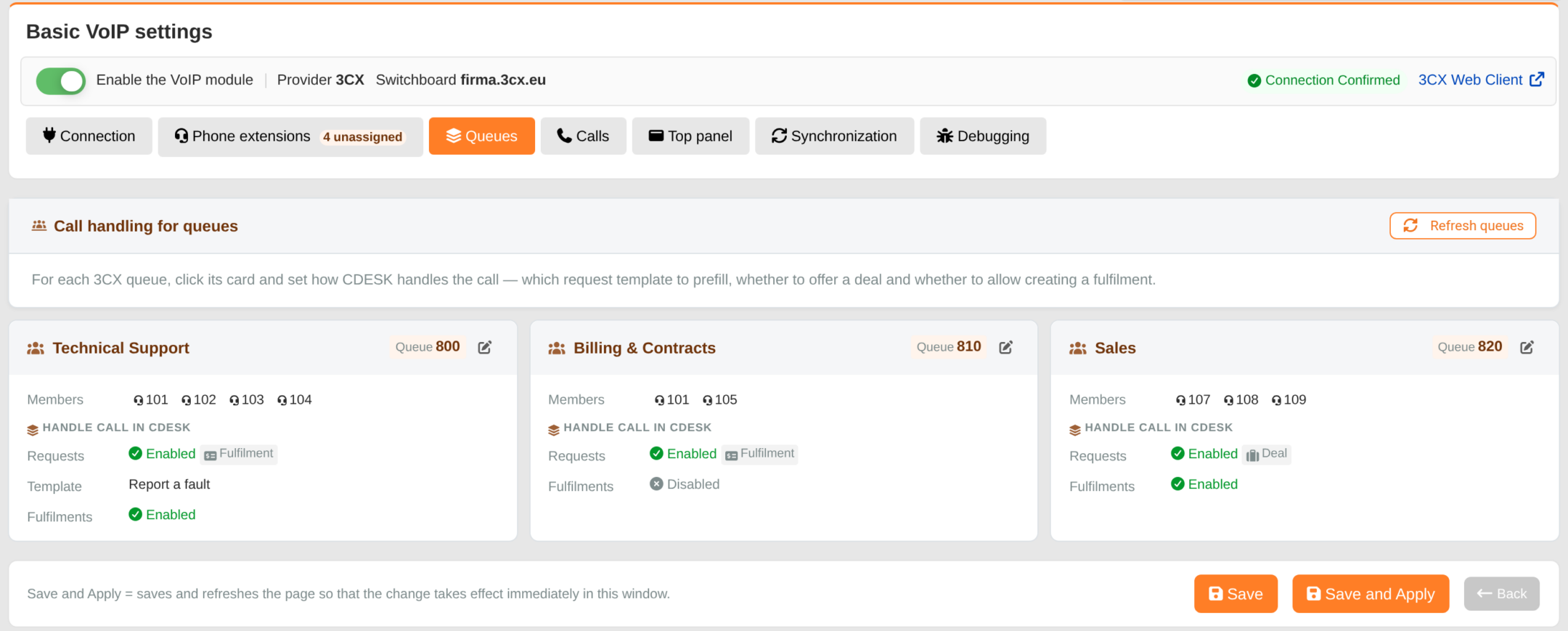
The Queues tab views queue cards retrieved from the PBX. Queues are loaded automatically; the Renew Queues button retrieves the current state from the PBX. The queue card shows the queue name in CDESK, the queue number, the first five members (with additional members listed as +N) and the Call Handling in CDESK section: Requests (Enabled/Disabled, with the Fulfilment and Deal labels), Template and Fulfilments. Clicking on the tab or the pencil icon Edit Call Handling opens the Call Handling – Queue window.
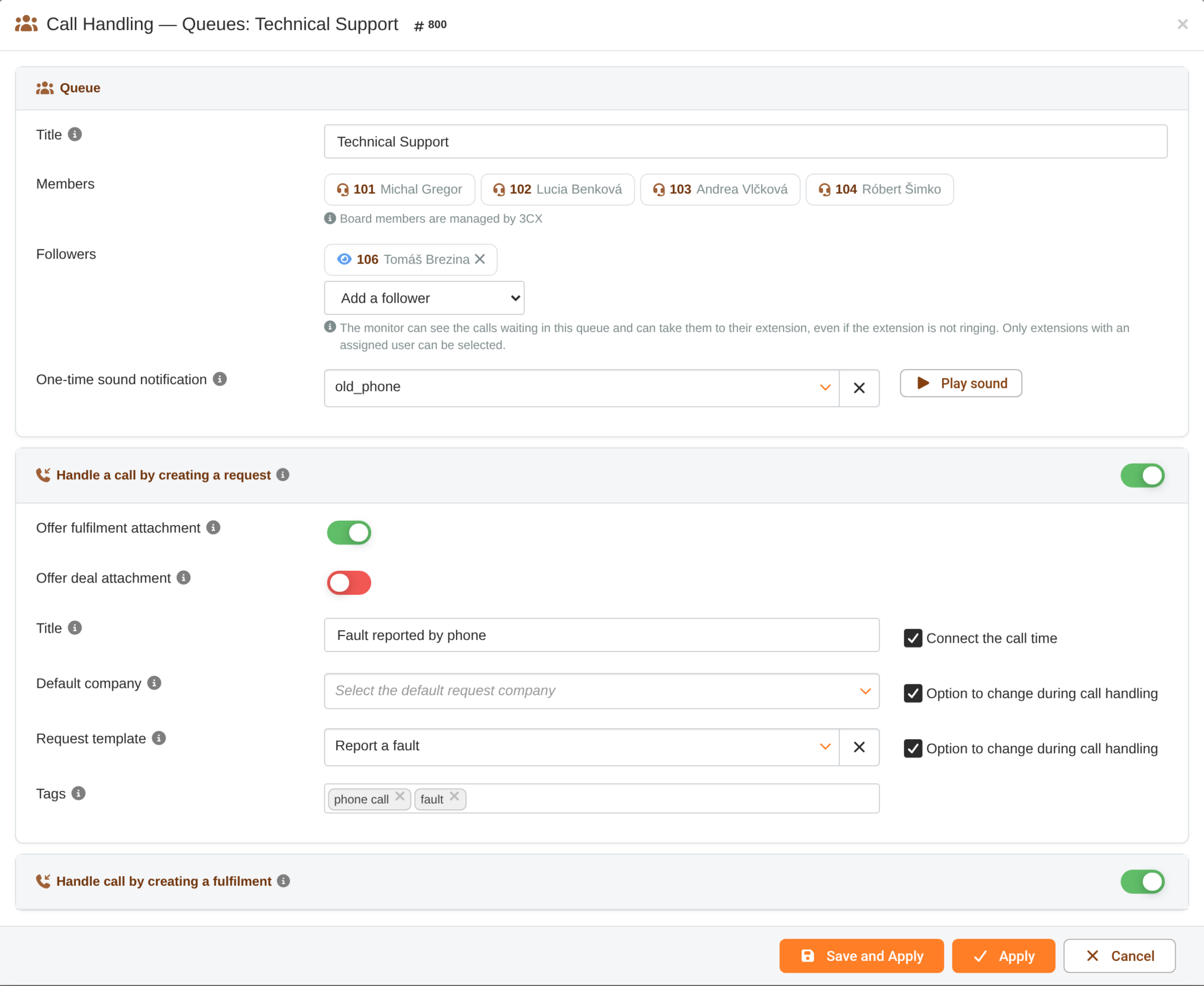
Queue
Name – the name of the queue under which it is viewed in CDESK. By default, this is the name from 3CX.
Members – extensions that are in line on the PBX. Queue members are managed by 3CX.
Followers – extensions selected from the ‘Add Follower’ list. A follower can see calls queued in the queue and can take them on their own extension, even if their extension is not ringing. Only extensions with an assigned user that are not queue members are available. You can remove a listener by clicking the cross next to their name.
One-off audio notification – a sound that CDESK plays once when a call begins to wait in this queue – even to monitors whose extension is not ringing. You can listen to it by clicking the ‘Play Sound’ button.
Handle a call by creating a request
If the switch is enabled, a request is generated from a call in this queue. For a new queue, ‘Handle call by creating a request’, ‘Offer link fulfilment’ and ‘Handle call by creating a fulfilment’ are enabled by default; ‘Offer order link’ is disabled. The other fields determine how the request is pre-filled:
Link fulfilment – when answering a call, a fulfilment entry is also offered.
Offer deal attachment – a deal attachment will be offered when the call is resolved. This is only viewed when deals are enabled.
Name – the default name of the request. Selecting ‘Add call time’ will append the start time of the call to the name in the format DD-MM-YYYY – HH:MM. If you leave the name blank and a template is selected, the template name will be applied.
Default company – the company to which the request is pre-filled if the caller is not recognised or has no company assigned. If the ‘Allow changes during call handling’ option is not ticked, the operator will not change the pre-filled company.
Request template – the template from which the request is generated, again with the option to change it whilst handling the call.
Tags – tags which are pre-filled in the Tags field when answering a call from this queue and which indicate the content of the call. The operator can edit them or create a new tag by entering its name. The Call Content sheet in the Call Statistics report counts calls in the queue according to the tags of the request generated from the call. With the 3CX provider, the tags selected in the processing form are not currently saved to either the call or the request – if you need them in the request and in the report, complete them directly in the request.
Resolve a call by creating a fulfilment
If the switch is enabled, a call can be handled simply by filling in the form, for example during a brief consultation where no new request is required.
The Save and Apply button saves all VoIP settings and renews the page. Apply closes the window and retains the changes in the form – they are only saved when you click the Save button on the page. Cancel discards the changes made in the window.