




Beta verzia novej dokumentácie.
Home VoIP (3CX) Using your mobile phone Top panel and incoming call
This section of the manual is intended for the operator. It assumes that the administrator has completed the settings and that the operator has been assigned an extension in CDESK – the top panel will only be viewed by users with an extension, unless the administrator has disabled the ‘Only for users with an assigned extension’ option. The operator answers calls as usual – on an IP phone, in the 3CX application or via the 3CX web client in a browser. Meanwhile, CDESK displays in the top panel who is calling and what action to take next with the call.
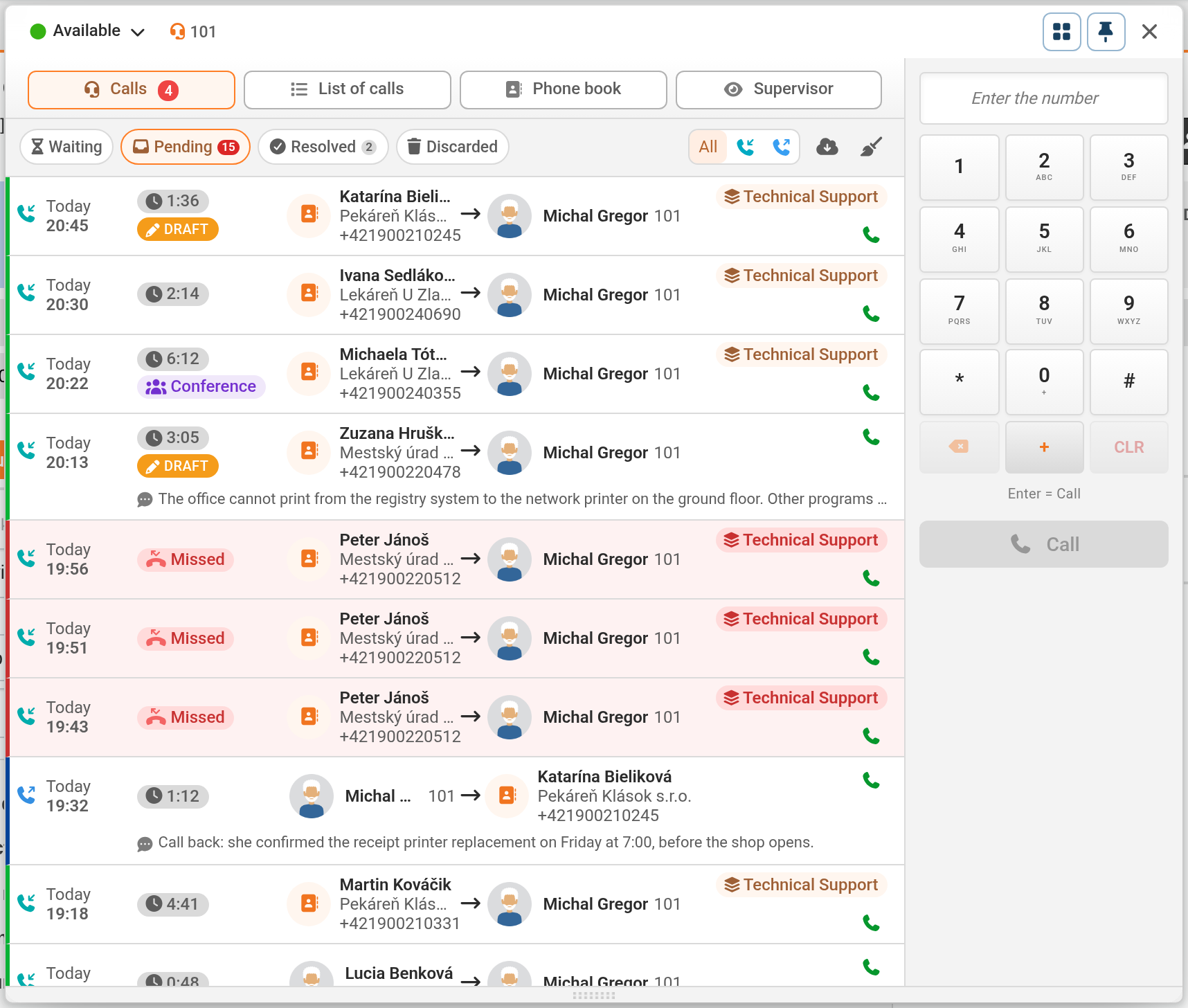
There is a telephone button in the CDESK header. The icon indicates the extension’s status: a solid telephone icon indicates a registered extension in the ‘Available’ status, a coloured crossed-out telephone icon indicates a different extension status (for example, Away or Do Not Disturb; the colour corresponds to the status), whilst a grey crossed-out telephone indicates an extension that is not signed up. A grey icon is also displayed when CDESK is unable to retrieve the extension’s status from the PBX, for example, if the connection to 3CX is down or if the extension number does not exist in the PBX. Hovering the mouse over it views ‘3CX Telephony’ and the extension’s status; for an unregistered extension, it views ‘Unregistered’. Button notices:
a flashing green dot – a call is ringing on the extension,
a red number (up to ‘9+’) – new missed calls. The number disappears when the panel is opened,
dot without a number – calls are pending and none of them are new overdue calls,
a number in a different colour – the number of callers pending in the operator’s queue.
When you hover over it, it shows the status of the extension and the quantity of calls on hold; clicking on it opens the top panel.
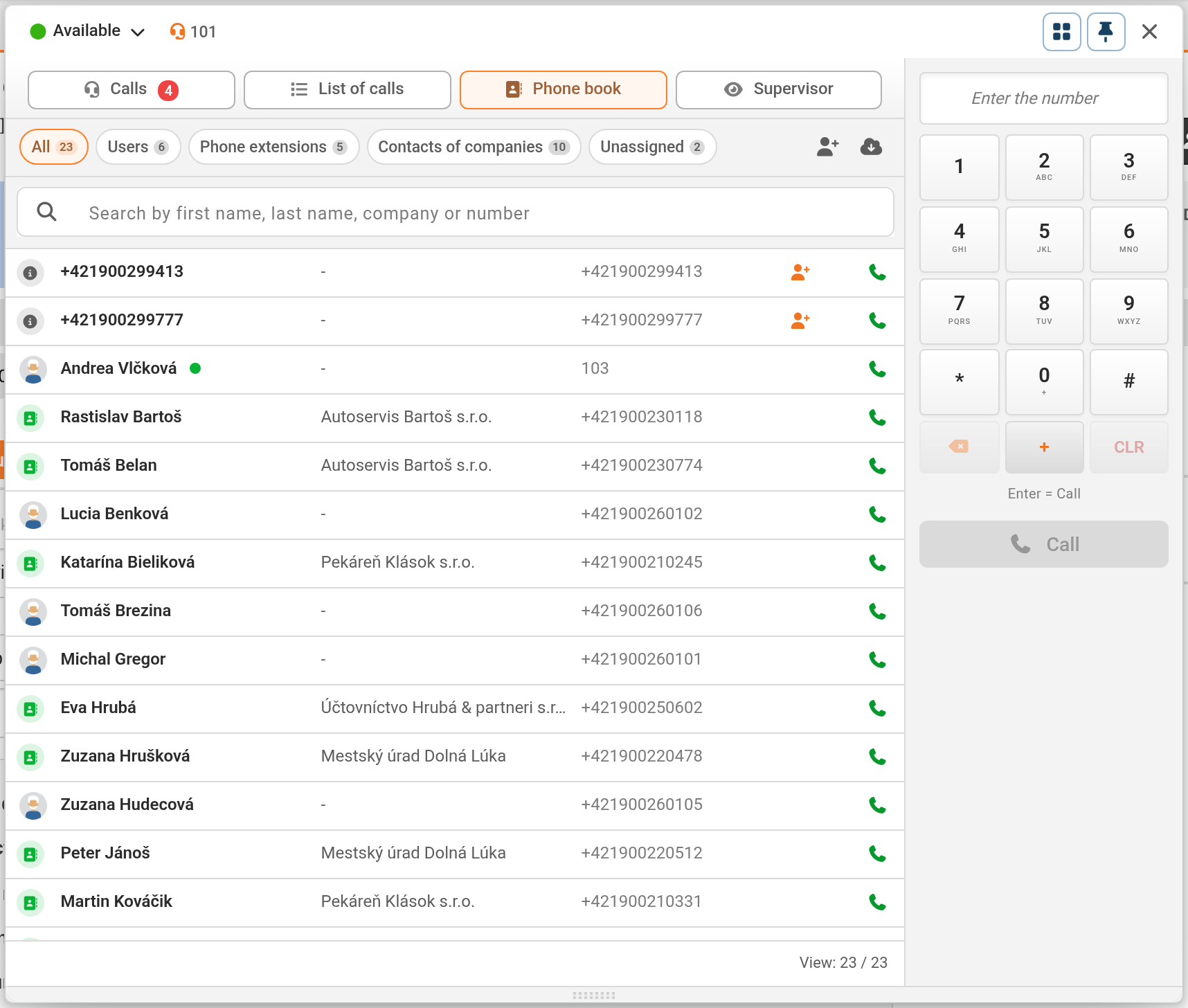
The panel has tabs for Calls, Call History, Phone Book and, with authorization, Supervisor. The control bar displays the status and extension number, a Dialler toggle (which views or hides the selection list on the right; it is displayed by default), a Pin Panel button and a Close button. A pinned panel will not close if you click outside it. It therefore never closes whilst a call is in progress or a task is being processed. The height of the panel can be adjusted by dragging its bottom edge.
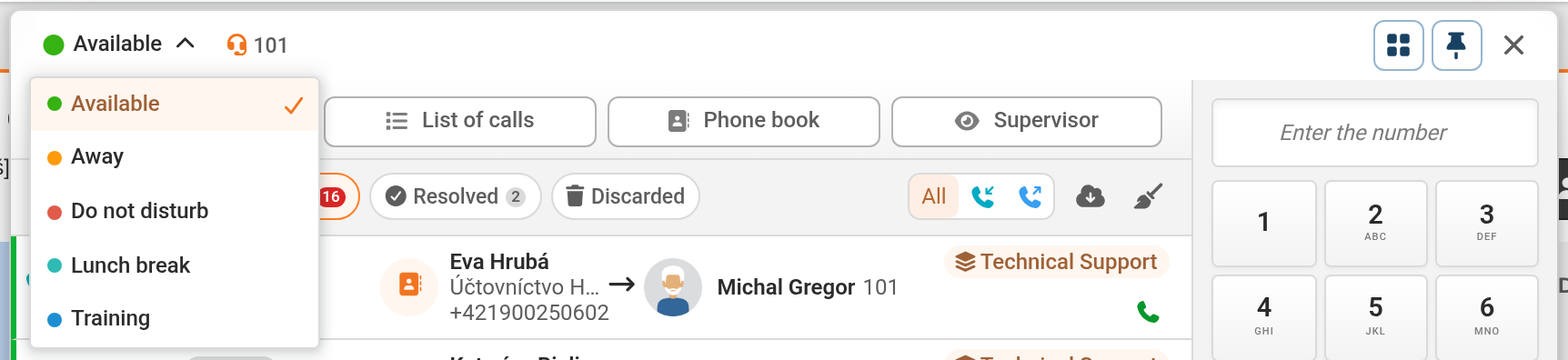
By clicking on the status in the control bar, you can change the extension’s status on the PBX, for example to Available, Away or Do Not Disturb. Custom extension statuses are also available under the same names as in 3CX. The status can only be changed for a registered extension – that is, when a 3CX device or application is logged in – and when no call is in progress. For an unregistered extension, the bar displays ‘Unregistered’. Any change of status made in the 3CX application will be reflected in CDESK within a minute.
The ‘Do Not Disturb’ status in CDESK corresponds to the status referred to as ‘Out of office’ by the 3CX administration. In the ‘Away’ and ‘Do Not Disturb’ statuses, the operator’s phone does not ring and calls are forwarded according to the call forwarding settings configured in 3CX. However, the operator will still see an overdue call from the queue amongst their pending calls, even if they were in ‘Do Not Disturb’ status.
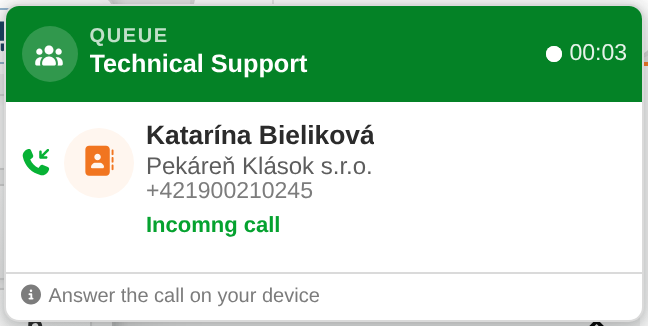
When an operator’s telephone rings, an incoming call bubble is viewed in CDESK. It contains:
The queue from which the call is coming (Queue and queue name in CDESK). For calls outside the queue: Call to extension; for outgoing calls: Call to number; and a timer – the ringing time whilst the phone is ringing, and the duration of the call once answered;
Caller ID – company contact or user from the CDESK phone book, or otherwise the name or number from the switchboard,
call status (Incoming call, for outgoing Outgoing call, after connection Call in progress). If the call has been forwarded by a colleague, an orange bar will appear stating Forwarded by <NAME>.
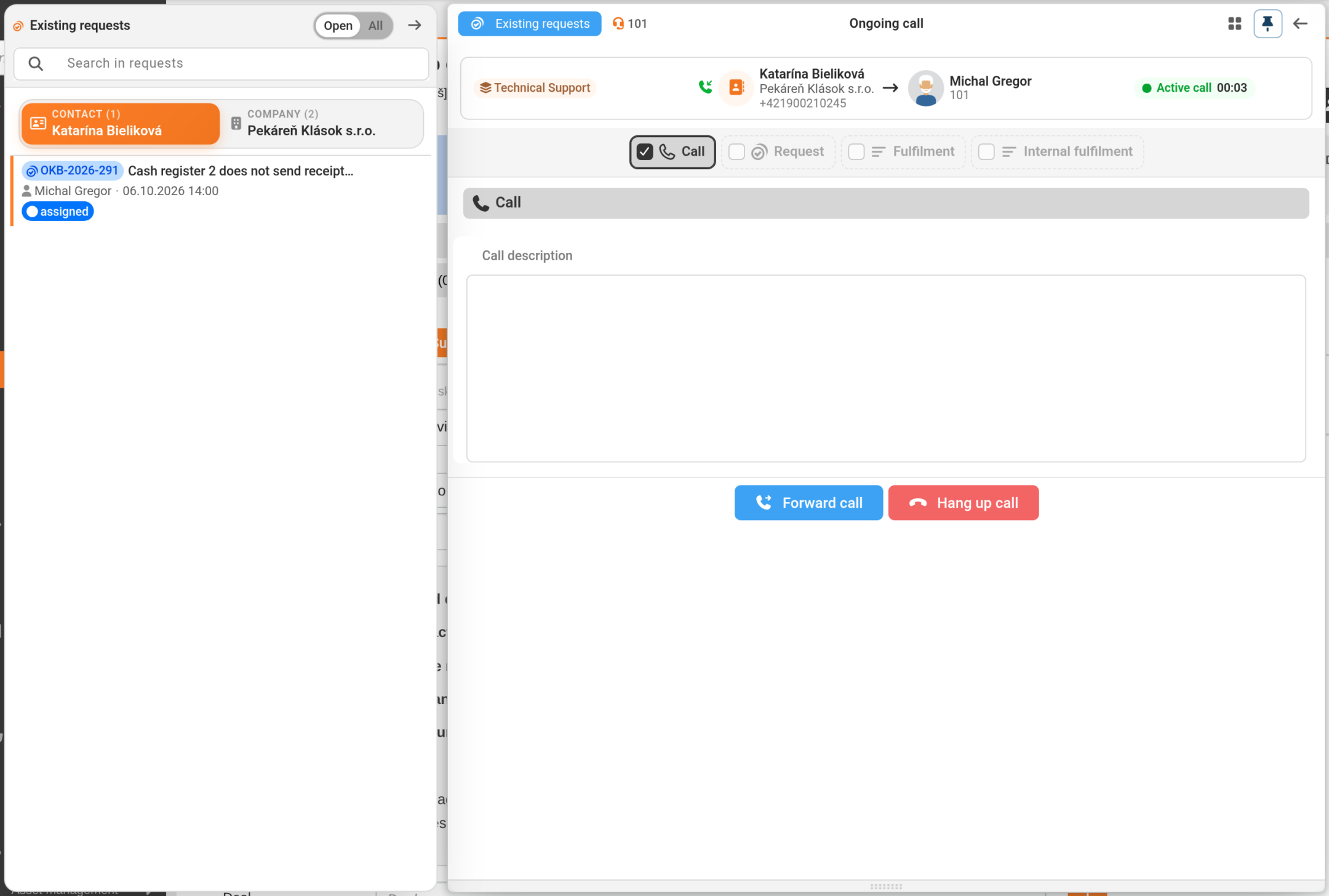
The operator will answer the call on their equipment – CDESK will notify them with the message ‘Answer the call on your equipment’. Once the call is received, the call handling panel will open automatically in the top panel (the panel opens automatically if ‘View panel after receiving a call’ is enabled in the settings). Next to the form is the ‘Caller’s Existing Requests’ panel – here, the call can be assigned to the relevant request using the ‘Assign as a link’ button. If the operator closes the call handling window whilst on the call, they can return to it by clicking on the bubble for the ongoing call.
In the 3CX application, you can configure the system so that a specified web address, such as CDESK, opens when a call is answered. This does not open the specific caller or their requests in CDESK. Information about the caller and their open requests is viewed in the top panel of CDESK, which opens automatically when a call is received.
Whilst a call is in progress, the call bubble for another call will not appear – only a dot will light up and a sound will be heard. When the form for another call is open, the bubble will display the following warning: “You have another call form open. Upon answering, it will automatically be saved as a draft.”
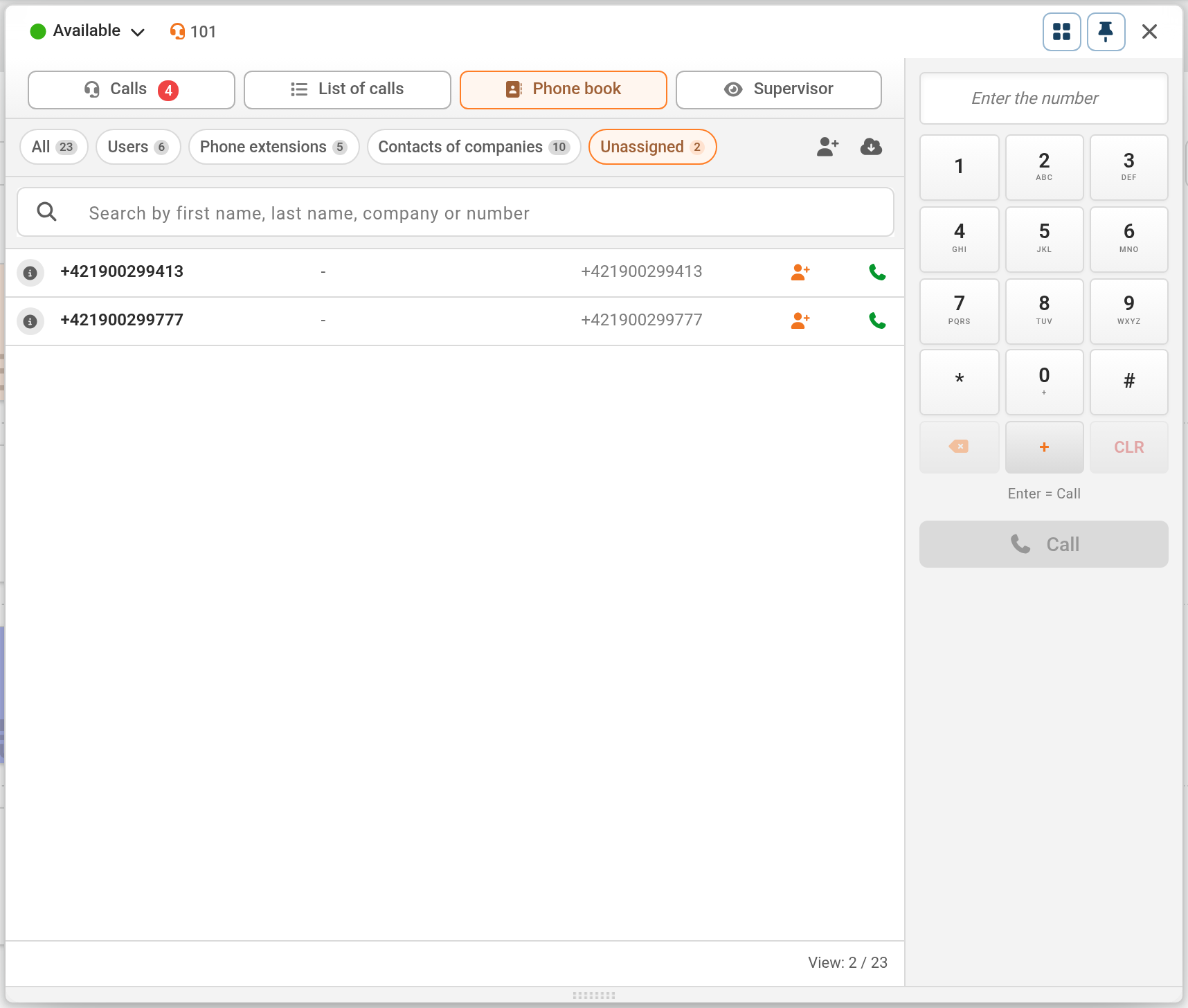
A number that CDESK does not recognise is automatically saved to the phone book under ‘Unassigned’. It can be identified in the ‘Phone Book’ tab (see below) – neither the pop-up nor the call handling form has a button for identification.
The Phone Book tab contains CDESK users, colleagues’ extensions (indicating whether an extension is signed up), company contacts and Unassigned numbers. Records can be filtered and searched by first name, surname, company or number. The ‘Dial’ button dials the number immediately, without confirmation. A user with permission to edit the phone book can add a contact, delete a record or identify an unassigned number.
An unassigned number is identified by the ‘Identify number’ icon when creating a record. In the window, the number is assigned to a Customer Contact (or, where applicable, via ‘Create New Company’ or ‘Create New Contact’) or to a CDESK User. CDESK will recognise any further calls from that number.
Home VoIP (3CX) Using your mobile phone Top panel and incoming call