


Beta verzia novej dokumentácie.
Home VoIP (3CX) Using your mobile phone Call history and recordings
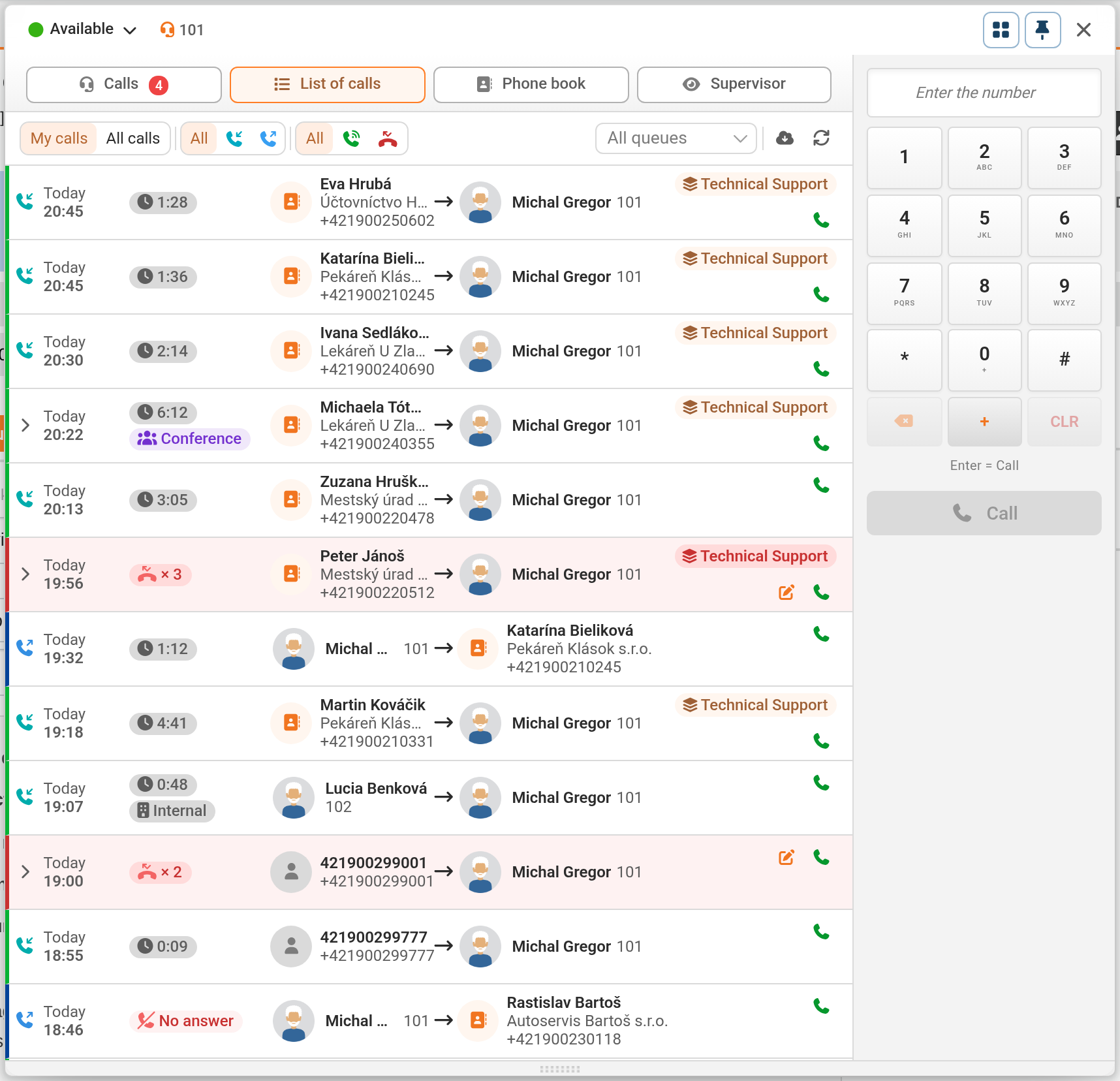
The Call History tab shows a history of completed calls to which the operator has access: calls on their extensions (including internal calls), calls from groups of which they are a member or observer, and conferences to which they have been invited. A user with the ‘Access to others’ calls’ authorization (read-only) can switch from the default ‘My calls’ to ‘All calls’. The write authorization also allows them to edit a colleague’s call.
My calls / All calls – my custom calls or all calls (only with authorization to view other people’s calls),
Direction – all, incoming or outgoing,
status – all, received or overdue. Outgoing calls marked as ‘No answer’ are only displayed when ‘All’ is selected,
queue – selection of a single queue. If no selection is made, all queues to which the operator has access are viewed. The selection is cancelled by clicking the cross.
The toolbar also includes the ‘Synchronise calls from 3CX’ and ‘Renew list’ buttons. The list is loaded in batches of 20 calls as you scroll down.
Each row views the direction, date (marked as Today for today’s entries) and time. For a received call, the duration is shown; otherwise, the status is Overdue for an incoming call and No answer for an outgoing call. Next are the parties involved (caller → called party; if no one answered, No operator), the sequence and labels of the linked request (with its status), fulfilments and internal fulfilments, and, where applicable, Forwarded from/to and Processed. An overdue incoming call has a red background; the left margin is green for incoming calls and blue for outgoing calls. Repeated overdue incoming calls from the same number (at least 2 within 24 hours, with no received calls in between) are merged into a single line labelled × number; clicking on this expands the times of the attempts. Calls may also be viewed with the AI label (call received or transferred by the PBX’s AI assistant), CM watch (automatic call in the event of an error monitored by C-Monitor), Internal (call between extensions) and Conference.
Hovering the mouse over a row views Process call (or Edit call processing if the call has been processed) and Play recording if the call has been recorded. Call handling opens in the Calls tab. The green Call Back button is available for every call.
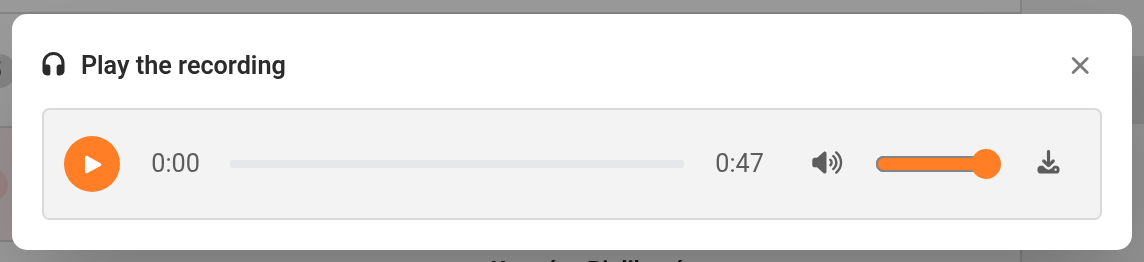
Recordings are played back directly in CDESK, without having to log in to 3CX – CDESK downloads the recording from the PBX and sends it to the browser. During a conference call, the Call Recordings window opens with two recordings: the call itself and the entire conference. If the PBX did not record the call, the Play Recording button will not appear. If the recording cannot be loaded, the player will display “Recording not yet available” and a “Try again” button. Recording is enabled in the 3CX PBX – see Users, Extensions and Groups in 3CX.
You may not be able to scroll through the recording in Safari. If you need to do so, please apply a different browser.
Not all call data is available in CDESK immediately. The PBX does not send all data during a call, and CDESK fills in the missing data from the 3CX call history:
The call duration and status are updated automatically, usually within 15 minutes, and at the latest within 30 minutes after the call ends. Until the PBX reports that the call has been answered, the call timer shows 00:00.
The recording is only available on the PBX a short while after the call has ended.
When synchronisation is enabled, contacts to 3CX are sent every 5 minutes; therefore, a new contact from CDESK will appear in 3CX applications with a delay.
For overdue calls from the switchboard, the system often does not specify who the call was for – in the list, it is then shown as ‘No operator’. For outgoing calls that are not connected, 3CX does not distinguish whether the call was cancelled by an operator or declined by the called party – both cases are shown as ‘No answer’.
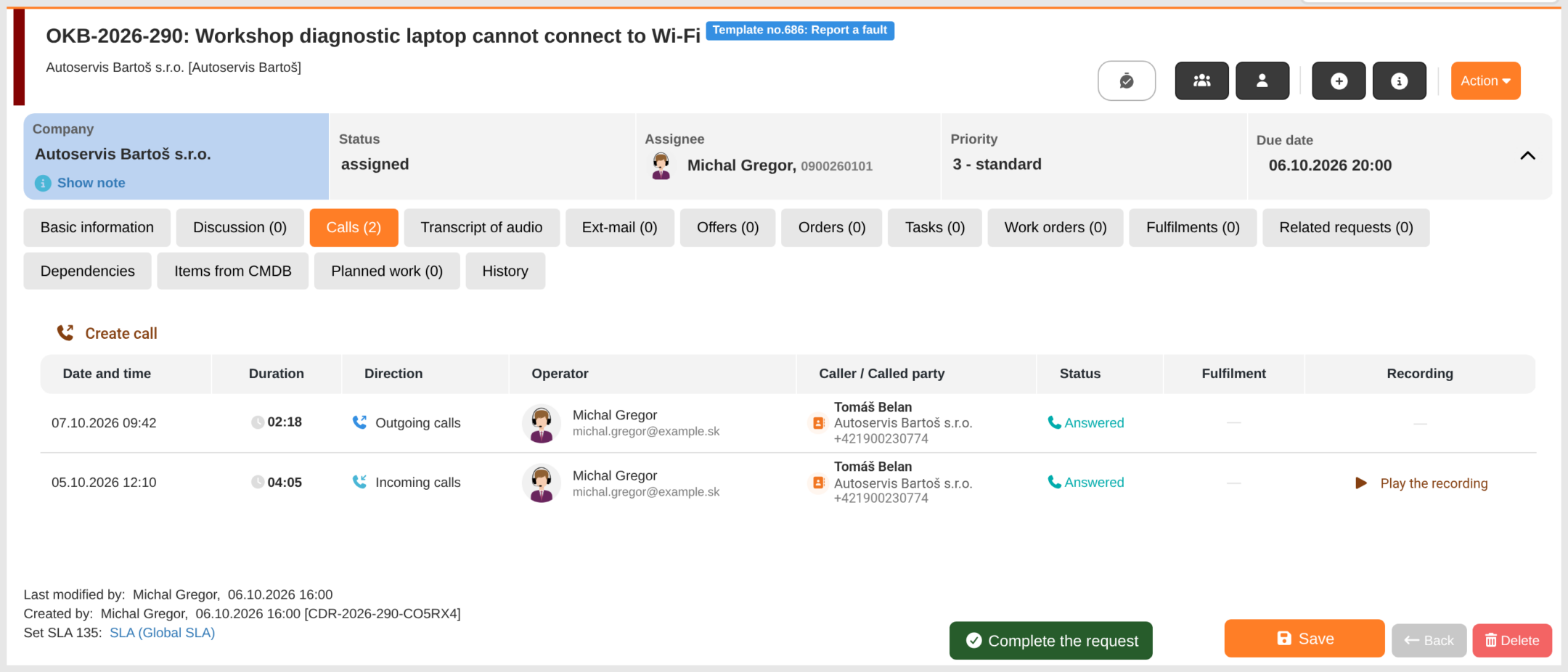
When a request is created from a call, the call remains associated with it. The ‘Calls’ tab in the request detail contains all calls relating to the request; the quantity of calls is shown in the tab name. The tab is displayed when the VoIP module is enabled for users with permission to access the Calls tab within a request. The columns are Date and Time, Duration, Direction, Operator, Caller / Called Party, Status, Fulfilment and Recording. Clicking the ‘Create Call’ button dials the assignee or requester, and the call is automatically linked to the request. The tab also views calls recorded previously if the environment previously used a different provider.
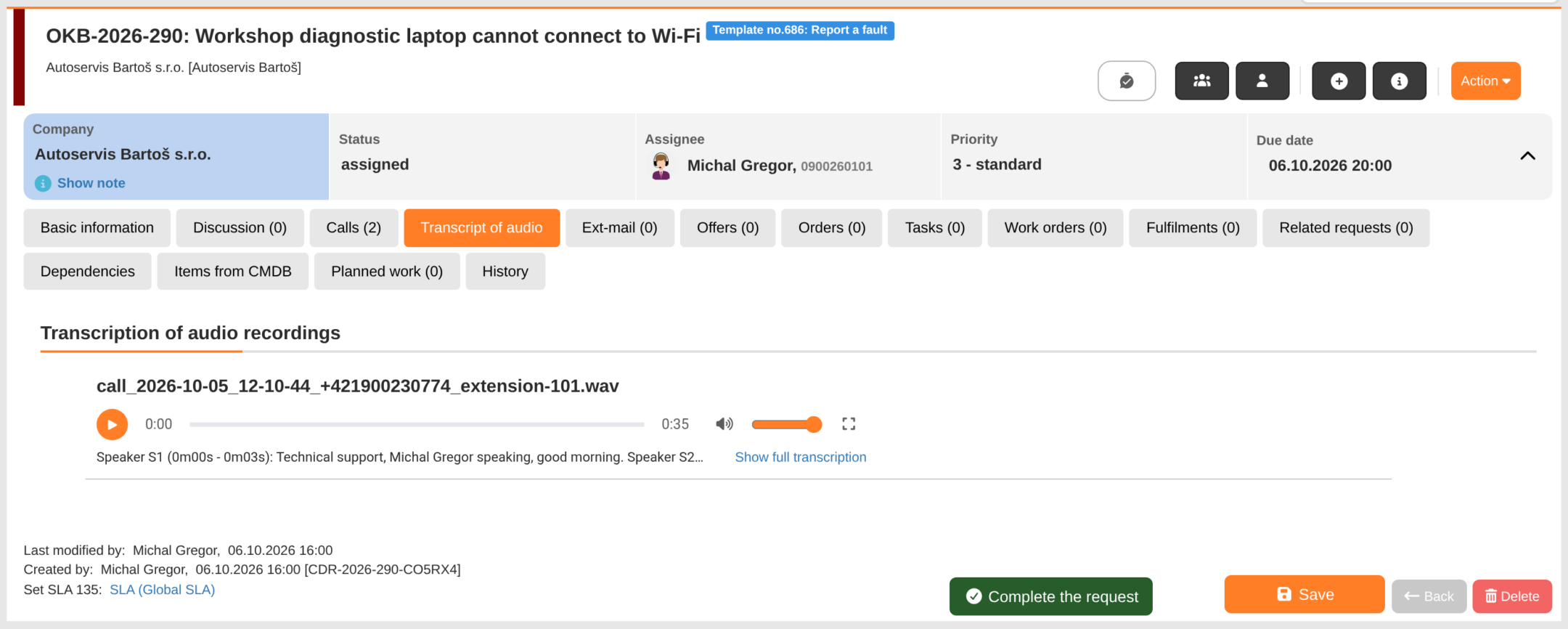
The ‘Audio Transcript’ tab contains the audio attachments for the request, including any attached call recordings. It is only viewed if the AI and speech-to-text features are enabled in the environment. Clicking the ‘Transcribe audio to text’ link transcribes the recording into text organised by speaker with timestamps, just as with Zadarma. The full transcript is viewed by clicking the ‘View full transcript’ link. CDESK does not read the transcript, summary or sentiment analysis that the 3CX PBX is capable of generating.
The request lists also include columns showing the quantity of calls and the total duration of calls for each request.
Home VoIP (3CX) Using your mobile phone Call history and recordings