


The 3CX PBX does not, in itself, have a telephone number or a connection to the public telephone network. This is provided by a SIP trunk – a telephone line over the internet, which you order from a telecoms operator or VoIP provider. The operator will assign you telephone numbers (known as DIDs in 3CX) and login details, which you then enter into the PBX. As you are the one with the contract with the operator, you can change it at any time without needing to alter the CDESK settings.
Choosing a mobile network operator
3CX maintains a list of supported providers for which it has ready-made settings templates. For Slovakia, these include Twilio and Telxi, for example. The PBX can also be connected to another provider using a generic template, but 3CX does not assist with its settings. When choosing a provider, it is therefore worth confirming whether they support SIP trunks for 3CX, or whether they will handle the settings themselves.
Porting an existing number
If you wish to keep the number that your customers are familiar with, it is possible to port it to a new SIP trunk provider. The number porting is done by the operator, not 3CX – they usually require a porting request and proof of ownership of the number, and the process can take anywhere from a few days to several weeks. During the porting process, it is not possible to have the same number active on two lines at the same time.
If you have been making calls via Zadarma up to now, your telephone number is registered with them and, to switch to 3CX, you will need to transfer it to the operator from whom you will be obtaining a SIP trunk. In the paid editions of 3CX, it is technically possible to connect Zadarma as a general SIP trunk. However, Zadarma is not amongst the providers supported by 3CX, so 3CX does not provide assistance with this type of configuration.
Connecting a SIP trunk in 3CX
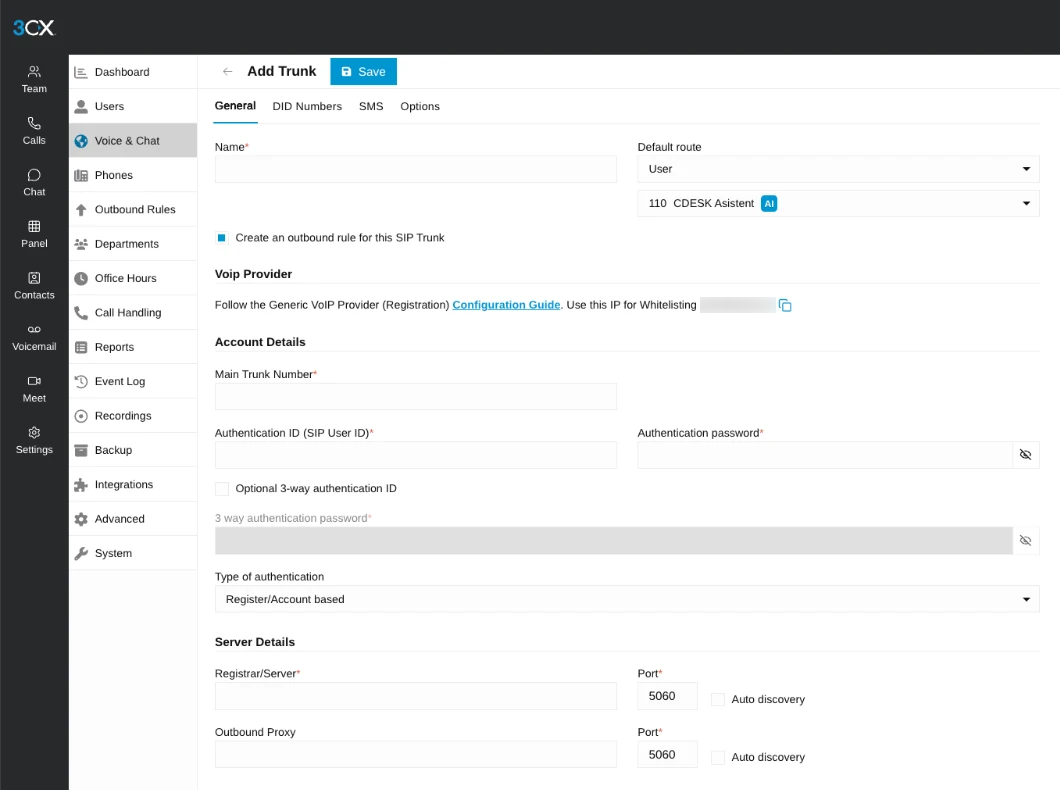
A SIP trunk is added in the 3CX administration panel (Admin Console):
Open Admin → Voice & Chat and click Add Trunk. Enter a name for the trunk.
Set the default route – where calls to numbers not assigned to any extension or queue will be routed.
In the SIP Trunk Details section, select the country and provider in the Trunk field. For supported providers, the authentication method is set automatically; otherwise, select a general template (with registration or by IP address).
Enter the details provided by your operator – Authentication ID, password and main line number.
On the DID Numbers tab, add the numbers assigned to you by the operator.
Save. A green indicator means that the line is signed up and operational.
Call routing
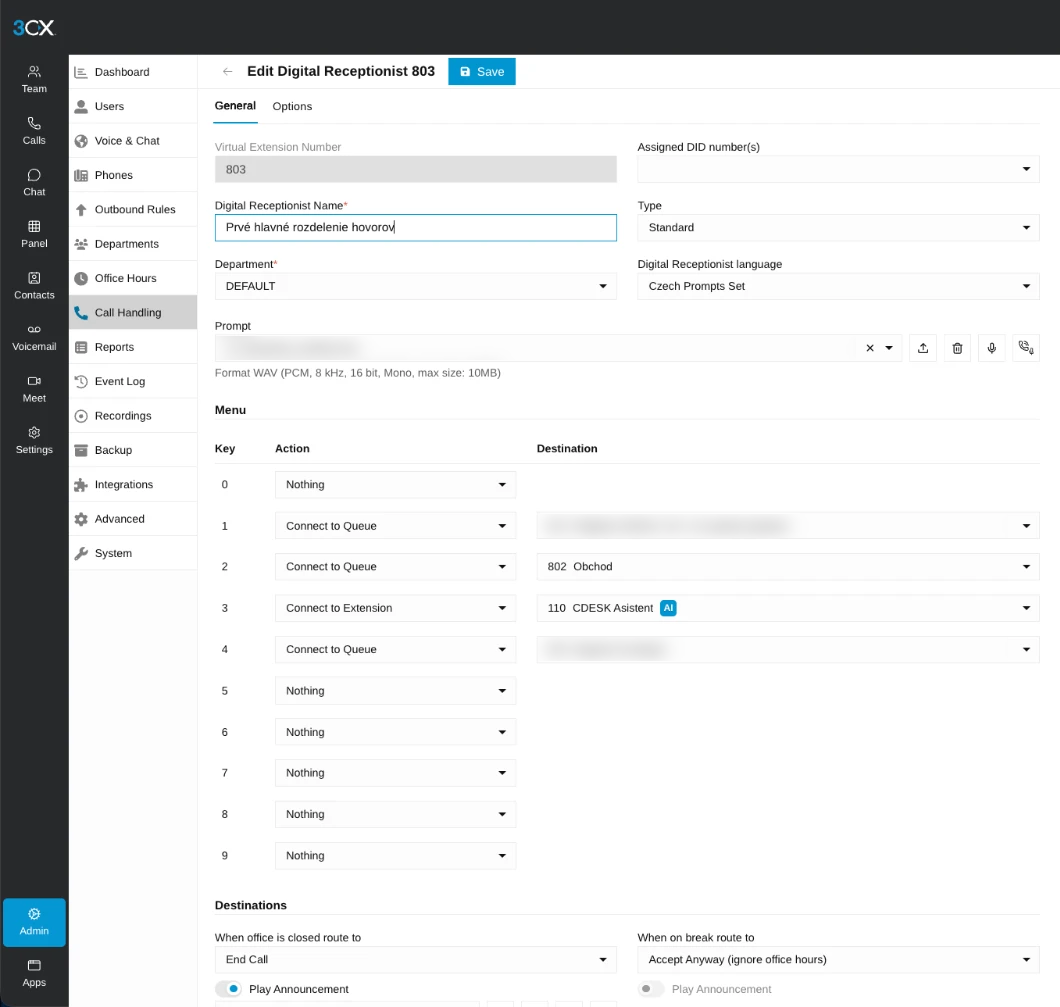
Incoming calls to individual numbers are routed by assigning a number to an extension (Admin → Users → user → General → Assigned DID Number(s)) or to a queue, voice menu or group (Admin → Call Handling). For outbound calls, Outbound Rules specify which line is used and which number is viewed when making the call.
The line registration indicator is used for checking, and for a custom server, the Firewall Checker tool is also available, which confirms that the necessary ports are open.
The line must be signed up with the PBX and the numbers – both new and ported – must be assigned. Until the line is signed up, incoming calls will not work at all, not even in 3CX. In the SIP trunk settings, also check the limit on concurrent calls and compare it with your licence and your contract with the operator – see ‘Quantity of concurrent calls’ in the ‘Licence and PBX operation’ section.