


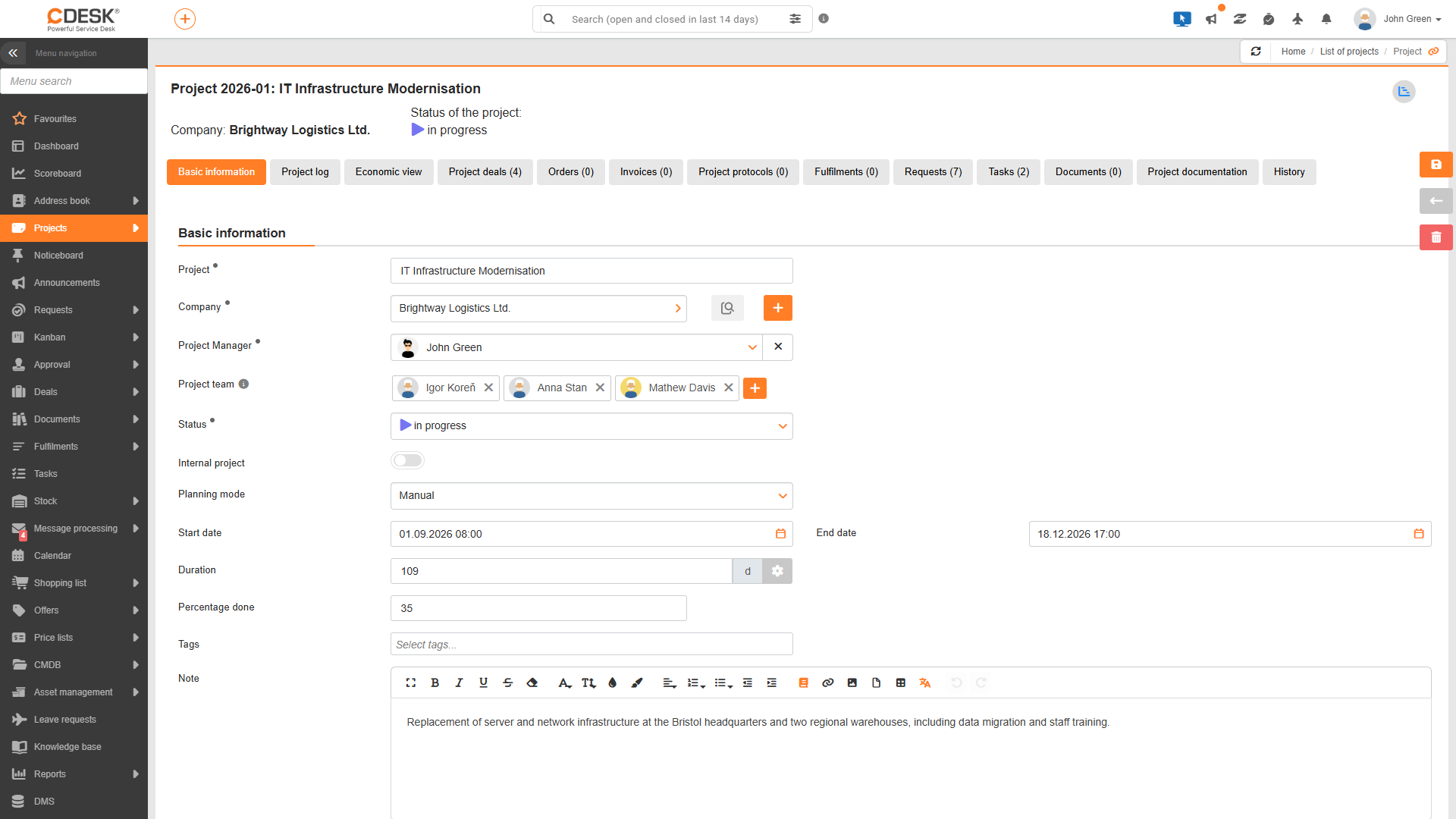
Click on a project in the project list to open its details. Apart from the Basic Details tab, the other tabs will only be viewed once the project has been saved for the first time. The display of each tab depends on the authorizations set in Access to tabs node, the modules that are enabled, and the user’s role within the project. For tabs containing a list of records, the quantity of records is shown in the tab name.
When starting a new project, you must first complete the form and click the ‘Create’ button. Only then will the other tabs appear, and you will be able to add project orders, purchase orders, invoices and other records.
Overview of bookmarks
The table lists all the project detail tabs in the order in which they are displayed, along with the conditions under which they are visible. For each tab, in addition to the specified condition, the relevant permission in ‘Access to tabs’ node is also required.
| Bookmark | What it is used for | When it is viewed |
|---|---|---|
| Basic details | Project form. | Always. |
| Project log | Regular updates on the project status. | The Project log is enabled in the project order settings. It is not visible to project team members. |
| Financial overview | Plan and actual figures for revenue, expenses, margins and hours. | This is not visible to project team members or, in the case of an internal project, to users without access to internal projects. |
| Project deals | Project deals linked to the project. | Always after a project has been saved. |
| Orders | Project purchase orders received and issued. | Same as the Financial view. |
| Invoices | Invoices received and issued for the project and its project deals. | Same as the Financial View. |
| Project protocols | Protocols linked to the project. | The protocol module is enabled. Not visible to project team members. |
| Fulfilments | Fulfilments for the entire project structure. | The fulfilments module is enabled and the user has access to fulfilments. |
| Requests | Requests for the project’s deals. | The requirements module is enabled and the user has access to the requests. |
| Tasks | Tasks for project orders and their requests. | The tasks module is enabled and the user has access to tasks. |
| Documents | Records from the project’s document register. | The document register is enabled. Otherwise, the same as the Financial View. |
| Project documentation | Attachments from the entire project structure. | Project documentation is enabled in the project order settings. |
| History | Changes made to the project. | Every time the project is saved. |
Project header
The detail header displays the project code and name, the client, the project status (coloured according to the settings) and the project owner, shown with their avatar. Clicking on the Gantt chart icon opens the Gantt chart, with this project selected by default.
Key figures
The ‘Basic Details’ tab contains a project form with identification details, roles, status, dates and percentage complete. The meaning of each field is described in the section ‘Meaning of fields in the project form’.
Project log
The Project log tab is used to record the status of the project on a regular basis. Each entry contains the date, the user, the Current state to the date field (a required verbal description of the status) and the Following steps field. A new entry is added by clicking the Add log entry button, and existing entries can be edited or deleted using the icons in the row. Entries are loaded progressively, and further entries can be viewed by clicking the View more button. The latest entry is also displayed in the project list in the Current state to the date and Following steps columns.
This tab is displayed if Project log is enabled in the project order settings. Editing of your own and others’ entries is governed by the Project log and Project log – Access to Others authorizations. This tab is not displayed to project team members.
An economic perspective
The ‘Economic Overview’ tab displays the project’s economic indicators, comparing planned and actual figures – revenue, retention money, costs, gross margin, hours worked and average hourly rate. A more detailed description is available in the ‘Economic Overview of the Project’ section of the documentation. This tab is not visible to project team members or, in the case of internal projects, to users without access to internal projects.
Project-based deals
The ‘Project Orders’ tab contains the project’s orders. In ‘View all orders’ mode, all of the project’s orders are displayed, including child orders. In ‘View Orders by Hierarchy’ mode, only deals directly linked to the project are displayed; you can expand a row to view subordinate project deals, requests and tasks. A new project deal is added by clicking the Add or Add from Template button, and an existing one is linked by clicking the Select button. The row menu contains the options Edit, Generate xlsx report and Remove link, which disconnects the deal from the project. The list can be exported by clicking the Export XLSX button.
Orders
The Orders tab displays orders linked to the project. Use the toggle to view all orders, or just received or issued orders. A new order can be added by clicking the + button next to the ‘Registered orders’ or ‘Issued orders’ toggle. A summary is displayed below the list. This tab is not visible to project team members or, in the case of an internal project, to users without access to internal projects.
Invoices
The Invoices tab views invoices linked directly to the project as well as those linked to its project deals. You can use the toggle to view all invoices, or just received or issued invoices. To add a new invoice, click the + button next to the ‘Registered Invoices’ or ‘Issued Invoices’ toggle. The Summary section displays the totals for received and issued invoices without VAT, including VAT, and the amount still outstanding. Amounts in foreign currencies are converted at the current exchange rate. The presentation settings are the same as for the Orders tab.
Project protocols
The ‘Project protocols’ tab displays protocols linked to the project. It is displayed when the reports module is enabled and the relevant authorization is granted. If the project does not contain any protocols, the text ‘The project does not contain any protocols’ is displayed. This tab is not visible to project team members.
Fulfilments
The ‘Fulfilments’ tab views all fulfilments across the entire project structure – fulfilments recorded under the project’s work orders, project requests and tasks. Below the list is a summary of ‘Total Fulfilments’. Time worked is not recorded separately for the project; it is recorded against the object on which the work was carried out.
Requests
The ‘Requirements’ tab displays the requirements for which the project order is directly linked to the project. It is displayed when the requirements module is enabled and the user has authorization to access requirements.
Tasks
The Tasks tab views tasks linked to the project’s project orders and their requests. A new task can be added by clicking the Add button. It is not possible to link an existing task directly to a project. The Select button is available on the Tasks tab of a project order. The tab is viewed when the tasks module is enabled and the user has permission to access tasks.
Documents
The Documents tab displays records from the document register where this project has been selected in the Document field. It is displayed when the document register is enabled and the relevant authorization is granted. It is not displayed to project team members or, in the case of internal projects, to users without access to internal projects.
Project documentation
The Project Documentation tab brings together attachments from across the entire project structure – from the project itself, its project requests, requirements and tasks – grouped by object. The presentation can be changed by clicking the Group, Expand All and Collapse all buttons. New files can be uploaded directly from the tab. The tab is displayed if ‘Project Documentation’ is enabled in the project orders settings.
History
The History tab contains a ‘Change History’ overview with the columns Time, User, Event and Detail. Changes to the name, contract name, code, person responsible, client, status, type, dates, quantity of units, comments, internal project flag, followers (distinguishing between those added manually and automatically) and attachments are recorded.