


Access to projects is determined by two factors: the user’s permissions in the permissions tree and their role on a specific project. A more detailed description of how to manage permissions is available in the documentation section Users and Groups → Permissions.
Authorizations in the permissions tree
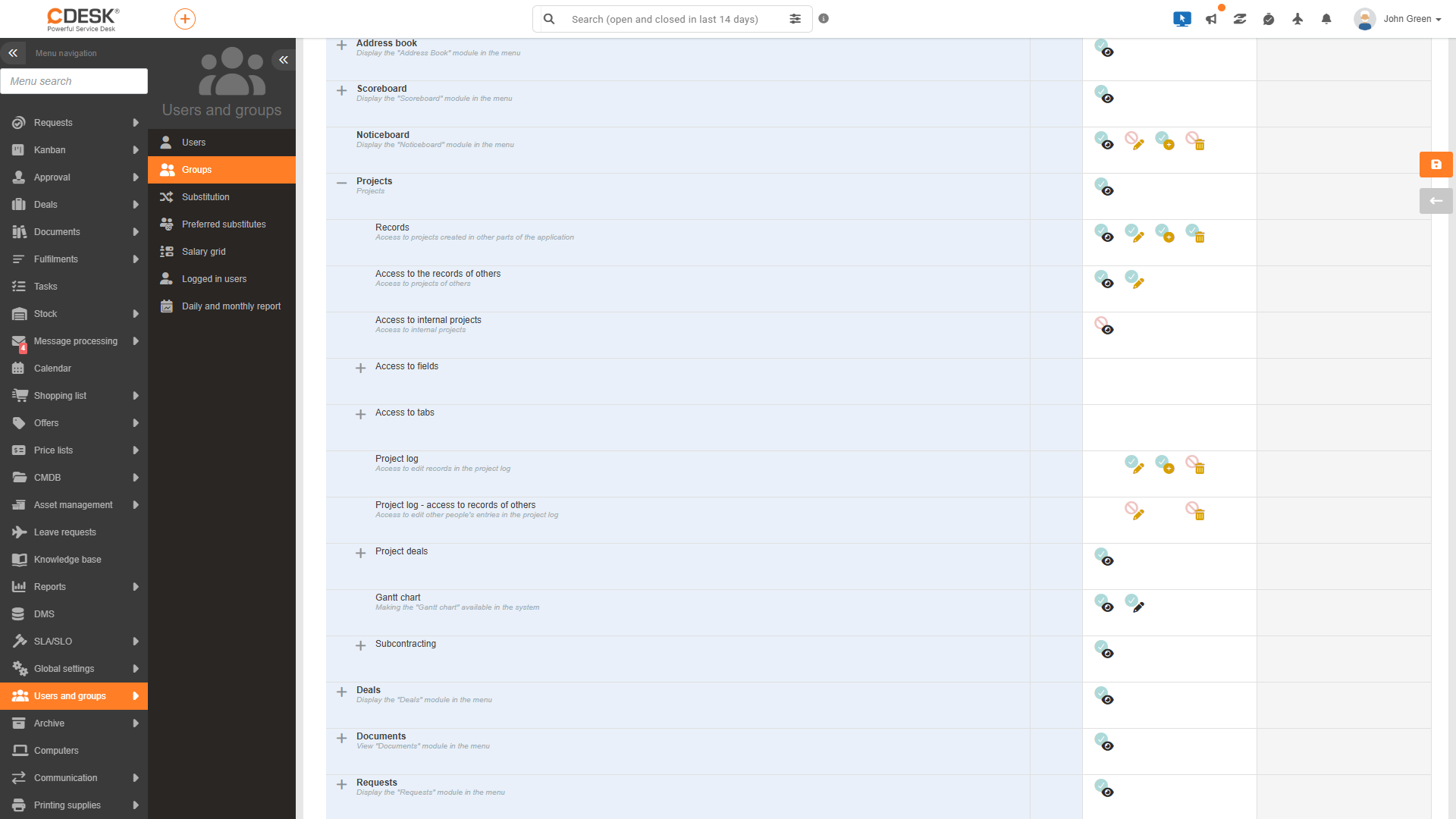
Project permissions are located in the permissions tree under the Projects node. The table also shows the default settings for system groups.
| Authorization | What it controls | Default settings |
|---|---|---|
| Projects | Access to the module and view of menu items. | Administrators, Operators, Assignees |
| Records | Access to created projects, editing, creating and deleting them. | Administrators, Operators, Assignees – all; Clients and EasyClick – read-only |
| Access to third-party projects | Access to and editing of projects in which the user has no role. | Administrators, Operators, Assignees – access and editing; Clients and EasyClick – read-only |
| Access to internal projects | Access to projects selected as internal. | Administrators |
| Access to fields → Internal project | View and change the ‘Internal project’ flag. | Administrators |
| Access to fields → Percentage complete | View and change the ‘Percentage complete’ field. | Administrators, Operators, Assignees |
| Access to fields → Percentage complete – Renew button | Reset the ‘Percentage Complete’ to automatic calculation. | Administrators, Operators, Assignees |
| Access to fields → Custom project codes | View and edit a custom project code. | Administrators – all, Operators and Assignees – access only |
| Access to fields → Follower | View and change the ‘Follower’ field. | Administrators – all, Operators and Assignees – view only |
| Access to fields → Freely defined tags | View, assign and create tags. | Administrators – all, Operators and Clients – view only |
| Access to fields → Planning mode | Changing the project planning mode. | Administrators, Operators, Assignees |
| Access to tabs | Separately for each project detail tab (Project log, Financial Overview, Project Deals, Orders, Invoices, Project protocols, Fulfilments, Requests, Tasks, Documents, Project Documentation, History). | Administrators, Operators, Assignees |
| Project log | Adding, editing and deleting your own custom records in the project log. | Administrators – all functions; Operators and Assignees – except deletion |
| Project log – access to others’ entries | Editing and deleting log records created by another user. | Administrators |
| Gantt chart | Access to the Gantt chart (view) and editing it (edit). | Administrators, Operators, Assignees |
| Project Deals | Permissions for the Project Orders module (records, templates, access to others’ records, fields, tabs, project log). A more detailed description is available in the Project Orders documentation section. | Administrators, Operators, Assignees |
| Subcontracts | Authorizations for subcontracts (records, tabs, custom subcontract codes). | Administrators, Operators, Assignees |
Access to the Projects module is disabled by default for the ‘Clients’ and ‘EasyClick’ system groups. However, certain subordinate permissions, such as reading records, are enabled by default for these groups.
Roles in the project
For each project, it is possible to assign people to four roles. Whether these roles are viewed in the form depends on the general project settings.
- Project owner – the person responsible for the project as a whole. This is displayed in the project details header. The role itself does not grant any additional editing permissions; these are governed by the user’s permissions.
- Project manager – manages the project. This can be either a user or a group. Upon selection, the manager is automatically added to the project team if the ‘Project Team’ field is enabled in the project settings. The project manager always has edit access to the project (provided they have authorization to edit records) and is considered the manager of all project deals within the project.
- Project team – team members (users or groups) can view the project and can view and edit the project’s child records, i.e. project orders, requests and tasks. They have read-only access to the project itself and cannot view the Project log, Financial Overview, Orders, Invoices, Project protocols and Documents tabs.
- Follower – users who monitor the progress of the project. They have read-only access to the project. A follower added to a project is automatically added to all child project requests and tasks. It is also possible to select a customer account belonging to a person from the project client’s company as an observer, provided that this account has permission to access project records.
A client wants to keep track of how the project is progressing. If their contact person has a customer account with permission to access project records, they can be added to the ‘Follower’ field. They will then have read-only access to the project and, as a follower, will automatically be added to any sub-projects, requests and tasks.
Project visibility
A user with the ‘Access to others’ permission can view all projects in the environment. A user without this permission can only view projects in which they are the project owner, project manager, a project team member or a follower. For the roles of project manager and project team member, group membership is also taken into account.
In-house projects
A project selected with the ‘Internal project’ flag is intended for the organisation’s internal use. Users without ‘Access to Internal Projects’ permission have read-only access to internal projects (with the exception of the Project manager, who can save the project, although most fields are inactive for them) and are not shown the ‘Financial Overview’, ‘Orders’, Invoices and Documents. Furthermore, the project is not offered to them in selection lists, for example when linking a project deal to a project. The internal project remains visible in the list of projects.
Read-only project
If a user has read-only access to a project, the Save and Delete buttons are hidden, the form fields are inactive, and the buttons for adding records do not appear in the tabs. A project is read-only in the following cases:
- The user does not have authorization to edit project records.
- The user is a member of the project team but is not the project manager.
- The user is only a follower on the project.
- The project is internal and the user does not have ‘Access to internal projects’ permission.
A project manager with permission to edit records has permission to edit a project even if they are also a member of the project team or a follower.
If a project team member is also to edit the project itself, they must be designated as the project manager. A project team member always has read-only access to the project.