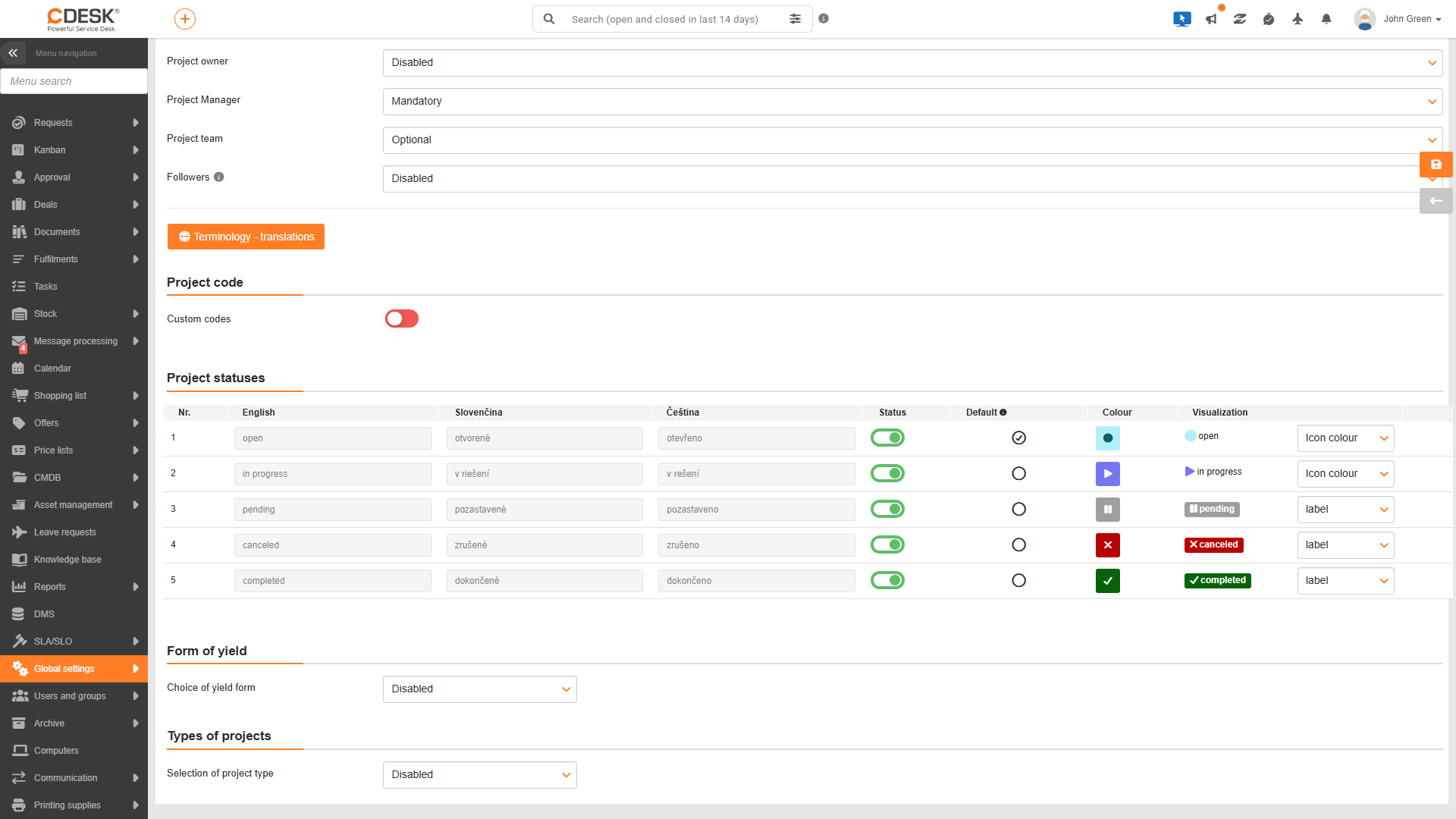


The other sections under Global Settings → Projects → Projects determine how projects are labelled and categorised.
Project code
Each project is assigned a code when it is created. The default code takes the form of the year followed by a sequential order number within that year, for example 2026-07.
The ‘Custom codes’ toggle allows you to set your own format for the project code, which consists of variables and constants. The available variables are:
- number – the project number, counted from the first project,
- year – the year of creation of the project,
- number_by_year – the project number counted from the first project in that year.
This section is only visible to users with the ‘Custom project codes’ permission. Users without editing permissions will see the text ‘You do not have permission to edit custom codes’ in place of the toggle.
When custom codes are enabled, the Project Code field with a cogwheel icon will be viewed in the details of a saved project. Clicking the icon opens the ‘Edit Project Code’ window, where you can edit the code for a specific project. The icon is only viewable to users with permission to edit custom project codes.
Project statuses
A project can have one of five statuses: open, in progress, suspended, withdrawn and completed. Statuses cannot be added, deleted or renamed. The status table contains the names of the statuses in each language and the following settings:
- Status – this toggle determines whether the status is in use and appears for projects.
- Default – the status that is pre-filled when a new project is created. By default, this is open.
- Colour – the status icon and colour.
- Visualisation – how the status is displayed in the list and in the project details, for example, the icon colour or label.
The ‘Completed’ status has specific rules. A project cannot be switched to this status until all its project deals and their tasks, requests and subcontracts have been completed. For a completed or withdrawn project, it is not possible to change dates, nor is it possible to change the percentage complete for a completed project. If the date for such a project is changed, the alert ‘The date cannot be changed because the project is completed’ will appear when saving, and the change will not be saved.
Types of projects
Project types are used to categorise projects into groups, for example by the type of deal. The type is selected in the project form and can be used to filter data, for example in the gantt chart.
- Project type selection (Disabled / Optional / Required) – if you select Optional or Required, the Project type field becomes available in the project form.
- Selection list – a colour-coded list of project types. This is viewed when ‘Optional’ or ‘Required’ is selected. New types can be added, such as ‘Internal’, ‘Implementation’ or ‘Service’. A saved type cannot be deleted; it can only be taken out of use.
Form of income
The revenue type is not applied in the project form. It is applied in project order accounting, where it specifies the form in which revenue is generated, and is configured in the same place as project types.
- Revenue type selection (Disabled / Optional / Mandatory) – determines whether the revenue type is recorded for billing milestones and project contract costs, for order items and for issued invoices. If ‘Required’ is selected, the field is required.
- Revenue type selection list – contains the values available for selection.