


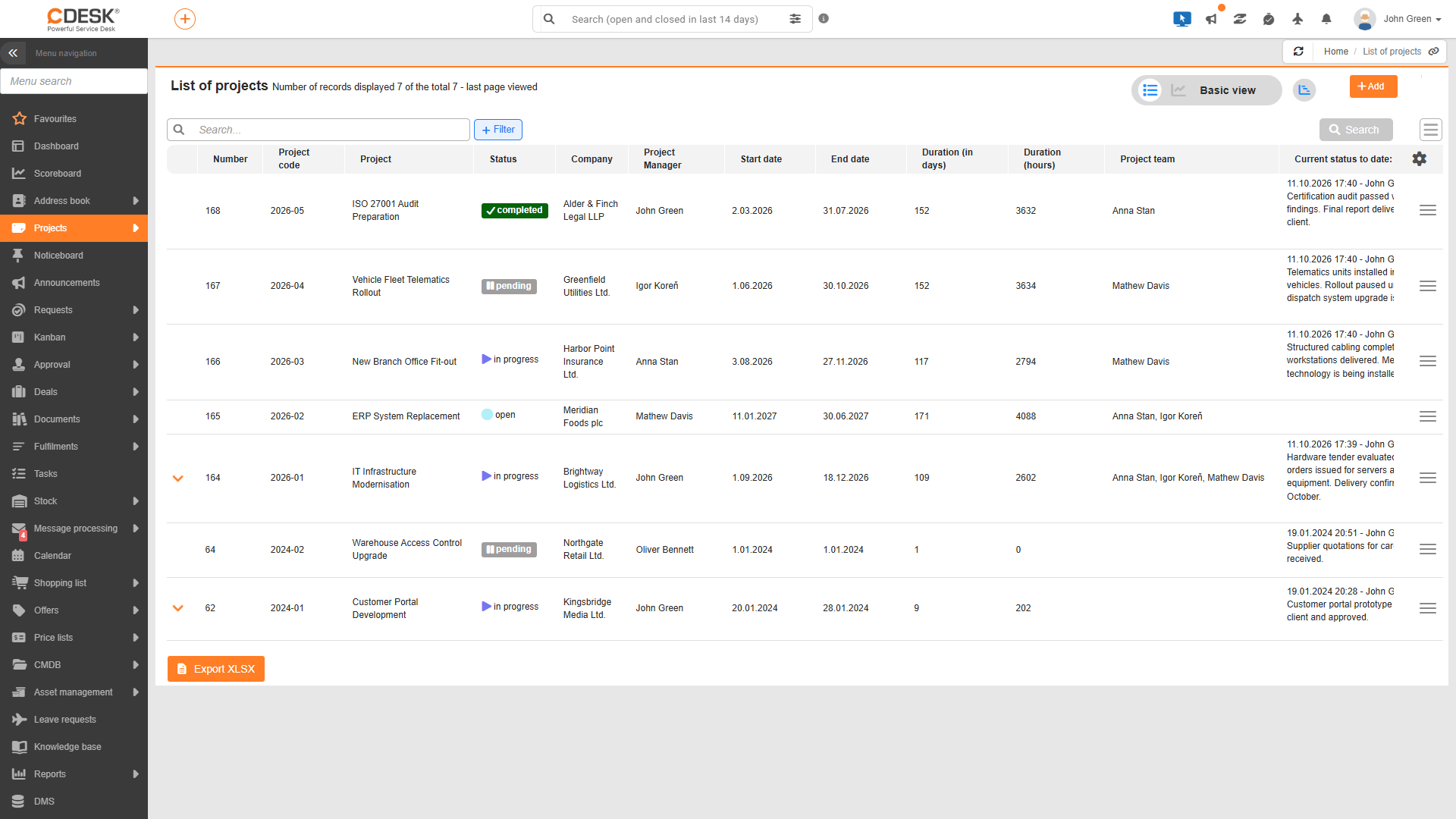
The list of projects can be found in the Projects → List of Projects menu and displays all the projects to which the user has access. It serves as an overview of the portfolio – displaying the statuses, responsible persons, dates and financial details of the projects all in one place. By default, the list is sorted with the most recent project at the top.
A basic and economic perspective
Use the toggle switch in the list header to switch between the Basic view and the Economic view. Each view has its own custom column selection, which is set using the column selection button. Clicking the gantt chart icon in the header opens the gantt chart.
- Basic view – contains the columns Number, Project Code, Project Name, Status and Client. Depending on the settings and permissions, the following columns may also be available: Project owner, Project manager, Start date, End date, Duration (days), Duration (hours), Project team, Follower, Current state to the date, Following steps, Percentage complete and Tags may also be available, depending on settings and permissions.
- Financial view – contains the columns Number, Project Code, Project Name, Revenue (plan, actual, balance), Retention money (plan, actual), Expenses (plan, actual, balance), Gross margin (plan, actual, offer) and Fulfilments (plan, actual, balance). The meaning of these values is described in the section ‘Financial overview of the project’.
Breakdown of project deals
An arrow is displayed next to a project that has project orders. Clicking on it expands the ‘Project Orders’ sub-table, showing the code, name, status, responsible person and dates for the orders. For a project deal, you can click the + icon to expand its Subcontracts. In the financial view, the sub-table views the financial data for project deals.
Actions in the list
A new project is created by clicking the Add button. Double-clicking a row opens the project details. The row menu contains various options depending on the row type:
- For a project, these are Edit (or Details for read-only projects), Add Project Order, Add Fulfilment and Delete.
- For a project order, these are Edit, Add Subcontract, Add Task, Add Fulfilment, Add Invoice, Add Order and Delete.
- For a subcontract, the options are Edit, Add Invoice, Add Order and Delete.
A project cannot be deleted if there are project orders, purchase orders or invoices (received or issued) directly linked to it. Before deleting the project, you must remove these links, for example by deleting the project orders or changing the project on the order and invoice.
Pending deletion is confirmed by clicking the ‘Delete for sure?’ option a second time. If there are records linked to the project, the following alert will appear “The project cannot be deleted. There are records linked to the project, such as project contracts, purchase orders, invoices and tasks.” The deleted project will no longer appear in the list.
Search and filter
Full-text search scans the project number, name and code, client, tags, person in charge, project manager, and the codes and names of project deals. The simple and advanced filters allow you to filter by name, code, status, client, roles, dates, percentage complete, tags, project log data, financial values, and by project order code and name. Filters can be saved and exported regularly via the report scheduler, provided you have permission to use the report scheduler. Financial fields in the simple filter are only available to users in the Administrators, Operators and Assignees system groups. A more detailed description of how to work with filters (saving and overwriting a filter, default filter, filtering by relative date) is available in the section of the documentation dedicated to filters in lists.
Export
Clicking the ‘Export XLSX’ button opens a column selection dialogue for the current view, and the list is exported to an XLSX file.