


A project is initiated once the objective and the client are known. Project deals, requests and tasks are added to it gradually.
Before you begin
- The Projects module and project levels are enabled in Global Settings → Projects → Projects.
- You have authorization to create project records.
- The customer’s company is set up in the Address book. If you have permission to create companies in the Address book, you can set it up directly from the project form.
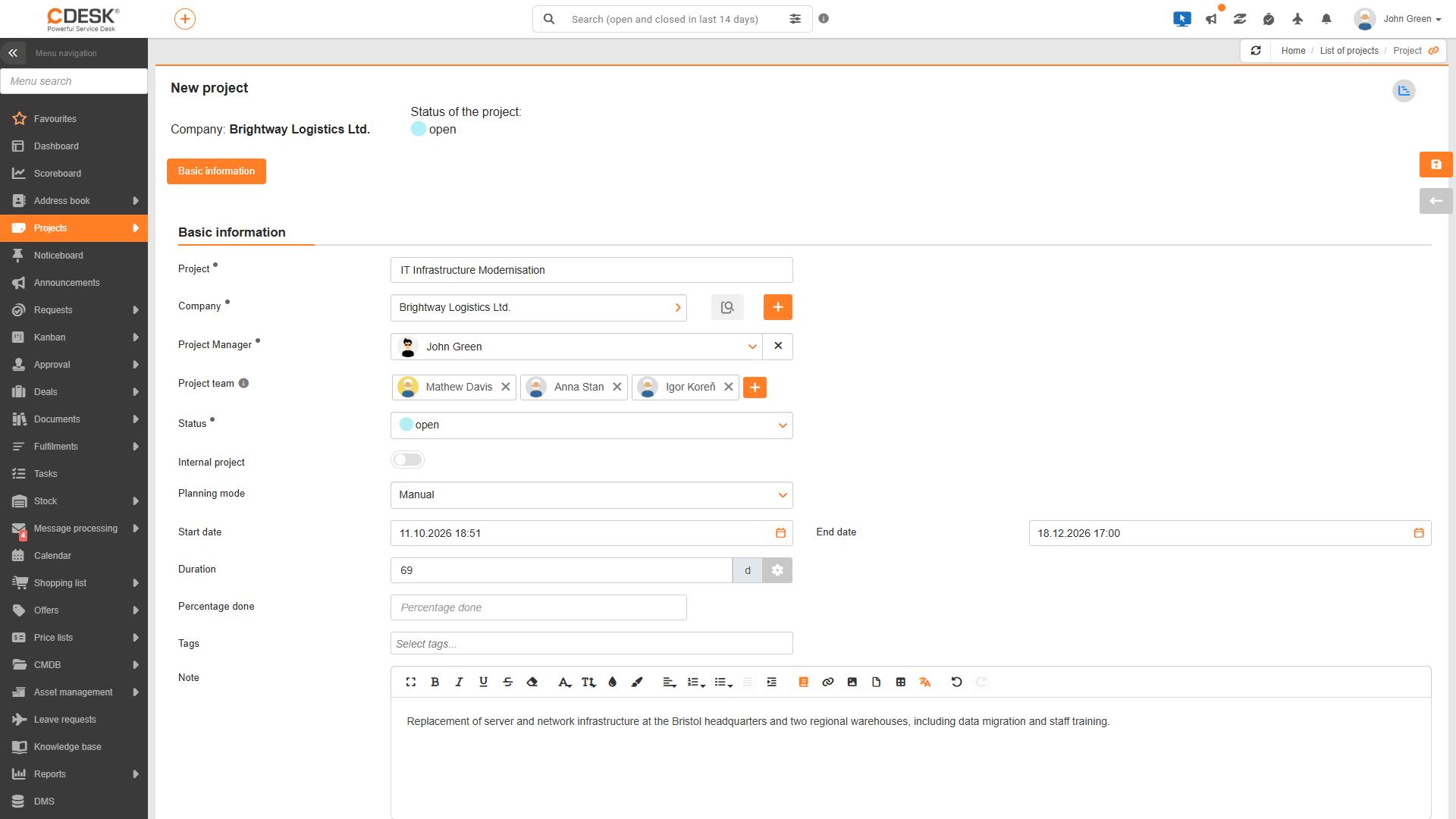
- In the Projects menu, open the Project List and click the Add button. In the new menu, you can also apply the + icon next to the Project List item.
- Fill in the project form. The Project Name, Client and Status fields are always required; other fields may be required depending on the settings. The meaning of each field is described in the section ‘Meaning of fields in the project form’.
- Click the Create button. Once saved, the alert “Project … has been saved” will be viewed and the other project detail tabs will become available.
- If the project was created from the project list, the ‘Create Project Order’ window will be viewed, asking whether you wish to create a project order for the project. Clicking the Create button opens the project order form with a pre-filled relationship to the project and the customer.
Adding project deals
Work is carried out on a project through project deals. There are several ways to add a project deal to a project:
- In the project details, on the Project Orders tab, by clicking the Add or Add from Template button. An existing project deal can be linked by clicking the Select button.
- In the list of projects, by clicking ‘Add project deal’ in the project row’s menu.
- In the gantt chart via the project’s context menu.
- In the project order form, where you select ‘Project’ in the ‘Link to customer’ field and then choose a specific project. Only projects from the same customer are displayed.
Requirements and tasks are added to a project via a project order. The ‘Project Order’ field is completed on the requirement, and on the task, a project order or request is selected in the ‘Link to’ field. A more detailed description is available in the ‘Project Orders’ section of the documentation.
A change to the client on a project is automatically carried over to all project deals within that project and recorded in their history.