


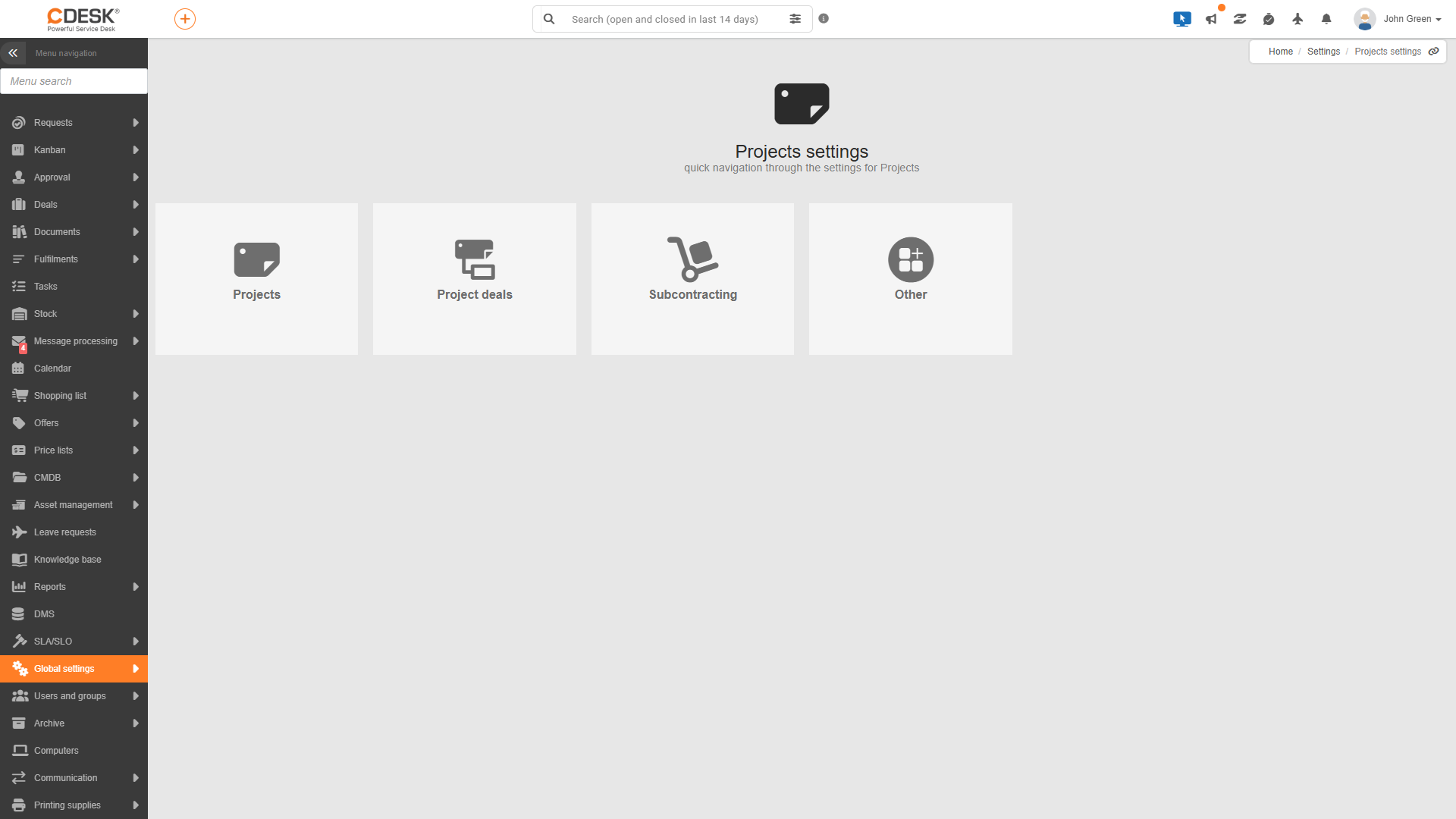
The module’s settings can be found under Global Settings → Projects. The project settings page contains the following tiles: Projects, Project Orders, Subcontracts and Other. Until the module is enabled, the last three tiles are inactive. Viewing the settings requires access to global settings, and saving them requires authorization to edit global settings.
General
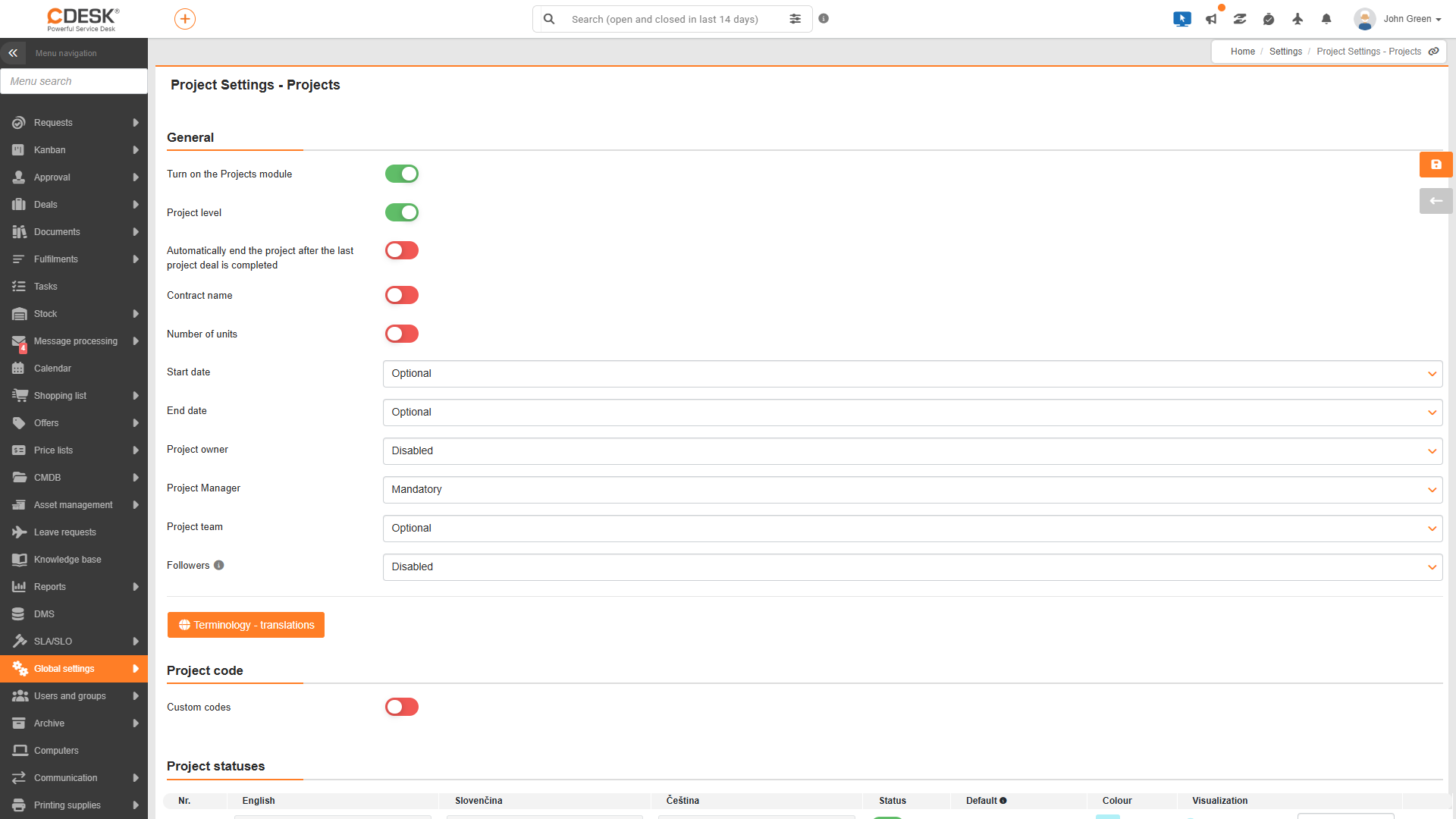
The General section under Global Settings → Projects → Projects contains the option to enable the module and configure the project form fields. Apart from the first option, the others will only be viewed once the module has been enabled.
- Enable the Projects module – this enables the entire module. The Projects group will appear in the menu, containing the following items: Project Orders, Project Order Templates, Subcontracts, Gantt chart, Projects Dashboard and Project Orders Dashboard. The display of individual items depends on the user’s permissions.
- Project Level – enables the projects themselves. A Project List will appear in the menu; on a project order, you can select a project in the Link to field (provided that Project Selection is enabled in the project order settings), and you can attach purchase orders and invoices to the project. Without this option, only project orders are applied, and the Gantt chart displays a list of project orders instead of a list of projects.
- Automatically close the project upon completion of the last project order – if enabled, the project is automatically set to Completed status the moment its last uncompleted project order is saved as Completed. This option can only be enabled when the ‘Projects’ level is enabled, provided that the Project selection field in the project order settings is set to Mandatory, the Completed status is in use for both projects and project deals, and more than one status is in use.
- Contract Name – when enabled, the Contract Name field becomes available in the project form.
- Quantity of Units – when enabled, the Quantity of Units field becomes available in the project form.
- Start Date (Optional / Mandatory) – if set to Mandatory, the project cannot be saved without specifying a start date.
- End date (Optional / Required) – if Required is selected, the project cannot be saved without specifying an end date.
- Project owner (Disabled / Optional / Required) – if Optional or Required is selected, a field for selecting the project owner becomes available in the form. If Required is selected, the project cannot be saved without selecting the project owner.
- Project manager (Disabled / Optional / Mandatory) – displays a field for selecting the project manager. If Mandatory is selected, the field is required.
- Project team (Disabled / Optional / Mandatory) – enables a field for selecting project team members. If Mandatory is selected, the field is required.
- Follower (Disabled / Optional / Required) – enables the field for selecting followers. If Required is selected, the field is mandatory. The field is only displayed to users with permission for the Follower field. The Follower field can also be enabled for project orders, requests and tasks in the global settings of the relevant modules.
Whilst the option ‘Automatically close the project after the last project order is completed’ is enabled, the ‘Completed’ status cannot be disabled for projects or project orders. If ‘Project selection’ is disabled in the project order settings or the ‘Completed’ status is disabled, the system will automatically disable this option upon saving.
The fields ‘Contract Name’, ‘Number of Units’, ‘Start Date’, ‘End date’ and ‘Project owner’ are only viewed in the settings when the project level is enabled.
Terminology
Clicking the ‘Terminology – Translations’ button opens the module’s terminology editor, for example ‘Project’ or ‘List of projects’. The aim is to adapt the text in the application to your organisation’s terminology, for example if you refer to projects by different names internally.
Other settings – reference period
In the Global Settings → Projects → Other section, you can set the Reference Period – the period for which statistical results are collected or calculated and to which the data relates. The reference period is defined by two fields:
- Start of the period – the date and month from which the periods are calculated. If the settings are not configured, the period begins on 1 January.
- Period length – the length of a single period, with options of 1 month, 3 months, 6 months and 12 months.
The reference period is used for project orders on the ‘Fulfilments’ tab, where the ‘Summary’ table breaks down the hours worked into total fulfilments, fulfilments for the previous period and fulfilments for the current period. The default period length is 1 month.