


The Gantt chart allows you to edit the plan, both in the table and on the timeline. Edits require authorization to edit the Gantt chart and authorization to edit the relevant object. Each change is saved in the same way as if it had been made in the object’s details, and the same rules and notifications apply. Projects, project orders, requests and tasks cannot be deleted from the chart. A milestone can be removed from its window.
Changes to the table
You can edit the following details directly in the table:
- Name – item title.
- Planning mode – Automatic or Manual. Not applied for milestones.
- Start date – only the start of the object changes; the end remains the same.
- Completion date – changes the completion date of the object.
- Assignee – the person assigned to the request or task. For requests, assignees are suggested based on the assignee group and project team.
- Project manager – the project manager for the project or project deal.
- Status – the status of the object. For a request, only permitted status transitions are suggested. If request completion requires further mandatory details, a form for request completion will open.
For an object with the ‘Automatic’ planning mode that has child objects, it is not possible to change the dates, as these are calculated based on the child objects.
Edits to the timeline
On the timeline, dates can be changed by dragging a bar with the mouse. Depending on which part of the bar the user drags, a different piece of information changes:
- Moving the bar – dragging the entire bar changes both the start and end of the object. Child objects are shifted by the same amount of time.
- Change in length – dragging the edge of the bar changes either the start or the end.
- Percentage complete – dragging the progress indicator on the bar changes the percentage complete. When a request or task reaches 100%, it switches to the ‘completed’ status.
- Milestone – dragging the milestone changes its date.
Dragging with the mouse rounds off to whole dates – the start is at the start of the date and the end is at the end of the date. The exact time can be set in the object’s details. A ‘full-day’ task can only be moved; it cannot be extended or shortened.
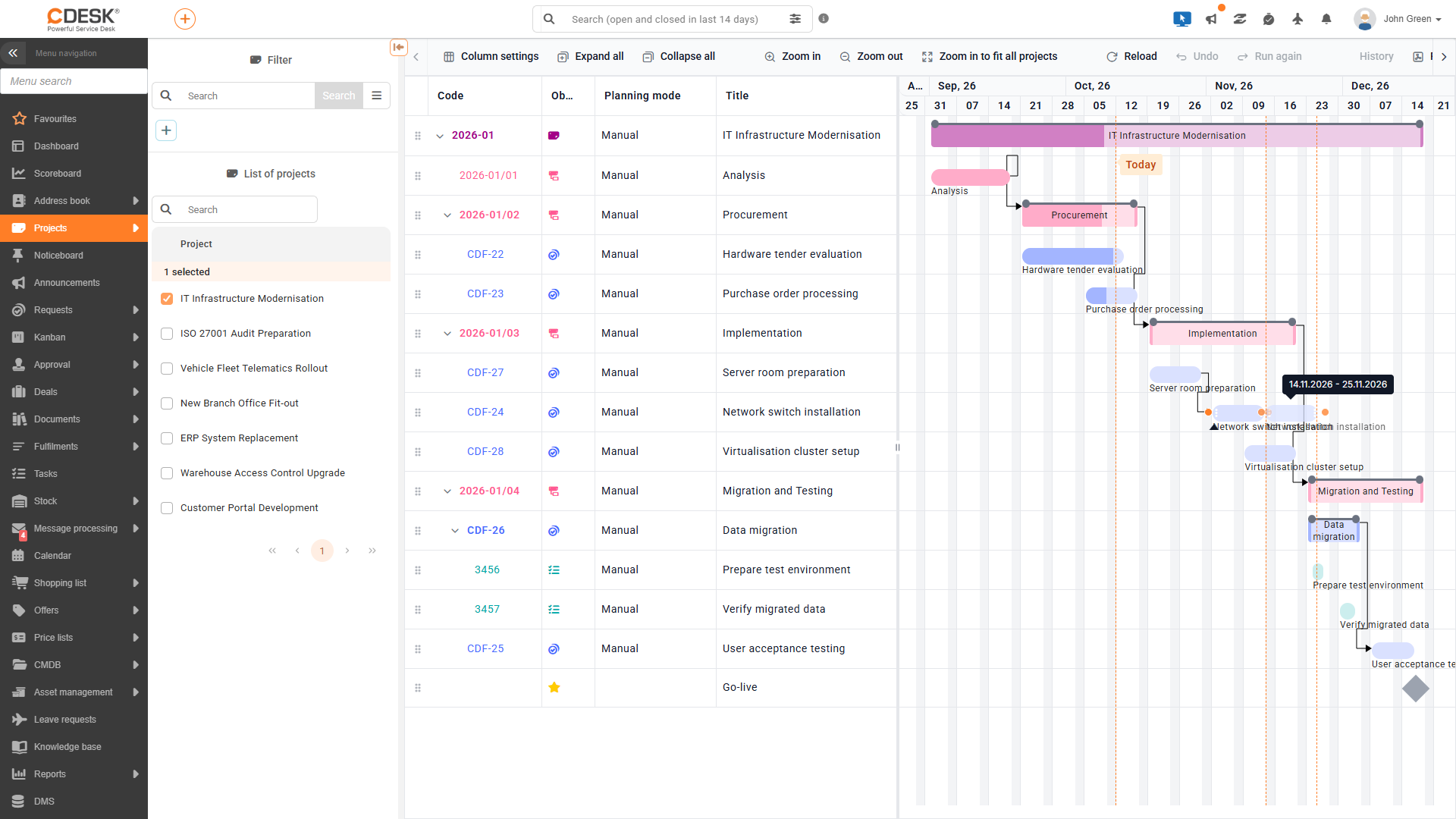
Planning mode
The scheduling mode determines how the dates of a parent object – that is, a project, project contract, requirement or task – which has child objects, are handled.
- Automatic – the start date of the object is set to the earliest start date and the end date to the latest end date of its child objects. When a child object is changed, the dates of the parent objects are recalculated right up to the highest level. The duration of such an object cannot be changed directly.
- Manual – the object’s dates are entered manually and form the boundaries for its child objects. If a child object does not fit within the date of its parent, its date is adjusted to the boundary and the following warning is displayed: “The start date has been adjusted according to the parent object, which is: …’ or ‘The end date has been adjusted according to the parent object, which is: …’. If the entire object is moved beyond the boundary, the change will not be saved and an error alert will appear, for example: “The end date of the child object cannot exceed the end date of the parent object, which is: …”. If the parent object is shortened in such a way that the child objects would exceed its dates, its date will be adjusted according to the child object and the alert “The start date has been adjusted according to the child object, which is: …’ or ‘The end date has been adjusted according to the subordinate object, which is: …’.
Milestones are not included in the calculation of the parent object’s dates.
Adding objects to a chart
Right-clicking on a row opens a context menu from which you can create a new object directly below the selected object. The new object is created using a standard form with pre-filled relationships and dates.
- Details – opens the object’s details in the same way as clicking on the code or double-clicking. This option is available on the row of each object.
- Add Project Order, Add Project Order from Template – creates a new project order. These options are available on the project and project order rows.
- Add Request, Add Request from Catalogue, Select Request – creates a new request or links an existing one. These options are available on the project order and request rows.
- Add Task – creates a new task. This option is available on the project order, requirement and task rows.
- Add Milestone – creates a new milestone. This option is available on the project, project deal and request lines.
Fields are inactive if the user does not have authorization to create that type of record, if the object has been completed, or if the user only has read access to the object. The items for adding and selecting a request are also inactive for that request if the user does not have authorization to edit the request’s links.
Changing the structure and order
By moving a row to another row, it is possible to change the parent object; for example, to move a request to a different project order. Only moves that correspond to the project structure are permitted: a project contract under a project or another project contract, a request under a project contract or another request, and a task under a project contract, a request or a task; and a milestone under a project, a project contract or a request. The dates of both the original and the new parent object are recalculated. The link cannot be changed if the object is read-only or completed.
Moving a row above or below another row at the same level changes the order of the objects. The order is saved to the record, so it applies to all users. The order of projects cannot be changed. If the table is sorted by a column, the sort must first be cancelled.
The order of objects is saved to the record. Once a row has been moved, other users will also see the objects in the new order.
That’s sorted
The percentage complete can be calculated automatically from the bottom up. If, in the project order settings, the ‘Percentage Complete’ field is set to ‘Optional’ or ‘Mandatory’ and the object does not have a manually entered value, its percentage is calculated as the weighted average of the percentages of its directly subordinate objects, where the weight is their duration:
- The percentage of a task is calculated from its subtasks.
- The percentage of a requirement is calculated from its child requests and tasks.
- The percentage of a project order is calculated from its subordinate project orders, requests and tasks.
- The percentage of a project is calculated from its project deals.
A manually entered percentage takes precedence over the automatic calculation. By clicking on the refresh icon in the object details, the automatic calculation can be reinstated, provided the user has the relevant authorization. Completing a task or request sets the percentage to 100 per cent; conversely, a task or request with 100 per cent is marked as complete. Completed projects, project orders and tasks are read-only in the Gantt chart.
Whilst a percentage is entered manually, changes to child objects will not be reflected in the percentage. If you want the system to recalculate it automatically, you must click the refresh icon in the object’s details.
Milestones
A milestone marks an important point in time, such as the handover of a phase or the start of operations. It is added by clicking ‘Add Milestone’ in the context menu of a project, project order or request. In the New Milestone window, fill in the Name, Date and optional Note fields. A milestone is displayed as a point on the chart; it moves in tandem with its parent object and is not included in its dates or percentage complete.
A milestone in a Gantt chart is not linked to the billing milestones in the project contract’s financial plan.
Change history and undoing a change
Changes made to the Gantt chart are recorded. Clicking the History button opens the Change History window, which displays the object’s code and item title, the time and a description of the change, including the original and new values; for example, Change of end date (object shift), Change to percentage complete, Change to link with parent object or Add dependency between objects.
Clicking the ‘Undo’ button undoes the last change, whilst clicking the ‘Redo’ button repeats the reversed change. Undoing an object shift also reverts any moved child objects. The history contains only changes made to the chart whilst the page is currently open. It is cleared when the page is refreshed and does not include changes made in object details.