


Dashboards provide an overview of all projects or project deals on a single screen, showing, for example, how many projects are currently running, who they belong to, how long they have been running, or how their financial performance is developing. Each user can customise their own dashboard using widgets.
Location of dashboards
Project-related dashboards are available in three places in the menu:
- The Projects dashboard is located in the Projects menu and provides an overview of projects.
- The Project Orders dashboard is located in the Projects menu and provides an overview of project orders. It is viewed by users with access to project orders.
- The Request Dashboard is located in the Request menu. As work on a project takes place within requirements, this dashboard also allows you to track open requests, overdue requests, or the distribution of work by assignees, companies or priorities.
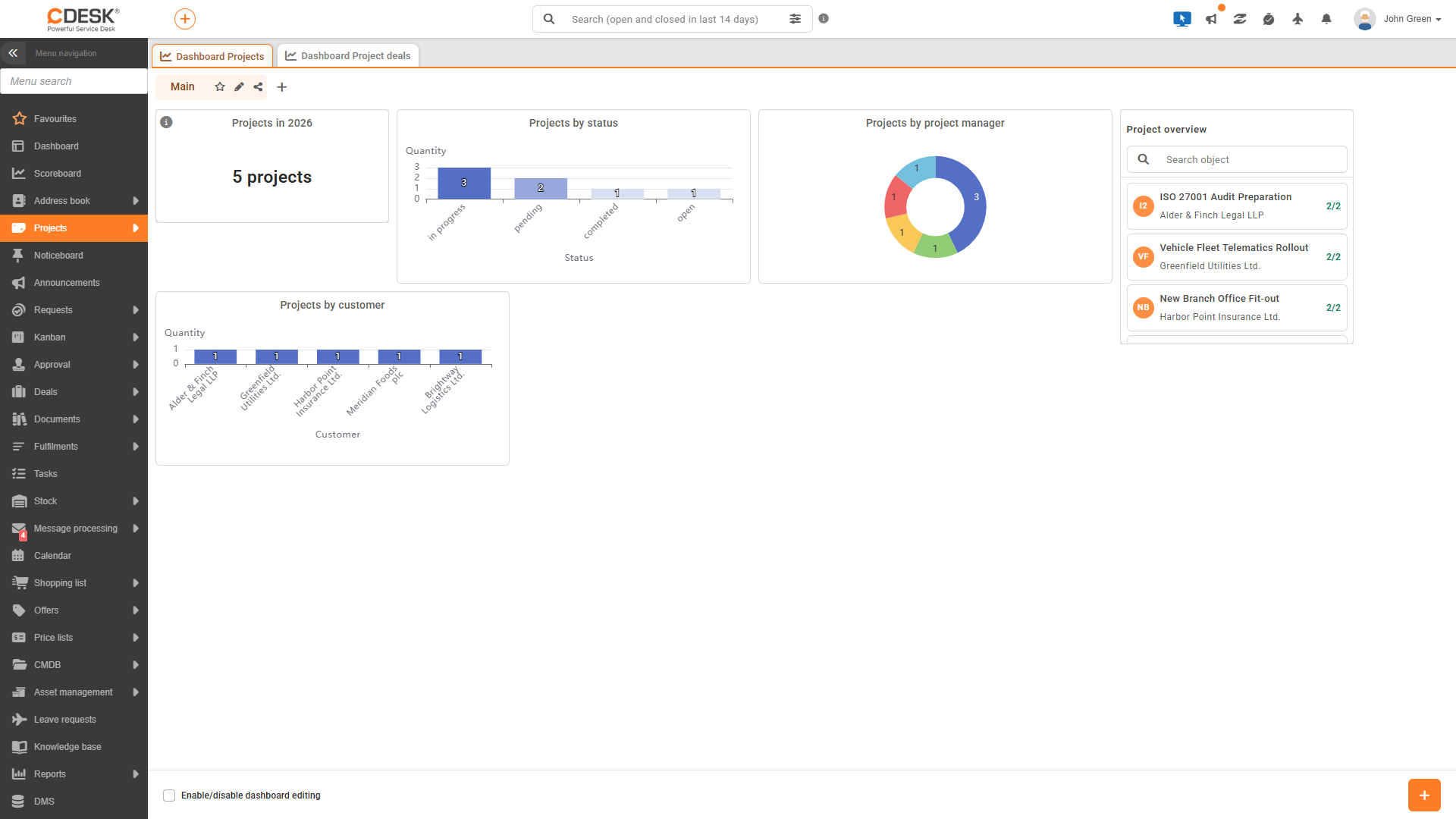
Dashboard tabs
The dashboard is divided into tabs. The ‘Main’ tab is created automatically and cannot be deleted. You can use the icons next to the tabs to perform the following actions:
- ‘Add Tab’ creates a new tab with the name entered in the ‘Tab Name’ field.
- Rename tab changes the name of the tab.
- Share tab makes the entire tab available to other users.
- ‘Delete Bookmark’ deletes the bookmark after confirmation.
- Set as default bookmark (star) designates the bookmark that will be viewed when the dashboard is opened.
A bookmark shared with you by another user has a tooltip saying ‘Shared by [user’s name]’ and can be hidden by clicking the ‘Hide shared bookmark’ icon.
Adding a widget
Clicking the + button (Add another widget) in the bottom bar of the dashboard opens the widget type selector. The dashboard is initially empty, and each user creates their own widgets according to what they need to monitor.
- Chart – a graph displaying data from a module. In the Chart Configuration window, you can select the Chart Type (bar, line, pie, circular or bar-line (combined)), Module, Chart Name, the X-axis field (for pie and circular charts, ‘Group by’) with a custom filter, Date grouping (day, week, month, quarter, year; only for the date field), the maximum quantity of values on the X-axis, whether to display the legend, and whether to omit records without values. For bar, line and combination graphs, one to five metrics can be added in the Metrics (Y-axis) section. Pie and circular graphs have a single value in the Value section. Each metric has a value, an aggregation (count, sum, average, minimum, maximum, percentage of values), graph type, axis, colour and its own custom filter.
- Metrics tab – views a single number, such as the quantity of active projects. In the Metrics Tab Configuration window, you can enter the name of the tab, filter, aggregation, metric, description and unit.
- Object List – views a list of selected records with their names and monitored fields (up to 20). In the Object List Configuration window, you enter the list name, fields for the name and subtitle, monitored fields and filter.
Customising layouts and widgets
The ‘Toggle dashboard editing’ switch in the bottom bar enables edit mode, in which you can move widgets and resize them. The layout is saved automatically. Using the icons on a widget, you can open its settings, share it (‘Share widget’, only the widget’s author), move it to another tab (‘Move to tab’, in edit mode) or delete it. The chart can also be expanded to cover a larger area.
Sharing
In the ‘Share Widget’ or ‘Share Bookmark’ window, you can choose who to share the widget or bookmark with:
- All users of the environment – sharing is always read-only.
- Specific users or groups – in the ‘Share with’ section, select individual users in the ‘Users’ field and groups in the ‘Groups’ field. For each selected recipient, then select ‘Read’ or ‘Read and write’ in the ‘Recipient authorization’ field.
- For me only – cancels sharing.
The values in the widgets are always calculated based on the permissions of the user viewing the dashboard. Project financial data is only viewed by users with permission to access the Financial Overview tab. Financial data for project deals is only viewed by users with permission to access the Revenue or Balance Sheet and Planning tabs. The values in charts and metric cards are refreshed with a delay of approximately 2 minutes; the list of objects is refreshed approximately every 30 seconds.
A shared widget or tab may therefore be viewed by other users with different values – for example, without financial data – if they do not have authorization to access the Financial Overview tab.