


Dependencies determine which parts of the project are linked. If one date changes, the subsequent dates may be automatically adjusted accordingly. For example, if data migration is delayed by three days, testing, defect rectification and deployment will all be postponed, and the chart will view the impact of the delay on the handover date.
Types of addiction
A dependency is created between two objects – a predecessor and a successor. Dependencies can be set up between project deals, requests and tasks in any combination. Projects and milestones do not have dependencies.
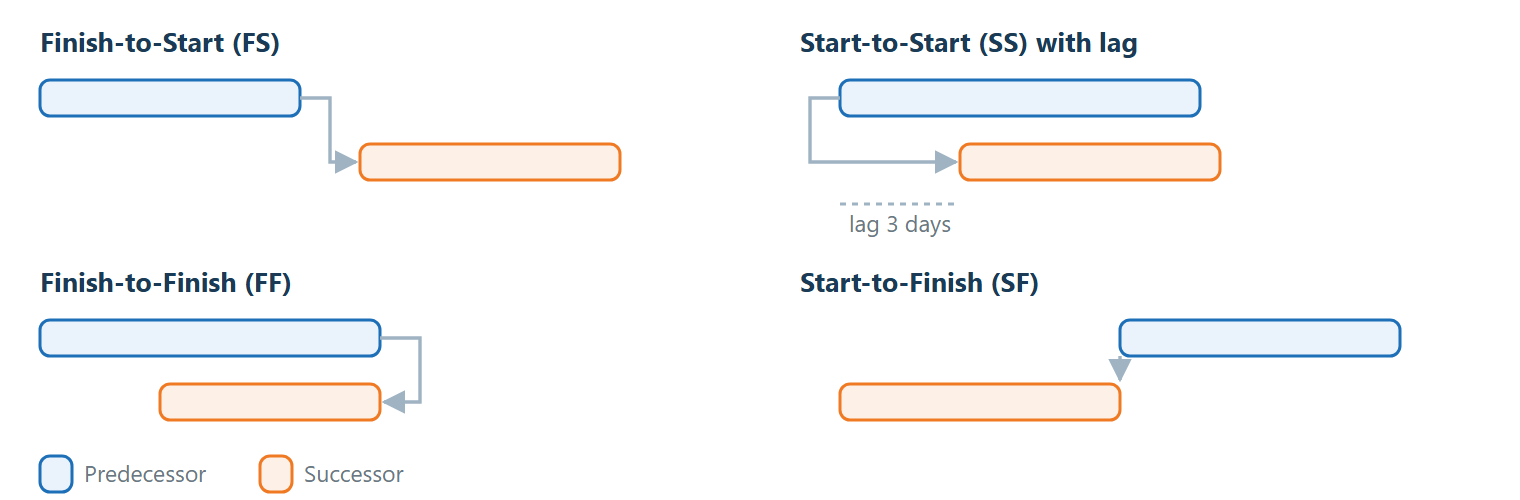
| Type of dependency | Meaning | Example |
|---|---|---|
| End – Start (FS) | The successor starts after the predecessor has finished. The most common type. | The analysis is complete; the draft can begin. |
| Start – Start (SS) | The successor starts at the same time as the predecessor, or with a time lag. | Administrator training begins 3 dates after the start of implementation. |
| End – End (FF) | The successor ends at the same time as the predecessor. | Testing and documentation are handed over together. |
| Start – End (SF) | The successor ends at the same time as the predecessor begins. | The old system is only disabled once the new one is up and running. |
Offset
A time offset can be entered in the dependency. The offset is specified in the Offset fields (integer; a negative value is permitted for the hour, day, week and month types) and the Offset type field, with the options hour, day, week, month and working days. The default offset type is ‘hour’. Working days are calculated based on the days of the week selected as working days in the company’s SLA operating hours, or according to the default SLA. If no dates are selected in the SLA, the offset is calculated in calendar days. Public holidays are not taken into account. In the lists, the offset is displayed using a short name (h, d, t, m, pd).
The delivery of equipment does not commence on the date the order is placed. With an End-Start dependency and a 2-day offset, delivery is scheduled for two days after the order is completed, which corresponds to the logistical buffer.
Control and visual dependencies
Only a dependency with an offset specified – even if the value is 0 – affects the automatic rescheduling of dates. Such a dependency is a controlling dependency. A dependency without a specified offset is a visual dependency. It is displayed in the chart as a line, but does not reschedule dates. Each object may have only one controlling dependency in which it is a successor. Any other dependencies must be visual.
Creating a dependency
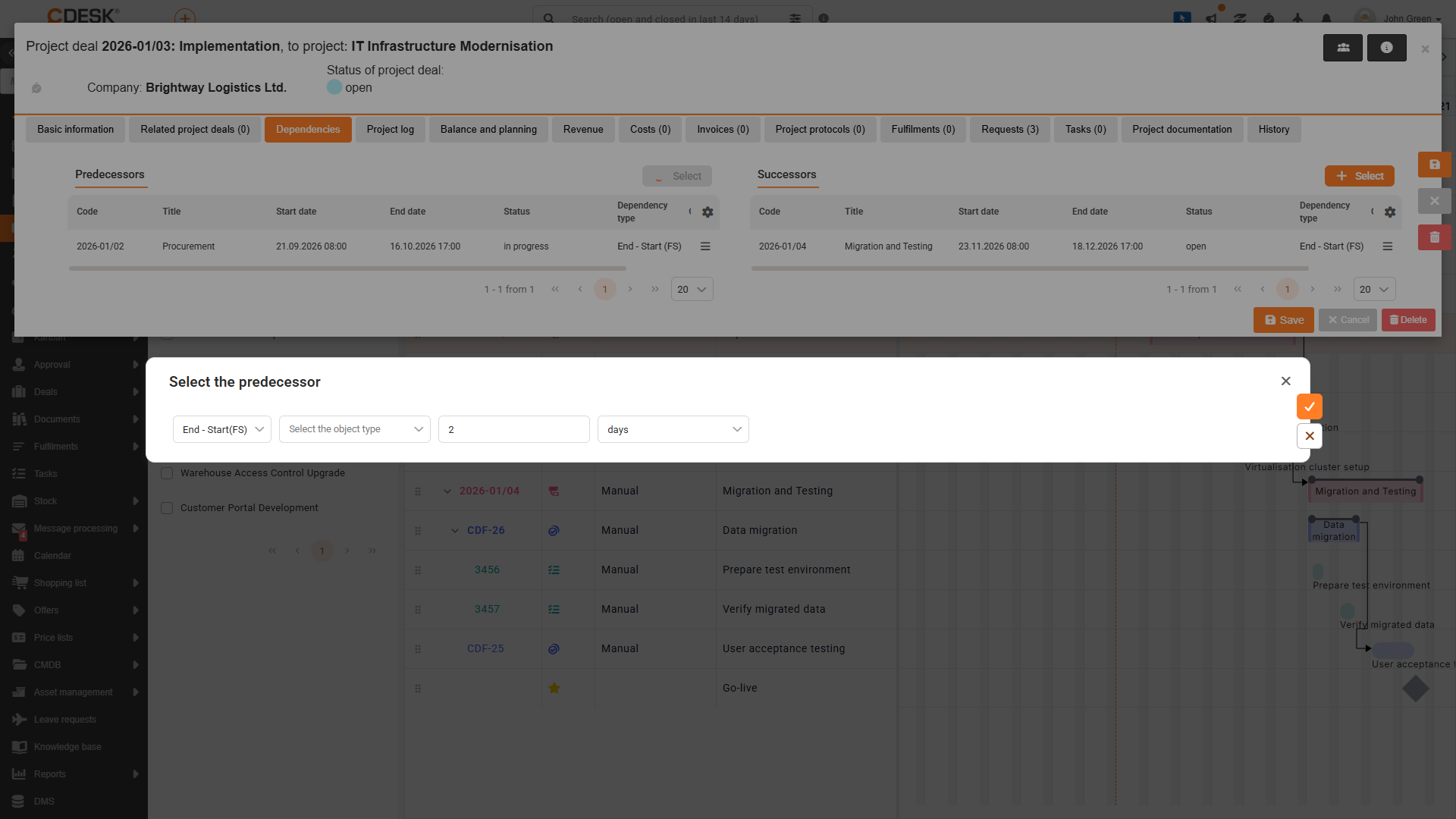
Dependencies are managed on the Dependencies tab in the details of a project order, request or task. The tab is available to users with Gantt chart permissions and contains two lists – Predecessors and Successors – with the columns Code, Name, Start Date, End Date, Status, Dependency Type and Offset. The tab is only displayed after the record has been saved and, for requirements and tasks, only when the Projects module is enabled. The lists view only dependencies with objects to which the user has read access.
- In the Predecessors or Successors list, click the Select button.
- In the Select Predecessor (or Select Successor) window, select the relationship type (default: End–Start) and the object type, then fill in the Offset and Offset Type fields. If the dependency is to be a controlling one, enter 0 in the Offset field.
- Select an object from the list and click the Select button (the tick icon; the button text is displayed when you hover over it). The alert ‘Object dependency created’ will be displayed. In the case of a controlling dependency, the successor’s date is recalculated now.
An existing constraint cannot be edited. If you need to change the type or offset, the constraint must be deleted and recreated. To delete a dependency, click the ‘Remove Link’ option in the row menu and confirm in the ‘Remove Dependency Between Objects’ window. The ‘Edit’ option in the row menu opens the details of the related object. To create or delete a dependency, you must have edit permissions for both objects.
A dependency created in a Gantt chart by linking the bars of two objects is always visual and does not shift dates. A control dependency can only be created on the Dependencies tab.
A dependency can also be created in a gantt chart by connecting the bars of two objects with the mouse. It can be removed by clicking the Undo button or on the Dependencies tab.
Checks to prevent dependency creation
The system will not allow the creation of a dependency that would disrupt the logic of the plan. In such a case, an alert explaining the issue will be viewed. The alert has a title ‘Error creating’ or ‘Error saving’, and the line ‘An error occurred whilst creating the object dependency’ is added below the explanation. If the dependency breaches more than one rule, multiple explanations will be viewed at once.
| Alert | What this means and how to proceed |
|---|---|
| “Specifying a dependency on this object will create a cycle” | The selected and current objects are already directly or indirectly linked by dependencies in the opposite direction, including visual ones. You must select a different object or delete an existing dependency in the chain. |
| “It is not possible to create a dependency between a parent and child object” | One of the objects is, directly or indirectly, a parent of the other within the project structure. You must select an object from a different branch of the structure. |
| “Another type of dependency already exists between the selected objects” | There can only be one dependency between two objects. The existing dependency must first be deleted. |
| “The target object already has another time-shifted relationship defined. To maintain consistency, an object may only have one controlling relationship (with a time shift); the others must be without a time shift (visual).” | The successor already has a control dependency. The new dependency must be created without an offset, or the existing control dependency must first be deleted. |
| “Object shifts in the chain would cause the parent object’s dates to be exceeded.” | A new dependency would shift objects outside the dates of the parent object in manual planning mode. The parent object’s dates or the offset must be adjusted. |
| “This link already exists in the system” | The same dependency between the selected objects already exists. |
| “It is not possible to create this link” | An object cannot be dependent on itself. |
Automatic rescheduling of dates
Following rescheduling of the deadline for a project order, request or task, both in the Gantt chart and in the object details, the system recalculates objects linked by control dependencies according to the following rules:
- The successor’s date is set according to the predecessor’s date and the offset. For FS and FF types, this is based on the predecessor’s end date; for SS and SF, on the predecessor’s start date. For FS and SS, the successor’s start date is set; for FF and SF, its end date.
- The duration of the shifted object is retained and its child objects are shifted along with it.
- The recalculation continues throughout the entire dependency chain and works in both directions. When a successor is shifted, the predecessor is also shifted to maintain the link. The shift applies both forwards and backwards in time.
- Parent objects with Automatic scheduling mode are automatically extended or shortened in line with their child objects, so the change is also reflected in the dates for the project order and the entire project.
If the deadline is changed in the project order details, Requirements or tasks affect the dates of parent objects with the Automatic planning mode, the List of changes to be made after saving window will appear before saving, showing a list of these objects and their new dates. The change will only be saved once confirmed. Objects rescheduled due to dependencies are not displayed in this window.
For a request that is not included in the project structure (i.e. it has no project order or parent request), the dates of dependent objects are not automatically rescheduled.
Offset restrictions
The system will not save a change to a date if it would breach the rules of the object whose date the user is changing. These cases are as follows:
- An object containing read-only sub-objects cannot be rescheduled as a whole.
- A rescheduling that would result in any request having a completion deadline in the past will not be done if the request settings do not permit this.
- The dates for a completed request, task, project order or project cannot be changed.
- If a shift in the chain would cause the dates of a parent object with manual planning mode to be exceeded, the change will not be saved and the alert ‘Rescheduling would cause the dates of the parent object in the dependency chain to be exceeded’ will be viewed.
Notifications of changes to dates
Rescheduling the request deadline or task in a Gantt chart is saved in the same way as in the record details. Therefore, the same notifications are sent as for a common deadline change, for example, ‘Change of completion deadline’ when changing the completion deadline of a request, or ‘Change of deadline’ for a task. Notifications are sent only for the object whose date the user has changed. For objects that the system automatically reschedules based on dependencies or the recalculation of parent and child objects, no notifications regarding the date change are sent.