


Beta verzia novej dokumentácie.
Home Approval Use of approvals Approval of offers
The approval of offers in the CDESK system is based on the principle of accepting individual items contained in the offer. For now, the request for acceptance is sent via email. We discuss offers in general, as well as the process of creating and working with offers, in more detail in Section XX of the documentation.
Offers can be approved in two ways—depending on the Acceptance method option in the system’s global settings (under Global Settings → Offers). There are two options to choose from:
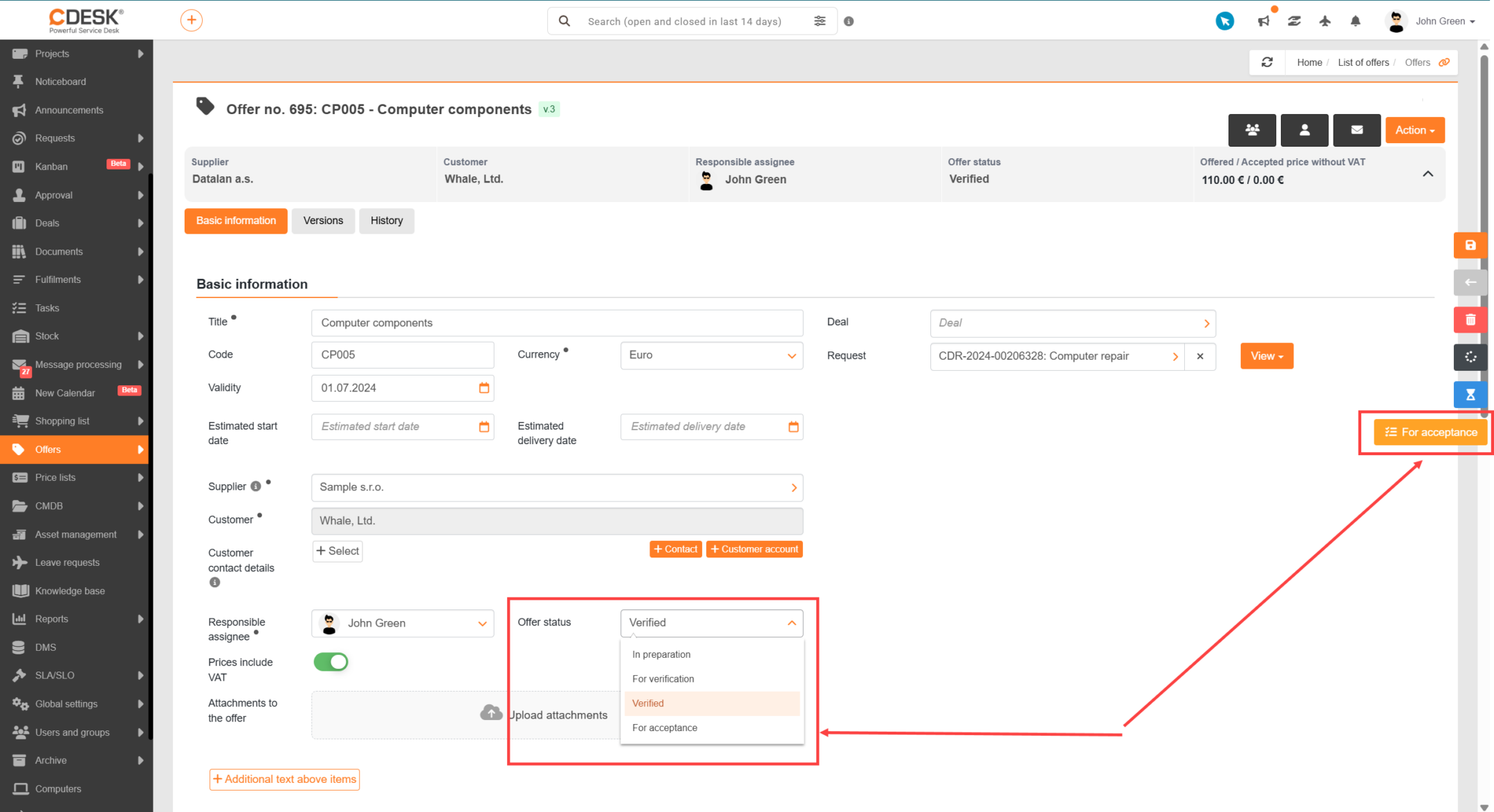
When using two-level acceptance, you can submit the prepared offer for verification—by manually changing the offer status to For verification and saving the record, using the floating button on the right side of the screen to automatically change the status, or using the button at the end of the record.
By default, the system sends a notification regarding a change in the status of the offer for verification to the supervising primary assignee, the primary assignee, and the assigned operator of the company to which the quote is issued. Items can be verified individually or in bulk by using the button above the list of items in the Status column.
During verification, the offer and its items can be edited as needed. If the offer is edited, after saving the record, the user is prompted to specify the reason for the revision. The reason is entered in a modal window that appears after saving the changes. The user has the option to save these changes to the current offer or create a new version of the offer (all offer versions are available on the Versions tab in the offer details).
Once an offer has been verified, it can be sent to the customer for acceptance. An offer with all items verified (approved) is automatically set to the status verified (after the record is saved). Only an already verified quote can be sent for acceptance.
The offer is accepted by the customer for whom it was prepared. The offer can be submitted for acceptance in the case of both single-level and two-level acceptance. Submitting an offer for acceptance can be done by manually changing the offer status and saving the record, using the floating button for automatic status change on the side, or using the button at the end of the record.
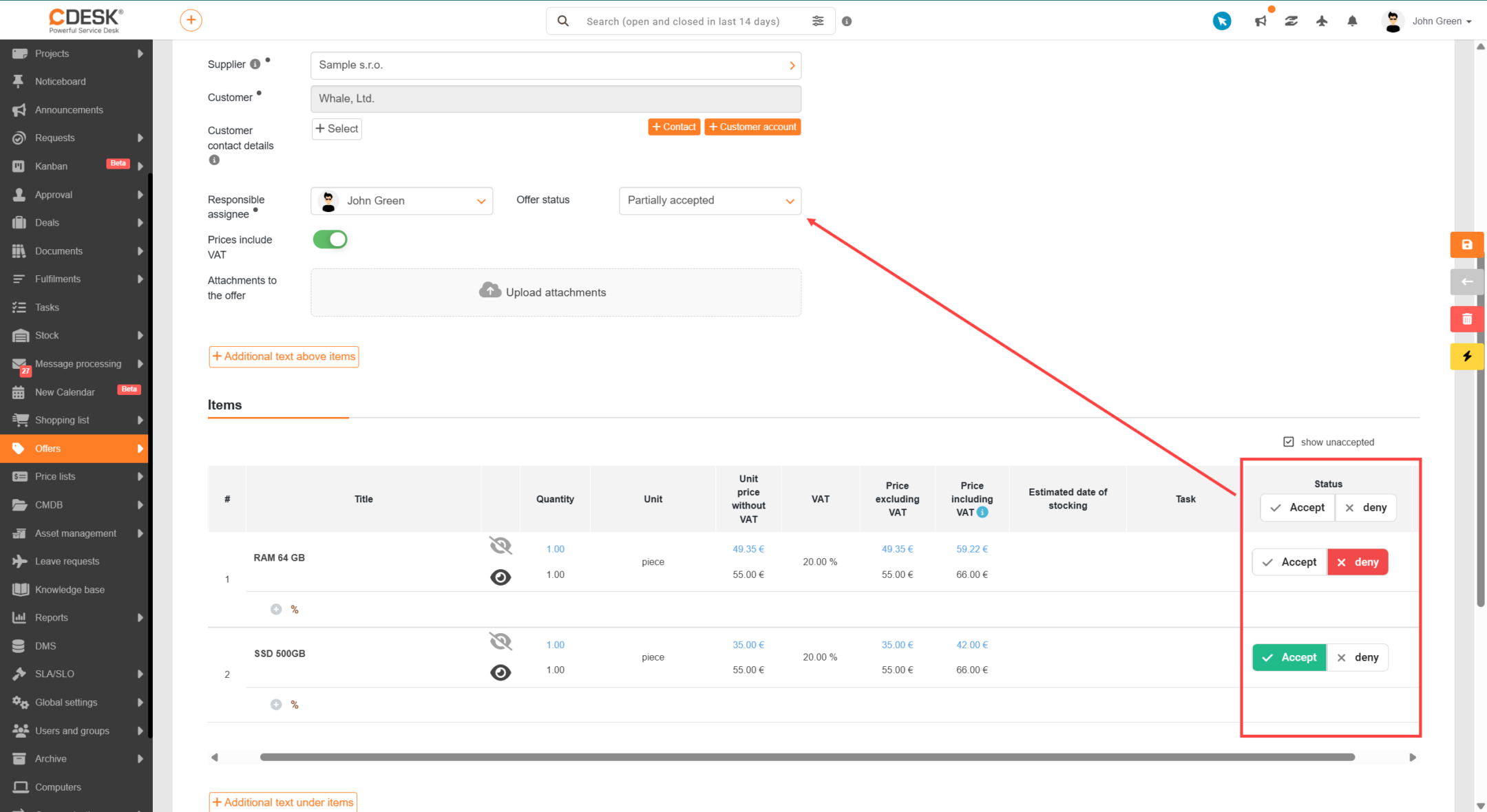
Once an offer has been sent for acceptance, it becomes visible to the customer. By default, the system sends a notification regarding the change in the offer’s status for acceptance to the selected company contact (in the offer details) and to the assigned operator of the company to which the offer is addressed. The customer can accept or deny individual items. They set their response in the offer details, in the section Items – column Status. Changes take effect after the offer is saved. If only some of the items are accepted, the offer is automatically set to the status Partially accepted.
If all items are accepted, the offer status is automatically set to Accepted. The customer can change their decision until the offer is marked as Processed or Cancelled – once the status has been changed to one of these, the offer can no longer be edited.
Home Approval Use of approvals Approval of offers
Na tejto stránke