Beta version of the new documentation.

Installing the CDESK/CM Server

Requests for installing a local server

System requests for the CDESK / CM server

Before installing the CDESK/CM server, you should consider how heavily the server will be used and select appropriate hardware accordingly. We distinguish between three types of workload:

  • Low workload
  • Medium workload
  • High workload

The following section describes how to visualize different server workloads along with the recommended system resources.

If the CDESK server is to be deployed in a virtualized environment, we recommend VMware vSphere (ESX version 6.x or higher), Windows Server Hyper-V 2016 or later, or the open-source Proxmox VE 6.x or later. Other virtual environments compatible with Rocky Linux can also be used.

System requests for CDESK / CM server with lower load

Low load is characterized as follows:

  • CDESK: up to 100 assignees, hundreds of customers, configuration database with up to 5,000 objects
  • CM: up to 10 CM technicians, up to 500 computers

Hardware specifications:

  • 1x RAID array with high-performance SAS drives, ideally SSDs with a minimum capacity of 80GB
  • Minimum 8 GB RAM, optimal 16 GB RAM
  • 2 to 4 cores of a high-performance server processor

Backup – recommended storage space: 200 GB

System requests for the CDESK / CM server with moderate load

Medium load is characterized as follows:

  • CDESK: 100 assignees, thousands of customers, configuration database with up to 10,000 objects
  • CM: up to 50 CM technicians, up to 1,000 computers

Hardware specifications:

  • 2x RAID arrays with SSD drives of at least 200GB
  • 32GB RAM
  • 6- to 8-core high-performance server processor

Backup – recommended backup space 500GB

System requests for the CDESK / CM server under heavy load

High load is characterized as follows:

  • CDESK: over 100 assignees, thousands of customers, a configuration database with over 10,000 objects
  • CM: over 50 CM technicians, over 1,000 computers

Hardware specifications:Dedicated server for CDESK / CM and dedicated server for the CDESK / CM database

  • For a dedicated CDESK / CM server:
    • 2x RAID arrays with SSD drives of at least 200GB
    • 32GB RAM,
    • 6- to 8-core high-performance server processor
  • For a dedicated database server:
    • 2x RAID arrays with SSD drives of at least 200GB,
    • 16GB RAM
    • 4 to 6-core high-performance server processor

Backup – recommended storage space: 500 GB

Overview of the IP configuration and ports used by the CDESK / CM server

If the server is to be accessible from the outside, one public IP address is required. If you do not have a free public IP address, you can use an HTTPS PROXY and share a single IP address with other and services. Within a LAN network, the CDESK / CM server occupies a single IP address. If you need help with network configuration, please contact or our support team at.

Port used on the CDESK/CM server sidePurpose
http://CDESK/CM-server-adresaport80 – optionalHTTP communication on standard port 80 is recommended but not required. It can be omitted, in which case the portal will be accessible only on port 443 (HTTPS)
https://CDESK/CM-server-adresaport 443https://komunikácia Web access to the portal, integration with the mobile app and desktop client, and an API interface for other applications.
Emails to/from CDESK / CM-server port 25 – optionalIf you decide to receive emails directly via SMTP, you must open port 25. You do not need to do this if you will be receiving email messages in CDESK via an IMAP mailbox. For sending, you can use the internal SMTP server or forward to an external SMTP server. See the section on Setting up email configuration.
SSH access for support via port 22SSH access using port 22 by default (though another port may be used) is recommended but not required. It is intended to allow the vendor to provide support. If you prefer not to make this port accessible, the vendor will contact you via email or phone to request access to the server.

If CDESK is to be accessible from the outside, internet access must not be blocked from within the CDESK server, at least on ports 80, 443, and 25. Even if CDESK is not accessible from the outside, we recommend an SSL certificate from a reputable certificate authority or Encrypt for your https:// address (not a self-signed certificate). You can find more information about preparing an SSL certificate in the section Preparing to Deploy a Purchased SSL Certificate. If you use a Let’s Encrypt certificate, the process is simpler and is described in the section CDESK/CM Server Installation Process.

Preparing the domain for CDESK / CM server operation

To ensure the installation proceeds correctly, you need to configure IP address translation in your DNS. You can do this using one of the following two options:

cdesk.your-address.xyAIPv4_addressif your CDESK/CM server has only a static public IP address
cdesk.your-address.xyCNAMEdomainif another domain already exists for that IP address, CDESK will always be on the same IP as that domain. (If you set up multiple domains on your CDESK server, set the first one to an A record and the others to CNAME records pointing to the first domain).

A reverse DNS record (PTR record) is required if one does not already exist. You can verify this at this link.

Preparing to deploy a purchased SSL certificate

During the installation of the CDESK/CM server, you can install a Let’s Encrypt certificate from or. In this case, no preparation is necessary, as the certificate is installed during the server installation. However, if you have purchased your own SSL certificate, you can use it during installation. To do so, you must perform the following steps before installation.

First, you need to obtain a .csr file. In the first step, create a folder to save it in.

				
					mkdir názov_priečinku_na_certifikát


Next, navigate to the following folder:

				
					cd názov_priečinku_na_certifikát


Now enter the command: `

`
				
					openssl req -new -newkey rsa:2048 -nodes -keyout 
názov_domeny.com.key -out  názov_domeny.com.csr


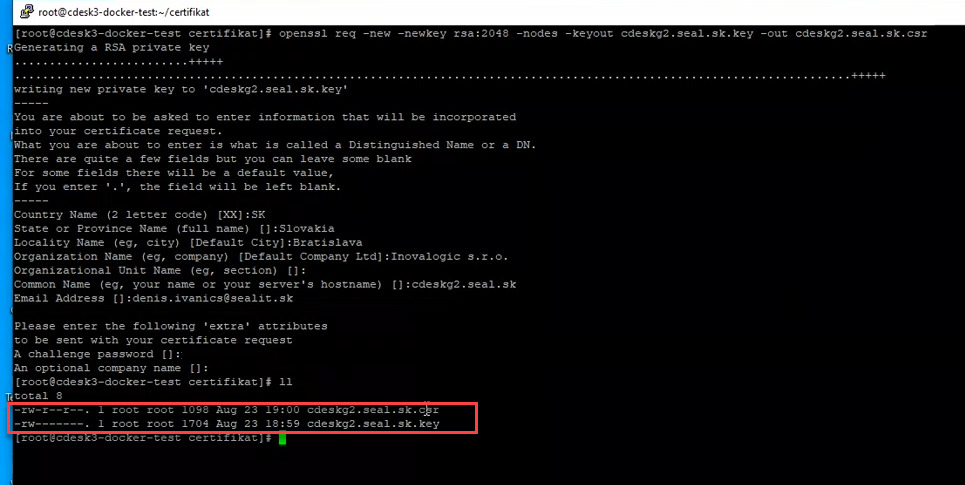
After pressing Enter, the private key generation process begins, and a series of questions will appear:

  • Country Name (2-letter code) [XX] – enter your country’s 2-letter code. For Slovakia, this is SK.
  • State or Province name (full name) – enter the state name. For Slovakia, this is Slovakia
  • Locality Name (e.g., city) [Default city] – enter the city, for example, Bratislava
  • Organization Name (e.g., company) [Default Company Ltd] – enter your company. In our case, it will be Inovalogic s.r.o..
  • Organization Unit Name (e.g., section) – in this section, you can enter the company department. However, this is not required to continue. You can skip this step by pressing the Enter key.
  • Common Name (e.g., your name or your server’s hostname) – enter the server name in the format server_name.company.com. In our case, this will be cdeskg2.seal.sk.
  • Email Address – enter the administrator’s email address. License expiration notifications will be sent to this email address.

You will then be prompted to enter additional parameters that will be sent with your certificate request:

  • A Challenge password – no need to enter anything. You can skip this step by pressing Enter.
  • An optional company name – no need to enter anything. You can skip this step by pressing Enter.

The system will now generate one file of the type .csr and one of the type .key.

Figure: Generating a csr and key file

To find the exact location of these files, enter the command

				
					pwd


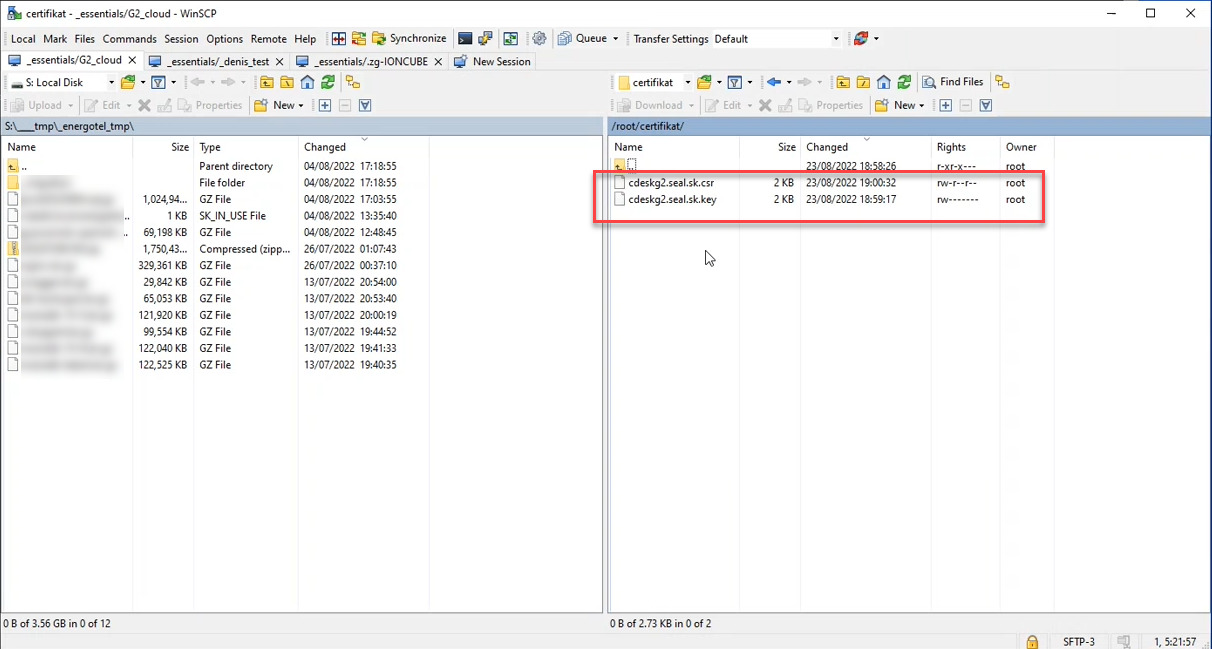
Next, use any software that allows you to transfer files between your local and remote computers (in our case, we used WinSCP) to access the server and locate the files using the path that was displayed.

Image: Generated csr and key files stored on the server

Download the file .crt to your local computer. Then, search online for any certificate generation service, provide it with this file, and obtain a certificate. The generated file will be in the format .crt.

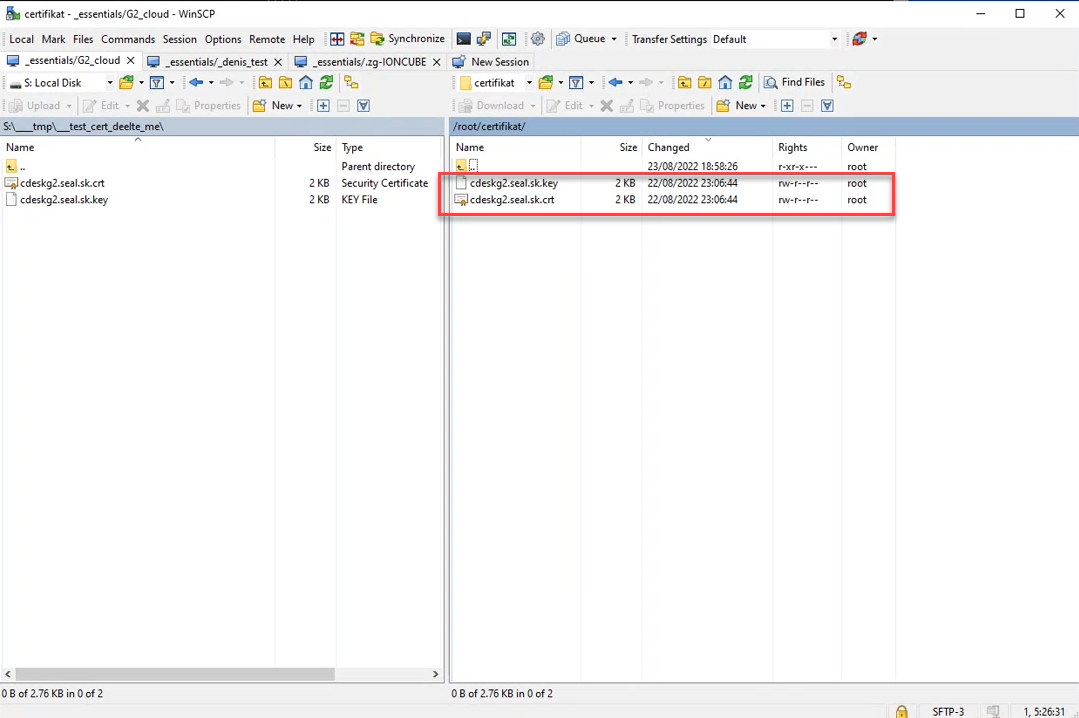
Now, using remote access software, upload the newly generated .crt file to the server.

Image: Uploading a crt file to the server

Setting up email configuration

CDESK/CM offers two methods for sending and two methods for receiving emails. Choose the method for sending and receiving emails that best suits your needs.

Email settings for sending

To send emails, you can configure one of the following methods:

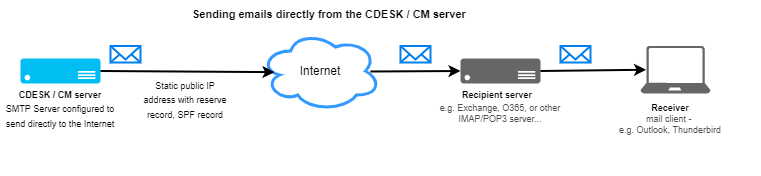
  • Sending directly via the CDESK/CM server’s SMTP server to the internet.

If you expect to send a large volume of emails, we recommend configuring sending directly to the internet from the CDESK/CM server.

With this configuration, don’t forget to add an SPF record to the DNS for the domains under which emails will be sent, so that emails from CDESK/CM aren’t unnecessarily moved to the SPAM folder or blocked entirely. SPF records are checked by receiving SMTP servers to verify that an email received from a specific domain was sent from an authorized server.

It is also necessary to set up a reverse DNS record for the IP address from which emails will be sent.

Image: Email settings for sending
  • Sending via another SMTP server (SMTP relay)

If you have an SMTP server available for your domain to which you can route outgoing mail from the CDESK/CM server, you can use it. This will simplify the setup process, as you won’t need to deal with the SPF settings or the reverse DNS record from the previous configuration.

On the other hand, you must handle authorization for sending. Authorization can be done either via the public IP address of the sending server (we recommend this method for Office 365 email services) or via a username/password for the given SMTP server

Image: Sending via a different SMTP server

Email settings for receiving

To receive emails, you can configure one of the following methods:

  • Receiving via IMAP mailbox

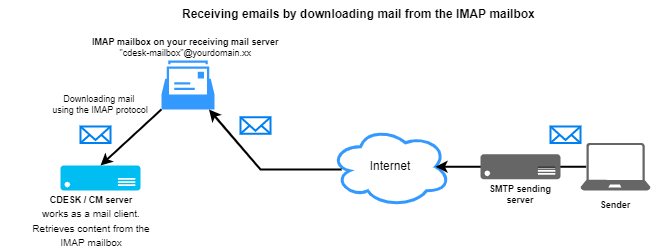
This is the simplest way to receive emails. You create IMAP mailboxes for the specified addresses, which the CDESK/CM server will download. You do not need to configure any DNS records. You can even use a single IMAP mailbox for multiple addresses (via aliases); the CDESK server can distribute them to the addresses set in Global Settings – > Message Processing.

Image: Receiving mail via an IMAP account
  • Receiving via mailbox forwarding

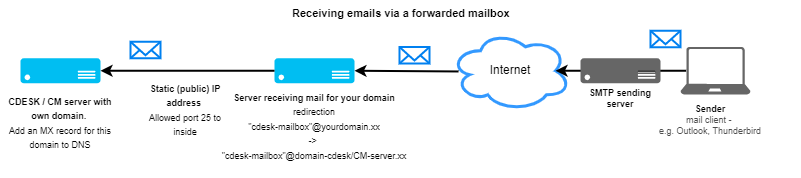
If you use a CDESK/CM address from an existing domain (98% of cases), you cannot route incoming mail directly to the CDESK/CM server. This would mean that all other mail would have to be routed to a different server. So the solution is to receive the email on your main server and forward it to the CDESK/CM server using the mailbox address “cdesk-mailbox”@domain-cdesk-cm-server.xx. To deliver the redirected mail, you need to ensure the following:

  1. Set up the MX record for the CDESK/CM server domain (domain-cdesk-cm-server.xx)
  2. Allow communication on port 25 inward to the CDESK/CM server
Image: Receiving via mailbox forwarding

Creating a virtual server and preparing to install Rocky Linux

A demonstration of installing a VM in a cloud environment – geetoo.com

Please note that a video tutorial on the installation process is available on geetoo.com. For more information, see the blog post “CDESK / CM Server Installation Demo in a Cloud Environment – geetoo.com.”

Demonstration of VM installation in a local VMware vSphere environment

This installation of a virtual machine in a local VMware vSphere environment is described for VMware ESXi 6.7.

After logging in, click on Storage in the main menu on the left and choose a datastore. Clicking on the storage name will display its details. On the top bar, click on the option Datastore browser.

Image: Button to search the database

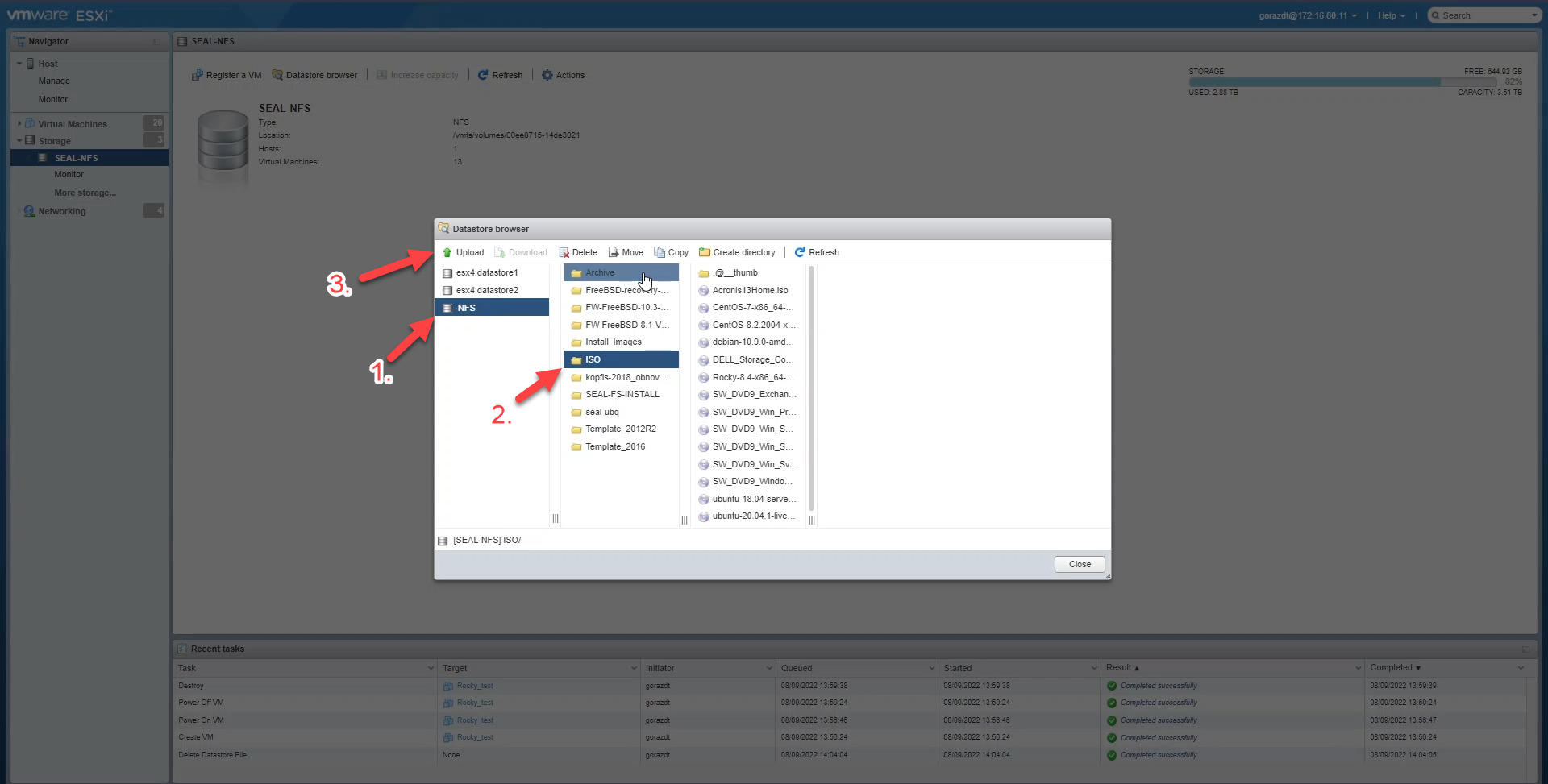
After clicking, a modal window will appear. On the left side, click the storage name again, then click to open the folder ISO and use the button Upload to upload the RockyLinux operating system file.

Image: Button for installing the Rocky Linux operating system in Vmware vSphere

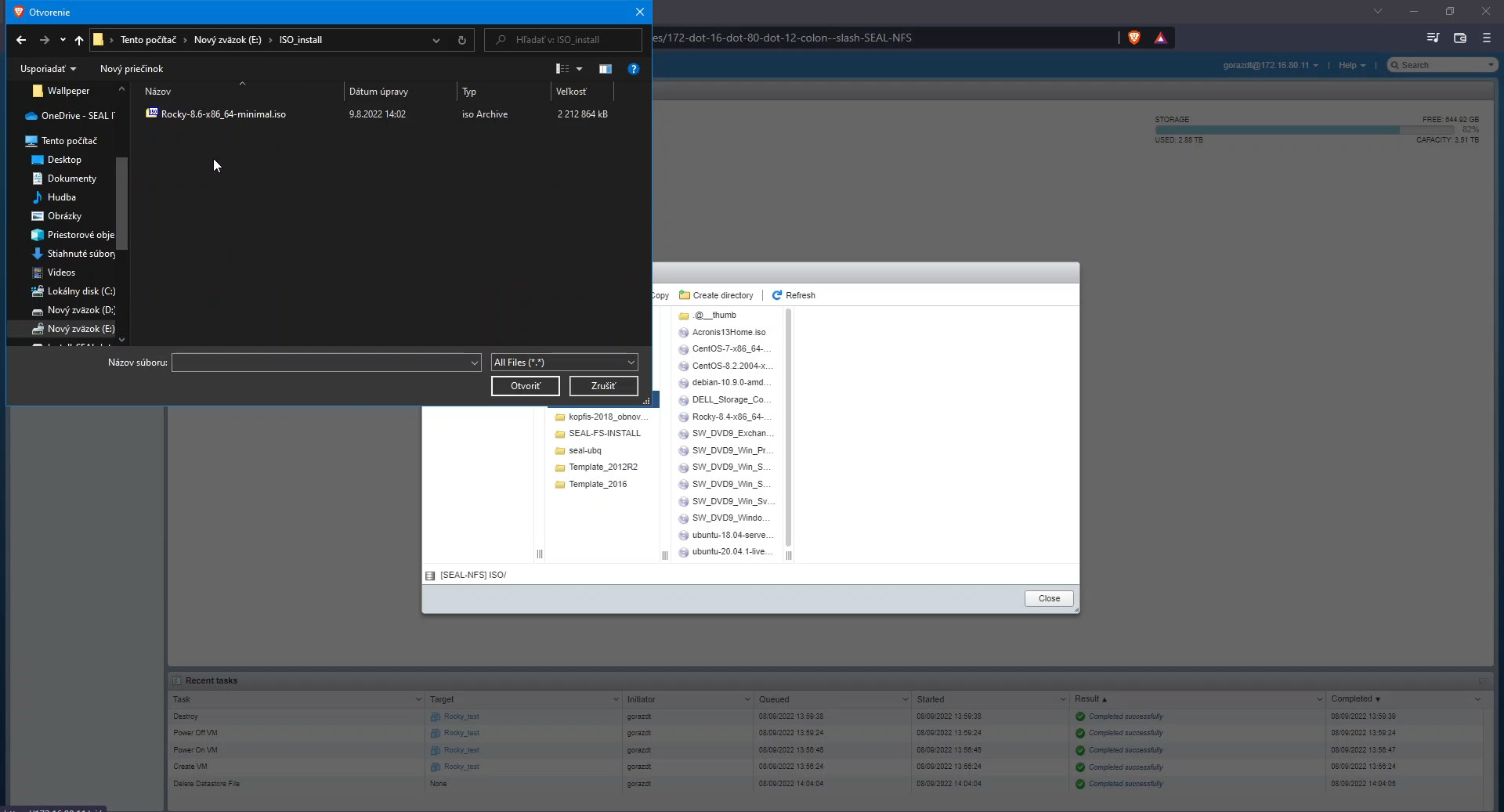
After clicking, a modal window will open in your web browser, allowing you to select the operating system file from your computer. Download the Rocky Linux operating system from this link. When downloading, select the Minimal version.

Image: A dialog box for selecting an iso file containing the Rocky Linux operating system from the local computer

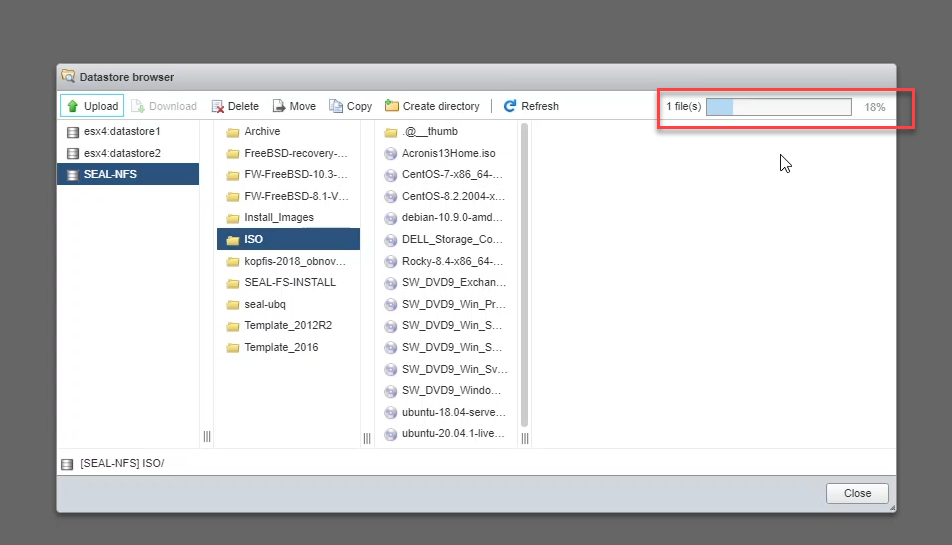
Once you select a file, the upload to the storage will begin. You can monitor the upload progress in the upper-right corner. The upload may take a while, as the file size exceeds 1 GB.

Image: The operating system boot process

After uploading the operating system to the storage, create a virtual machine. To create a virtual machine, click on Virtual Machines in the left-hand menu, and then click on the Create / Register VM button in the upper-left corner.

Image: Button for creating a virtual device

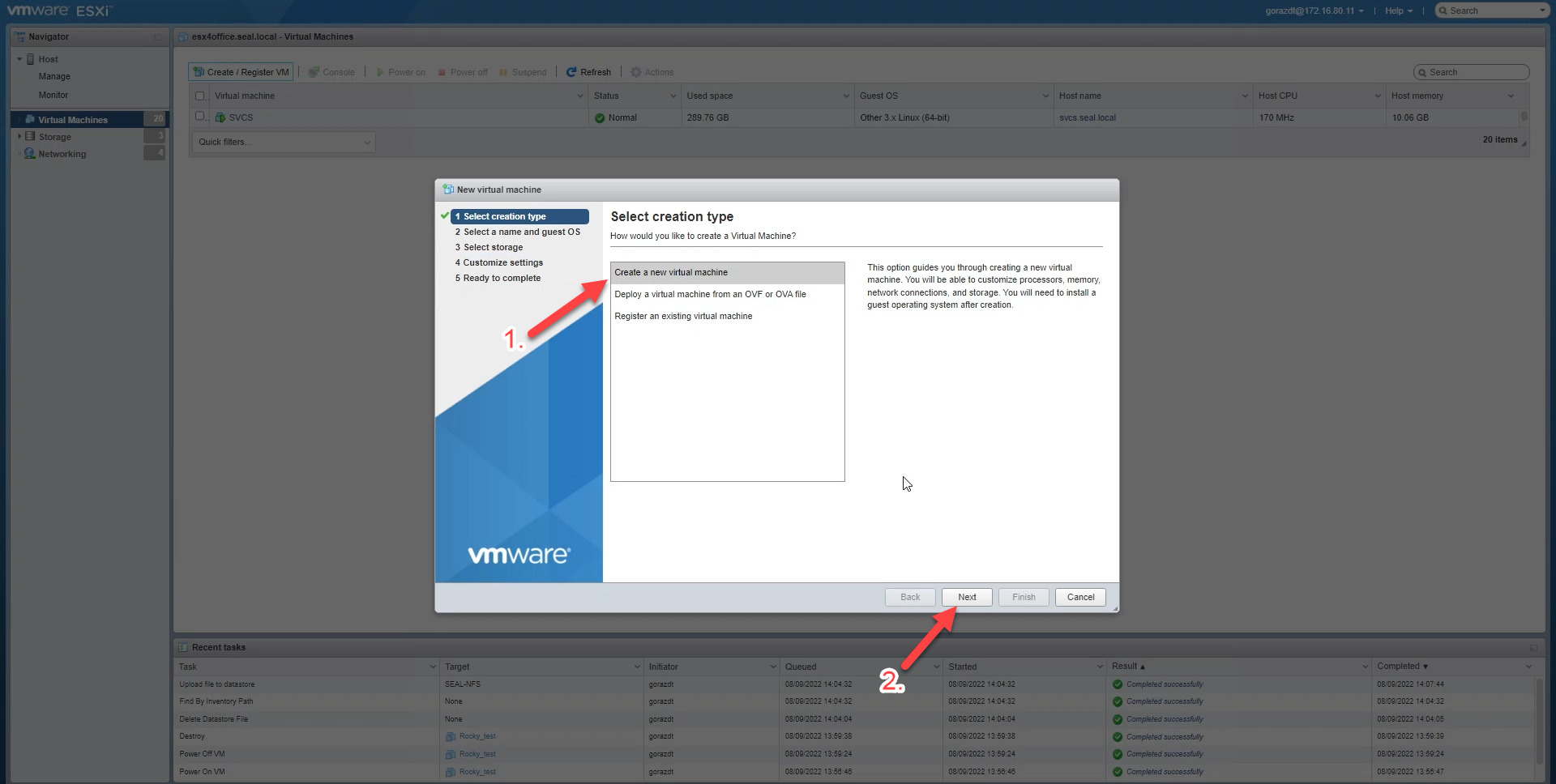
A modal window will then appear. Select the option Create a new virtual machine, then click the Next button.

Image: The first step in creating a virtual device

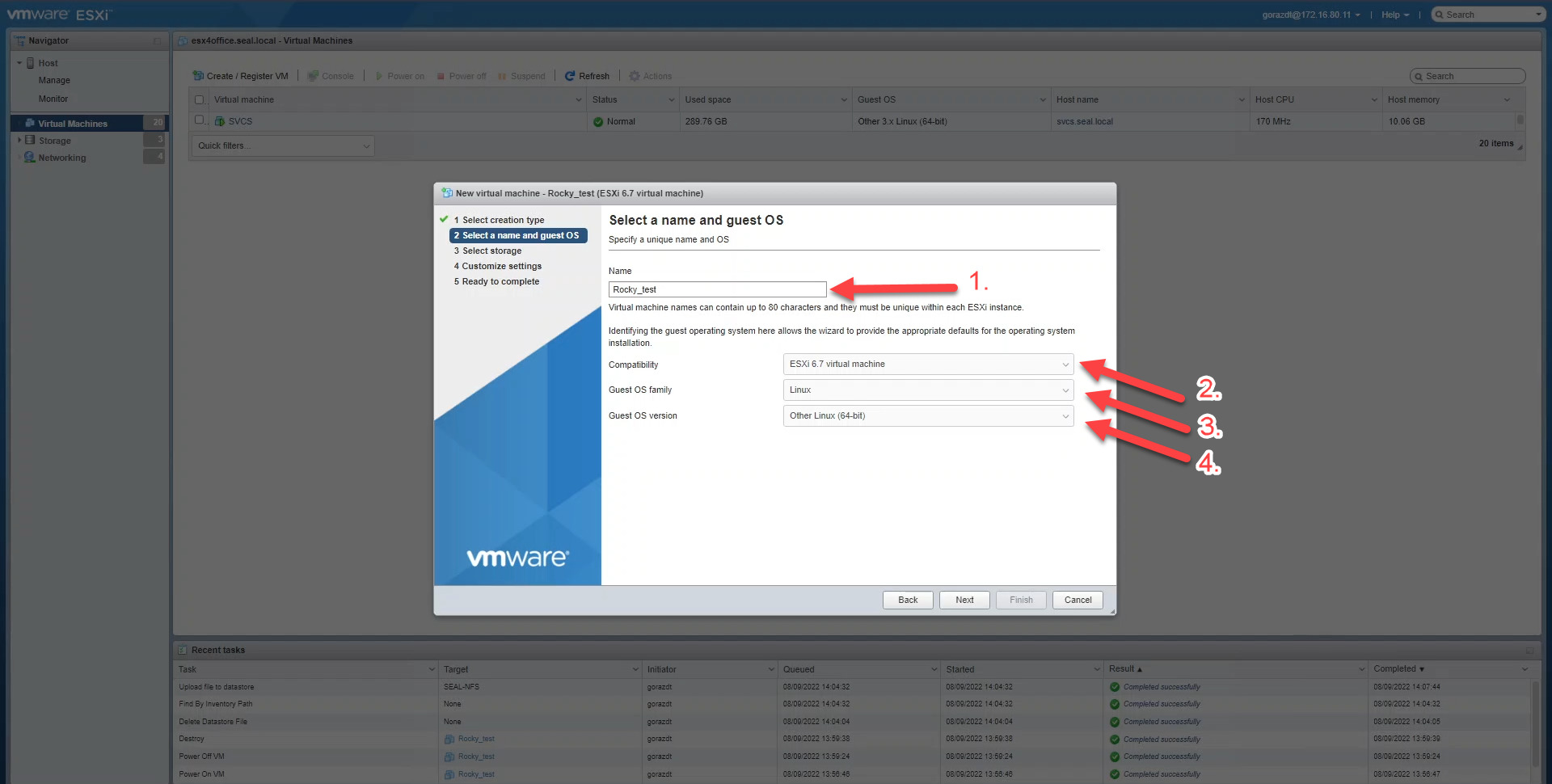
In the next step, in the Name field, enter any name for the virtual machine. For the settings shown below, select the following options:

  • Compatibility – ESXi 6.7. virtual machine.
  • Guest OS family – Linux
  • Guest OS version – Other Linux (64-bit)

Proceed to the next settings by clicking the Next button.

Image: The second step in creating a virtual device

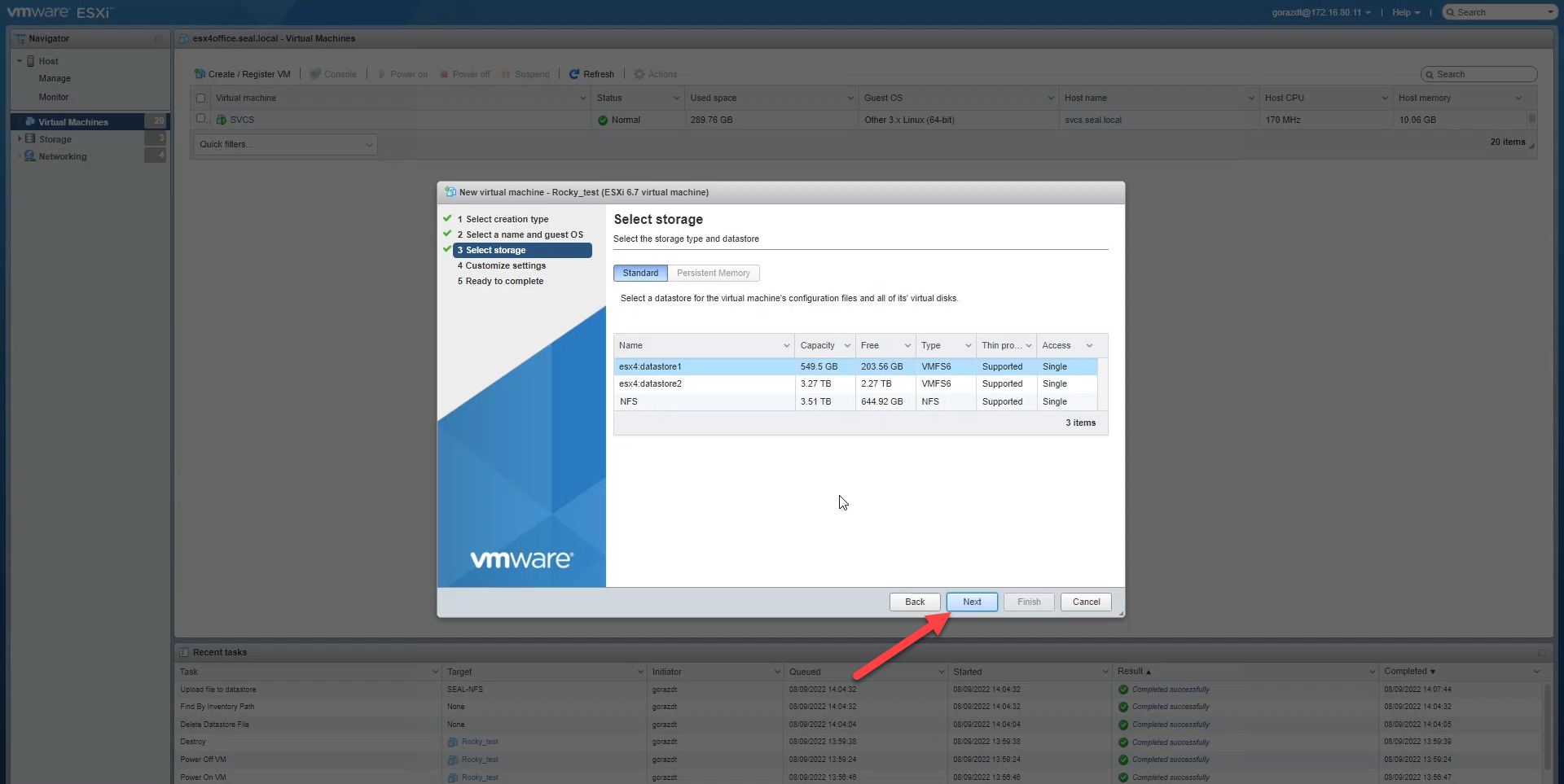
Select the storage location where you want to install the virtual machine, and then click the Next button.

Image: The third step in creating a virtual device

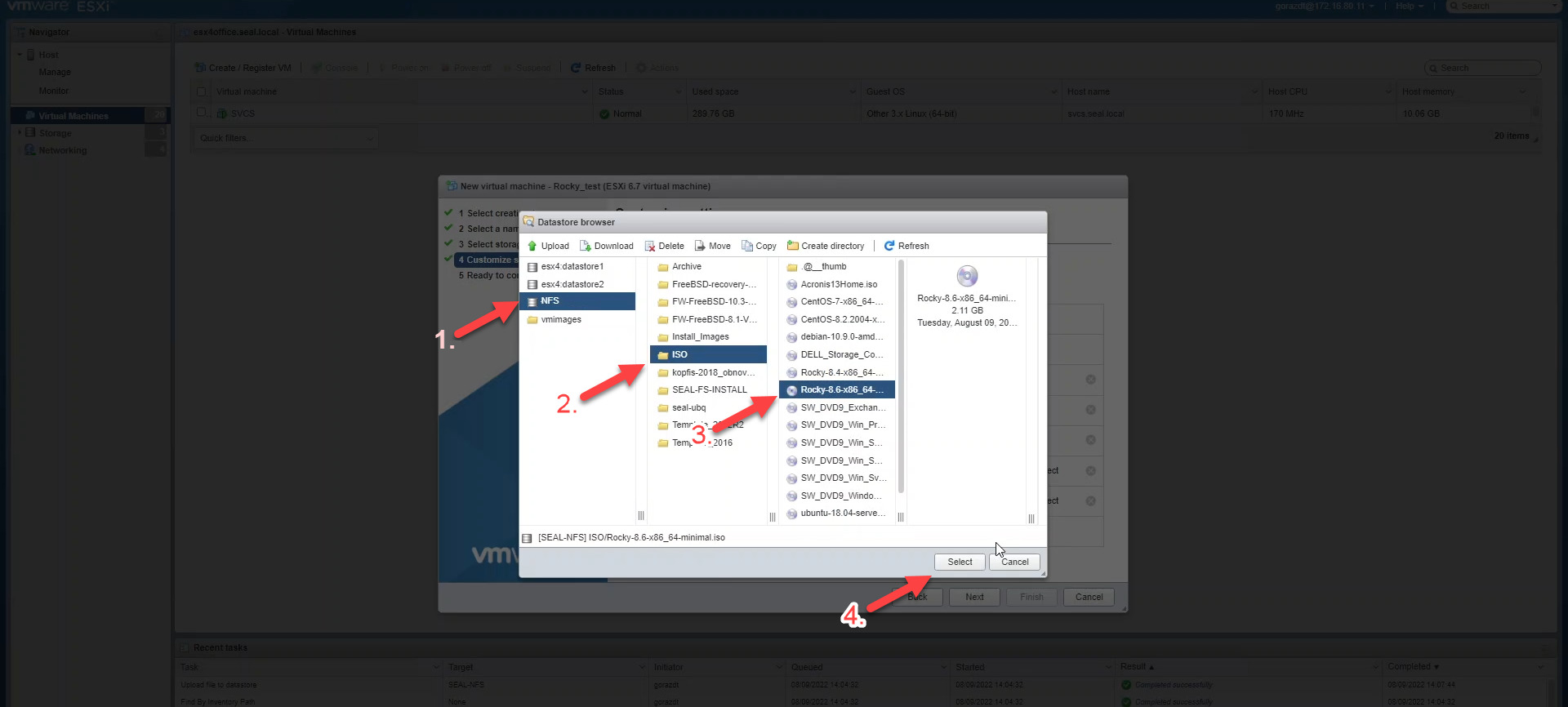
In the next step, configure the desired hardware parameters for the virtual machine. In the CD/DVD Drive 1 section, select Database ISO file. After clicking, a dialog box will appear for selecting the ISO file containing the operating system that you uploaded in the previous steps. Confirm your selection by clicking the Select button.

Image: Step 4 in creating a virtual machine – selecting an iso file with the operating system

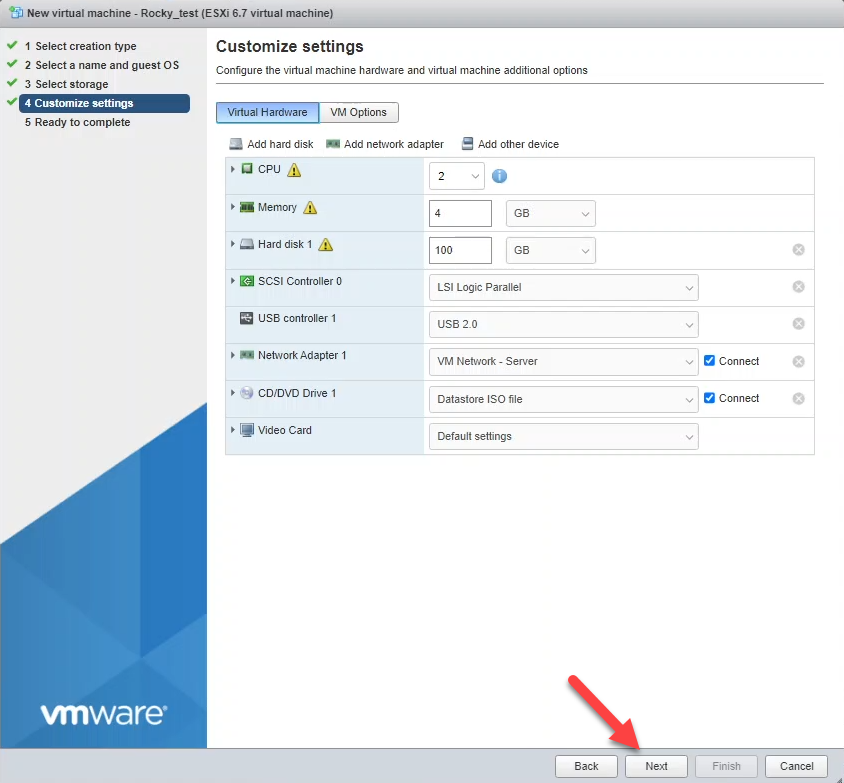
After configuring the hardware settings and selecting the operating system, proceed to the next settings by clicking the Next button.

Image: Step 5 in creating a virtual device

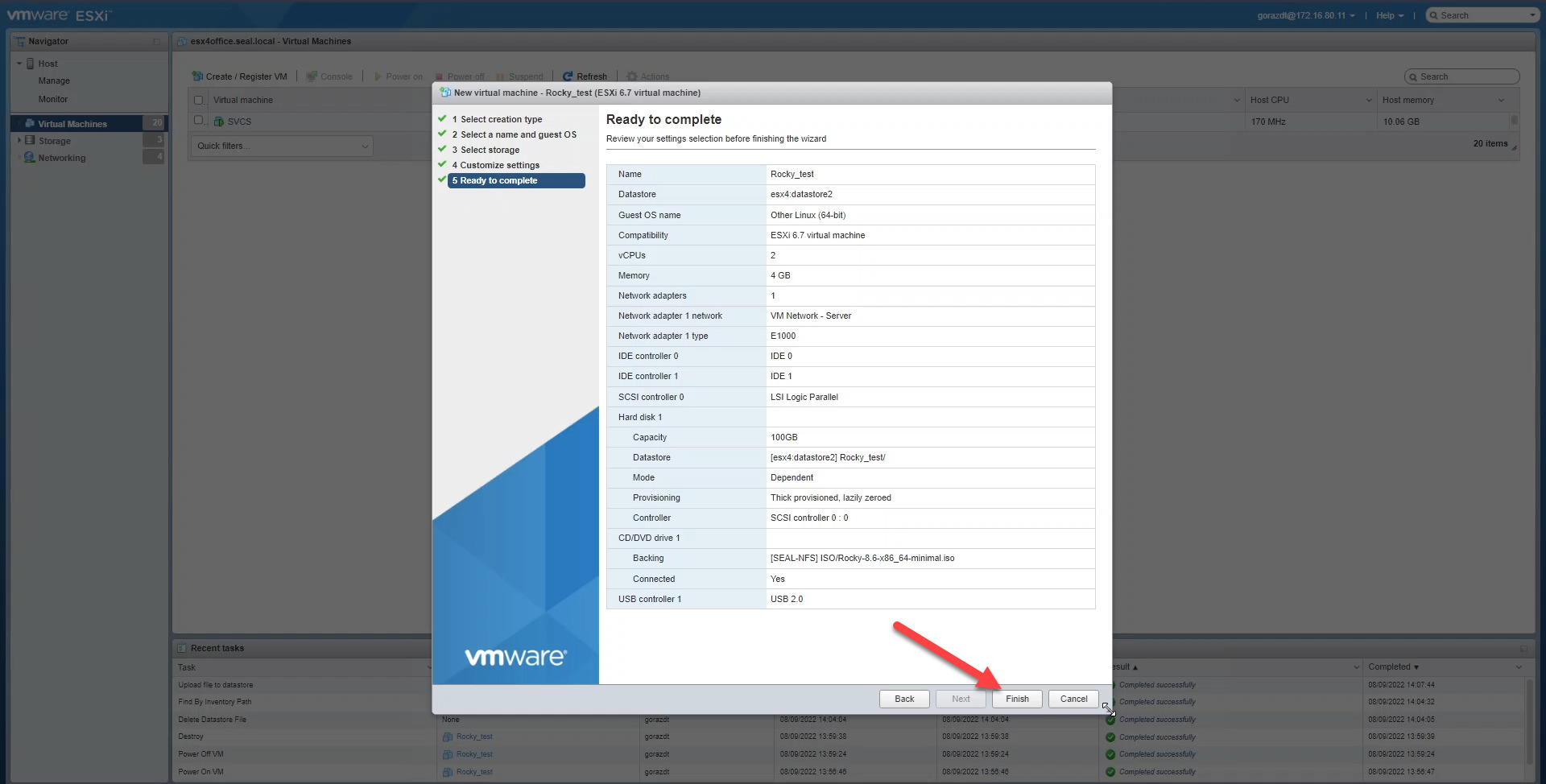
A summary of the parameters set in the previous steps will then be displayed. If all the parameters entered are correct, click the Finish button to complete the virtual appliance configuration.

Figure: Step 6 in creating a virtual device – confirming the virtual device parameters

Once created, the virtual machine will be added to the list of existing virtual machines. Click on the name to open the virtual machine.

Image: New virtual device in the list of virtual devices

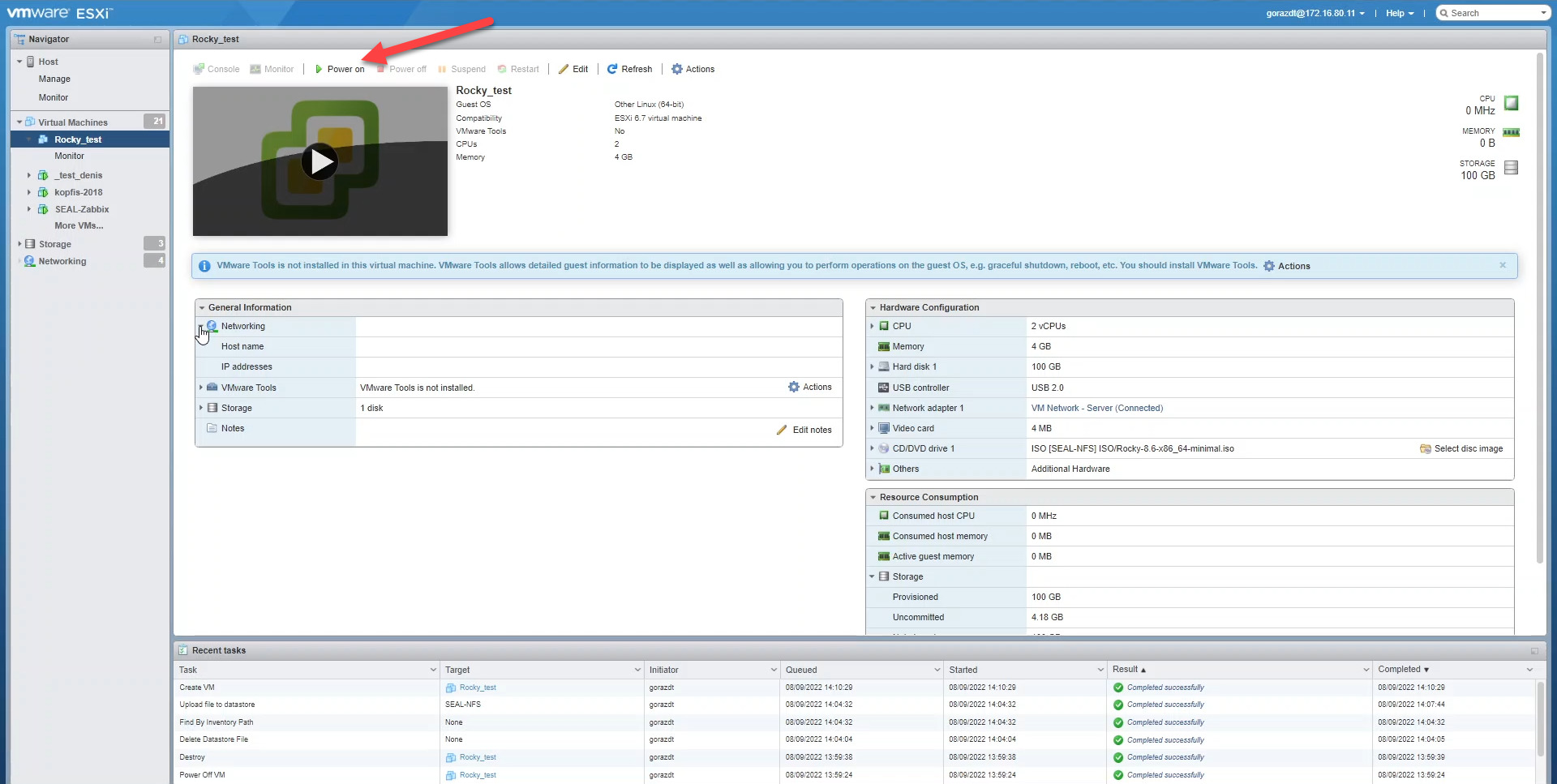
A window containing information about the virtual machine will then appear. To start it, click the Power on button located on the top bar.

Image: Button to start a virtual machine in Vmware Sphere

After starting the virtual machine, open the console by clicking the Console button in the upper-left corner.

Image: Button to launch the console via Vmware Sphere

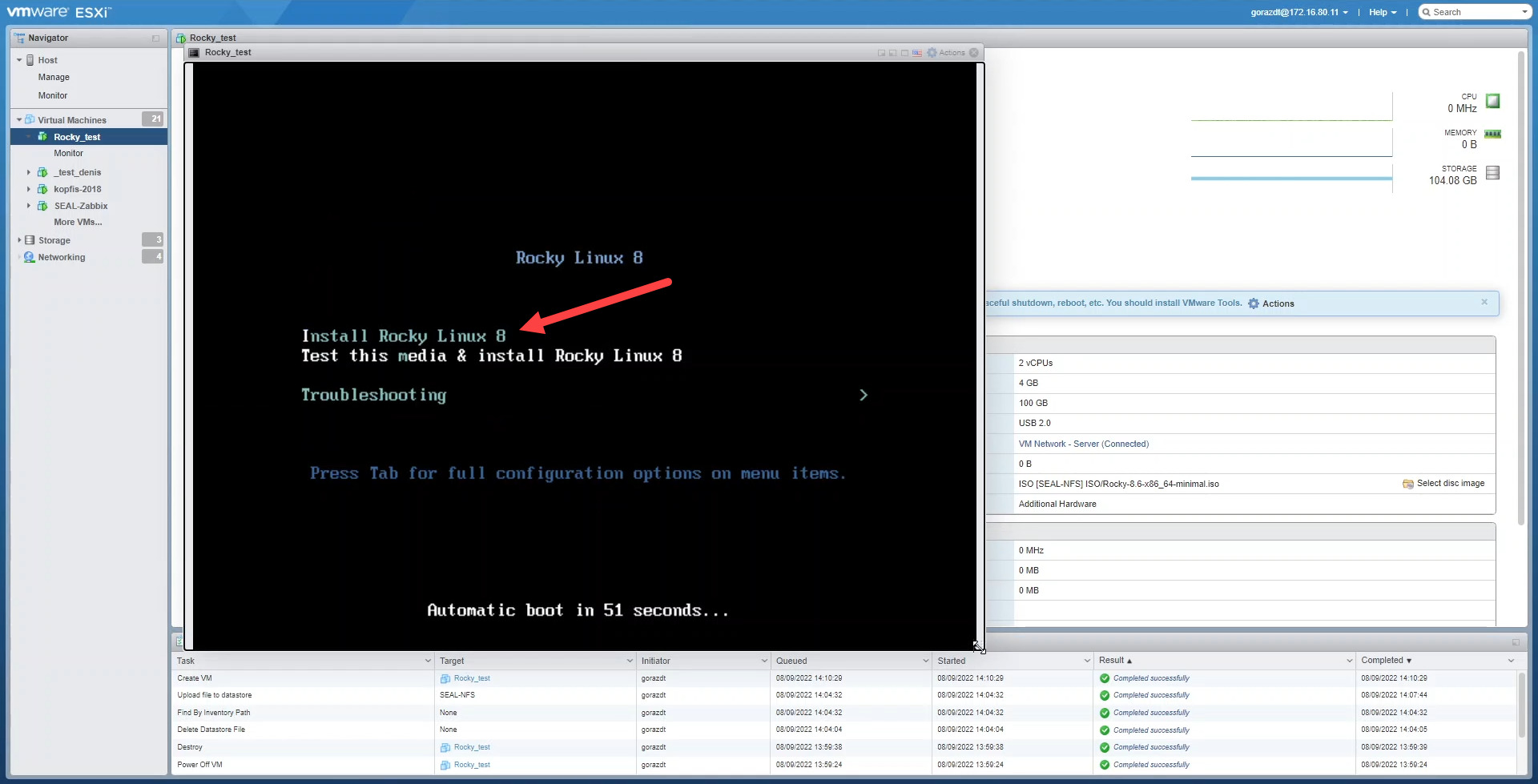
A console window will then appear with the following options: Install Rocky Linux 8, Test this media & Install Rocky Linux 8, and Troubleshooting. Use the arrow keys on your keyboard to navigate to the first option, Install Rocky Linux 8, and press Enter. This will launch the Rocky Linux installation wizard. The installation process is described in the section Installation Process for Rocky Linux OS.

Image: Vmware Sphere – Console for launching the Rocky Linux installation

Rocky Linux OS Installation Process

Operating System Installation

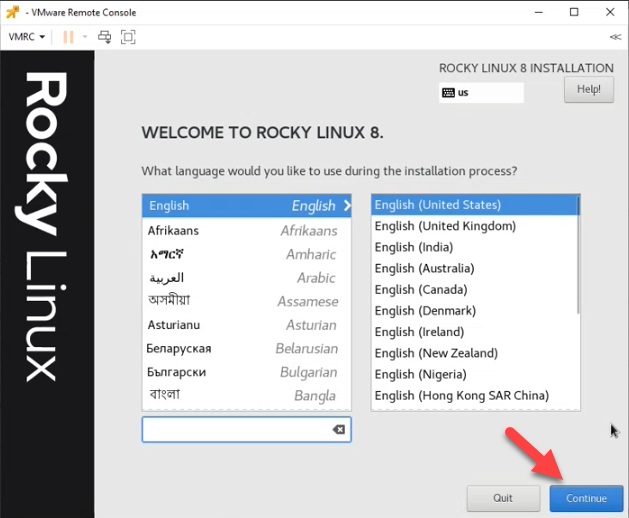
In the first step of the installation, select the language in which the installation will take place. Choose any language based on your preferences and click the Continue button. We will describe the rest of the process using English as an example.

Image: Selecting the installation language during the installation of the operating system

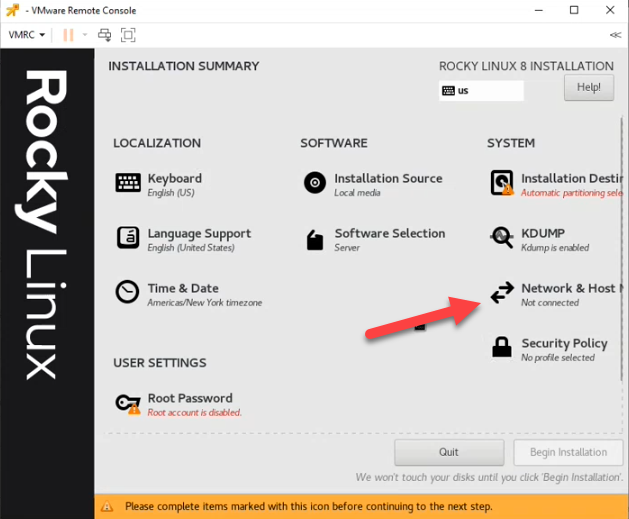
A window with additional settings will then appear. First, configure the network connection. Select the option Network & Host.Name.

Image: Accessing network connection settings

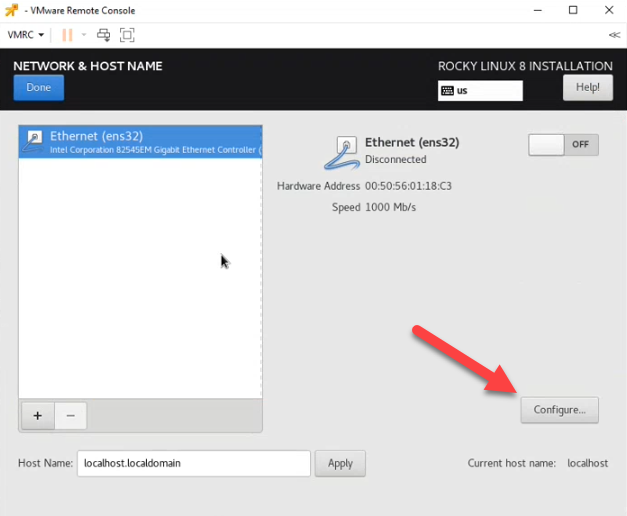
After clicking, a new window will appear. Click the Configure button in the lower-right corner.

Image: Button for configuring network settings

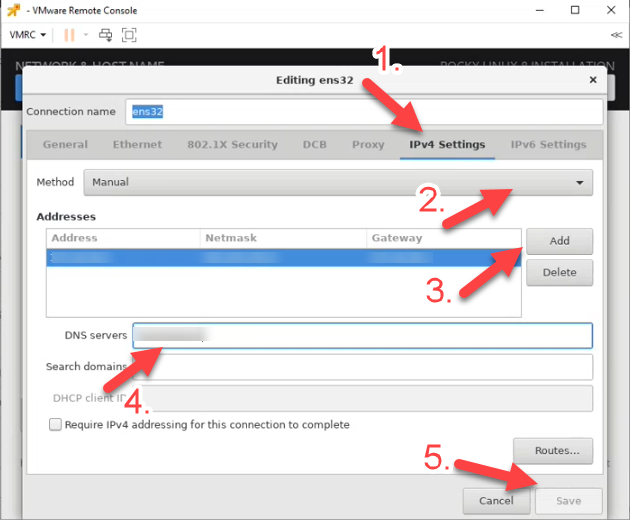
A modal window divided into several tabs will then appear. First, go to the IPv4 Settings tab, where you will enter all the information regarding the IP address. The IP address will be entered manually, so in the Method section, select Manual. To enter the address, click the Add button located next to the Addresses field. Then, in the DNS servers field, enter the DNS address. Save the settings by clicking the Save button located in the lower-right corner.

Image: IPv4 Settings tab

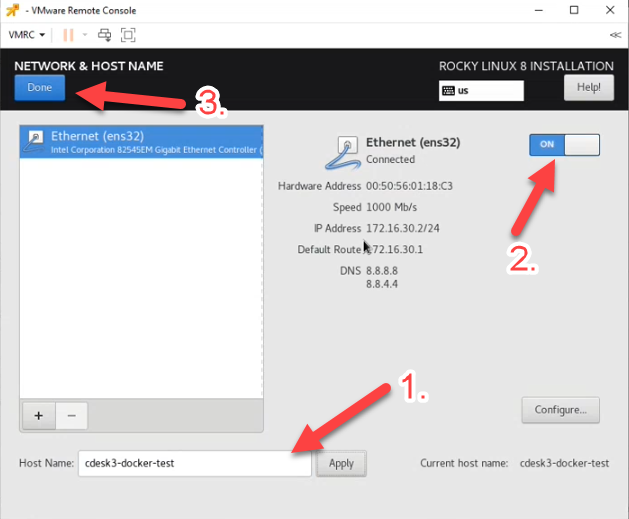
After saving the settings, you will be redirected to the previous window. For the connection to work, you must also toggle the switch located in the upper-right corner. Confirm the settings by clicking the Done button in the upper-left corner of the window.

Image: Saving network settings

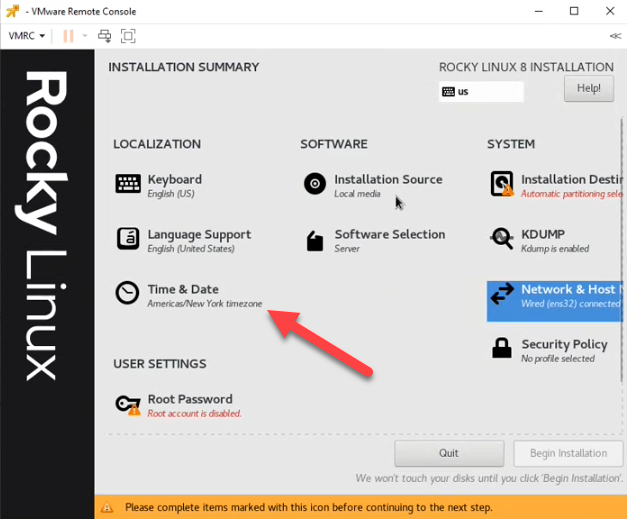
The next step is to set the time zone, which is done using the Time & Date button.

Image: Accessing time zone settings

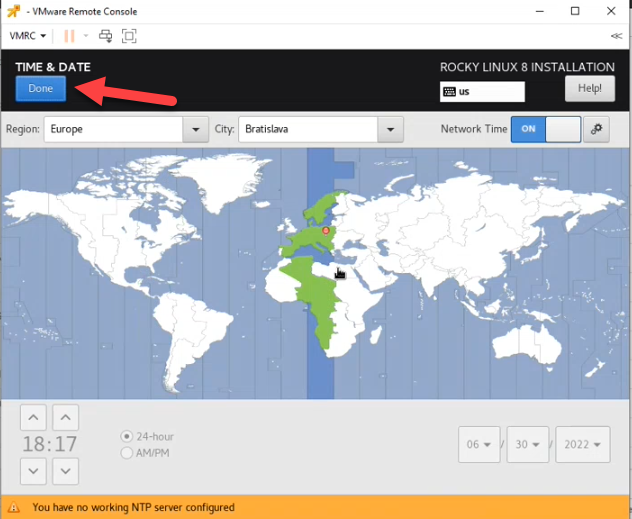
Click on the map to select the desired time zone, then click the Done button in the upper-left corner of the window to save your settings.

Image: Time zone settings

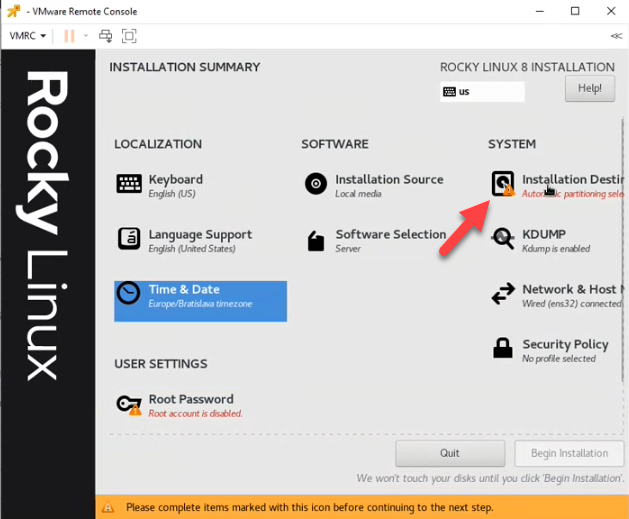
Next, proceed to configure the device’s disk partitions. To begin the configuration, click the Installation Destination button.

Image: Accessing disk partition settings

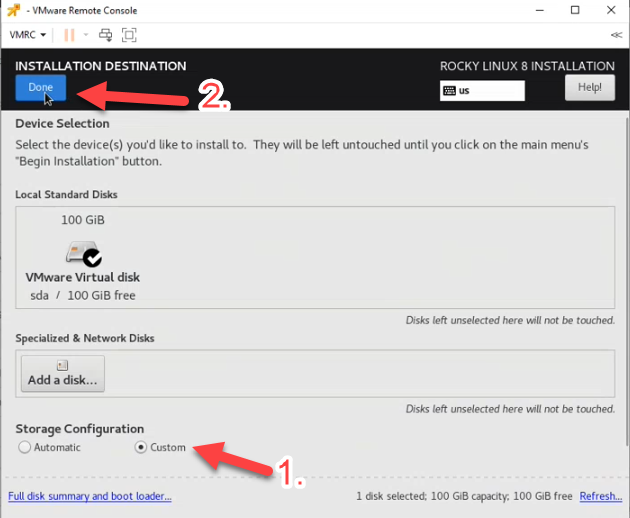
At the bottom of the window, you will find the Storage Configuration settings. In this section, select Custom, then confirm the settings by clicking the Done button in the upper-left corner of the window.

Image: The first step in setting up disk partitions

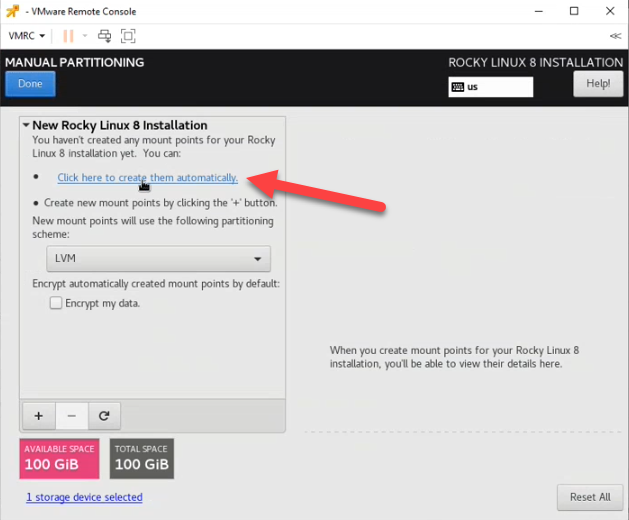
A window with additional settings will then open. In the New Rocky Linux 8 Installation section, click on Click here to create them automatically to select the automatic disk configuration option.

Image: The second step in setting up disk partitions – selecting automatic disk configuration

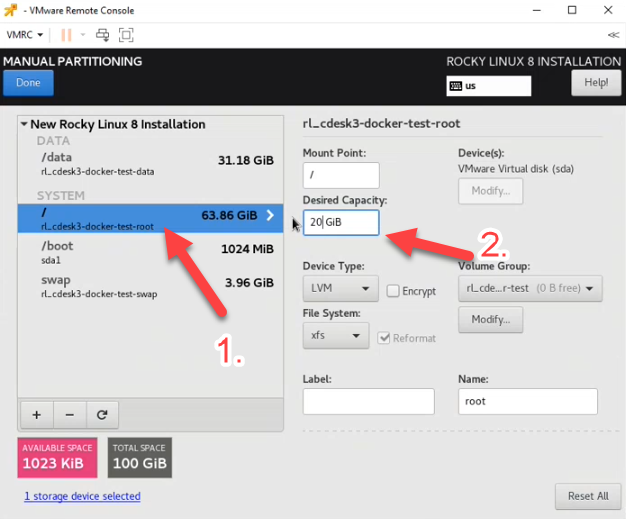
In the next step, configure the system storage. In the window on the left, click the first option under the heading System. For this option, enter 20 GB in the Desired Capacity field.

Image: Step 3 in setting up disk partitions – configuring system storage

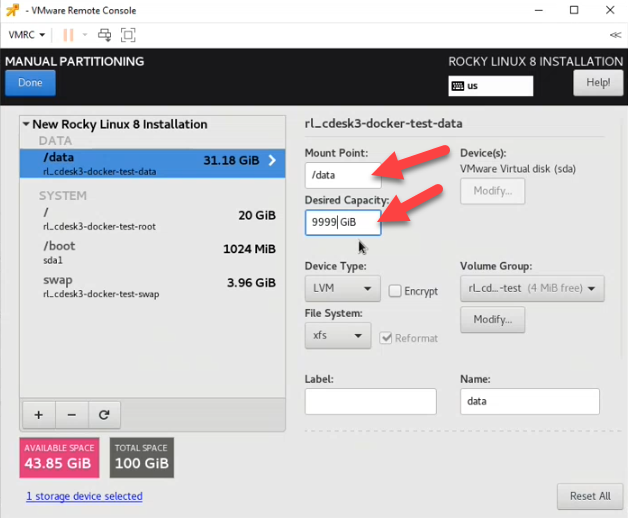
The default values for the storage locations need to be changed. First, set the storage location for data. In the window on the left, click on the option /home. Then, in the Mount Point field, enter /data and similarly, in the Name field, enter data. In the Desired Capacity field, enter a very large number, such as 9999. This ensures that all remaining capacity after the subsequent allocations will be allocated to data storage. In other words, this value is calculated on the fly based on the current settings.

Image: Step 4 in setting up disk partitions – configuring data storage

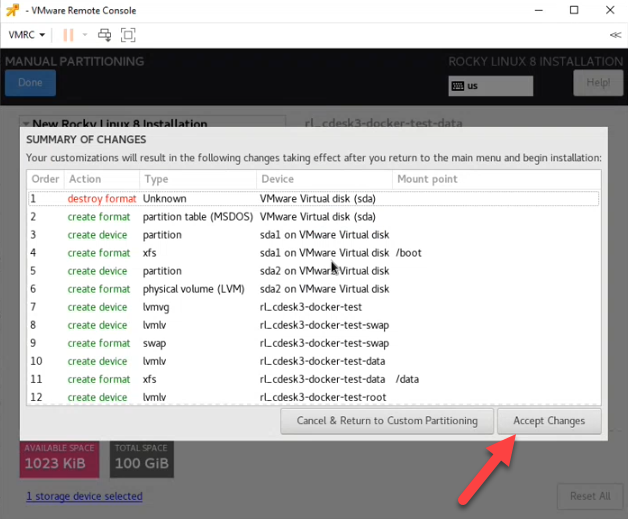
To save your settings, click the Done button in the upper-left corner of the window. After clicking, a window summarizing the changes will appear. Confirm the changes by clicking the Accept Changes button.

Image: Step 5 in setting up disk partitions – confirming changes

The next step is the user settings, which you can access by clicking on the Root Password option.

Image: Accessing user settings

Next, enter the user password in the Root Password field, and repeat it in the Confirm field. Save the settings by clicking the Done button in the upper-left corner of the window.

Image: Entering and confirming the user password

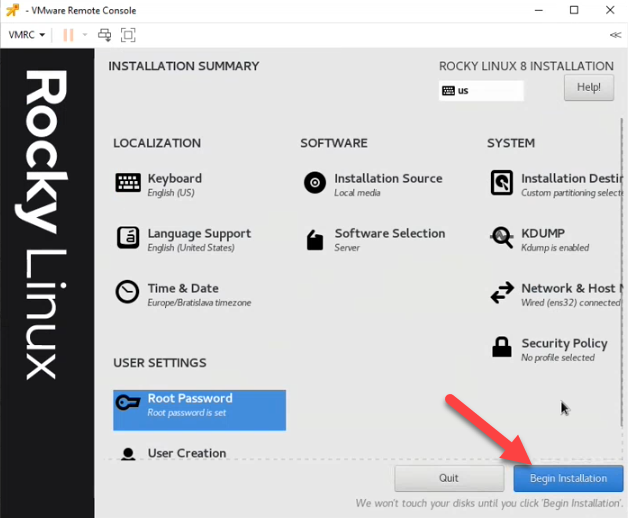
After saving the password, below the Root Password option you’ll see User Creation for creating a new user. In this step we won’t create a new user, but will proceed directly to system installation. Installation begins by clicking the Begin Installation button in the lower-right corner. This may take several minutes.

Image: Button to start the installation
Image: Installation process

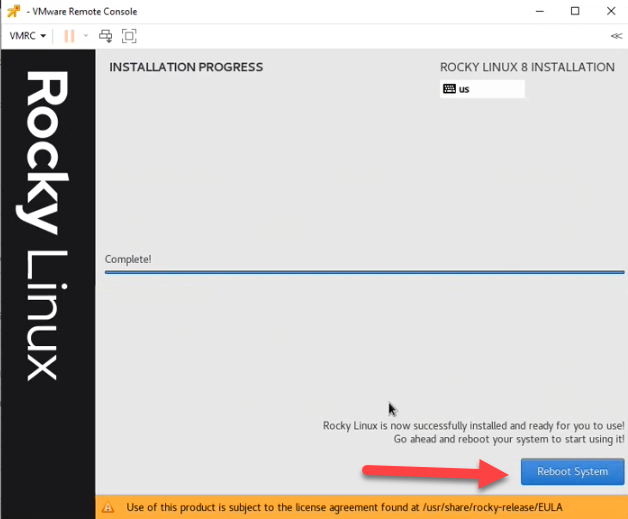
Once the installation is complete, a button labeled Reboot System will appear in the lower-right corner. Click it to reboot the system.

Image: Button to start the system boot process

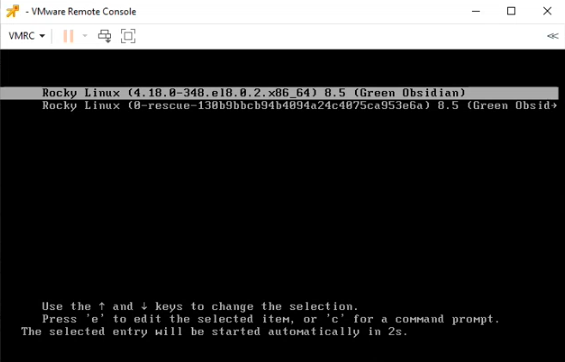
Click to start the boot process. After a brief loading period, a window with a list of options will appear. Use the arrow keys to navigate to the first option, then press Enter.

Image: The first step in booting the system

Installing the CDESK/CM Server

Download the CDESK/CM Server installation package

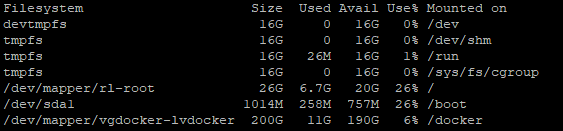
After installing the RockyLinux operating system, check that the partitions have been created correctly and verify the available disk space.

				
					df -h


Your output should look similar to the following example.

Image: The message that appears if the server OS installation was successful and the partitions are configured correctly

You can now begin installing the CDESK package from. The first step is to download the installation package. However, before doing so, you need to configure a few settings. First, create a folder where the installation package will be downloaded. Create the folder using the mkdir command and then enter the folder name. The entire command might look like this, for example:

				
					mkdir install-cdesk


Next, navigate to the folder using the `cd` command followed by the folder name; in this case: `

`
				
					cd install-cdesk
				
			
Image: Creating and opening the folder where the installation package will be downloaded

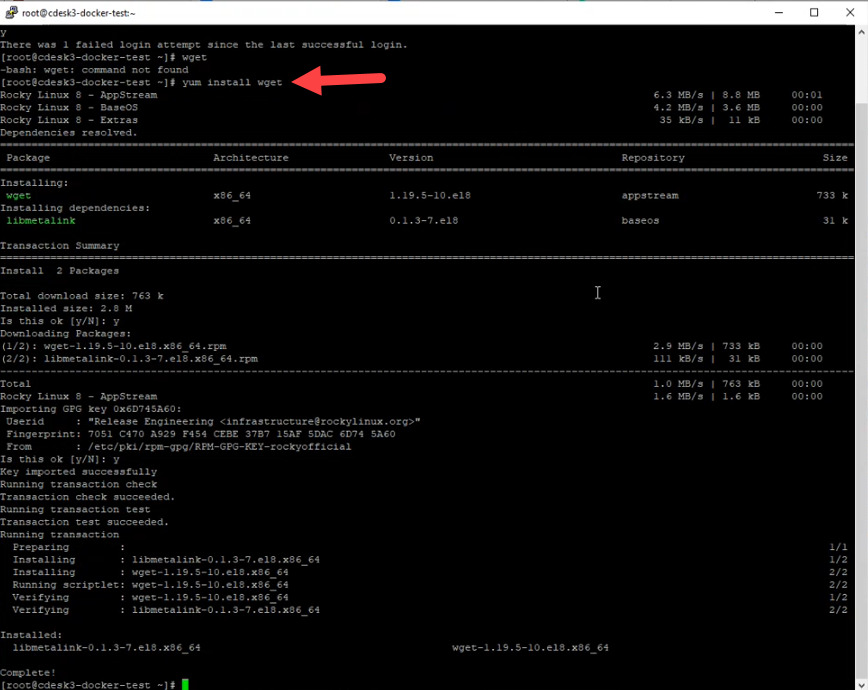
Once you open the folder, you can start downloading the installation package. The package will be downloaded to this folder. However, after installation, the operating system does not include the command `wget`, which is required to download the installation package. Install it into the system by entering the command: `

`
				
					yum install wget


During the installation of the command, a prompt will appear asking whether the parameters displayed during installation are correct. To continue, press the Y key Y, which stands for “yes.” This prompt will appear twice during the installation of the command.

Image: The wget command installation process

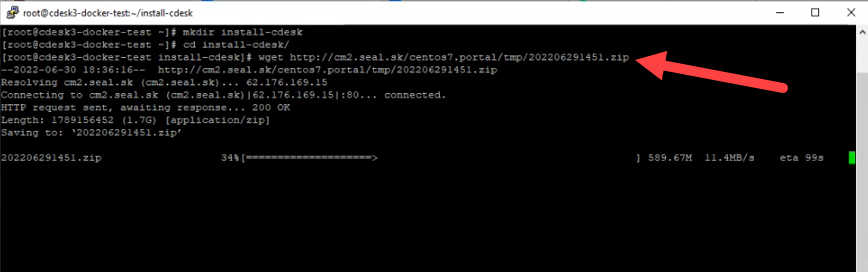
Once the command is installed, you can use it to download the installation file. You can download the wget installation file by specifying the path and its name. To download the CDESK/CM server installation package, enter the following command:

				
					príkazom wget 


and press Enter. The download will then begin; depending on your internet connection speed, it may take a few minutes.

Image: Downloading the CDESK/CM Server installation package

The installation package is downloaded in the format .zip, so after it has been successfully downloaded, you need to extract it using the command:

				
					unzip cdesk-server-installer


Run the package extraction command by pressing Enter. The installation package will be extracted to the folder you created in the previous steps.

CDESK/CM Server Installation Process

After extracting the package, navigate to the folder that was created by entering the command

				
					cd názov_adresáru_z_predchádzajúceho_kroku


Next, enter the command

				
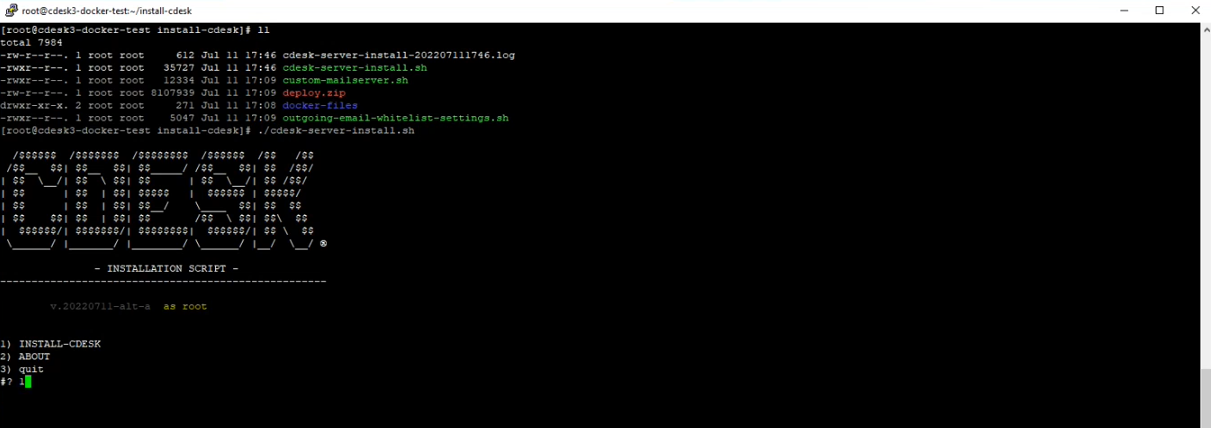
					ll


Press Enter again. You can now run the installation script using the command ./cdesk-server-install.sh. After entering the command, a menu with the following options will appear:

  1. Install CDESK
  2. About
  3. Quit
Image: The menu that appears at the start of the installation

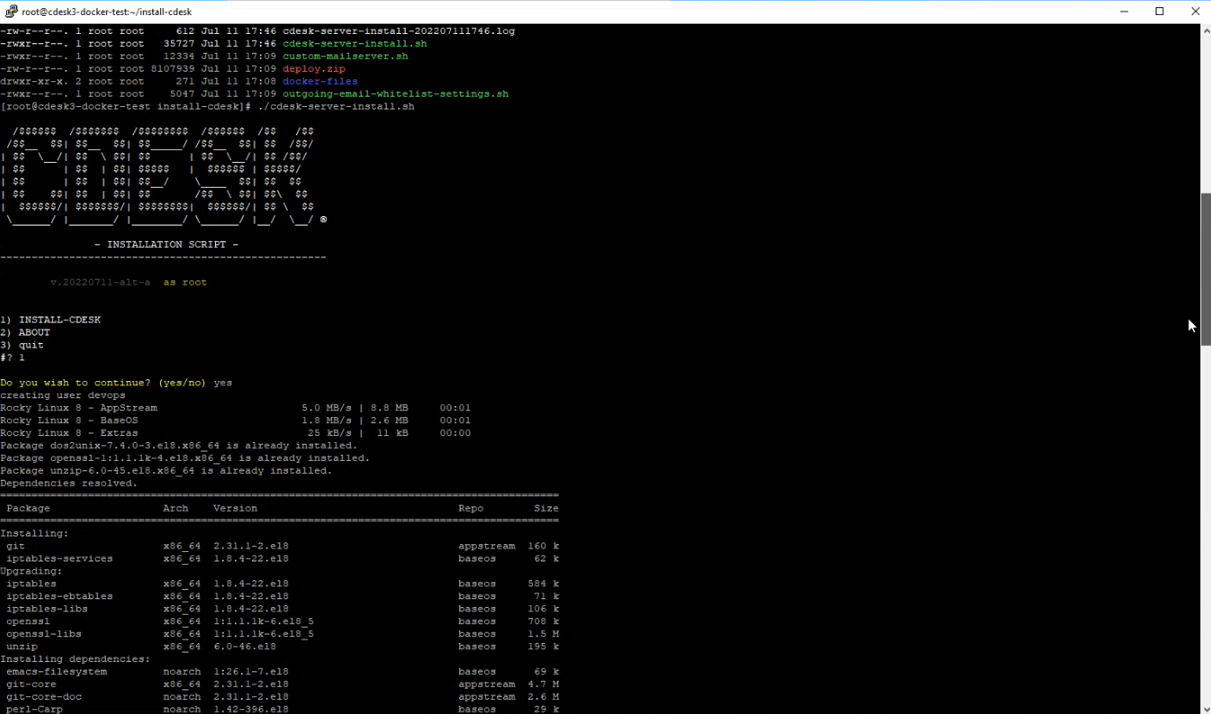
To start the installation, press the 1 key. You will then be asked if you wish to continue. Type yes and confirm your choice by pressing the Enter key. Lines of text describing the installation process will then begin to appear. These lines are also saved to a file located in the directory where the installation package is stored.

Image: The first step in installing the CDESK/CM server

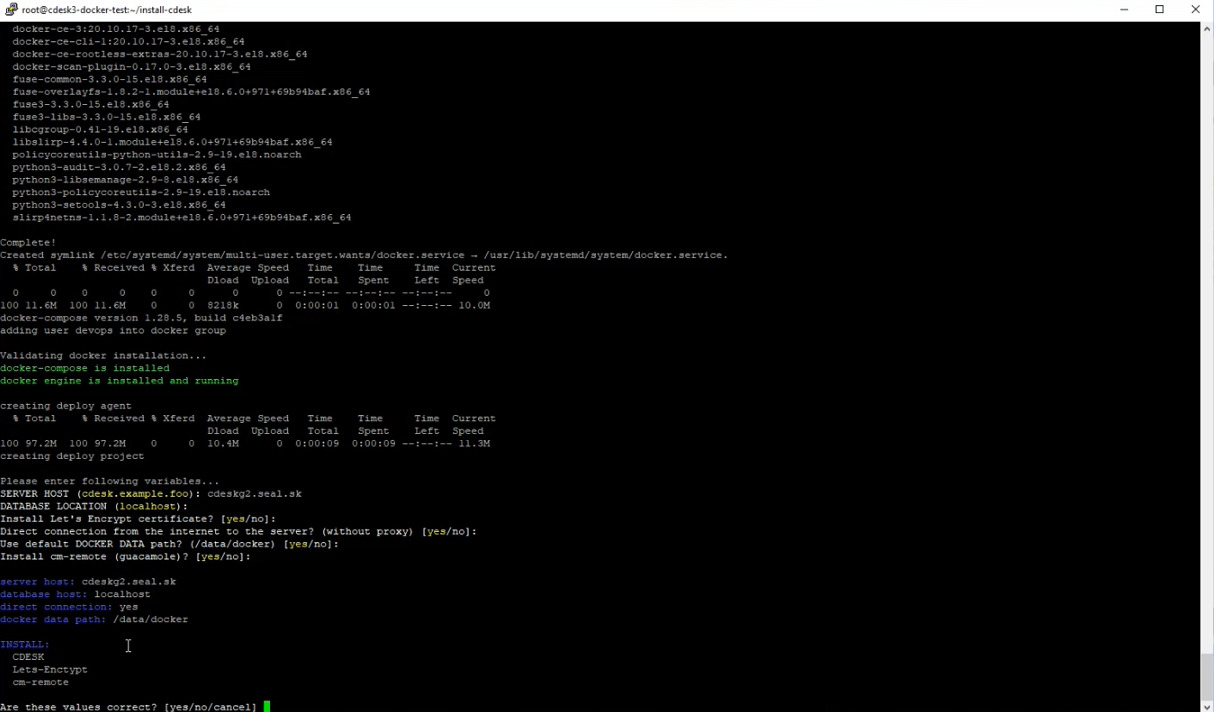
After all libraries and other installation components have been loaded, the prompt SERVER HOST will appear. Here, you must enter the server’s domain name, such as cdesk.vasa_firma.com. In our case, we are working with the domain cdeskg2.seal.sk. After entering the server name, a series of additional questions will appear, which you confirm by pressing Enter. These are:

  • DATABASE LOCATION (localhost)
  • Install Let’s Encrypt certificate?
  • Direct connection from the internet to the server? (without
  • proxy)
  • Use default DOCKER DATA path? (/data/docker)
  • Install cm-remote (quacamole)?

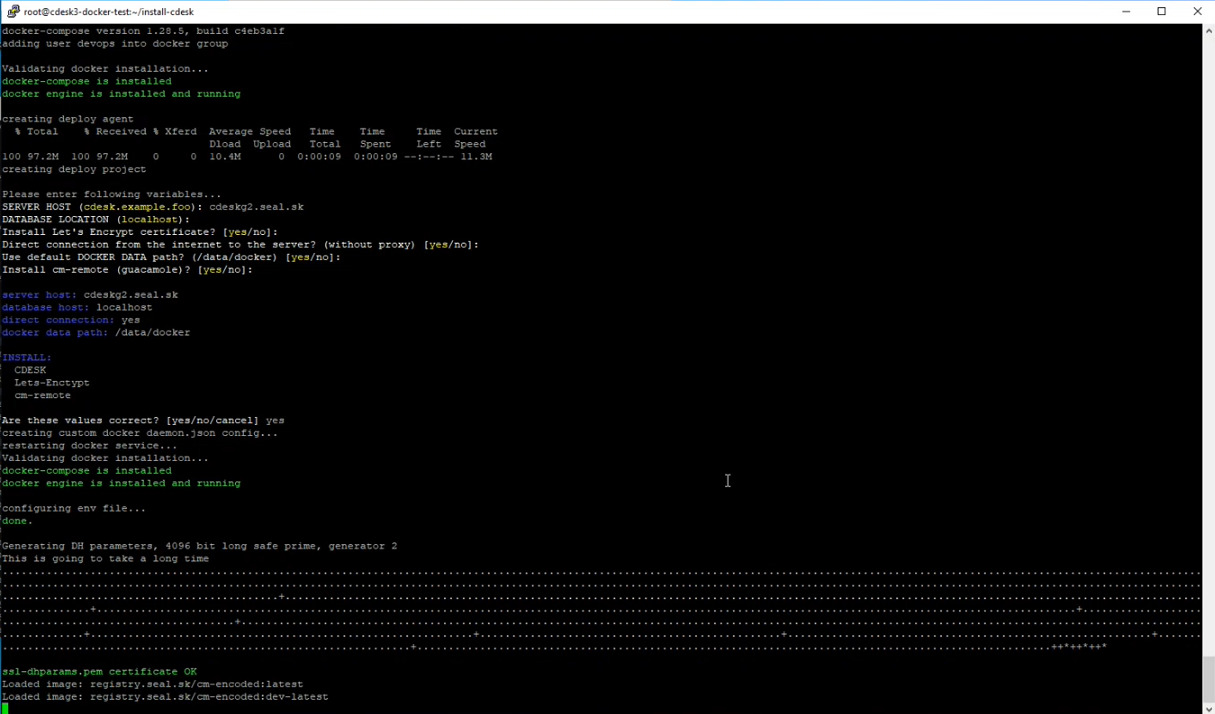
After confirming all these options, a summary will appear, followed by a question asking whether the entered values are correct. If so, type yes and press Enter. Unlike the previous series of questions, in this step you must also type yes. Simply pressing the Enter key would cause you to return to the previous series of questions.

Image: The second step in installing the CDESK/CM server – selecting which components to install

If you prefer to use your own purchased certificate instead of the Let’s Encrypt certificate, when prompted with Install Let’s Encrypt certificate?, enter no and follow the instructions described in the section Using your own SSL certificate. You can also change the certificate later, while the server is running. The procedure is described in the section Changing the Deployed Certificate. After confirming all prompts, the installation of the configured components will begin. This step may take several minutes.

Figure: The second step in installing the CDESK/CM server – installing the confirmed components

Using Your Own SSL Certificate

During the installation of the server, you will be asked if you want to install a Let’s Encrypt certificate. If you select “no,” follow these steps.

After declining to install the Let’s Encrypt certificate, you will be prompted to install a self-signed certificate: Install self-signed certificate? Enter no, which will display a prompt to install a custom purchased certificate: Install custom purchased certificate? Enter yes.

The following steps require the use of .crt and .key files. The procedure for obtaining them is described in the section Preparing to deploy a purchased SSL certificate.

After confirming the prompt and installing the custom certificate, a field will appear for entering the path to the .crt file Full path to custom certificate file. The path is entered in the format

				
					/adresár/adresát/crt_súbor.crt


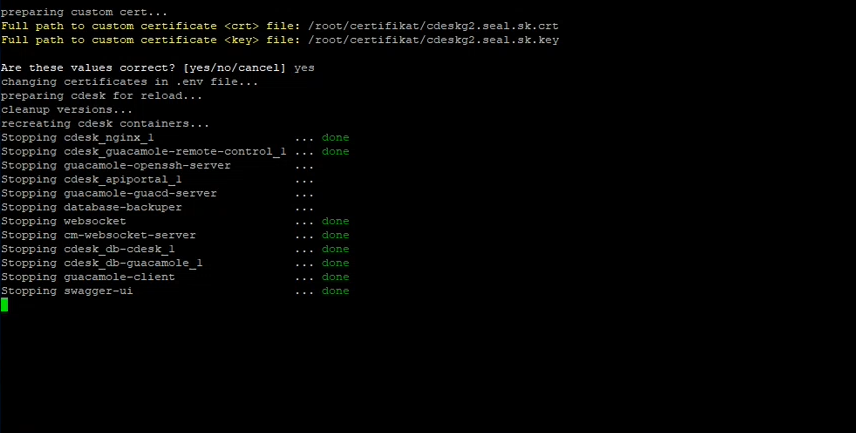
In our case, it was: /root/certifikát/cdeskg2.seal.sk.crt. A field will then appear for entering the path to the .key file Full path to custom certificate file. Enter the path in the same way as in the previous step. A prompt will then appear asking if all entered values are correct Are these values correct? [yes/no/cancel]. Enter yes and confirm your selection by pressing the Enter key, which will initiate the certificate setup.

Image: Uploading the crt and key files and the certificate installation process

Once all components have been loaded, the certificate is successfully deployed.

First-time startup and license activation for the CDESK/CM server

Once the installation is complete, lines containing an automatically generated username and password will appear. These credentials are used to log in as the root administrator of the newly created CDESK environment.

Image: Display of the main administrator's login credentials after installation is complete

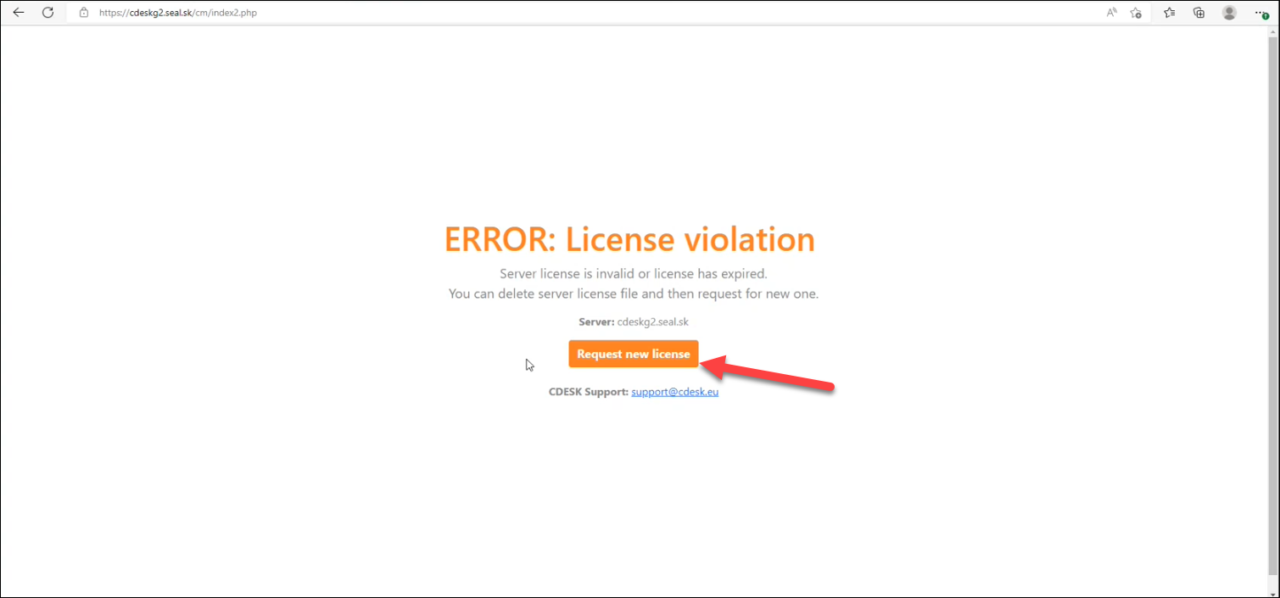
Now open your web browser and enter the domain under which the installation took place. In our case, it was https://cdeskg2.seal.sk. The first screen that appears will display a license error message. To obtain a license, click the Request new license button on the displayed page.

Image: Button to submit a license request

After clicking, a message will appear stating that the license request has been successfully submitted and that you need to contact support via email at support@cdesk.eu. The last line displays a link to return to the server. Click on it.

Image: The page that appears after submitting a license request

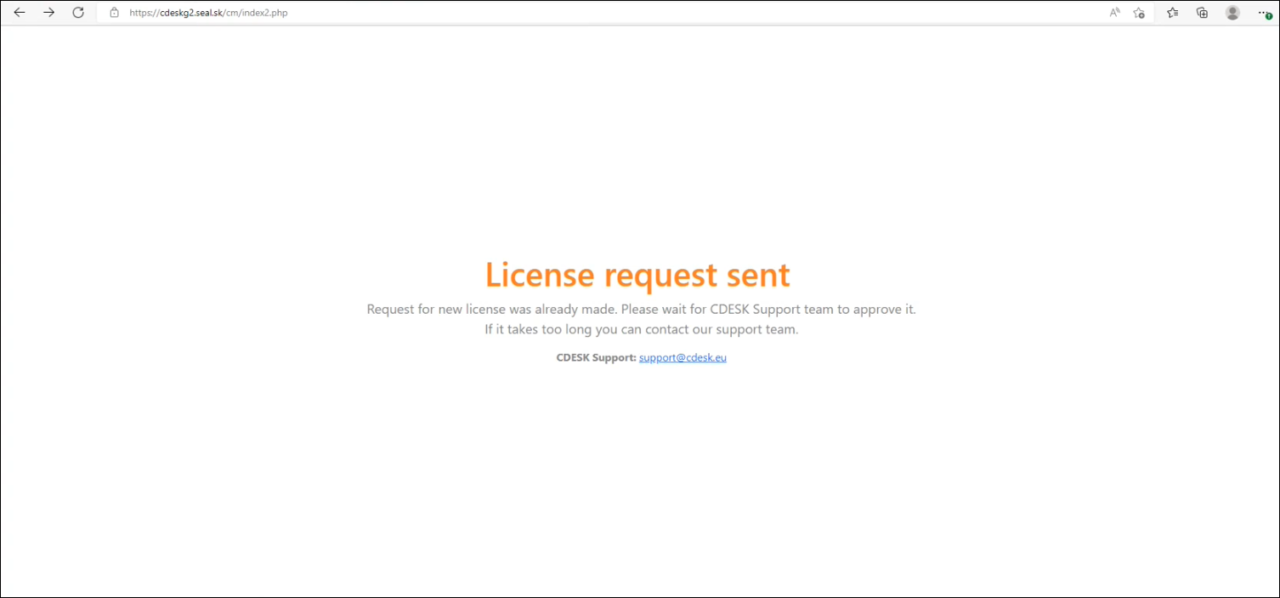
After clicking the link, a message will appear stating that the license request has been submitted and that you need to wait.

Image: Notification that the license request has been submitted

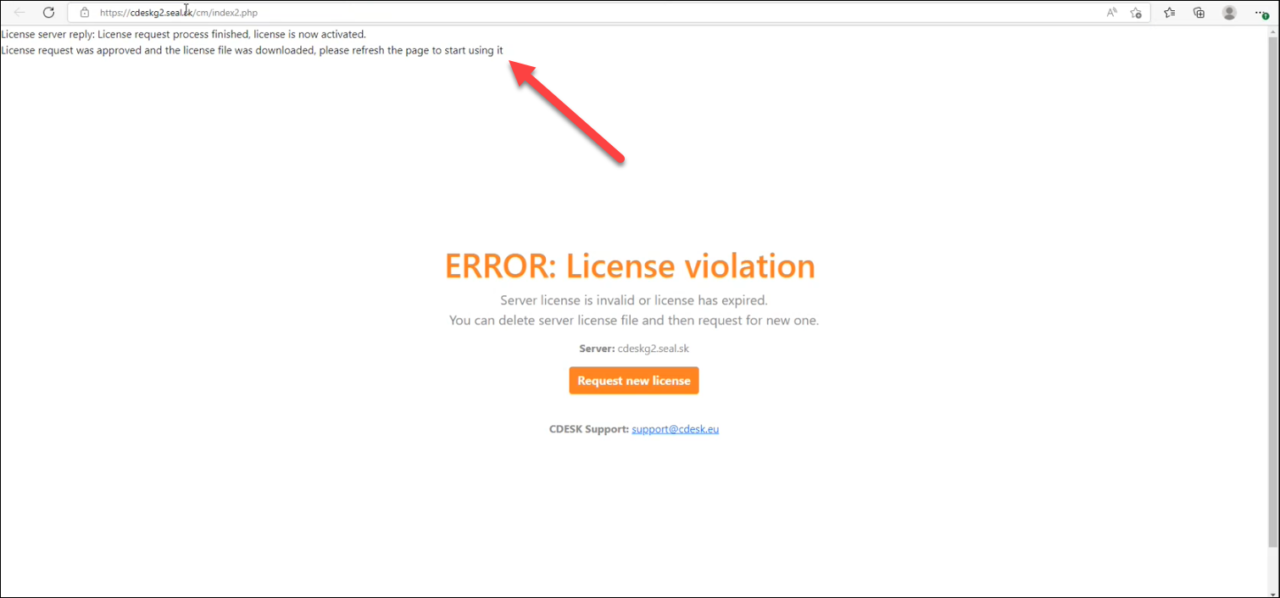
Once the license is approved, a notification will appear in the upper-left corner. You will then need to reload the page.

Image: License Approval Notice

After clicking the link, the login screen will appear. Enter the login credentials for the environment administrator that were displayed after the installation was completed. To complete the configuration of the CDESK / CM server, follow the steps described in the following sections.

After installing the CDESK/CM server

System Activation for Server Updates

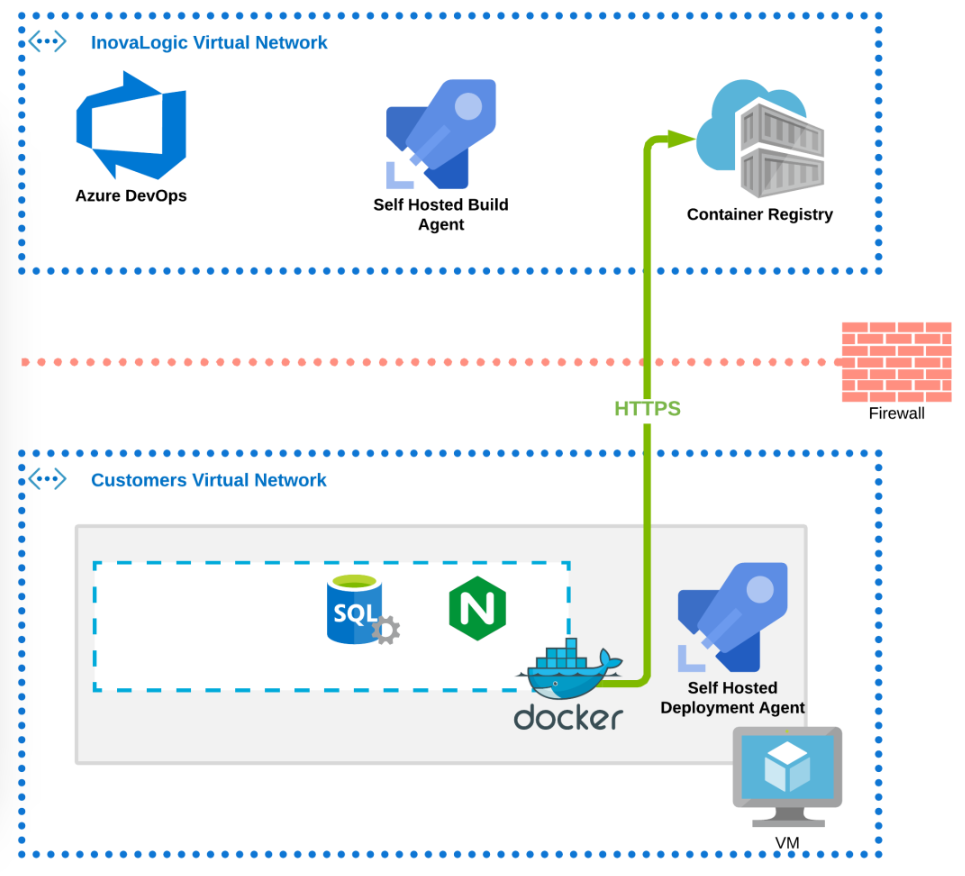
When updating the server, we use the and Azure DevOps systems, which significantly simplify the update process. To use this software, the server must first be integrated into the system, which is done via and SSH access. Once the server is connected to DevOps, SSH access is no longer required for updates, as the update can be performed directly through DevOps. This method of updating offers several advantages:

  • Reduced error rates due to human error
  • Efficiency and speed
  • Faster distribution of security updates.

CDESK is operated using container virtualization (Docker).

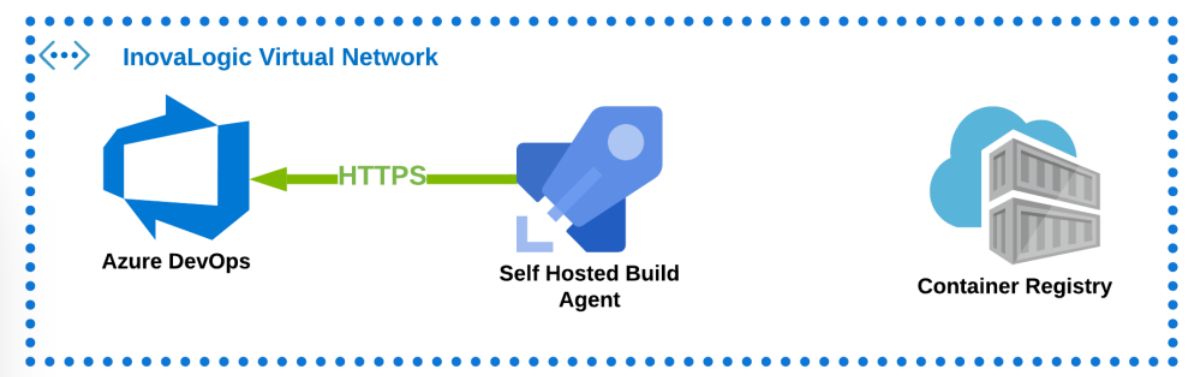
The update begins when the agent detects a new version of CDESK. The agent is activated via SSH and is used to communicate with DevOps on Inovalogic’s virtual network.

Image: Agent communication with DevOps

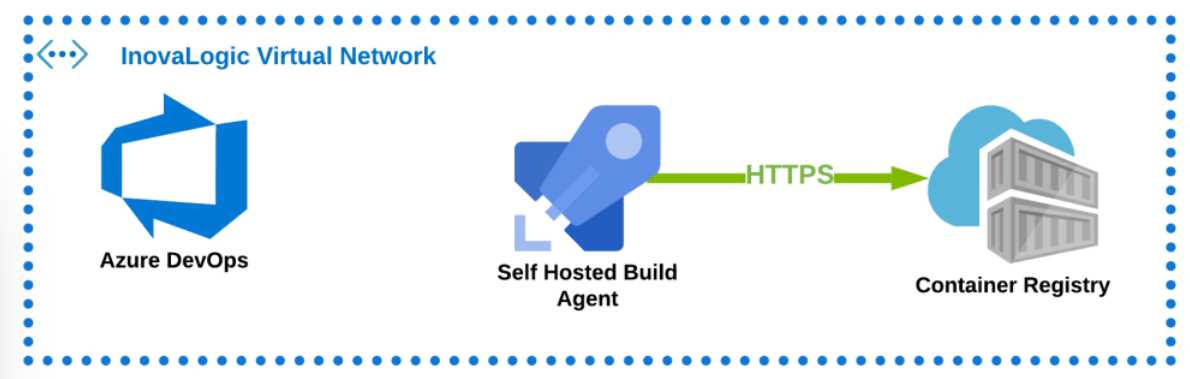
The agent then creates a new package, which it uploads to the Docker Registry.

Image: Uploading a new package to the Docker Registry

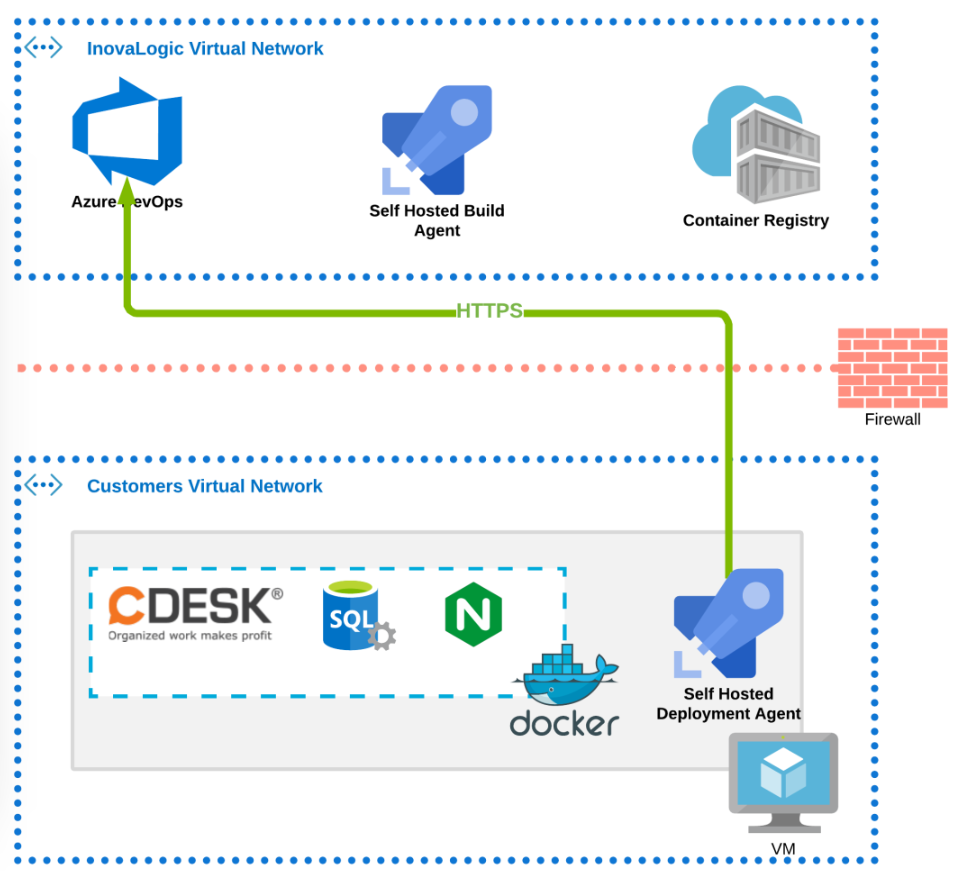
The agent then notifies DevOps that a new package has been completed, making the new version available for release. This version is delivered to the agent on the customer network.

Image: Release of the new version of CDESK on the customer network

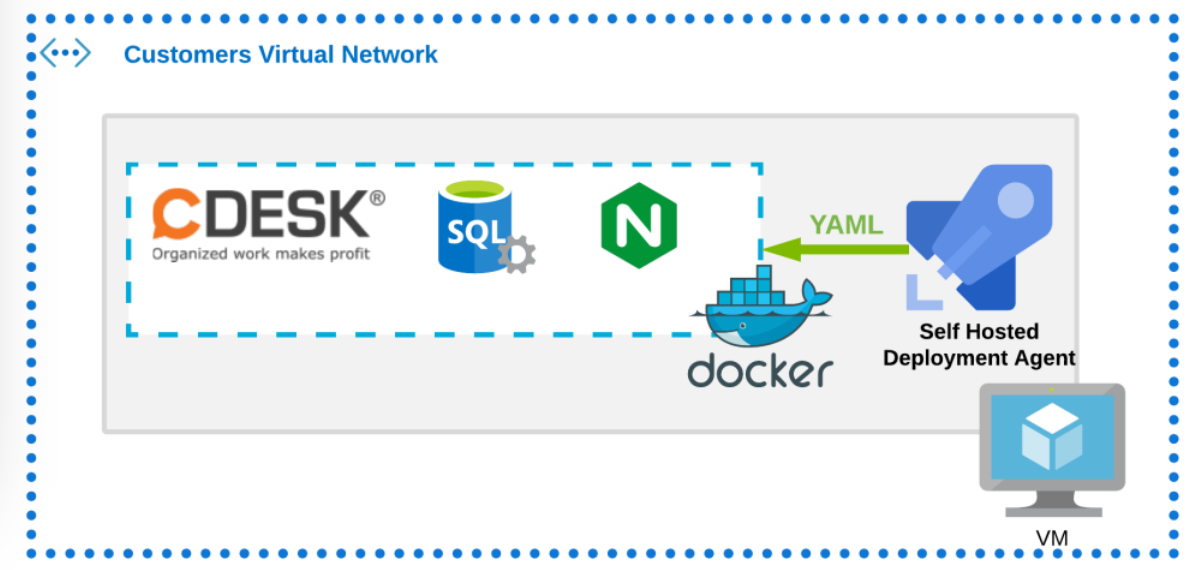
An agent on the customer network will back up the database and files, and then push a new configuration to Docker.

Image: The agent pushes a new configuration to Docker

The Docker daemon will then suspend CDESK. After that, Docker can download the new package from the Docker Registry. Once the download is complete, Docker will start the new version of CDESK.

Image: Docker downloads a new package from the Docker Registry

Recommended settings for server backup

The database is backed up automatically every day, and the backup files are deleted after one month. To enable this backup, you must allocate space for the backup—approximately half the capacity of the main disk—when creating the virtual machine.

If you do not have a separate disk allocated for the backup, the data will be automatically backed up to the disk on which the server is running.

Creating a Super Administrator

To use the new environment, you must first create a main administrator, through whom you can create additional accounts in CDESK.

In your web browser, open the link https://cdeskg2.seal.sk and enter the environment administrator login credentials that were displayed after the installation was completed.

After logging in, the environment manager menu will appear. The account created during installation is an administrator account and does not allow direct login to CDESK. To create an administrator account, click on the option New Administrator.

Image: Button to create a new administrator

After clicking, a form for entering administrator settings will appear.

Image: Form for entering administrator settings
  • Username – enter the administrator’s name. The user will log in using this name.
  • Password – enter the password that the user will enter when logging in.
  • Password Confirmation – re-enter the password.
  • Full Name – enter the user’s first and last name.
  • Display Name – enter the user’s short name, which will be displayed in all CDESK lists.
  • Contact Email – enter the user’s email address.
  • Phone – enter the user’s phone number. Filling in this field is not mandatory.
  • Mobile – enter the user’s mobile number. Filling in this field is not mandatory.
  • Default language – click in the field to select the main language of the environment. This language will be preset for every user; however, on the login screen or in their profile, each user can change the language according to their own preferences.
  • Allowed IP addresses – this field does not need to be changed.

After filling in all the information, you still need to assign a company to the main administrator. To create a new company, click the + Add Company button, which appears in the lower-left corner.

Image: Button for adding a new company in the main administrator form

A modal window will then appear with a form for entering company parameters. The purpose of each field is described in a separate article. Enter the required company parameters and save them. After saving, the modal window will close, and the Create button will become available in the main administrator form. Click it to create it.

Image: Button to create a superuser

Once an administrator has been created, they are added to the list of active users.

Image: The main administrator in the list of active users

Possible configuration changes during use

Changing the server's base domain

While the server is in operation, it may become necessary to change the server’s base domain. The license is tied to this domain, which is the default email domain.

For additional information, the CDESK / CM server can be operated simultaneously on other domains, which are configured directly within the CDESK environment. A more detailed description can be found in the section Adding Another Server Domain.

Before making the change, you must consider what type of SSL certificate will be used for the new domain. If you are using Let’s Encrypt, you do not need to prepare anything beyond the standard settings described in the section Installation process for the CDESK/CM server.

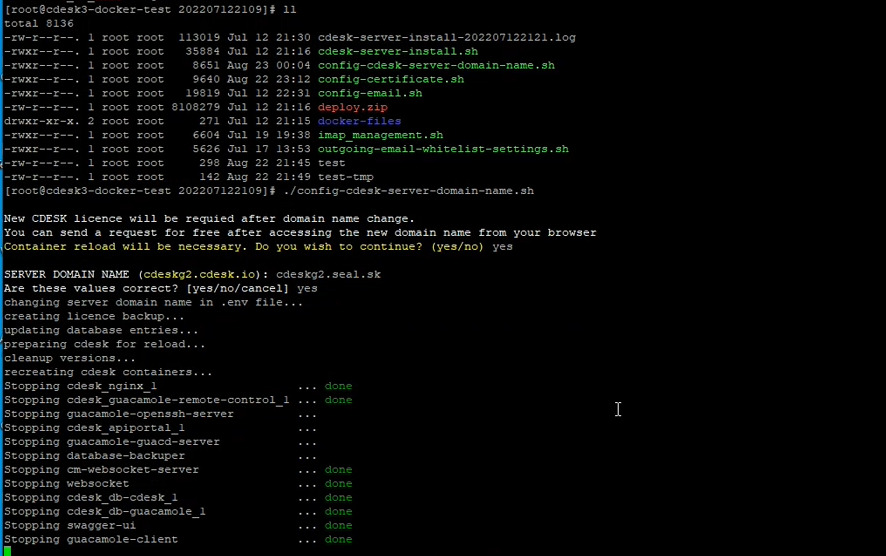
To change the server’s base domain, first navigate to the installation directory and enter the command:

				
					ll


After entering the command, the following options will be displayed:

  • cdesk-server-install–filename.log
  • cdesk-server-install.sh
  • config-cdesk-server-domain-name.sh
  • config-certificate.sh
  • config-email.sh
  • zip
  • docker-files
  • imap-management.sh
  • outgoing-email-whitelist-settings.sh

To change the server’s primary domain, enter the command

				
					./ config-cdesk-server-domain-name.sh


You will then be asked if you wish to continue: Do you wish to continue? (yes/no). To continue, enter yes. The field SERVER DOMAIN NAME (current_server_name.com) will then appear. The current server name is shown in parentheses. Now enter the name of the server’s new primary domain and confirm your selection by pressing Enter. You will then be asked if the entered values are correct: Are these values correct? [yes/no/cancel]. To continue, enter yes. The data update will then begin. After this, the primary domain is changed.
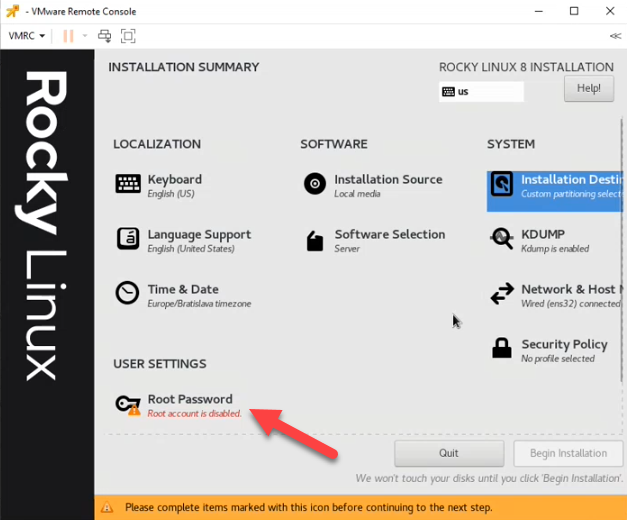
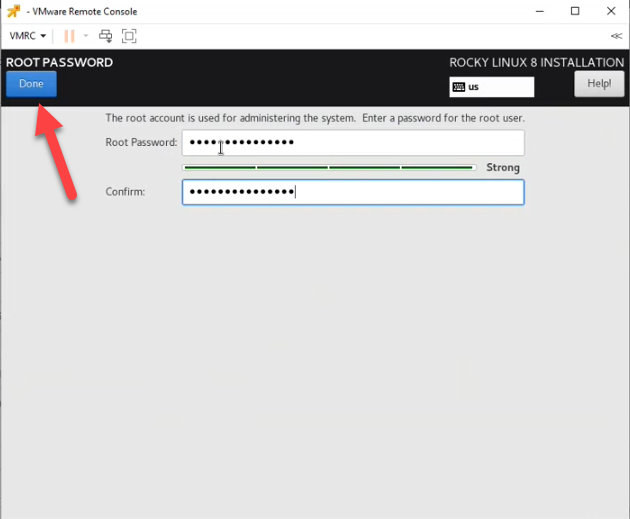
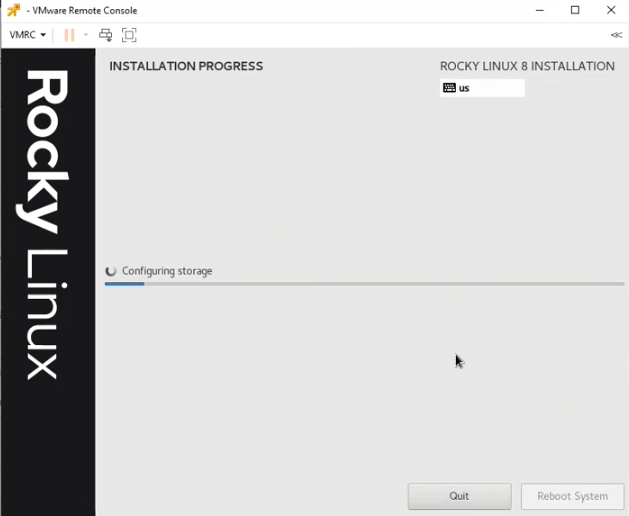
Image: Changing the server's base domain

Since the domain has changed, you need to regenerate the license following the procedure described in the section First launch and license entry for the CDESK/CM server.

Replacing the installed certificate with your own certificate

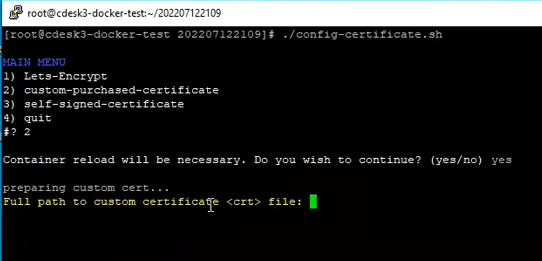
You can change the certificate even while the server is running. To change the certificate, navigate to the directory where the installation package is located.

				
					cd /názov_súboru


Next, enter the command to configure the certificate

				
					./config-certificate.sh


After pressing Enter, a menu will appear with the following options:

  • Lets-Encrypt
  • Custom-purchased-certificate
  • Self-signed-certificate
  • Quit

Enter the option 2 and confirm your selection by pressing the Enter. You will then be asked if you wish to continue: Container reload will be necessary. Do you wish to continue? (yes/no). To continue, enter yes and press the Enter. Fields will then appear for entering the path to .crt and .key the file. The procedure is identical to that for using your own SSL certificate.

Image: The first step in changing the installed certificate