Beta verzia novej dokumentácie.

Description of deal tabs

Objects

You can record objects from the Configuration Management Database (CMDB) in a Work Deal if you want to note in the object’s history that a work deal was performed on it.

The tab is displayed if the Object selection option is enabled in Global Settings → Deals, and you have permission to view the CMDB (Configuration Management Database) module. You can set permissions in Users and Groups → Users → specific user →tab Permissions → CMDB.

Image: Objects on a deal

To select objects, the customer must first define at least one group from the following categories: Equipment, Catalog Services or General Category in CMDB. Once the customer has defined the objects, they can be added to the deal by clicking +Add Item.

Image: Adding objects to a deal

Clicking the button opens a window for selecting objects by main group and CI type. The objects in that category will be listed. By checking the selected objects and clicking Add, you can assign them to the deal.

Additional tabs for working with an deal are displayed only after the deal has been saved. These include:

  • Offers
  • Billing
  • Invoice Archive
  • Requests
  • Tasks
  • Fulfilments
  • History

Offers

Working with offers, including those in deals, is described in detail in the article “Offers.”

We recommend that you add the offers you have issued to the deal on the Offers tab. The customer can approve these offers electronically. Individual offers contain multiple items, such as labor, flat rates, and materials. The customer can respond to each one individually—approve, deny, or leave it without a response (i.e., unapproved).

The Offers tab appears if the Offers module is enabled in Global Settings → Offers. If the tab still does not appear, you need to check whether you have permission to view the Offers tab for the deal. You can set permissions in Users and Groups → Users → specific user → Permissions tab → Deals → Access to tabs → Offers. You also need to check permissions for access to the Offers module. You can also set permissions in the specific user’s profile under the Permissions tab → Offers.

Image: Offers for the deal

You can add a new offer by clicking the “” button +. For more details on how to work with offers, see the article “Offers.”

Image: Form for submitting bids

Exporting offers on a deal

In the lower-right corner, below the list of quotes for the deal, there is a XLS button, which you can use to export these records as an XLS file.

Image: Button for exporting quotes for an deal

Clicking this will open a new window where you can select the columns to export. If you want to export all columns, you don’t need to select them individually. Clicking the icon < selects all of them. The order of the columns in this list also determines their order in the export. If you want the columns in their default order, click the icon and the columns will be sorted.

Figure: Selecting columns for exporting bids on a deal

After selecting the columns, create the export by clicking the Export button, located in the lower-left corner of the window. Clicking Cancel will return you to the task list without creating the export.

Image: XLS report of bids for a deal

Billing

In this section, you will find summary totals for items broken down into labor and flat rates, transportation, and materials used, which can be posted to the customer or even invoiced directly from CDESK. Separate articles are dedicated to posting: “Universal Posting via Deals” and “Work You Do Not Want to Post.”

Figure: Billing on the deal

The tab is displayed only if you have permission to view the tab Billing. You can set permissions at Users and Groups →Users →specific user → Permissions tab →Deals →Access to tabs → Billing.

Invoice Archive

Here is a list of all invoices issued to the customer for this deal in CDESK.
Image: Invoice Archive

The tab is displayed only if you have permission to view the Invoice Archive tab. You can set permissions at Users and Groups →Users specific user → Permissions tab →Deals Access to tabs Invoice Archive.

Requests

Requests outline how a deal will be carried out. You can record fulfilments against these requests for work performed during deal execution. These fulfilments are either included in invoicing or remain non-billable. Unlike tasks, requests allow capturing communication with the customer, track deadlines more strictly (SLA), and are more flexible in further processing.

The Requests tab is only displayed if you have enabled the Requests module at Global Settings → Requests → Basic Settings, and have also configured the necessary permissions to use this module. You can set permissions at Users and Groups → Users → specific user → Permissions tab Requests. If the tab still does not appear, you must also check the access permissions for the tab in the specific user’s profile – tab Permissions → Deals → Access to tabs → Requests.

If you want to remove the link between a request and an deal, in the deal row, from the context menu select Unlink from deal. Use the Edit option to open the request for editing.

To add a new request linked to an deal, click the icon +. The requests for the request are described in the text Working with a request – Assignee.

Image: Deal Requests

Using the button + Add from Catalog, you can select a request from the request catalog for a specific deal. Before selecting a request, you must first select a customer. You will then see the catalogs linked to the selected customer. We describe how to enter a request from the catalog in this text.

Using the + Select request button, you can add a custom request linked to the customer specified on the Basic Data tab.

Tasks

Like Requests, Tasks capture the activities through which a deal will be carried out. You can record fulfilments on a task for work performed during deal execution. These fulfilments are either included in invoicing or remain non-billable.

The Tasks tab is only displayed if you have enabled the Tasks module in Global Settings → Tasks, and have also configured the permissions required to use this module. You can configure permissions in Users and Groups → Users → specific user → Permissions tab → Tasks. If the tab still does not appear, you must also check the permissions for accessing the tab in the specific user’s profile at Permissions → Deals → Access to tabs → Tasks.

Using the context menu () in the task row, you can Edit or Delete.

To add a new task, click the “” button +. For more information on working with tasks, see the article “Tasks.”

Image: Tasks for the deal

Exporting tasks on a deal

In the lower-right corner, below the list of tasks for the deal, there is a XLS button, which you can use to export these records as an XLS file.

Image: Button for exporting tasks on a deal

Clicking this will open a new window where you can select the columns to export. If you want to export all columns, you don’t need to select them individually. Clicking the icon < selects all of them. The order of the columns in this list also determines their order during export. If you want the columns in their default order, click the icon and the columns will be sorted.

Figure: Selecting columns for exporting deal tasks

After selecting the columns, create the export by clicking the Export button, located in the lower-left corner of the window. Clicking Cancel will return you to the task list without creating the export.

Fulfilments

As mentioned in the sections on Requests and Tasks, Fulfilments are used to record work on a deal. If the deal is simpler and you do not need to plan the sequence of deal execution via requests or tasks, record the fulfilments directly against this item. These fulfilments are either included in invoicing or remain non-billable and serve to track the cost of the deal.

The “Fulfilment” tab is only displayed if you have enabled the Fulfilment module at Global Settings → Fulfilment. If the tab still does not appear, you need to check whether you have permission to view the “Fulfilment” tab on the deal. You can set permissions at Users and GroupsUsers → specific user →tab Permissions → Deals →Access to tabs Fulfilments. You also need to check the permissions for accessing the Fulfilments module. You can also set permissions in the specific user’s profile under the tab Permissions → Fulfilments.

Image: Fulfilments on a deal

For fulfilments where no accounting item has been selected, you will be notified by the icon – these fulfilments will not be posted. Using the context menu , you can Edit an existing fulfilment, Make a copy, or Add an internal fulfilment to record the actual scope of the fulfilment.

Add a new fulfilment to the deal by clicking the + button. This opens a form for entering a fulfilment; the required fields are described in more detail in the Fulfilments article.

Image: Adding billing fulfilments to a deal
Image: Adding internal fulfilments to a deal

History

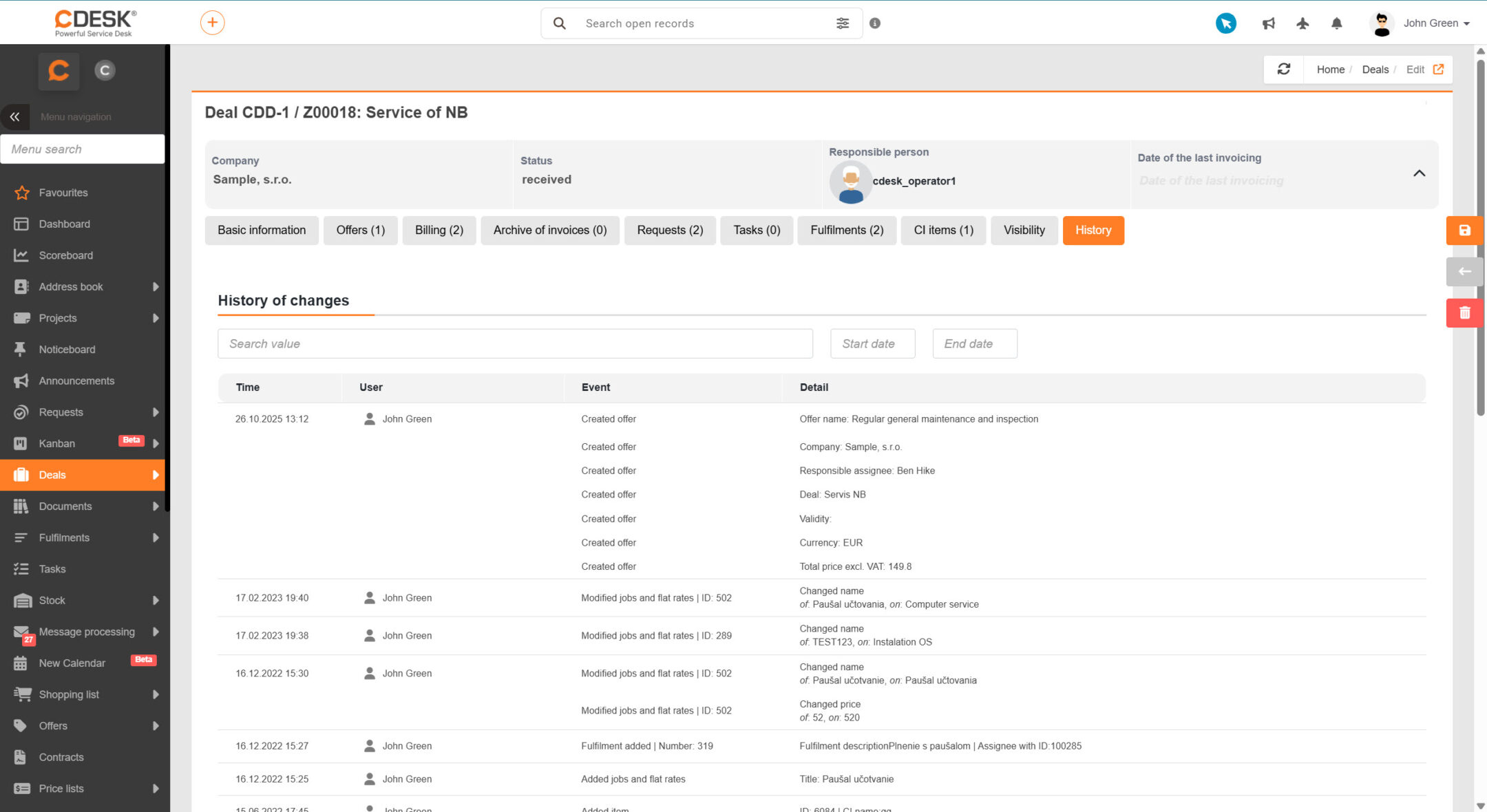
This section records all changes made to an deal—including when and by whom they were made. The tab is only displayed if you have permission to view it. You can set permissions at Users and GroupsUsersspecific user → Permissions tab → Deals → Access to tabs → History.

Image: The History tab in an deal

To save the changes made on the tabs Basic Data, Objects, and Plan, you must save the deal Save; the remaining changes are saved in the CDESK system as separate records linked to the deal.