



Beta verzia novej dokumentácie.
Home Asset Register Mobile Asset Tracking App Stock operations
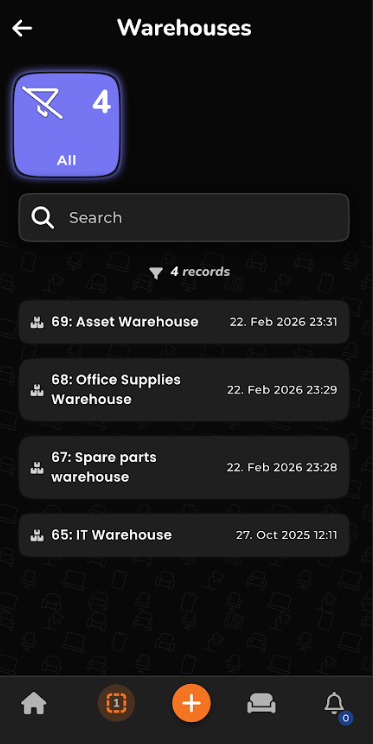
The view of stocks already defined in the system, with the option to create new stocks or edit the currently defined ones, is opened from the Stocks section. In addition to the displayed basic data, you can inspect a stock — view stock documents, stock movements, stock items, and also transfer items to the CMDB. You can also create new document records — add a goods receipt, a goods issue, or a stock card. The process from order placement to transfer into the Asset register is described in the Receiving goods into stock chapter.
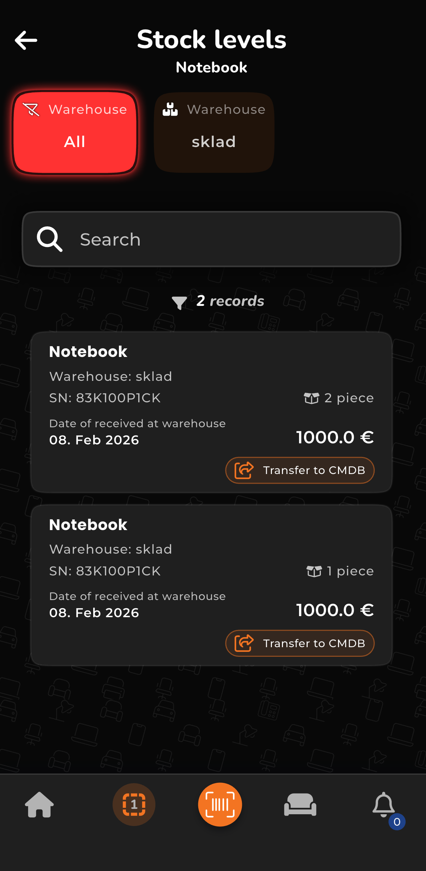
Checking stock levels in individual stocks. Each stock shows the items that belong to it. The process from order placement to transfer into the asset register is described in the Goods in stock and changes in order delivery section.
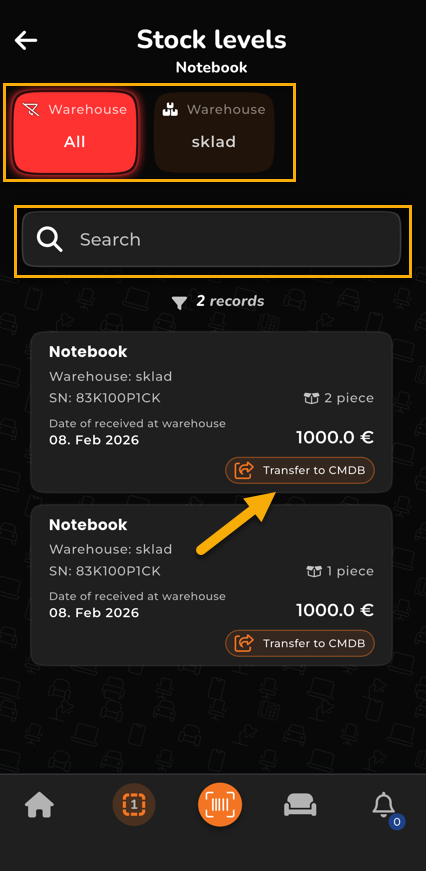
Within the organisation, you need to define the moment when an item from the working stock becomes permanently part of the configuration database. When that moment comes, tap the item in the stock; the item details appear together with the Transfer to configuration database button. The process from order placement to transfer into the asset register is described in the Transfer from stock to the Asset register / CMDB section.
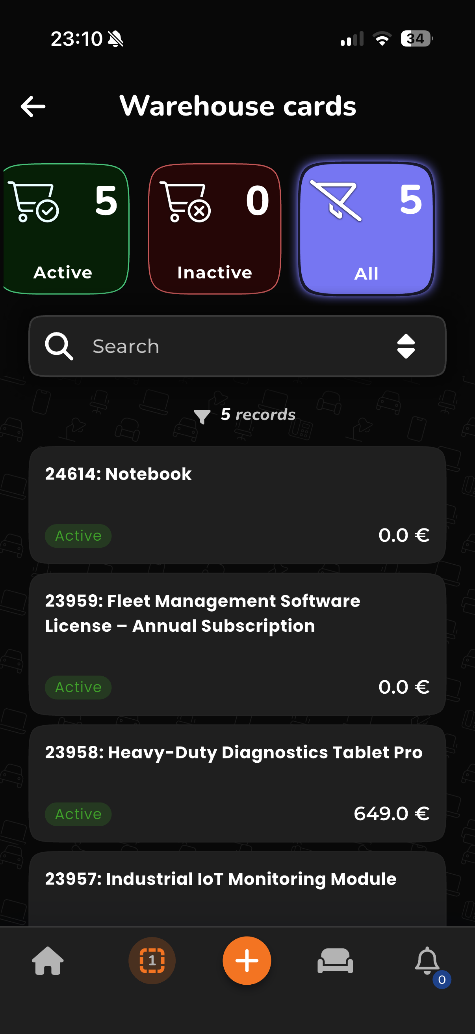
Detailed information about a stock item. The card is fully editable in the app, with the option to open the web interface. In addition to filling in basic data — name, CDESK code, part number (which can be entered by scanner) — the card can also record the manufacturer, warranty, price, units, and minimum quantity. The item on a card can be categorised and restricted so that it can only be received into specific stocks.
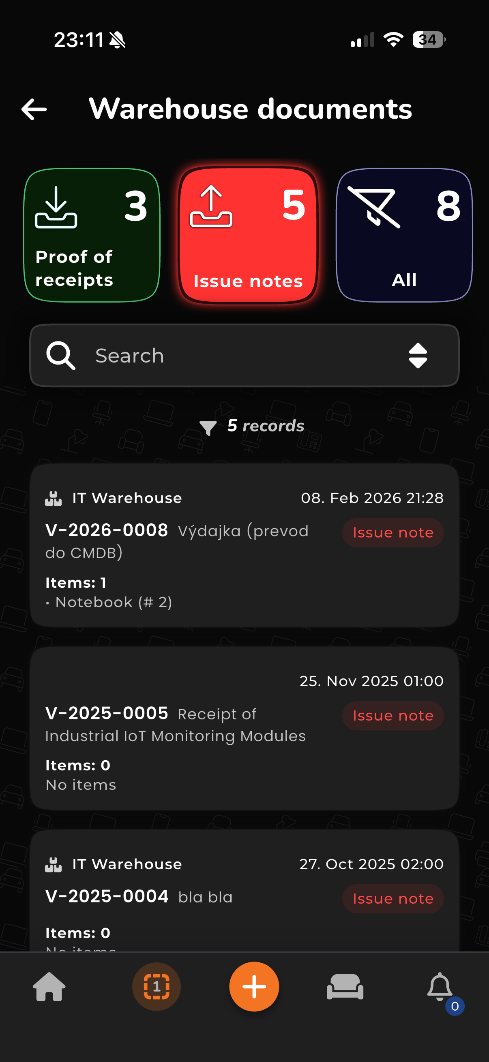
A list of stock documents with the option to create new documents or edit existing ones. Documents are edited by tapping the document, modifying the required data, and saving with the orange floppy-disk icon in the middle of the bottom bar. A new item is added by tapping the + button on the documents home page.
An overview of purchase orders — both received and issued — without edit access, used as a quick way to review purchase order contents. Pre-set filters make it easy to navigate the purchase order list. The process from order placement to transfer into the asset register is described in the Purchase order as the starting point of the process section.
Home Asset Register Mobile Asset Tracking App Stock operations