


Another area where you can apply open approval is the purchase order module. You can initiate this type of approval at any time while working with an purchase order, whether it is an incoming or outgoing purchase order. You also have the option to decide whether the purchase order can be edited while the approval process is in progress. Anyone with the appropriate permissions can be selected as an approver.
To use approval in an purchase order, two conditions must be met:
- Enable approval in purchase orders under Global Settings→Documents→Purchase orders →Purchase order Approval toggle
- Define an approval rule with the scope in purchase orders—rules are defined under Approval → Approval Rules. More detailed information on creating rules and on the Free Approval rule group is provided in the documentation sections Creating a rule and Free Approval rule group.
If the Approval option is not available in the main menu, you need to check the permissions for accessing this module in the user details (under Users and Groups → Users) on the Permissions → Approval tab.
Open approval can only be initiated on an existing (already saved) purchase order; it cannot be initiated while creating an purchase order. To initiate approval, click the Send for Approval button at the top of the purchase order details page in the section Approval. If the section Approval is not displayed in the purchase order details, check the global settings of the Purchase orders module and verify that an approval rule for purchase order approval exists.
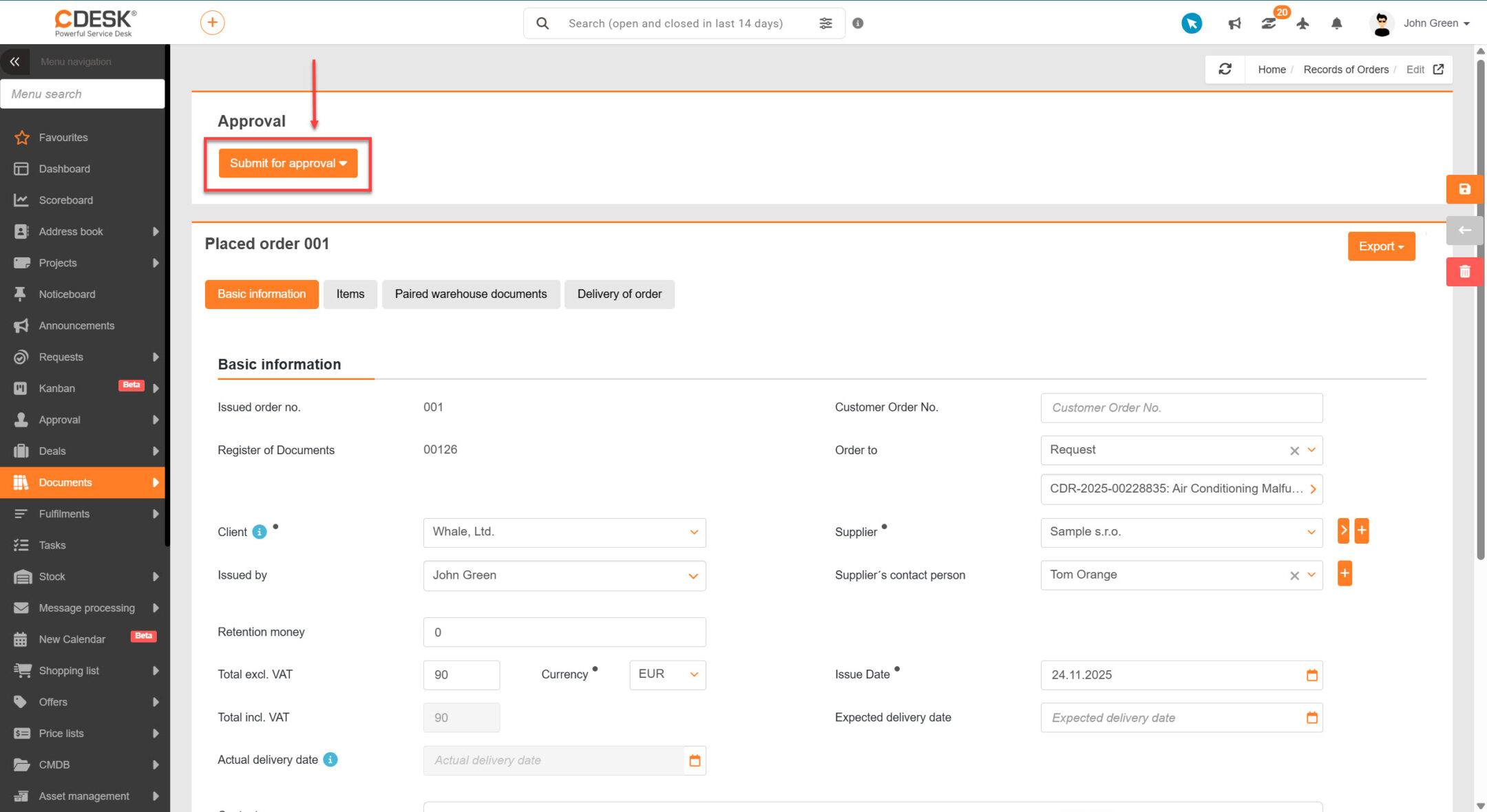
If multiple approval rules are defined for purchase orders, you must select one of the existing rules before sending it for approval – the list of rules will appear after clicking the Send for Approval button. If only one approval rule is defined for purchase orders, clicking the button automatically displays a modal window with a form for creating an approval.

The form fields are automatically pre-filled based on the defined approval rule template. The form contains the following fields:
- Template – a free-form approval template that you define when creating an approval rule
- Approval Name – automatically generated name “Approval of Purchase order {purchase order number}”
- Approve by my supervisor – when this option is enabled, the approval must first be accepted by the supervisor of the person submitting the approval; subsequently, the approval request is sent to the designated approvers
- Approvers – users who will comment on the given approval. There may be multiple approvers at the same time. The user list only displays users with the appropriate approval permissions.
- Note for the approver – field for entering a note or additional information for the approver
- Approval evaluation – specify when the approval will be evaluated; the following options are available:
- After approval by all – approval will be evaluated only after all approvers have responded
- After the first approval – approval is considered complete once one of the approvers has responded
- Description – a more detailed specification of the subject of approval. If no description is provided in the approval rule template, the text “I request approval of purchase order {purchase order number}” will be automatically pre-filled here
- Attachments – field for inserting attachments. In the case of an issued purchase order, a PDF printout of the purchase order will be automatically inserted into the attachment
Individual fields can be edited before the approval is created, with the exception of the template field, which is set by default according to the selected approval rule.
Free approval on a purchase order is applied by clicking the Create button. If the option to disable editing during an ongoing approval process is enabled on the approval template, editing of the purchase order is blocked. Editing will be re-enabled after the approval is commented on, regardless of the result.
When you open a record’s details, information about the approval process and the approval steps will be displayed. The number of approval steps depends on the number of approvers—one approval step is generated for each approver. The number of approvals required depends on the approval criteria (approval by all approvers or the first approval).
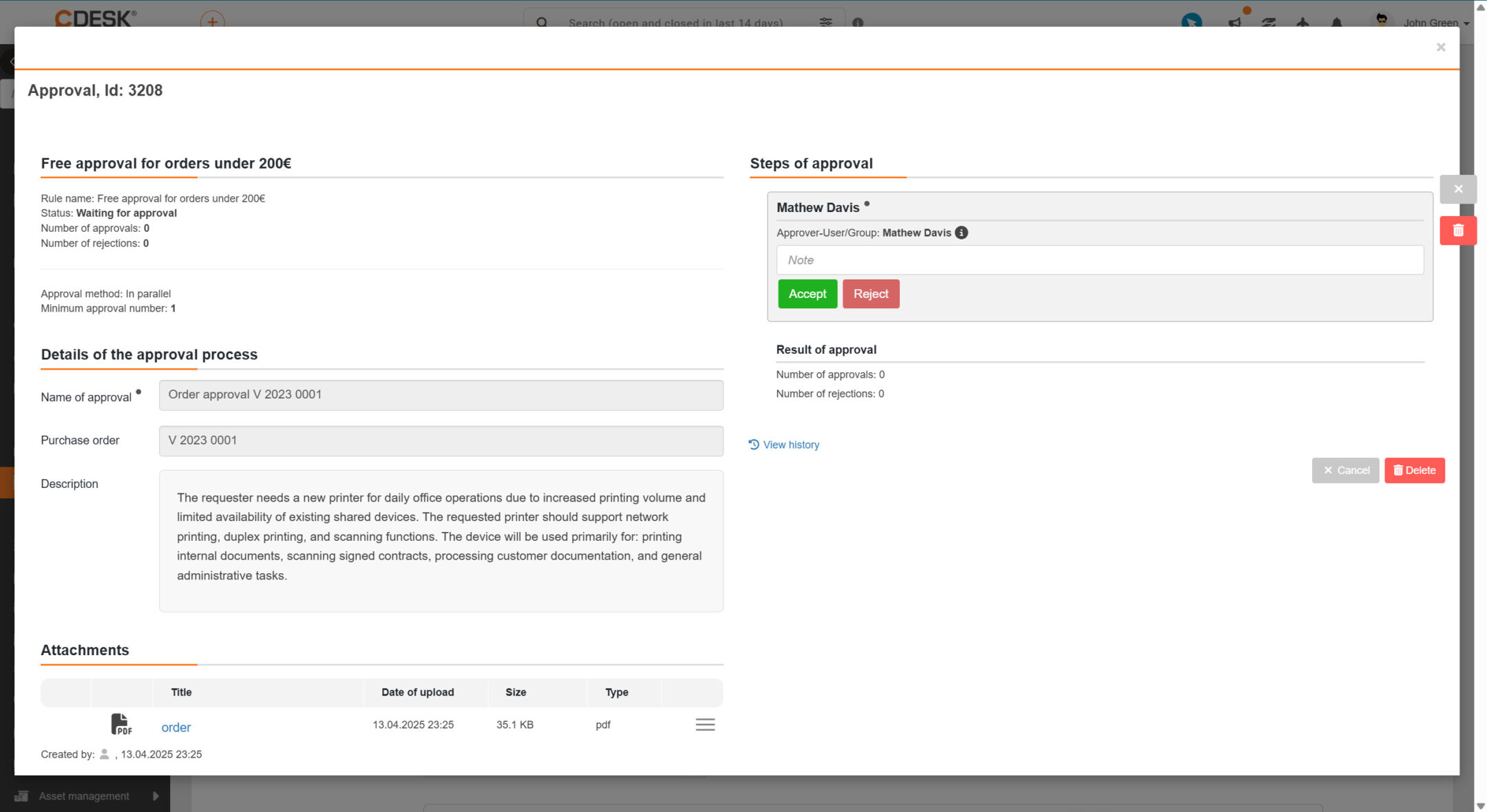
The approver can express their opinion by clicking the Accept or Deny button. Since this is a free approval, the default setting is parallel approval mode which means that approvers can comment on individual steps in any order. Only one approval can be in progress for an purchase order at a time; another approval can only be initiated after the previous one has been completed (after approval is completed, the button Send for Approval will reappear in the section Approval).
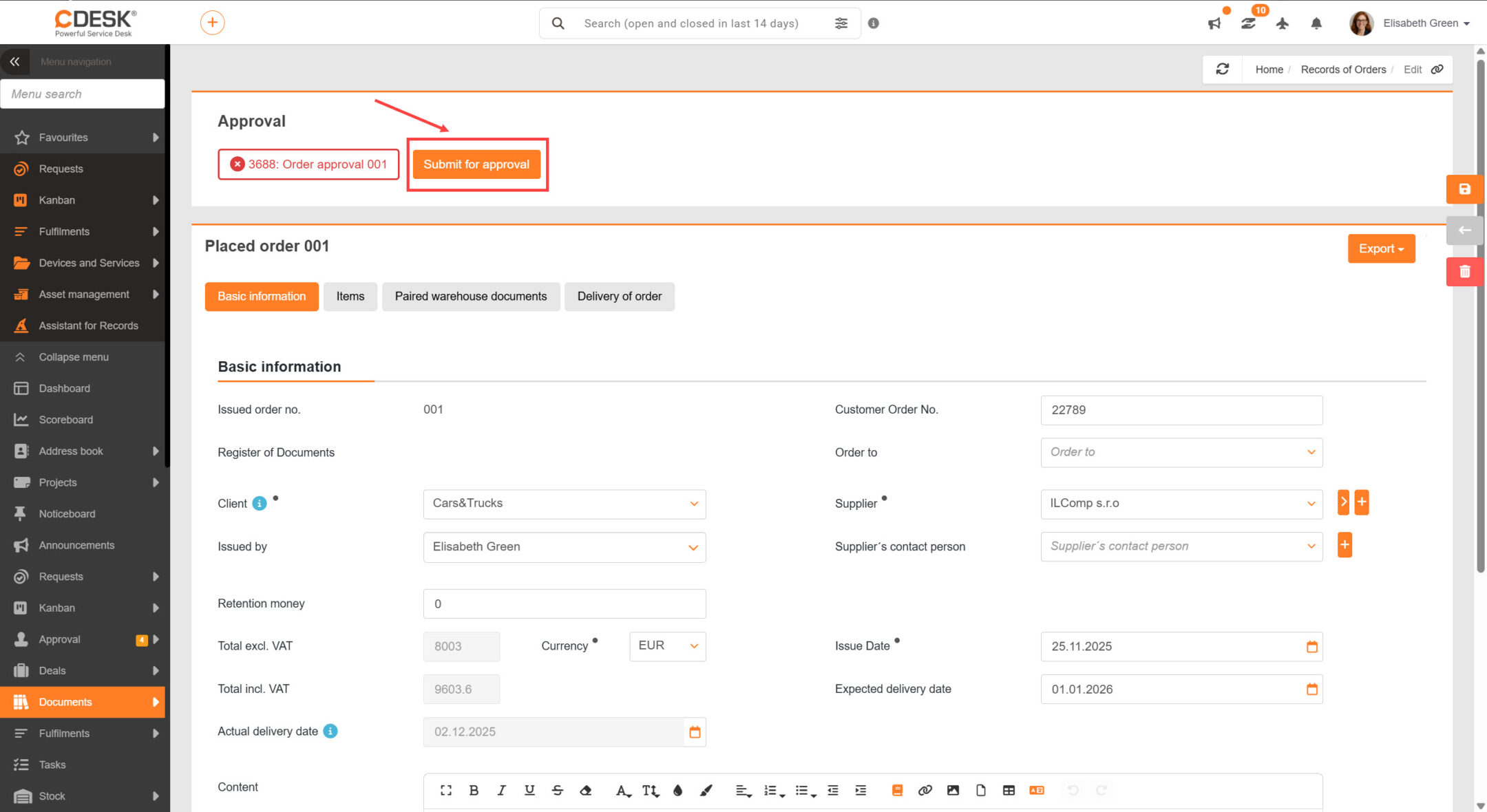
The status and details of all approvals recorded in the system are available in the main menu under Approval → Approval. The current status of purchase order approvals is also displayed in the purchase order list in the column Approval Status (this column is available for display only if at least one free approval rule with the usage location Purchase orders is defined in the system). The column displays the status of the last approval recorded for the purchase order. Clicking on the status displays the approval details.
