


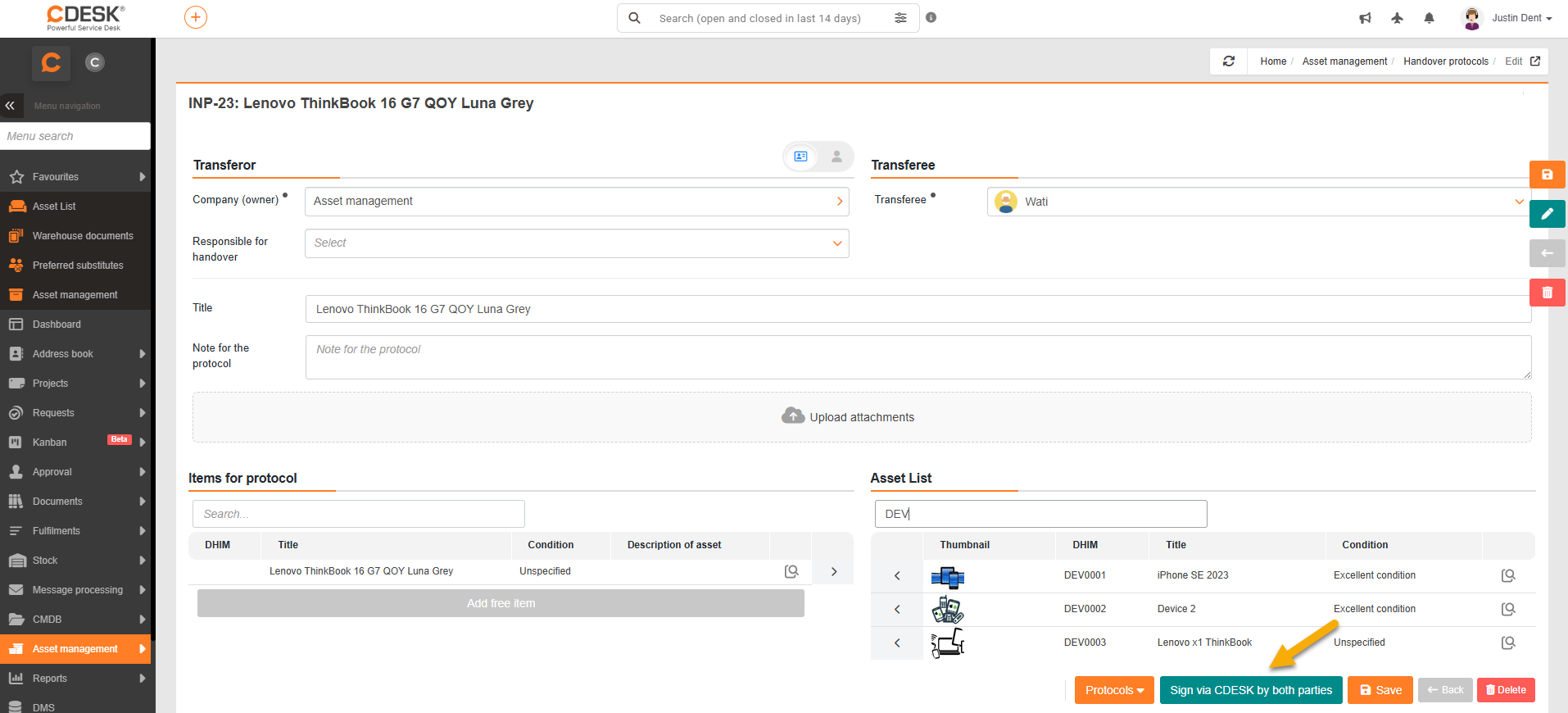
After creating the handover report, the option Sign via CDESK by both parties will appear in the lower right corner among the available options, and both the transferor and the transferee will be prompted via email to sign the handover report. It is also possible to sign the protocol directly while editing the handover protocol, where, under the name of the Transferor / Recipient, the option Sign will appear. Upon confirming the signature, it is possible to upload a signature intended for print reports. The uploaded signature will appear in the report’s print output and will also be saved to the user’s profile under My Profile → Signature for Print Reports. After clicking the option Sign the Report, the date and time of the signature will be recorded under the signer’s name.
In the lower-right corner, there is an icon Logs, where you can select an export for Simple or Extended log. In addition to basic requirements such as the identification of the transferor and transferee, the identification of the item and its status, the date, and signatures, the extended protocol also includes technical details about the item.
Background actions
After the handover protocol is saved, the status of the handed-over items in the inventory is automatically updated. If an item is handed over to a person, its status changes to Assigned, and the user who received the item is entered in the Assigned to field. If an item is handed over to a company, its status changes to Pending assignment.