


Beta verzia novej dokumentácie.
Home Asset Register Mobile Asset Tracking App Asset inventory
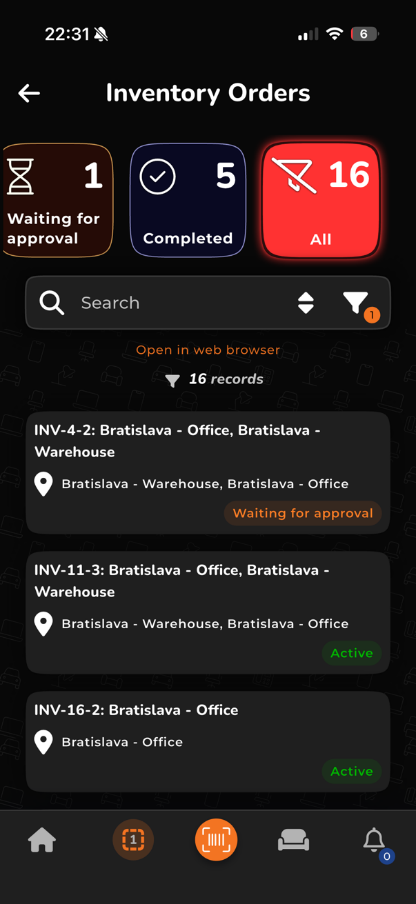
Open the list of inventory orders by tapping the button on the main screen. The list automatically shows orders from newest to oldest. Their current statuses are also displayed and you can filter by them. You can search for specific inventory orders using the search field at the top of the list. Covered in detail in the Inventory orders section.
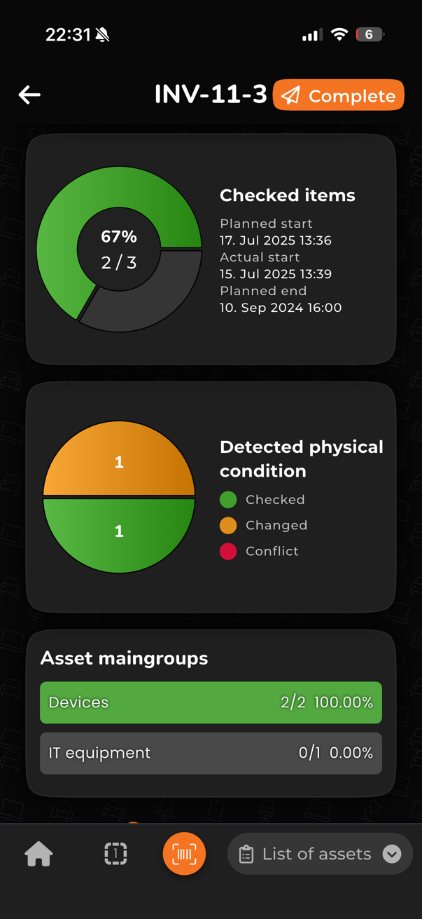
Open an inventory order’s card by tapping the selected order in the list. The inventory order card shows all the information needed to perform it: Responsible person, Status, Location. Items checked numerically and graphically, changes and conflicts.
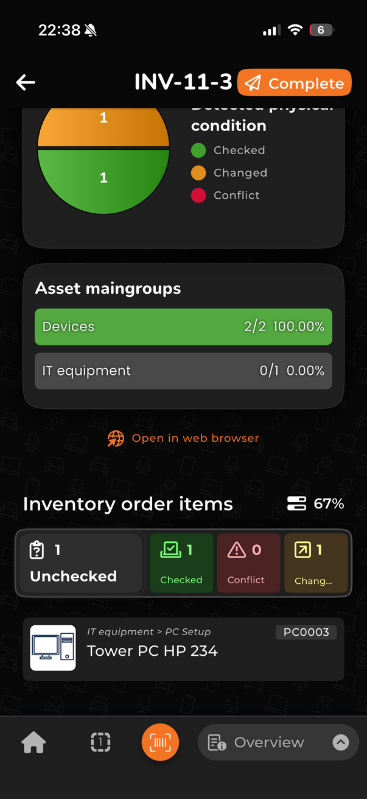
The list of checked items can be found in the lower part of the card under Checked items. This section is divided into 4 parts:
Close and send the inventory order for approval using the Close button in the upper right corner.
Home Asset Register Mobile Asset Tracking App Asset inventory
Na tejto stránke