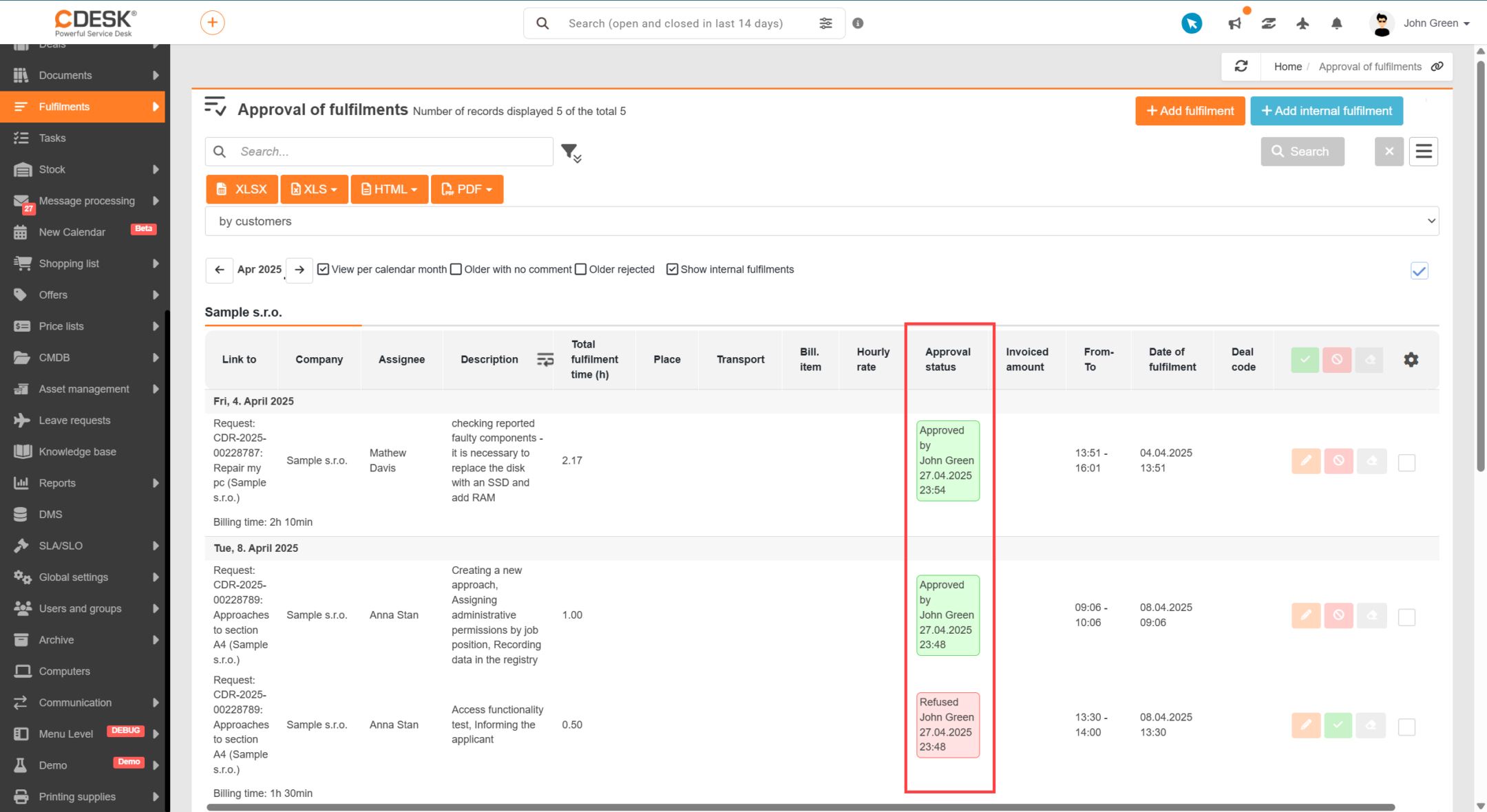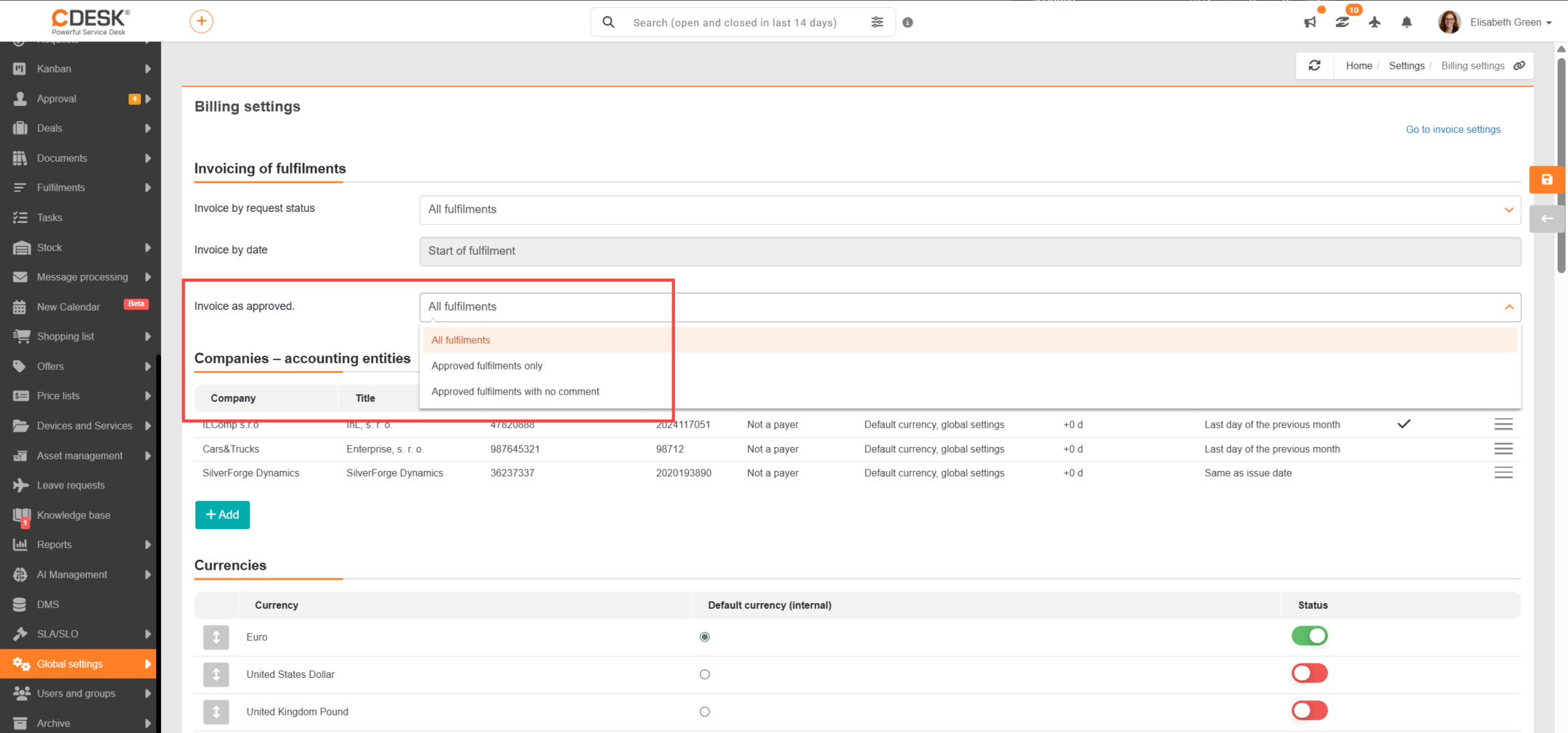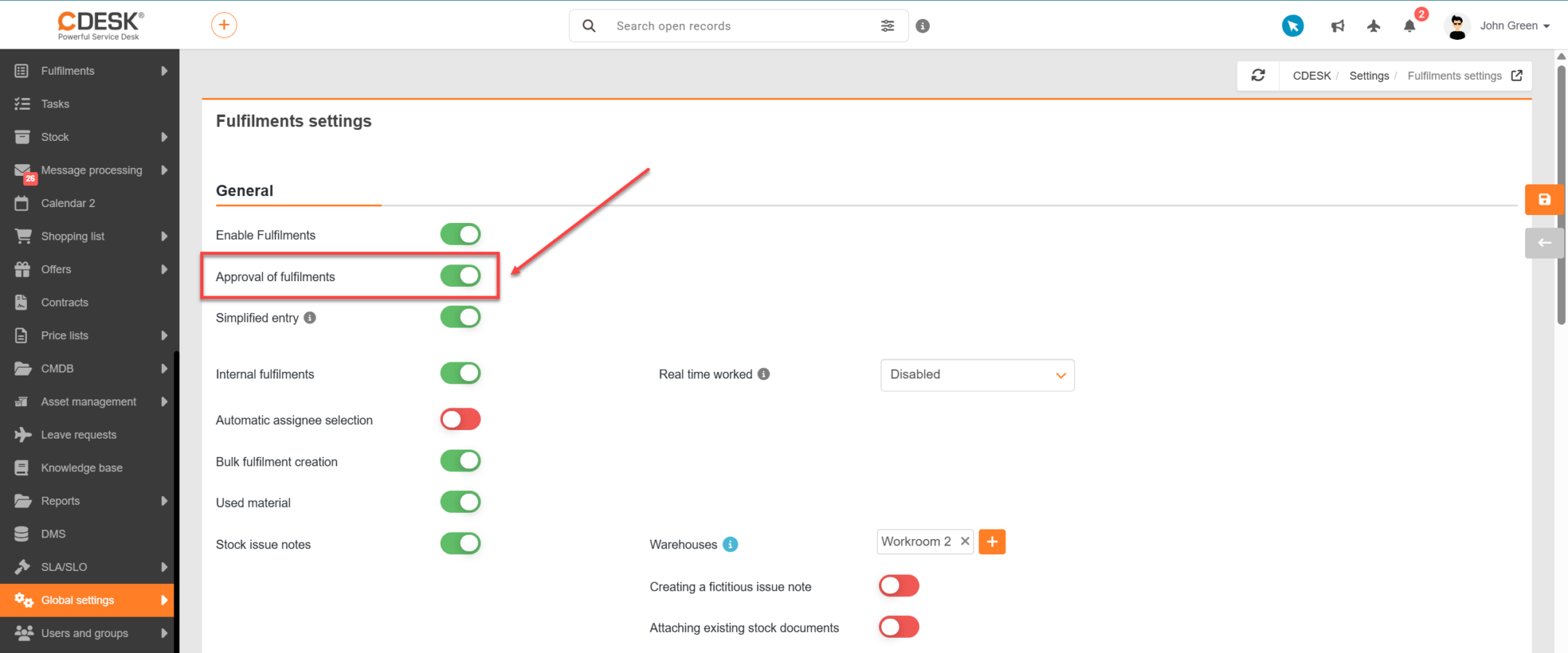
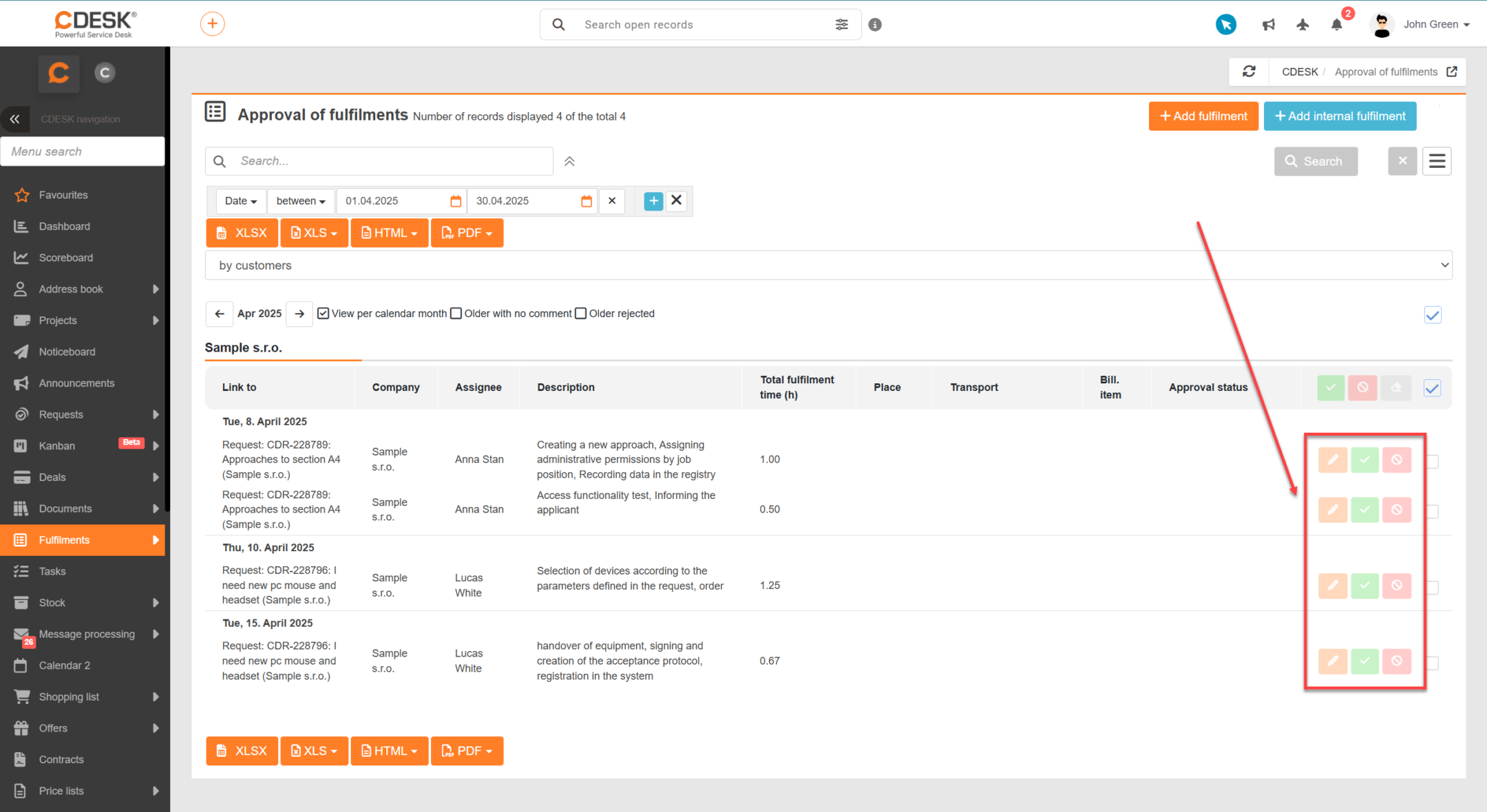
Fulfilment approvals are performed in the section Fulfilments → Fulfilment Approval. This section displays a list of fulfilments recorded in the system, along with the Action column, which contains buttons for editing  , approving
  , or denying
  a fulfilment. Both billing and internal fulfilments can be approved. In the displayed list of fulfilments, you can filter only specific records, either directly using search, filtering, or the option to group records. We cover the topic of filtering and displaying fulfilments in more detail in the documentation section Fulfilment list.
You can approve fulfilments individually for each fulfilment, or in bulk — either by selecting multiple records or all of them at once on the currently displayed page. After clicking the  option (select in bulk), the action buttons appear above the fulfilment list just as they do in individual rows. To select multiple fulfilments individually, simply click the checkbox in the fulfilment row. Clicking the checkbox above the fulfilment list marks all currently displayed fulfilments. When records are grouped, you can also mark an entire group of fulfilments based on the grouping – by clicking the checkbox in the header of the grouped records table. Bulk approval or denial depends on the location where the action is performed – clicking the button above the overall fulfilment list will approve the marked records, while clicking the approval button in a fulfilment group will automatically approve all fulfilments in that group.
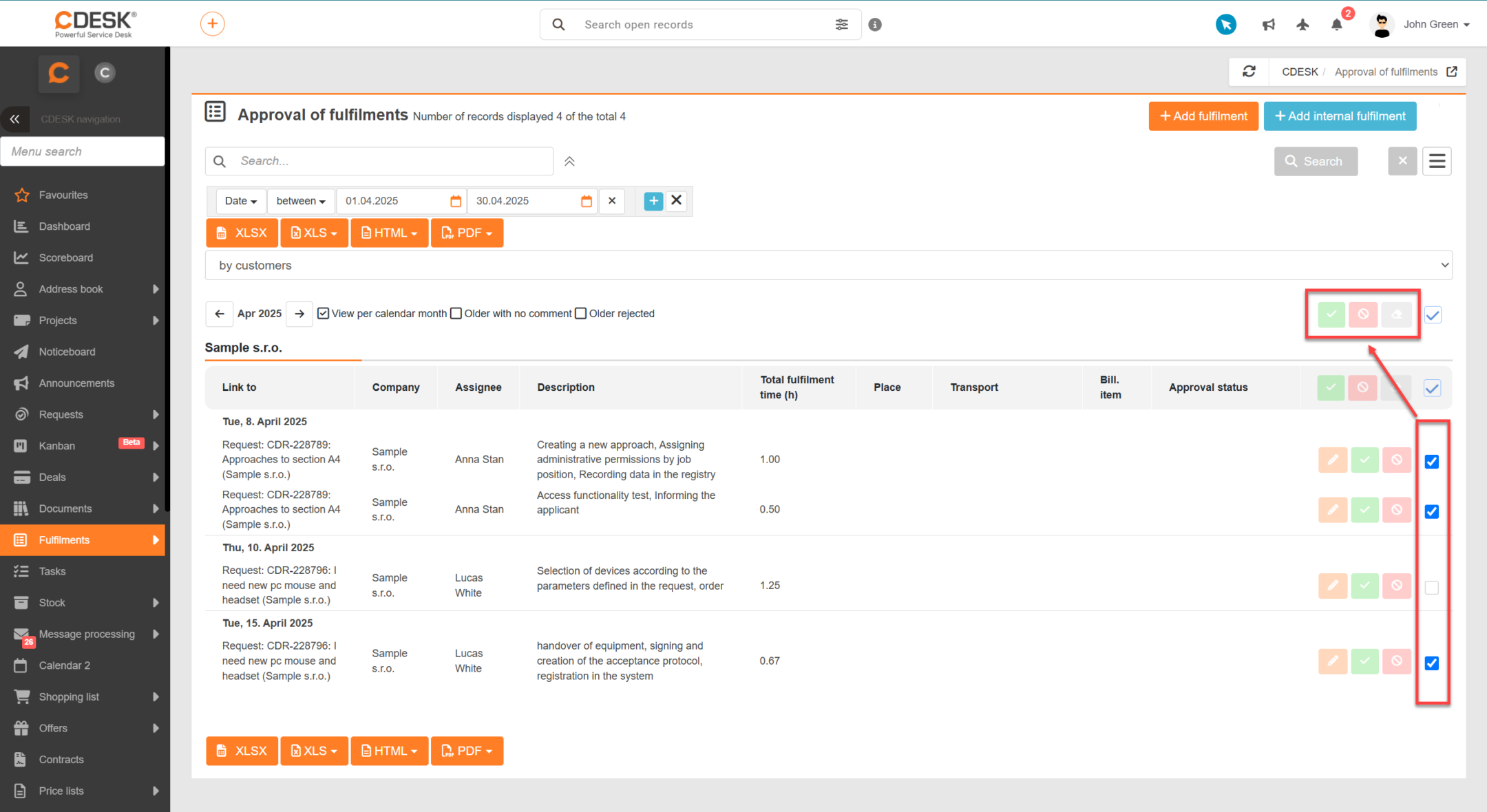
In the Action column, the following buttons appear:
 – edit fulfilment (records must be edited individually)
 – approve fulfilment
- – deny fulfilment (in case of denial, the reason for denial must also be provided)
 – revoke approval / denial (the button appears only after approval or denial of fulfilment)
 – revoke approval / denial (the button appears only after approval or denial of fulfilment)