



Beta verzia novej dokumentácie.
Home Asset Register Asset lifecycle Purchase order as the starting point of the process
This chapter describes the recommended procedure for working with an asset from its ordering through to its inclusion in the asset register and subsequent assignment to users. It is a common scenario that organisations encounter, for example, when purchasing equipment such as laptops, monitors, or other devices. The goal is to ensure a clear process, track the status of purchase orders and the movement of goods, and avoid duplicate or incomplete records.
The asset register is closely linked with the Documents and Stock modules in this process. Together, these modules form a coherent flow of information from the purchase order all the way to actual device use. This chapter focuses on how they interconnect within the recommended workflow. Detailed information about each module is given in the separate Documents and Stock manuals.
Work with an asset always begins with creating a purchase order in the Documents → Purchase order register module. A purchase order represents either a purchase or an issue, and is created before any physical goods movement. With an issued purchase order, the organisation is ordering goods to be delivered to the stock. With a received purchase order, the organisation is delivering goods from the stock to the customer.
A goods receipt or goods issue is always tied to a single purchase order, which can be fulfilled gradually by several stock documents — for example, if the goods are delivered in batches. The system continuously tracks how many units were ordered, how many were actually received or issued, and the fulfilment status of the purchase order.
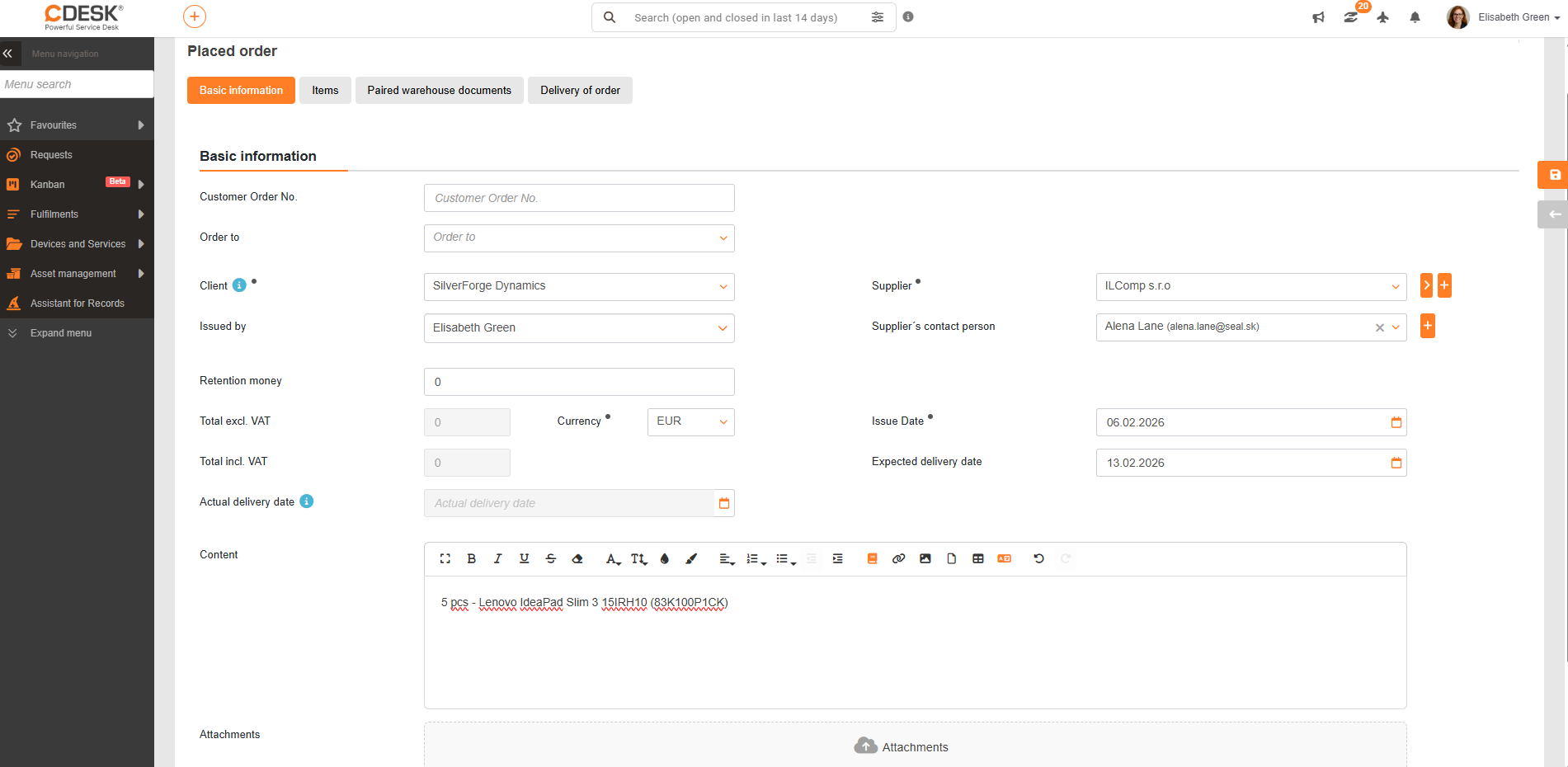
In our example we are ordering 5 laptops. Click +Issue purchase order and fill in the basic information: Buyer, Supplier, Currency, and Issue date. For the buyer to appear in the dropdown, an accounting unit must be set up (Global Settings → Accounting).
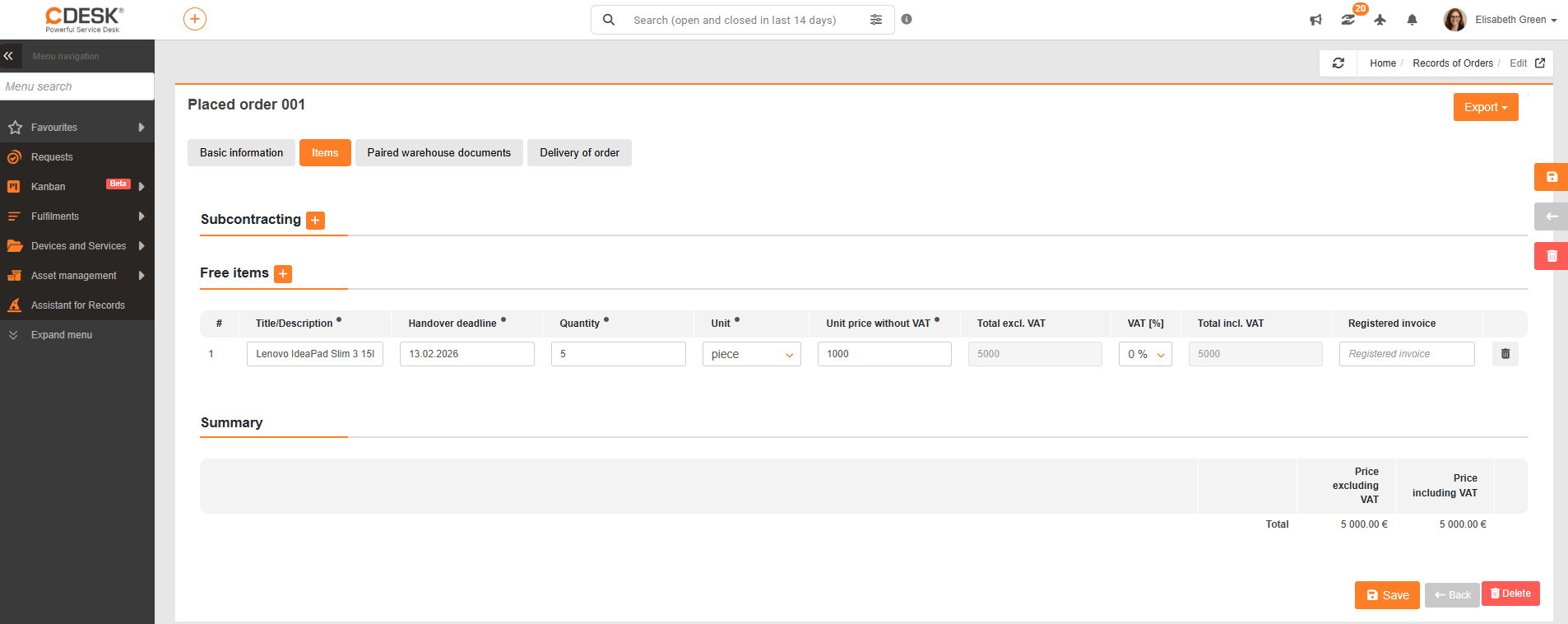
On the second tab Items, add the ordered items by clicking + as a freely entered item.
On the remaining tabs you can monitor the matched stock documents and the delivery of the purchase order. A sample is shown in the Goods in stock and changes in order delivery chapter.
Home Asset Register Asset lifecycle Purchase order as the starting point of the process
Na tejto stránke