



Beta verzia novej dokumentácie.
Home Asset Register Asset lifecycle Receiving goods into stock
The moment the goods are physically delivered and received by the warehouse worker, they are taken into stock via a goods receipt. In this step it is essential to choose the correct purchase order from which the goods are being received, so that fulfilment of the purchase order remains traceable. The system compares the data on the purchase order with the items listed on the goods receipt, making it easy to identify differences between the planned and the actual delivery.
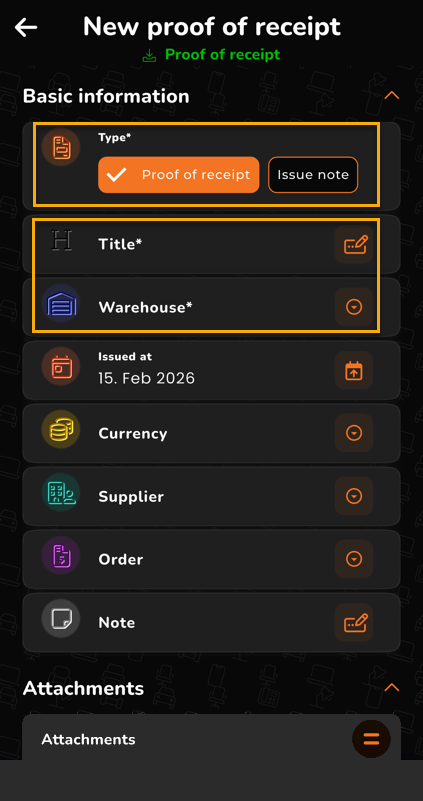
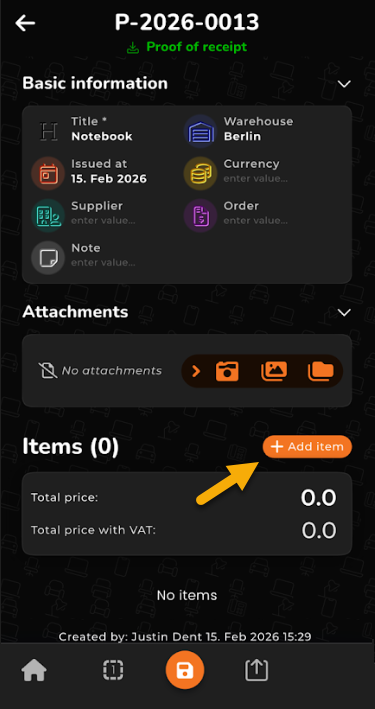
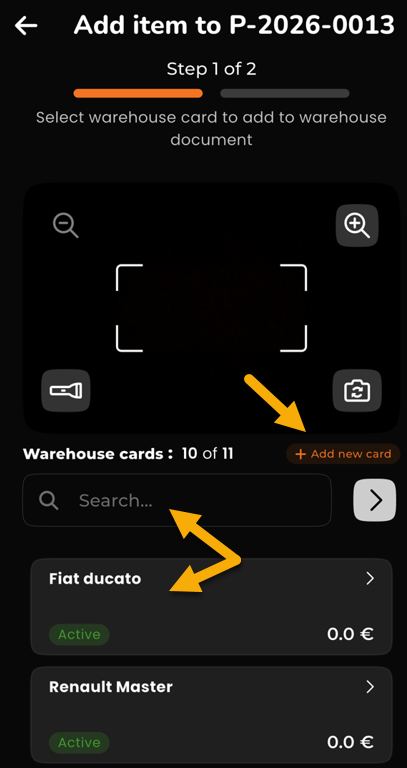
Items can be entered into the goods receipt manually, or added by scanning barcodes or QR codes via the mobile app. The receipt process also records serial numbers, so each piece of equipment has a unique identification, even when several units of the same model are received. In the mobile app a goods receipt can be created by tapping the Stock documents icon and then +. Fill in the required data on the goods receipt — Name and Stock (where the item is received) are mandatory. After tapping + Add item, the goods receipt is saved and you can scan the incoming item, pick it from the stock cards, or add it manually as a new stock card.
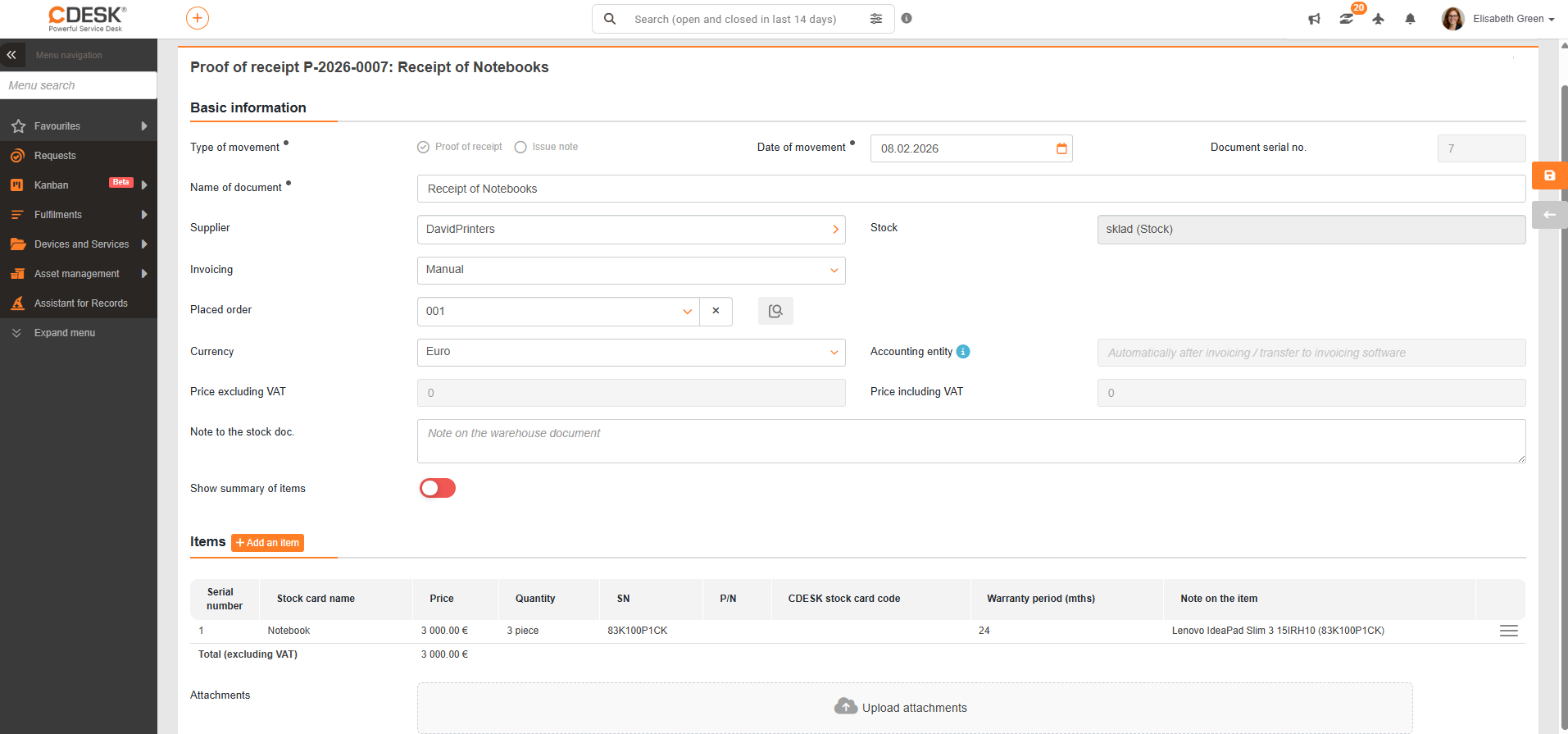
In our example we continue by entering a goods receipt when the laptops physically arrive at the stock. Stock → Stock documents and then the +New document button at the upper right.
Home Asset Register Asset lifecycle Receiving goods into stock
Na tejto stránke