Making functionality and data available in the CDESK system is based on several mechanisms that complement each other. Their aim is to ensure that users have access only to those parts of the system and to that data which are relevant to them, while the environment remains clear. The following part of the documentation goes through the three basic mechanisms in turn,
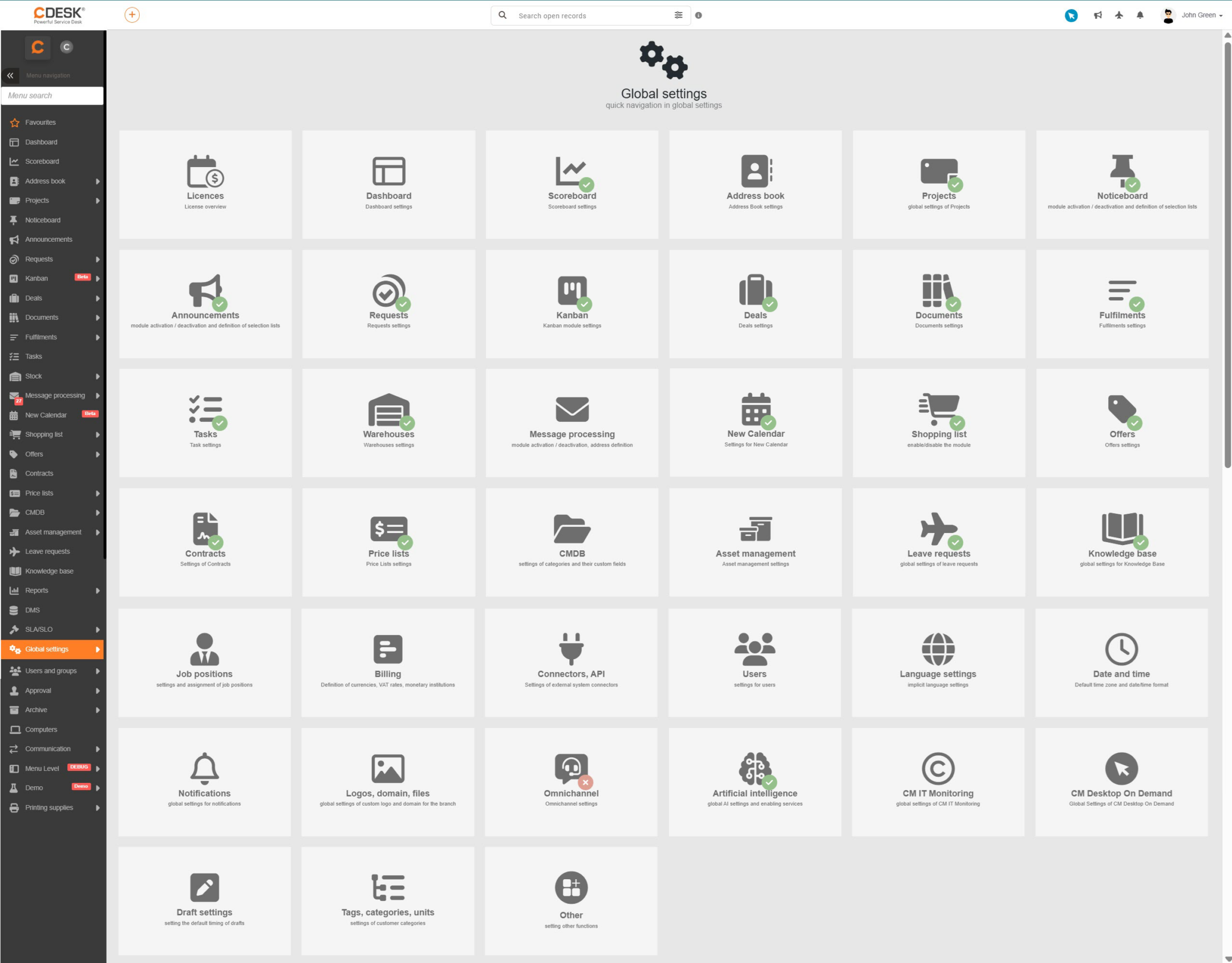
- Global settings – the starting point for making functionality available; every function of the system must be switched on first. The settings are centralised in the Global settings menu.
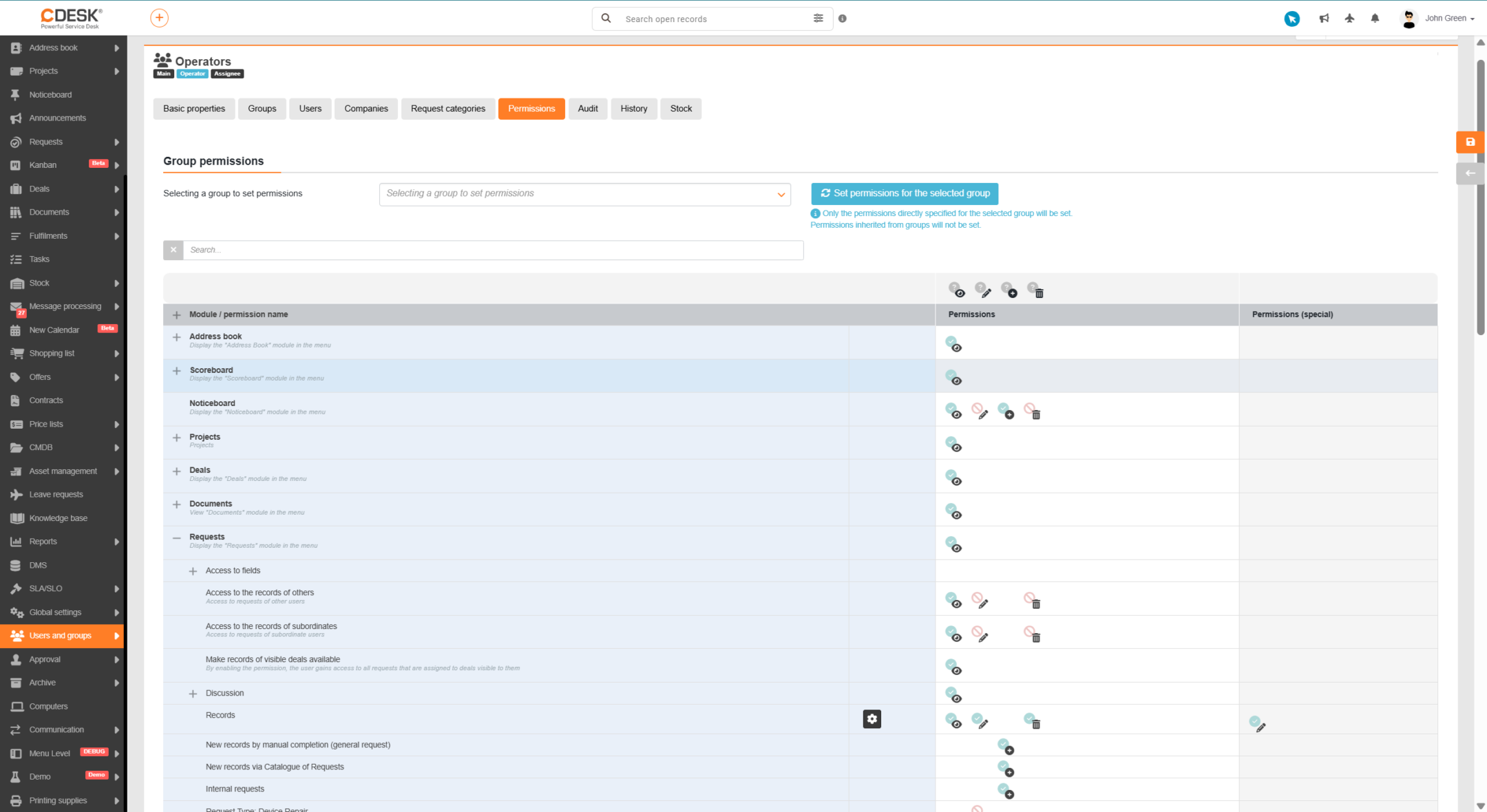
- Permissions – they determine which parts of the system, and which actions within them, are available to individual users; they are set in the user detail.
- Data visibility – it ensures that a user has access only to the information relevant to their role or task. Visibility is governed by several mechanisms with settings in various places.
This overview gives you the basic information about the mechanisms of access to functionality and data. That knowledge will let you better understand the structure of the system and the logic of how it works.
Global settings for making functions available
The global settings are the basic mechanism that determines which functionality of the CDESK system will be available to users. While permissions decide who has access to a particular function, the global settings are the first filter – if a function is switched off, it is not displayed to anyone in the system, regardless of the permissions assigned. This mechanism ensures that the system environment stays clear and that users are shown only the functionality actually used in the organisation.
For clarity, the global settings of the system are divided by individual module and are available in the menu under Global settings. Each category of settings is covered in detail in the individual parts of the documentation – according to the module concerned.
Permission management
In this part of the documentation we will take you through the basic setting of permissions and access rights in the system, which are key to managing records and access to them effectively. Users’ access to records depends on a combination of two factors – the permissions assigned and the visibility settings. Permissions determine which actions a user can perform with a record (for example create, edit, delete). Visibility, in turn, defines which objects – for example requests, contacts, orders – are displayed to them in the system.
During the initial configuration of the system, permissions are assigned automatically according to the user group the user belongs to. A customer therefore gets a narrower range of rights than an assignee, operator or administrator. This preset of permissions ensures that from the very beginning every user has access only to those functions and records that correspond to their role in the team.
The permissions assigned can be supplemented as you wish according to your needs; we recommend using groups with permission inheritance. You can find details of the range of permissions for individual modules in separate parts of the documentation, for example Permissions and access to requests.
Default permissions of the system user groups
The basic set of permissions is configured so that every user, even one with a free licence, has the option of reading records in the system. A user can therefore view any objects in CDESK, for example requests, discussions or other related information.
Some powerful functions, however, are intended for paid licences. For example a customer with a free licence does not have access to certain fields – that access can, however, be added afterwards.
Another group of restrictions concerns functions directly connected with charging for services – for example recording a fulfilment, a leave request, a loan request or approval functions for a customer account. In paid assignee licences these functions are included automatically, with no additional charges.
Overview of the basic permissions by user group:
An initial set of permissions aimed primarily at reading records; in some cases writing can also be allowed
A minimalist set of permissions aimed at making the records assigned to them, and the information related to those records, available
Access to their own records as well as other people’s, with the option of creating, editing and deleting
Access to all records and functionality, without restrictions.
Data visibility
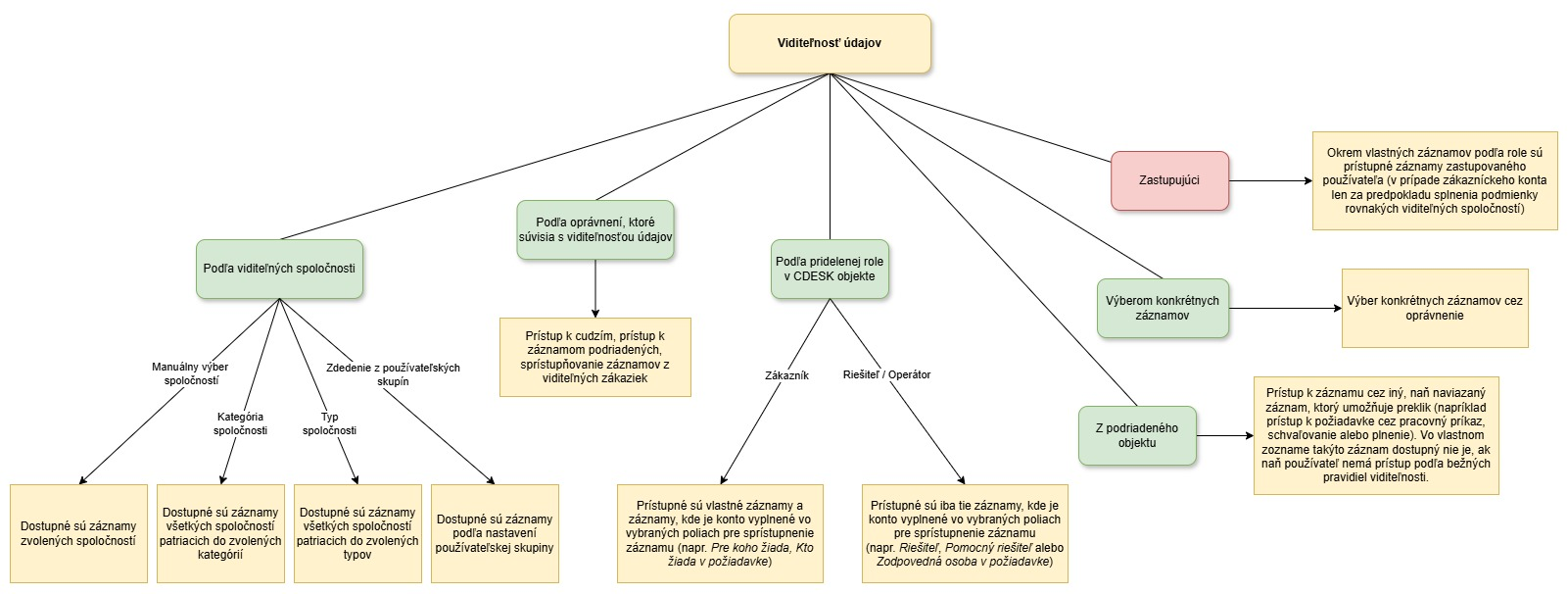
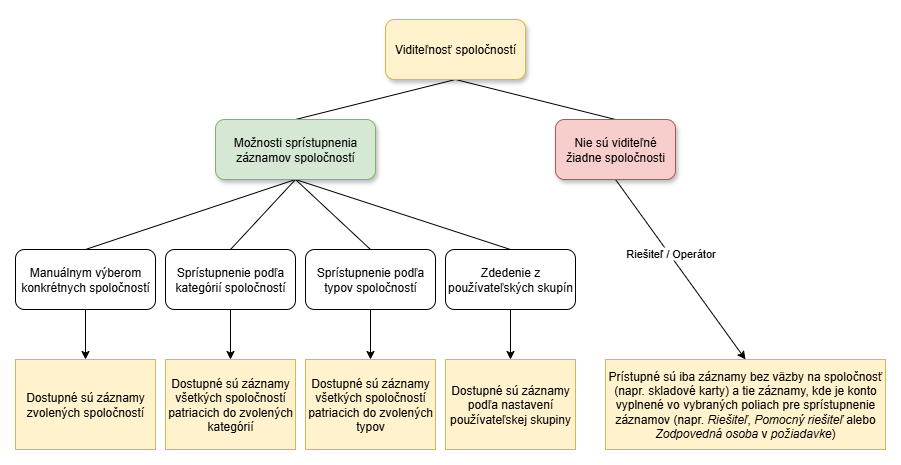
Data visibility in CDESK determines which records a user sees. Visibility can be set in various ways,
- By assignment to companies
- By assignment to categories or types of companies
- By inheriting the settings from a user group or an assigned role
- By setting permissions for data visibility
- Through subordinate objects
The diagram above shows the available options for setting data visibility, ordered according to the recommended procedure when configuring your environment. When setting visibility, it is a good idea to start by assigning visible companies. We class the other options listed as a group of so-called more specific mechanisms for setting data visibility, which we cover in detail in the documentation section Permissions and access to requests.
Access to records according to company visibility
Access to records in the system depends not only on the permissions assigned but also on the visibility settings, to which you should pay sufficient attention. Visibility by company is important – if a user has no visible company, they will see almost no records, since the vast majority of records in CDESK are tied to a company.
In practice this means that although a user has access to the records of a particular module (e.g. Requests), they can see only those records that meet all the visibility criteria set. That ensures that everyone works only with relevant records and that the system stays clear and secure.
Some records are made available even without company visibility. With requests, for example, these are the records made available on the basis of the Assignee, Auxiliary assignee or Responsible person fields. More information on this topic is available in the documentation section Permissions and access to requests.
Further examples of records made available without a link to a company are, for instance, noticeboard posts, announcements, stock cards, messages for processing, the shopping list, price lists, leave requests, knowledge base articles, the list of users, groups and substitutions, chat posts in WhatsApp, telephone calls in VoIP. These records are accessible to all users who have the relevant permission for access to that module.
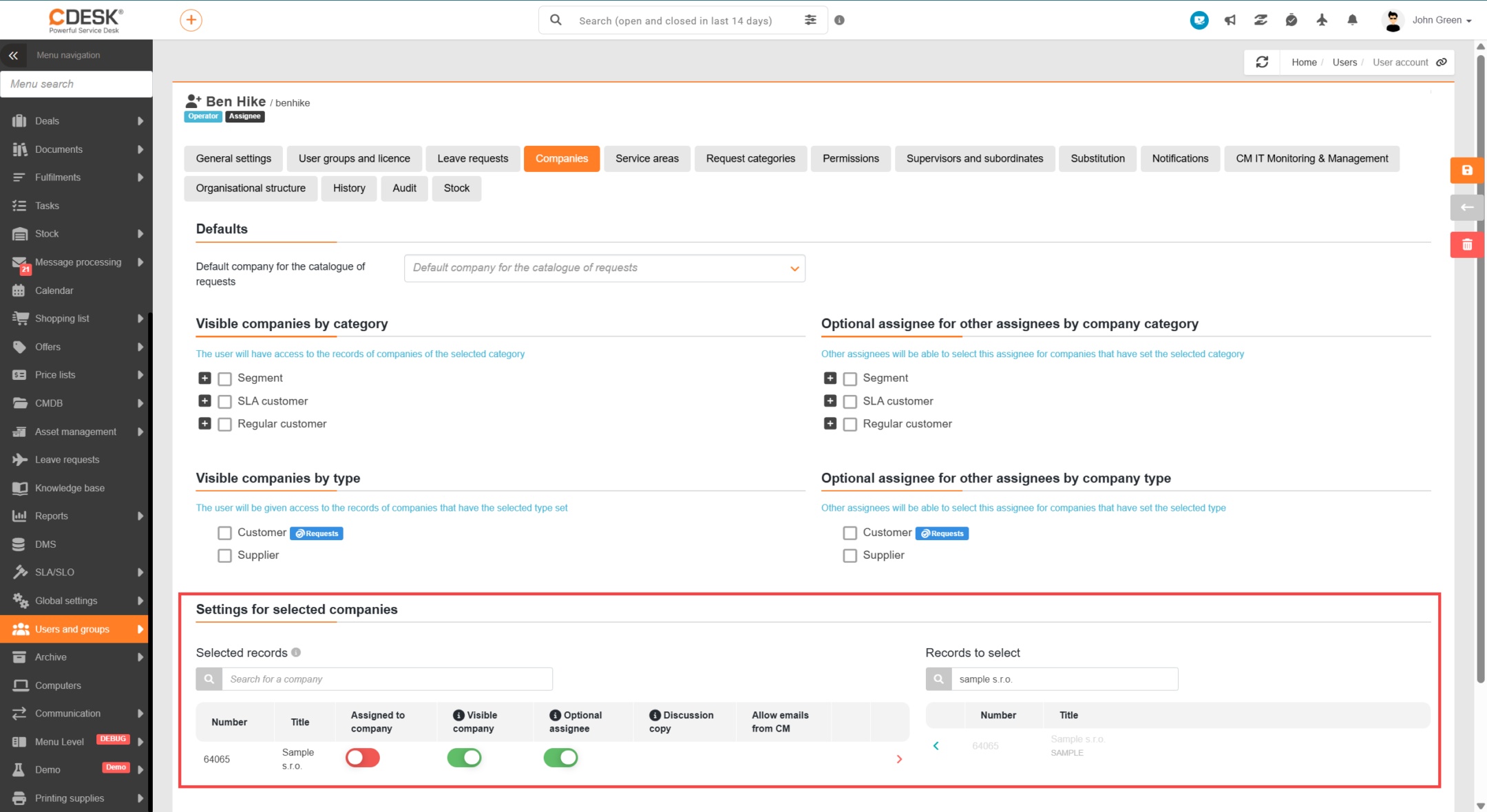
Assignment to a company by manually selecting particular companies
If you want a user to have access only to the records of selected companies, you can assign them access to precisely those companies, with various levels of privilege. The following options are available:
- Assigned to the company – when this is switched on, the user has access to the records of that company and can be selected as Assignee, Auxiliary assignee and Responsible person (including for customer accounts). Once the switch is on, the Visible company and Selectable assignee switches are automatically on as well (with no option of switching them off).
- Visible company – if only this option is switched on, the user has all the records of the selected company available, but cannot be chosen as an assignee.
- Selectable assignee – if this option is switched on, other assignees will be able to choose this user as an assignee. If the visible company option is not allowed in addition to this one, the user will not see a request unless they are its assignee.
The assignment of an account to a company can be set in Users and groups → Users → the detail of the particular user’s record → the Companies tab → the Settings for selected companies section, or directly in the company detail on the Assignees tab.
The list is divided into two parts,
- Selected records – the list of companies the account in question is assigned to
- Records to choose from – the list of all companies registered in the CDESK system
To assign a company to an account, click in the row with the selected company. After clicking, the company moves to the Selected records part. More than one company can be assigned. To cancel an assignment, click the icon in the row of the company concerned and the company moves back to the Records to choose from part.
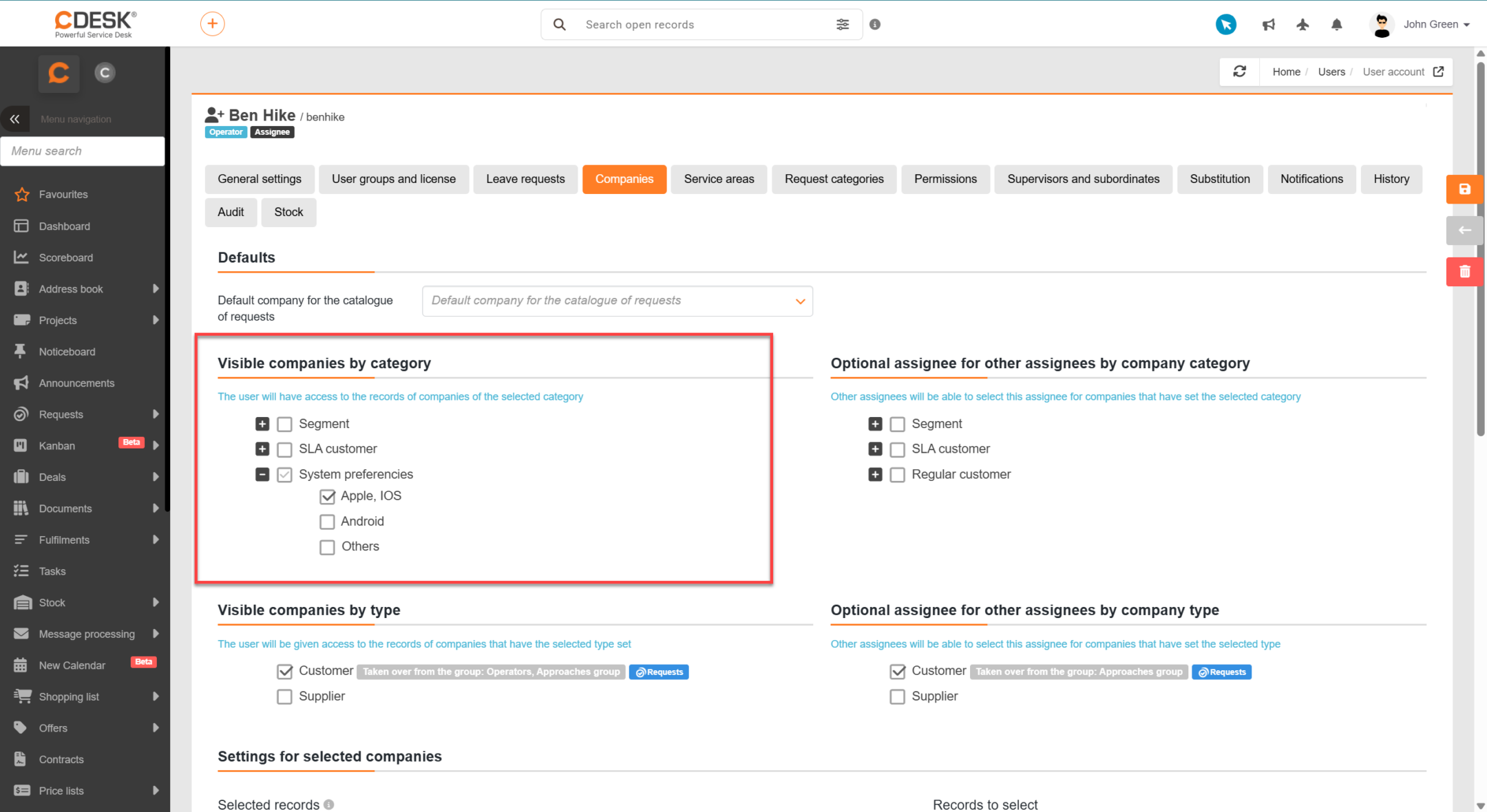
Company visibility according to company categories
If several companies need to be made available at once and they all fall into the same categories, use the option of making companies available according to categories.
This setting is available in Users and groups → Users → the detail of the particular user’s record → the Companies tab → the Visible companies by category section.
The Visible companies by category part contains a list of all company categories. Next to each category there is a tick box (checkbox). Clicking this icon marks the category , which makes the requests of all companies belonging to that category available to the user. Several categories can be marked at the same time. To cancel visibility by category, it is enough to click the tick box next to the category again
, which removes the mark.
Company visibility according to company type
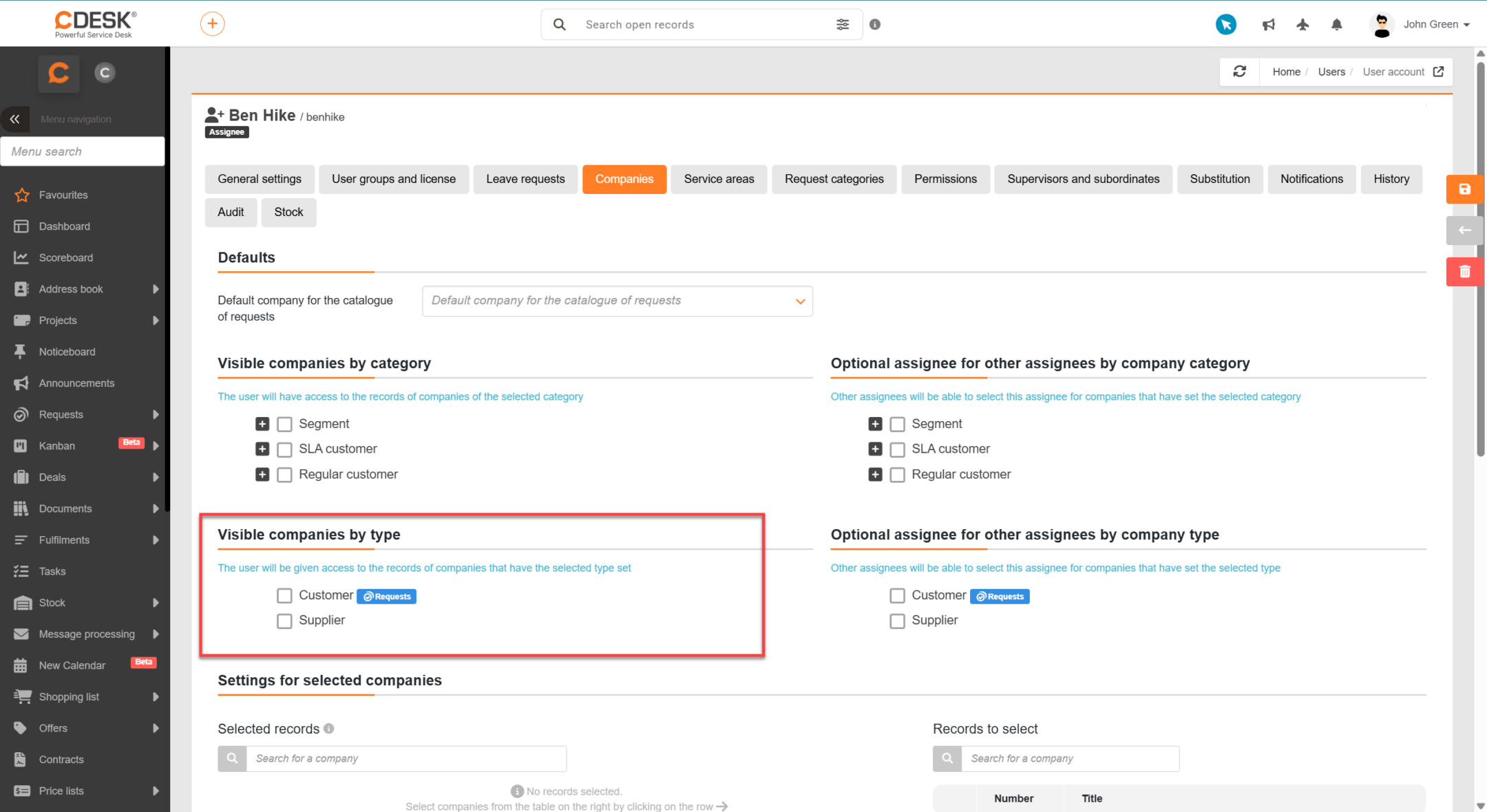
Besides making companies available by category, requests can be made available in the same way according to company types.
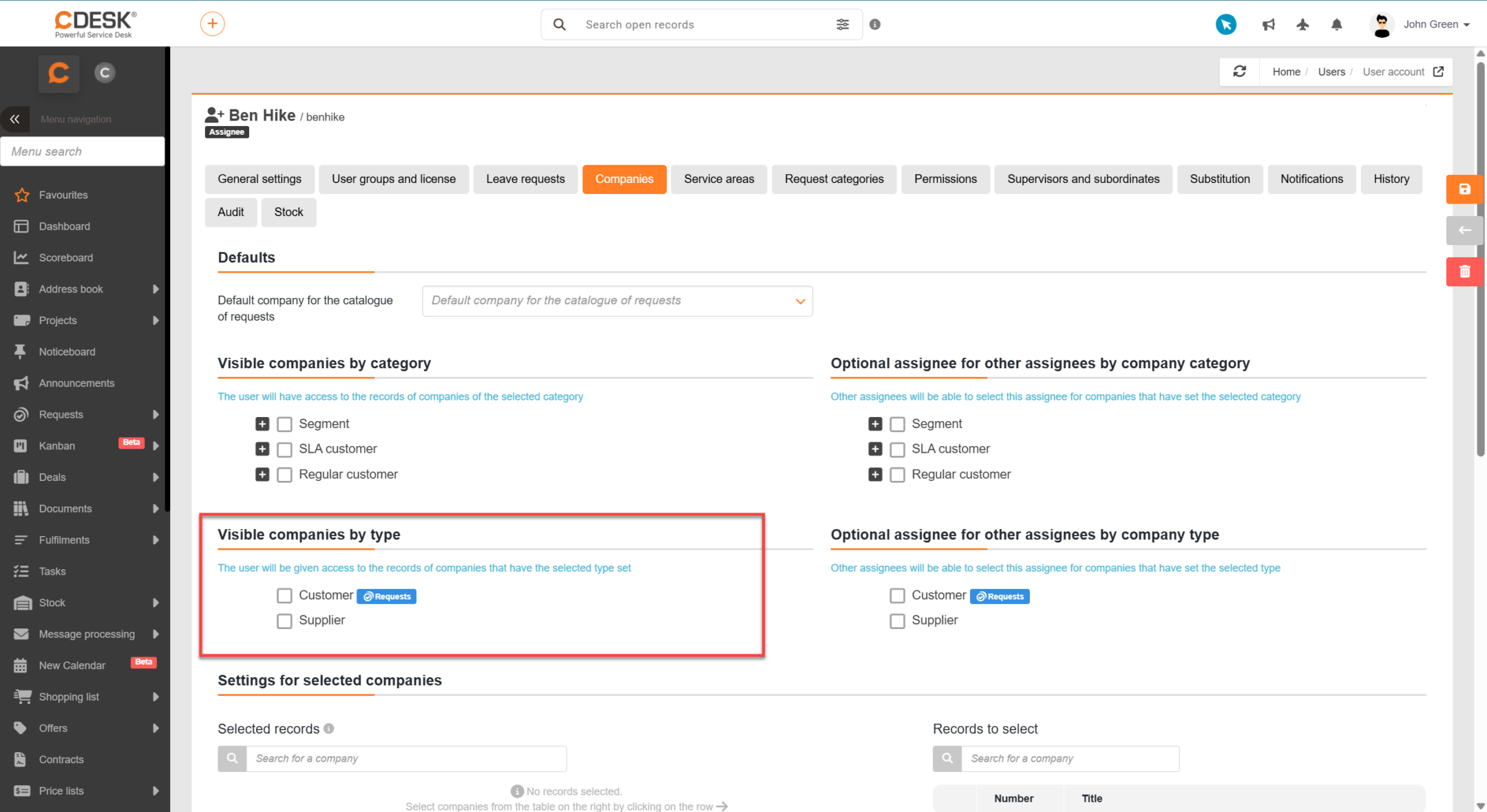
Making a company available by type can be set in Users and groups → Users → the detail of the particular user’s record → the Companies tab → the Visible companies by type section.
The Visible companies by type part contains a list of all company types. Next to each type there is a tick box (checkbox). Clicking this icon marks the type , which makes the requests of all companies that have that type filled in available to the user. Several types can be marked at the same time. To cancel visibility by type, it is enough to click the tick box next to the type again, which removes the mark.
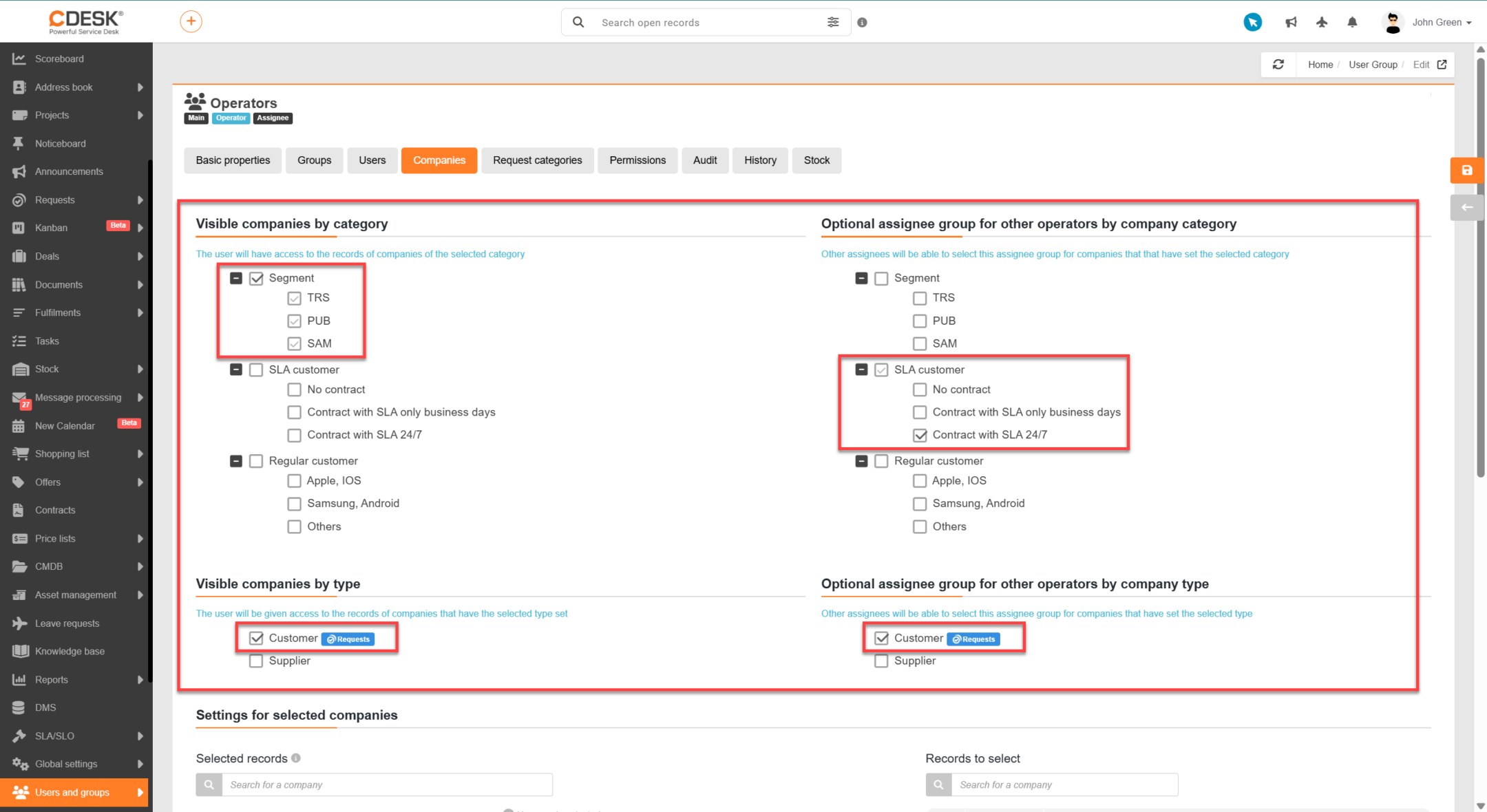
Inheriting visibility from user groups
If a user is part of a user group, they can inherit company visibility. Just as for a particular user, assignment to a company as well as visibility by company category and type can be set for a group. In that case the setting is applied automatically to all members of the group.
Visibility for a group can be set in Users and groups → Groups → the detail of the particular group’s record → the Companies tab. On the tab you can set company visibility by category, by type or visibility for selected companies only. The way it is set is the same as for a particular user and the individual procedures are described in the documentation above. Access obtained by inheritance from a group carries the flag: „Inherited from group: Group name“.
Data visibility according to the role assigned in a CDESK object
Besides the company visibility settings, a record is also made available to a user when they are named in it in one of the fields that establish access. What decides is therefore the user’s own role on the particular record – who created it, who is requesting it and who is handling it.
The range of records made available this way differs according to the type of account:
- Customer account – their own records are available, as well as records in which the account is named in selected fields, for example Who is requesting or Who they are requesting for on a request.
- Assignee and operator – the records available are those in which the account is named in selected fields, for example Assignee, Auxiliary assignee or Responsible person on a request.
This mechanism is important because it works even without company visibility. If a user is named on a record as the assignee or auxiliary assignee, they will see the record even if the company the record belongs to is not visible to them. The exception is the Responsible person field – a user can be selected in it only when they have that company visible.
The condition is that the field names the user directly, not a group they are a member of. If an assignee group is chosen in the field, membership of it does not in itself establish access to the record.
Data visibility from a subordinate object
There are cases where CDESK makes the detail of a record available even to a user who has no direct access to it and does not see it in their lists. It is enough for them to open it from another record that is tied to it and to which they do have access.
A typical case is a request opened from a work order. The assignee of the work order need not have the request itself visible; it is not displayed to them in the list of requests. From the work order detail, however, they can open its detail, because they need to know the context in which they are doing the work. It works the same way with approval and with fulfilments, where the approver has access to the request detail from the approval record and the assignee from the linked fulfilment.
You will find the link to the request in the detail of that record next to the field with the request name, where there is a button with a chain icon and the description Open item (). It is displayed only when the record really is tied to a request.
The condition is access to the subordinate object itself. Availability is not derived from the request but from the record you open it from. If a user loses access to the work order, they also lose this route to the request.
Availability applies to the whole request detail including its discussion, not just the basic data. It is, however, limited to that one particular record and applies only while it is open from the linked object. It does not extend the scope the user works with – the request does not appear in their list of requests and does not enter filters or exports.
When setting up access, therefore, you need to bear in mind that restricting visibility in the list of requests does not in itself guarantee that a user cannot reach the request detail. If a request is genuinely to be hidden from a particular person, you also have to control whether that person is the assignee of a work order or fulfilment on that request, or its approver.
Making a user’s own records available
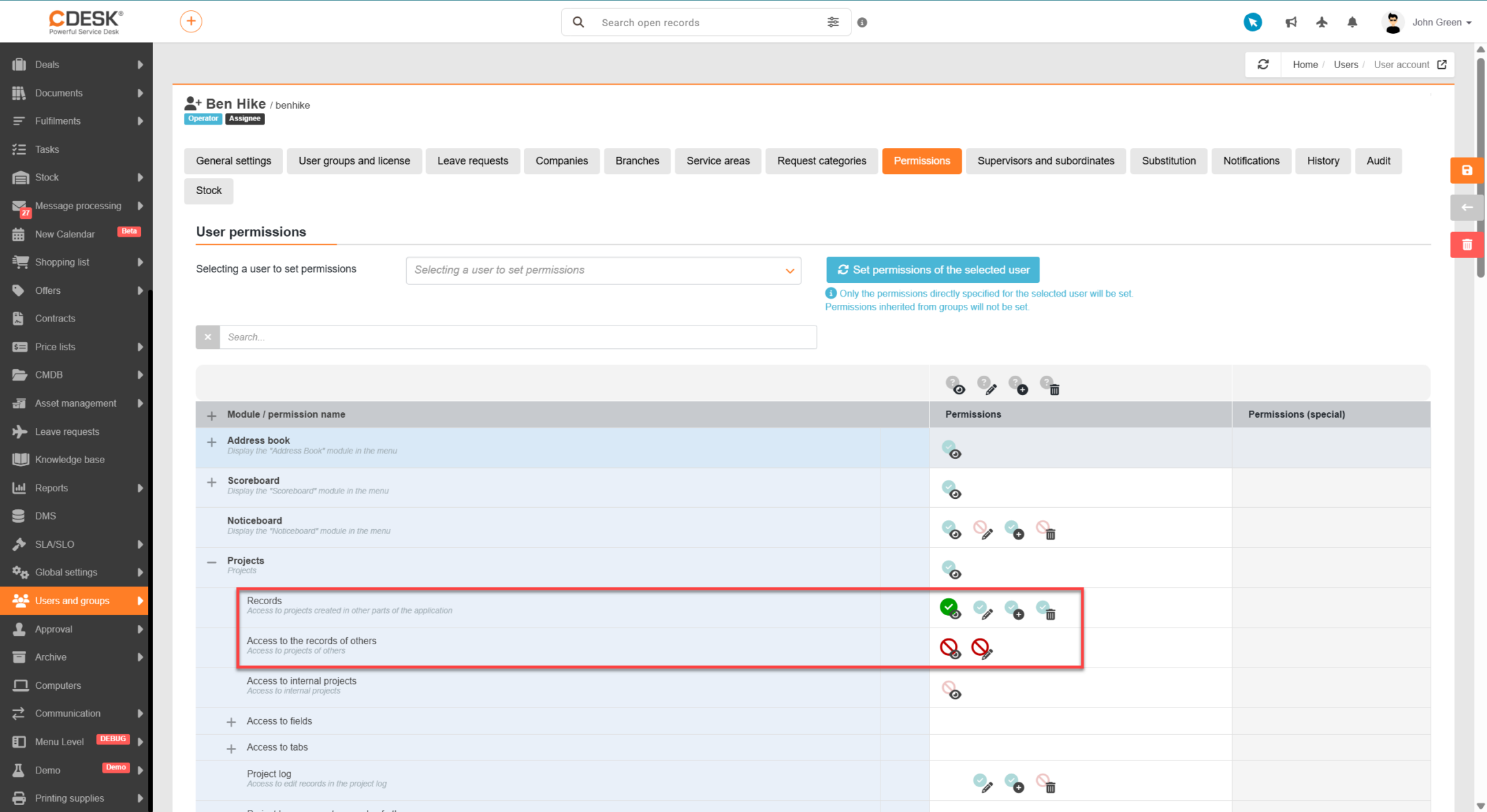
Every user with access to the module in question and with the permission for Records switched on has access to their own records. This access is applied in the permissions (in Users and groups → Users → the detail of the particular user’s record → the Permissions tab). For access to their own records, the Records permission must have at least the visibility permission switched on, which is marked with the icon .
A user who has, for the Records permission, switched on only the access / read permission , will not be able to make any changes in requests; the records are available to them read-only. To make changes available, in addition to the access / read permission you also have to switch on the permission for editing items
. If the option of deleting records is also required then, besides the access and editing permissions, you have to switch on the permission for deleting records
.
Making other people’s records available in selected modules
The Access to other people’s permission allows a user to see records that were not created by them directly. This permission is available only for some modules, which include:
- Projects
- Orders
- Requests
- Fulfilments
- Tasks
- Configuration database items (CMDB)
- Approval
- Leave requests
This availability may not always be suitable, however, and so the system makes it possible to restrict the display of records at various levels – for example by service area or by request category. More detailed information about this restriction of request records is available in the documentation section Permissions and access to requests.
When the Access to other people’s permission is switched on, all the requests of the companies that user has access to are made available to them.
A user who has, for the Access to other people’s permission, switched on only the access / read permission , will not be able to make any changes in other people’s requests; the records are available to them read-only. To make changes available, in addition to the access / read permission you also have to switch on the permission for editing items
. If other people’s requests also need to be deleted then, besides the access and editing permissions, you have to switch on the permission for deleting records
. If the editing / deleting permission is switched on only in the Access to other people’s part and those permissions are not switched on for other requests, the user will be able to edit / delete only requests assigned to companies visible to them.
Making assignees available in selection fields
This part deals with the settings that determine the content of the assignee selection fields. They do not decide which records that user has available, but whether others can choose them as the assignee when entering records. The setting is therefore made on the user who is to be offered in the selection field, but its effect shows up for the other users who select the assignee.
When selecting an assignee on a record, not all the assignees in the environment are offered. The offer is narrowed to those tied to the company of that record – either they have the company assigned directly as assignees, or they are designated for it through the company category or type. Thanks to that, assignees who do not have that company assigned are not shown in the offer, and the selection stays clear even in environments with a large number of accounts.
The setting is available in two forms – by company category and by its type. Both work the same way; they differ only in which division of companies the assignee is offered by. The same setting also exists at user group level, where a whole assignee group is offered as selectable.
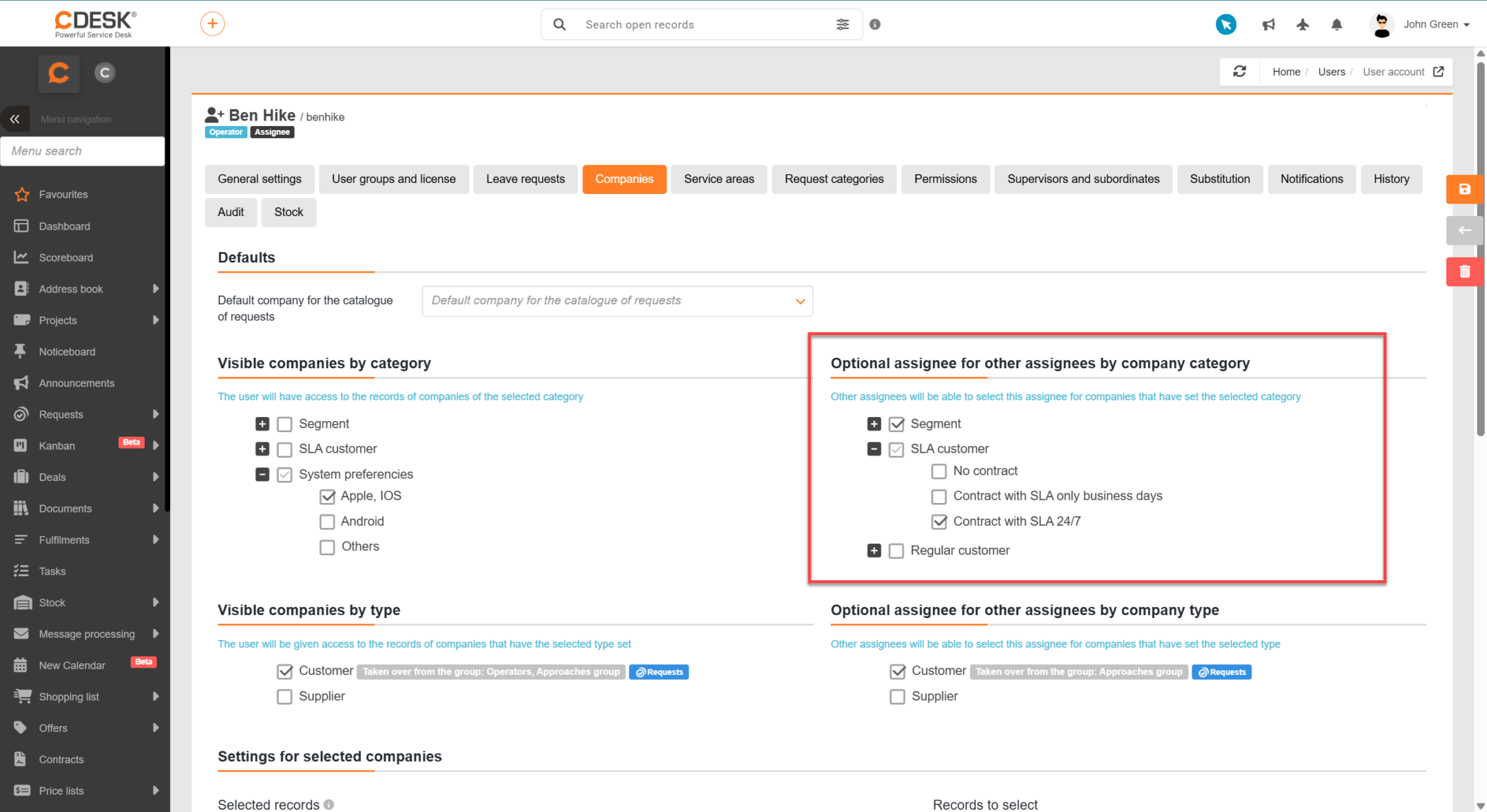
Selectable assignee for other assignees by category
For users of the assignee and operator type, the Selectable assignee for other assignees by company category section has settings with which you make that user available for selection by other assignees on records recorded under a company of the chosen category.
Similarly to the previous section, this part contains a list of all company categories. Next to each category there is a tick box (checkbox). Clicking this icon marks the category , by which other assignees can choose that user as the assignee for companies of that category. Several categories can be marked at the same time. To cancel it, it is enough to click the tick box next to the category again
, which removes the mark.
Selectable assignee for other assignees by company type
For users of the assignee and operator type, the Selectable assignee for other assignees by company type section has settings with which you make that user available for selection by other assignees on records recorded under a company of the chosen type.
Similarly to the previous section, this part contains a list of all company types. Next to each type there is a tick box (checkbox). Clicking this icon marks the type , by which other assignees can choose that user as the assignee for companies of that type. Several types can be marked at the same time. To cancel it, it is enough to click the tick box next to the type again, which removes the mark.
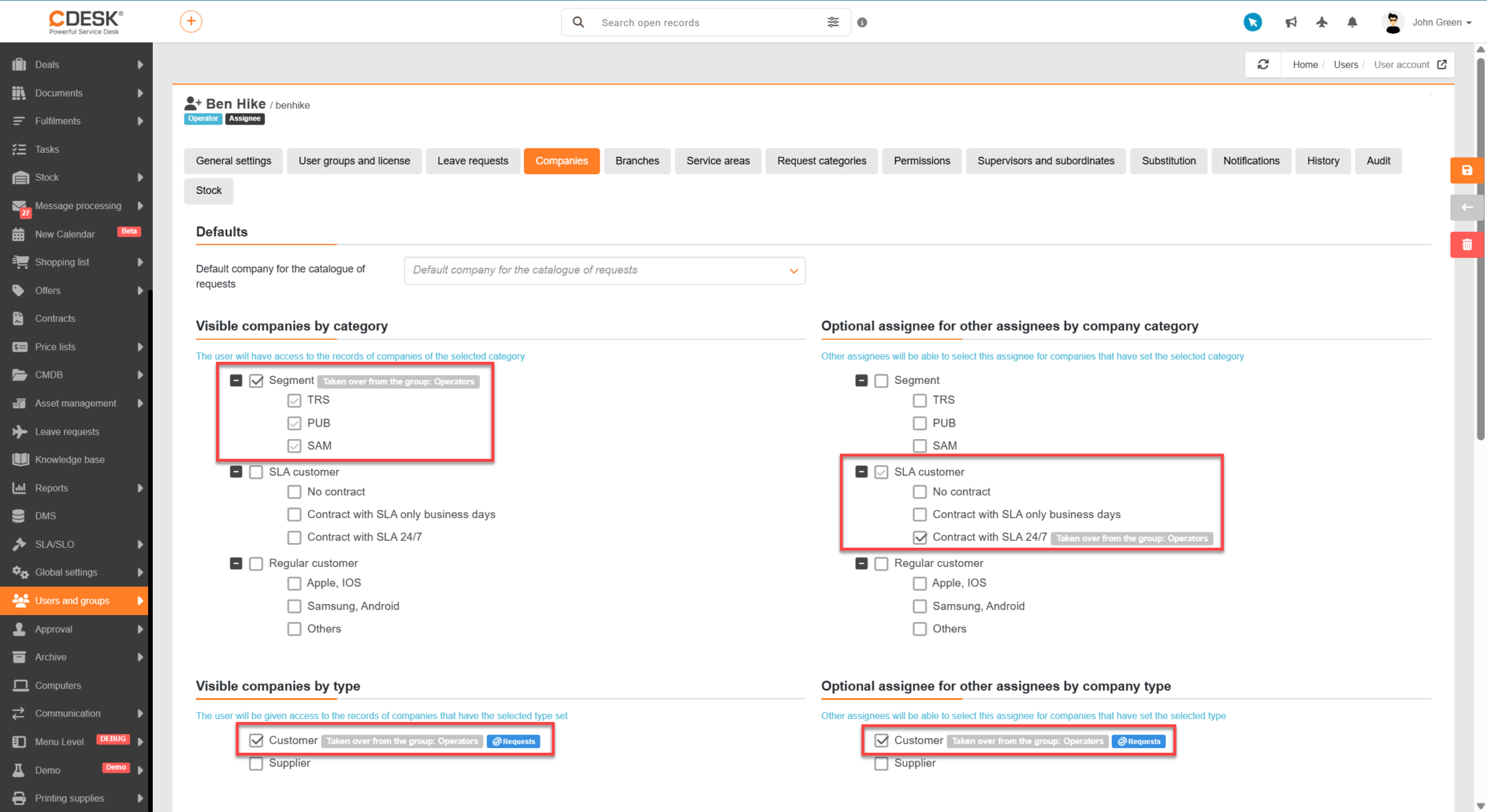
Making subordinate users’ records available in selected modules
Many modules have further specifics with which the visibility of records can be influenced. These options include making subordinate users’ records available. This permission is available only for some modules, which include:
- Requests
- Fulfilments
- Configuration database items (CMDB)
- Approval
- Leave requests
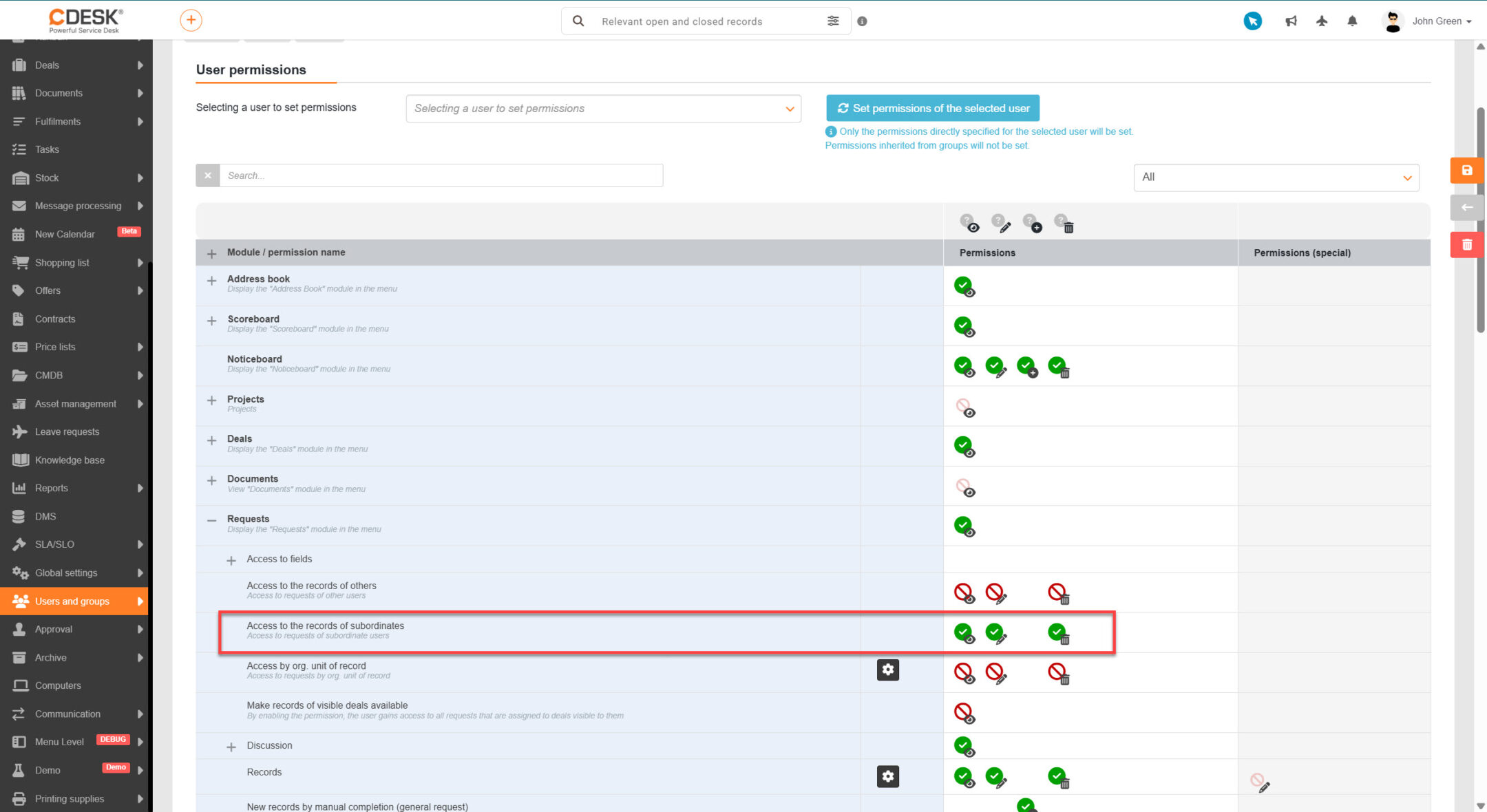
A user who has, for the Access to subordinates’ records permission, the access / read option switched on sees all records where their subordinates, and their subordinates’ subordinates, are filled in in at least one of the following fields:
- Created by
- Who is requesting
- Who they are requesting for
- Assignee
- Responsible person
- Auxiliary assignee
This availability is based on the hierarchy of users, that is on determining who is whose superior and whose subordinate. The range of records made available therefore depends on how the hierarchy is set up in the environment. If no superiority is determined, the permission has nothing to make available. These fields must name the user directly, not their group. If a group is chosen in one of the fields listed above, the superior user will not see the record.
Superiors and subordinates can be determined in two ways. The first is automatic adoption from synchronisation from AD/LDAP or Microsoft Entra ID (in the connector settings in CDESK you enter the attribute in which the superior is named in the directory, for example manager). The second is entering them manually in Users and groups → Users → the detail of the particular user’s record → the Superiors and subordinates tab.
A user who has, for the Access to subordinates’ records permission, switched on only the access / read permission , will not be able to make any changes in subordinates’ requests; the records are available to them read-only. To make changes available, in addition to the access / read permission you also have to switch on the permission for editing items
. If the option of deleting subordinates’ requests is also required then, besides the access and editing permissions, you have to switch on the permission for deleting records
. If the editing / deleting permission is switched on only in the Access to subordinates’ records part and those permissions are not switched on for other requests, the user will be able to edit / delete only their subordinates’ requests.
Making records available according to orders and project orders
Records can also be made available according to which order or project order they are assigned to. In this case access is not derived from the user’s role in the record itself, but from their access to the order. A user therefore sees records belonging to the orders they work with, even if they do not figure in them as the assignee or in any other role.
This principle applies where an order or project is the natural framework of the work. A back office or invoicing worker does not take part in handling individual records, but does need to see everything falling under that order. Likewise a project team member needs an overview of the records of the project order they are working on.
Availability according to the order
If a user has access to an order, the records tied to it are made available to them as well. The Make records from visible orders available permission serves this purpose and is available for requests and fulfilments. Once it is allowed, all requests and fulfilments assigned to the orders the user has visible are made available to them. No special role in the record is needed; access to the order itself is enough. The other modules do not have this permission. Work orders are, however, made available indirectly, because they are tied to a request – if a request is made available this way, so is the work order belonging to it.
The scope is therefore given by which orders the user sees. If they do not have the Access to other people’s permission in the Orders module, they see only orders in which they are named as the responsible person, which they created themselves, or which are made available to one of their user groups. Active substitutions are also taken into account. In all cases the order must belong to a company the account has visible.
The permission is set in Users and groups → Users → the detail of the particular user’s record → the Permissions tab, in the Requests or Fulfilments module. It can equally be set at user group level.
Note: The default setting differs between modules. For requests the permission is allowed for all system groups, for fulfilments only for the administrator and the operator.
Availability according to the project order
With project orders, access is not governed by a separate permission but by the user’s role in the project order. Two things have to be distinguished – access to the project order itself and access to the records belonging under it.
- Access to the project order – three roles are distinguished – project manager, project team member and watcher. If a user does not have the Access to other people’s for project orders permission, only those in which they figure in one of these roles are accessible to them. The range of options differs between the roles – both the project team member and the watcher have the project order available read-only and cannot modify anything in it or add new records.
- Access to the records under a project order – access to a project order does not yet mean access to the requests and tasks belonging under it. Those are made available only to two of the roles listed – the project team member and the project manager. A watcher sees the project order itself, but that role does not directly establish access to the records under it.
Roles are inherited from the project to its project orders. If a user is named directly on a project order, the records of that order are made available to them. If they are named on the parent project, the records of all the project orders of that project are made available to them.
The role is inherited downwards through the whole hierarchy – to requests and tasks under the project order, to tasks under requests and to tasks under tasks. Removing a user from the project team loses them access to this whole hierarchy. A whole user group can also be a member of the team, in which case access applies to all its members.
The user can view and edit the records made available this way, but cannot delete them. The condition is that they have the permission for the visibility and editing of requests or tasks. Without it they will not see the records even as a project team member.
Note: Access to project orders is governed by the roles in the project order itself, not by a separate permission. The Make records from visible orders available permission therefore applies exclusively to orders.
Data visibility for a substituting user
If substitution is set up for a user, the substituting user gains access to their records during their absence. The range of records made available corresponds to what the substituted user sees, so the workload does not go unhandled during their absence.
Besides their own records, which follow from their role and permissions, the substitute therefore also sees the records of the users they are actively substituting for. Access to the substituted user’s records is tied to the period of validity of the substitution, so outside that period the substitute does not see those records. With customer accounts there is the additional condition that both accounts must have the same visible companies – otherwise the substituted user’s records are not made available.
Substitution is set in Users and groups → Users → the detail of the particular user’s record → the Substitution tab. You can read the details of setting up substitution in the user documentation, in the section User settings tabs.
Manually allowing access to records
In practice a situation can arise where certain records are not made available on the basis of permissions, but it is nevertheless desirable for the user to have access to some of those records anyway. In that case access can be allowed for particular records. This option is available for selected modules, which include,
- Companies
- Requests
- Work orders
- Warehouses
- Calendar
- Quotations
- Contracts
- Price lists
- Configuration database (List of items (CI), List of main groups, List of types, User-defined fields, Custom code lists)
- Users and groups
- CM mobile app – Computers
- Reservation system (Reservation groups, Reservation objects)
- Knowledge base (Space)
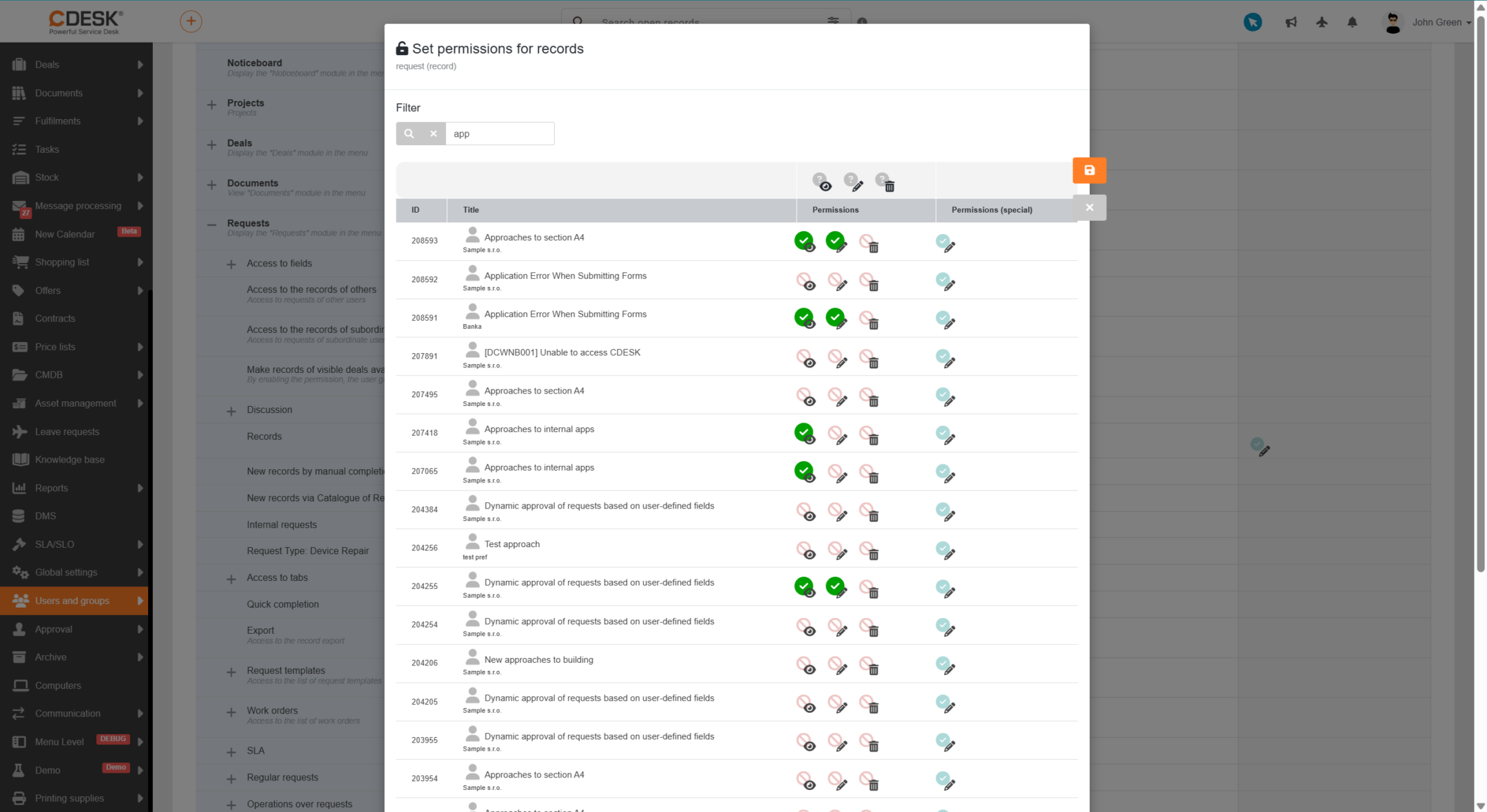
To allow access to particular records, click the icon , which is in the row of the Records permission (in Users and groups → Users → the detail of the particular user’s record → the Permissions tab).
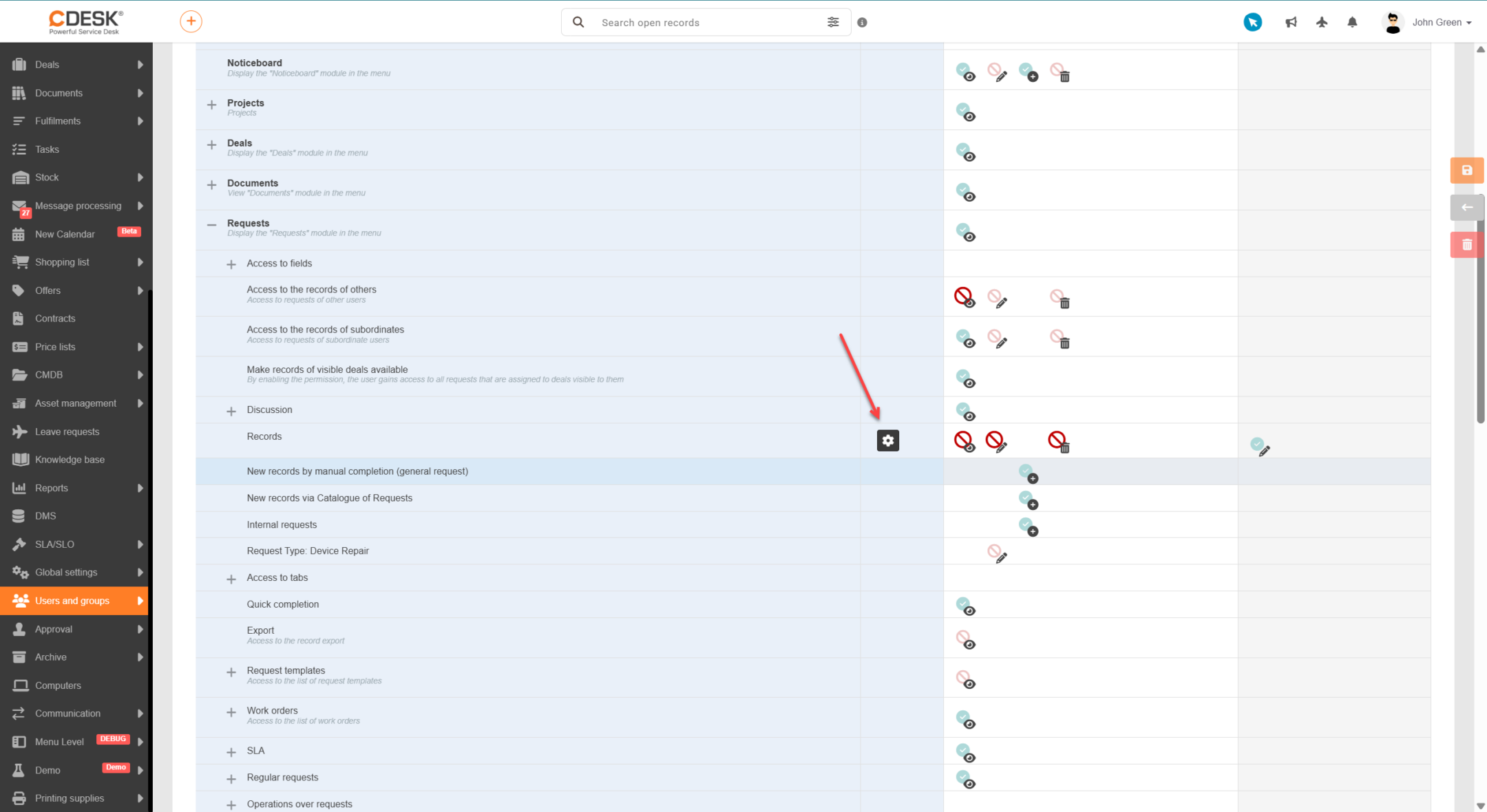
After clicking, a modal window with a listing of records is displayed. The search field placed above the list serves to search for particular records. In the row of each record there are icons for the permission to see the record , the permission to edit the record
and the permission to delete the record
. Clicking one of these icons in the row of a particular record changes the permission for that record only. This way it is only possible to set permissions to records that are already accessible. It is not possible to make available records that would fall outside that user’s permissions. For example, if a user has access only to their own requests, it is not possible to make someone else’s request available to them.