


Beta verzia novej dokumentácie.
Home Ways to log in to CDESK Manual login and multi-factor authentication (MFA)
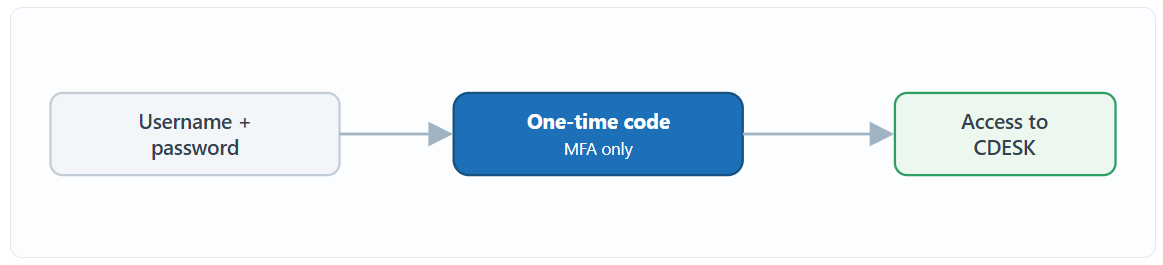
You normally log in to CDESK manually — with your login name and password. This login can optionally be secured with multi-factor authentication (MFA), which adds a second verification step and significantly increases the protection of your account.
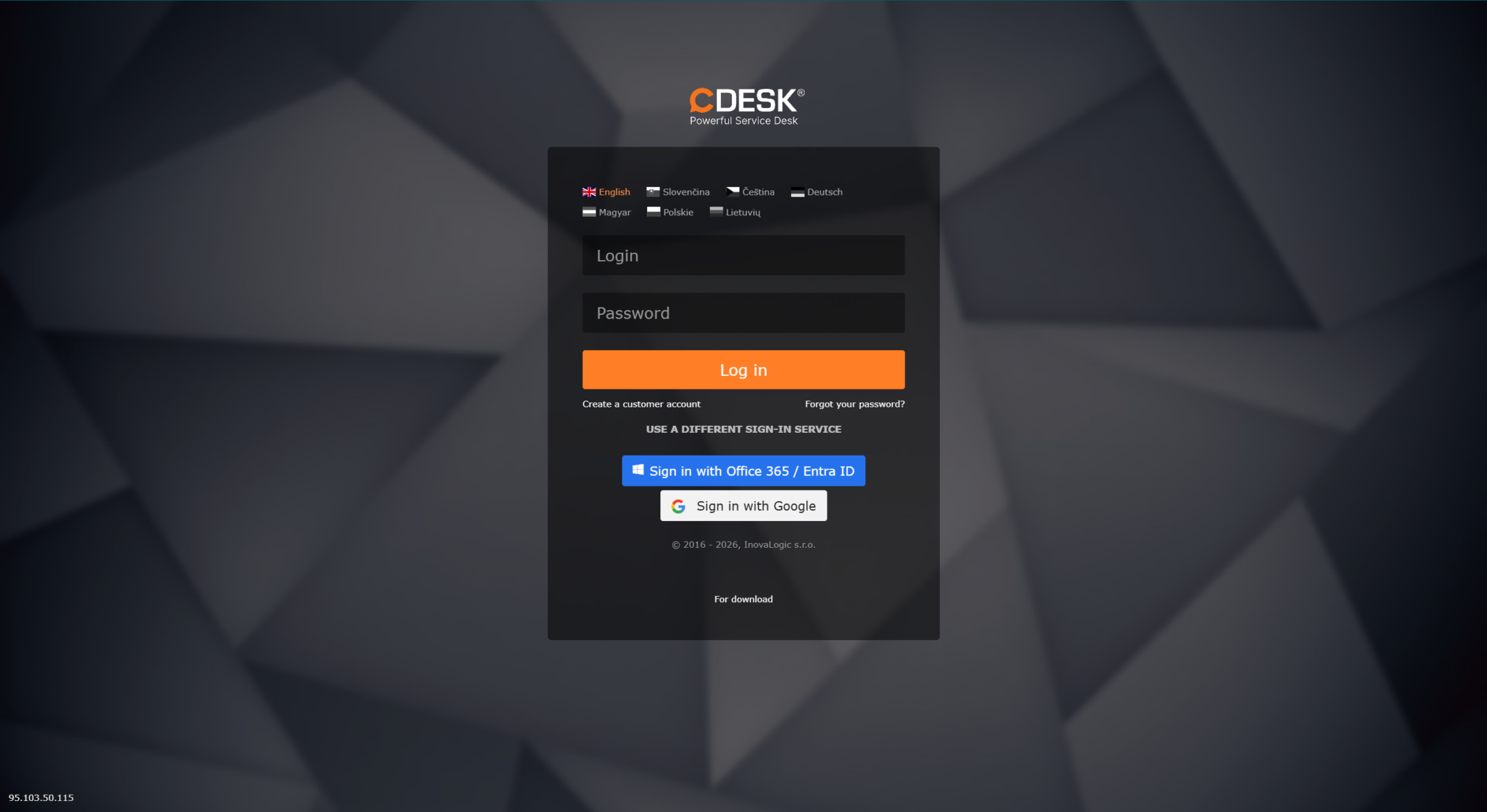
On the CDESK login screen, enter your login name and password and confirm the login. Once your details have been verified you are taken into the system. You can have the login remembered so that you do not have to repeat it on every visit.
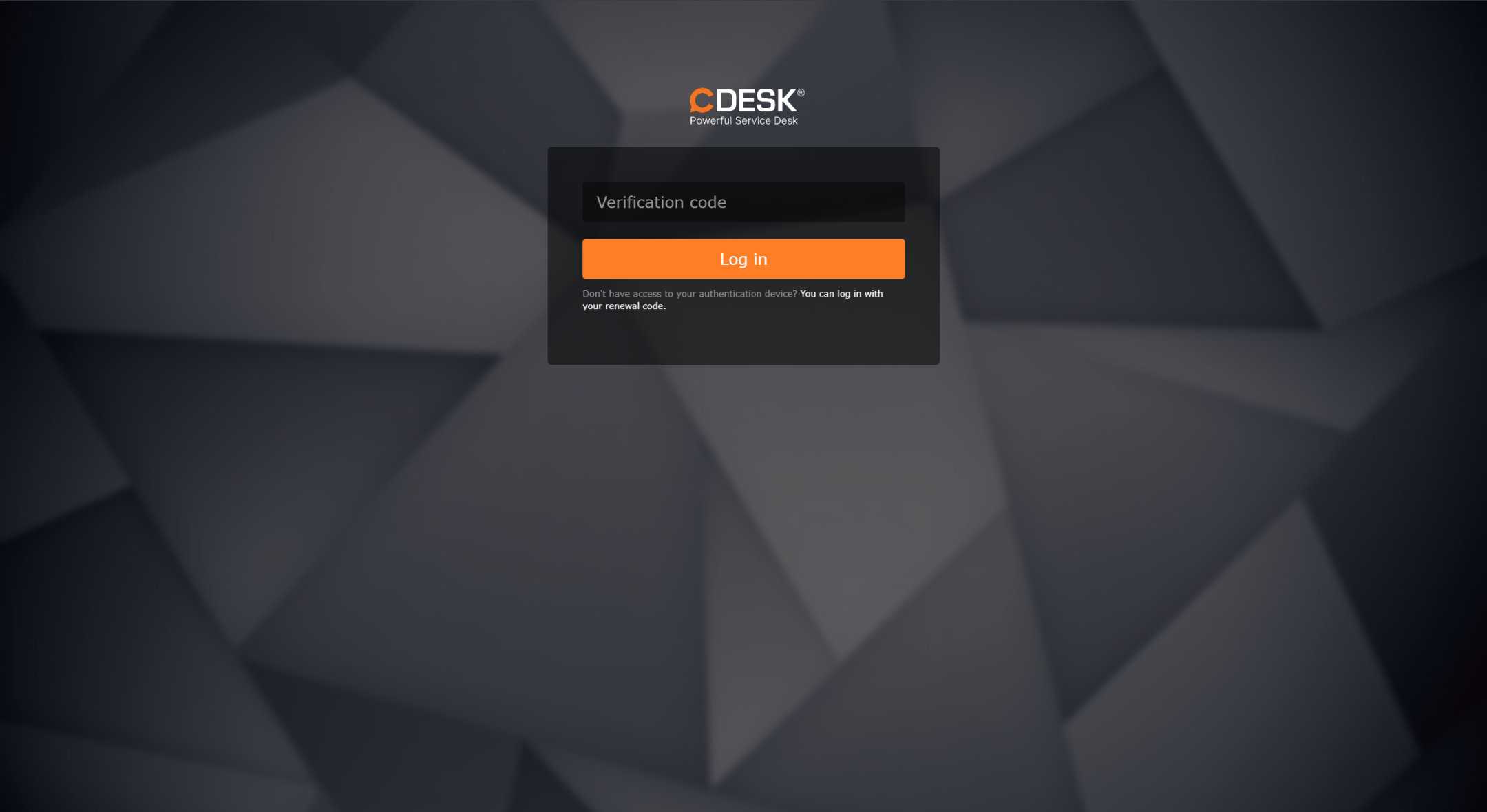
If multi-factor authentication is switched on for your account, the system will ask for a one-time verification code after you enter your password – the procedure is described in the following section.
Multi-factor authentication (MFA), also referred to as two-factor authentication (2FA), adds a second verification step to the password – a one-time code generated by an authenticator app on your phone (for example Google Authenticator, Microsoft Authenticator or Duo Mobile). Even if someone knew your password, they could not get into the account without this code.
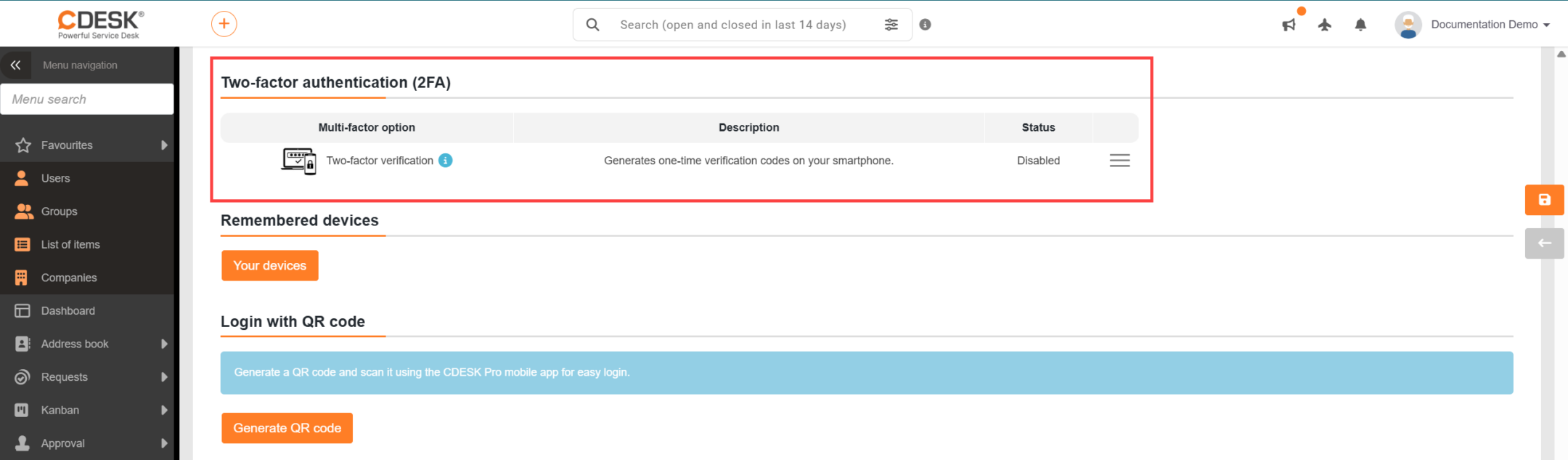
You switch MFA on in your profile (My profile → two-factor verification). The procedure is as follows:
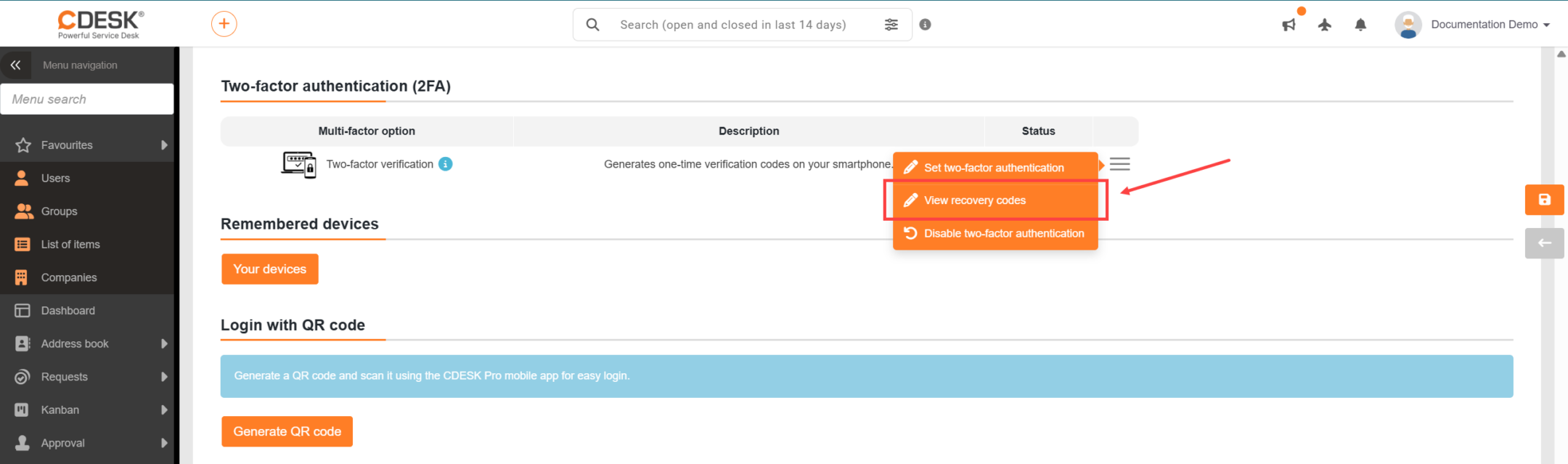
1. Switch on Two-factor verification – by clicking Set up two-factor authentication in the context menu.
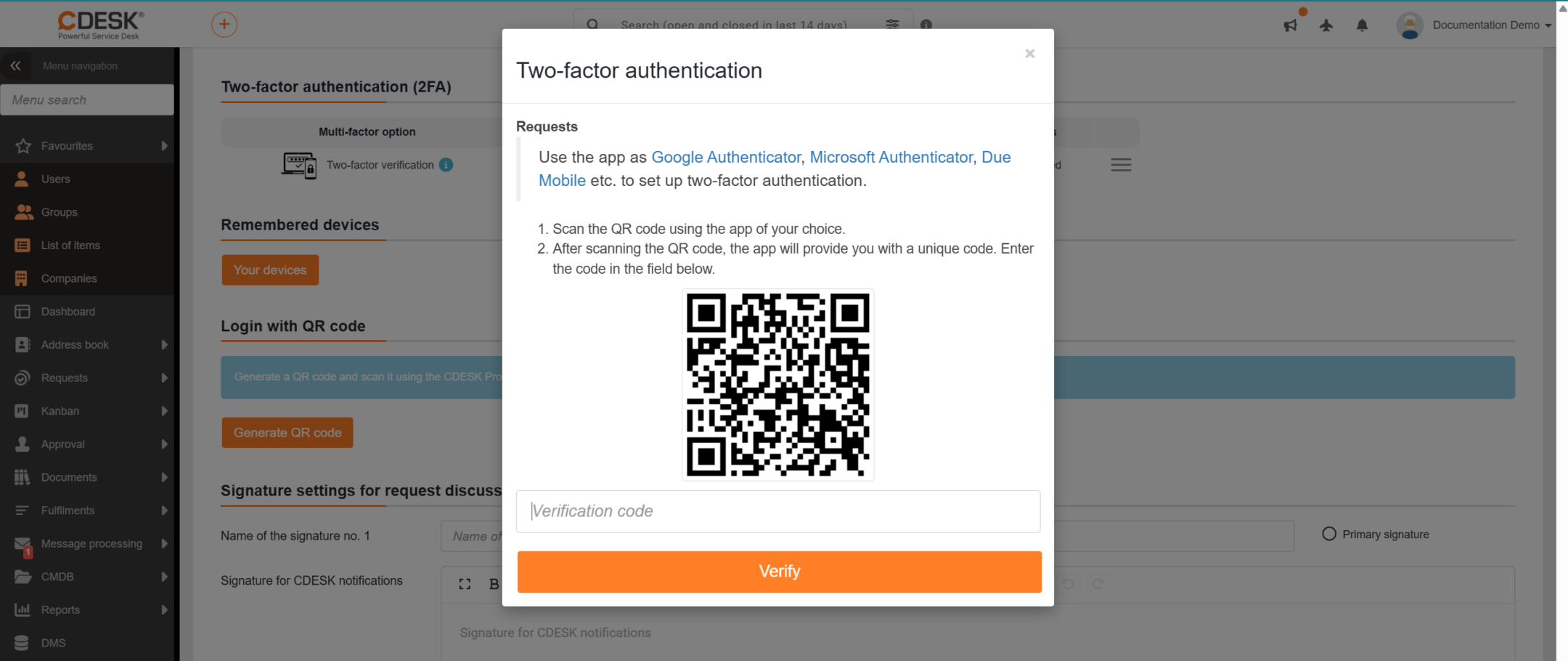
2. Scan the QR code shown with your authenticator app — this links the app with your account.
3. The app generates a six-digit code; enter it in CDESK for verification.
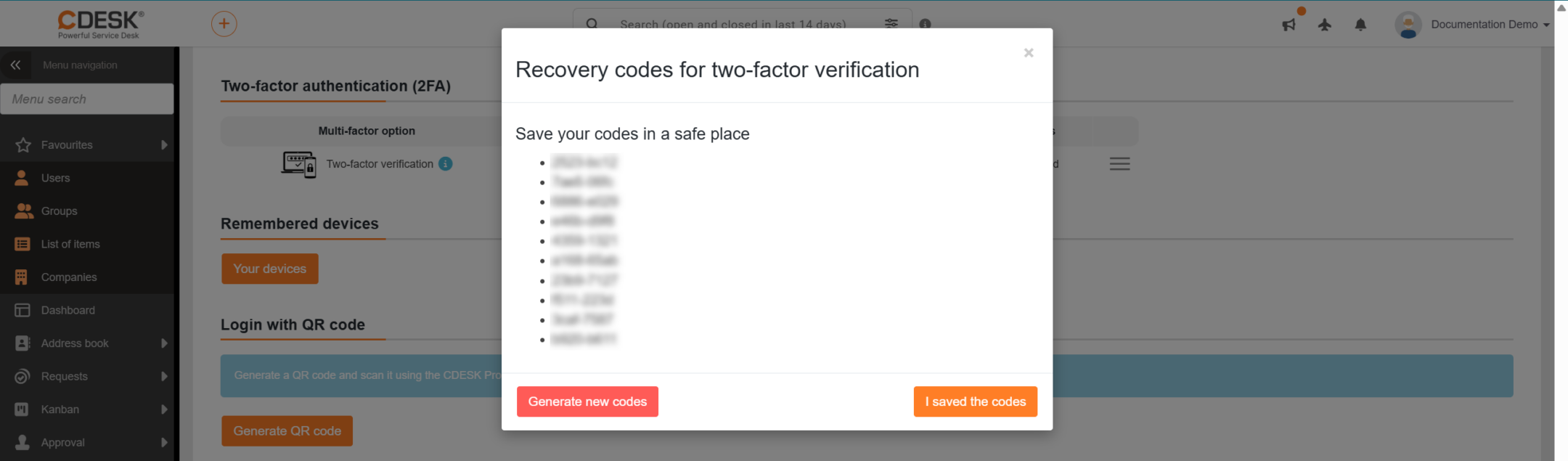
Once verification succeeds, MFA is active. At the same time the system creates backup (recovery) codes – store them safely in case you lose access to the app.
Note: Common authenticator apps are supported (Google Authenticator, Microsoft Authenticator, Duo Mobile and others). MFA cannot be set up for the main administrator account of the root type.
When logging in you first enter your name and password, after which the system asks for the one-time code from the authenticator app. Once you enter it you are logged in. The six-digit codes change regularly in the app, so always use the current one.
If you do not have access to the authenticator app (for example you have lost or replaced your phone, or uninstalled the authenticator app):
Tip: While you still have access to CDESK you can regenerate the backup codes at any time in the My profile section. We recommend always keeping them stored in a safe place — that way you avoid needing a reset.
The device you log in from can be remembered – for the number of days that has been set (the Number of days until remembered 2FA on the device expires setting in Global settings → Users) the system will then not ask for the verification code again. Logging in is more convenient this way; a shorter validity is, however, safer.
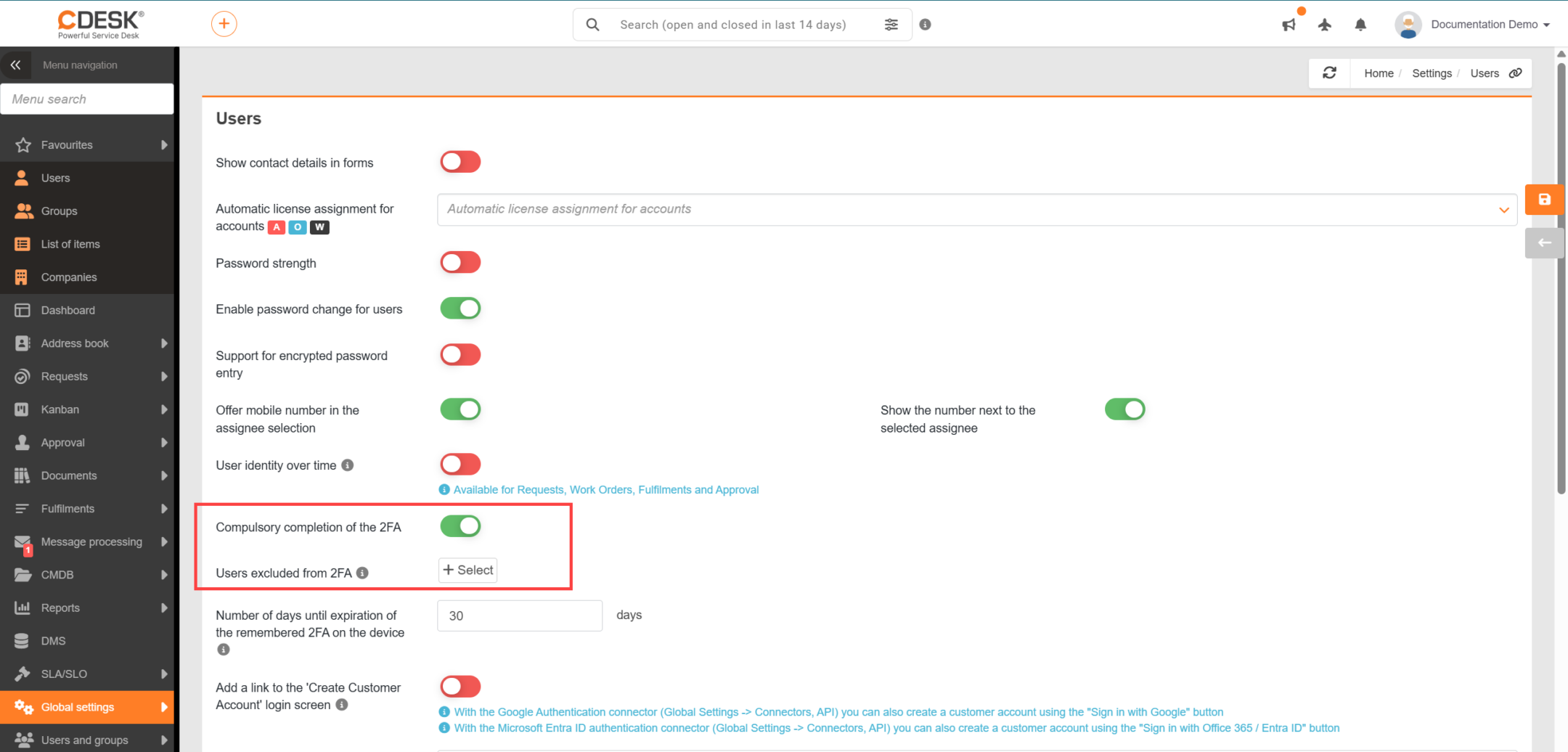
The administrator can enforce MFA for all users with the Compulsory completion of 2FA setting in Global settings → Users. In that case the user sets it up at their very next login. Selected users can be exempted from the obligation — the Users excluded from 2FA setting in the same section is used for that.
Home Ways to log in to CDESK Manual login and multi-factor authentication (MFA)