


Beta verzia novej dokumentácie.
Home Automation via API Automation via API Supervisor mode
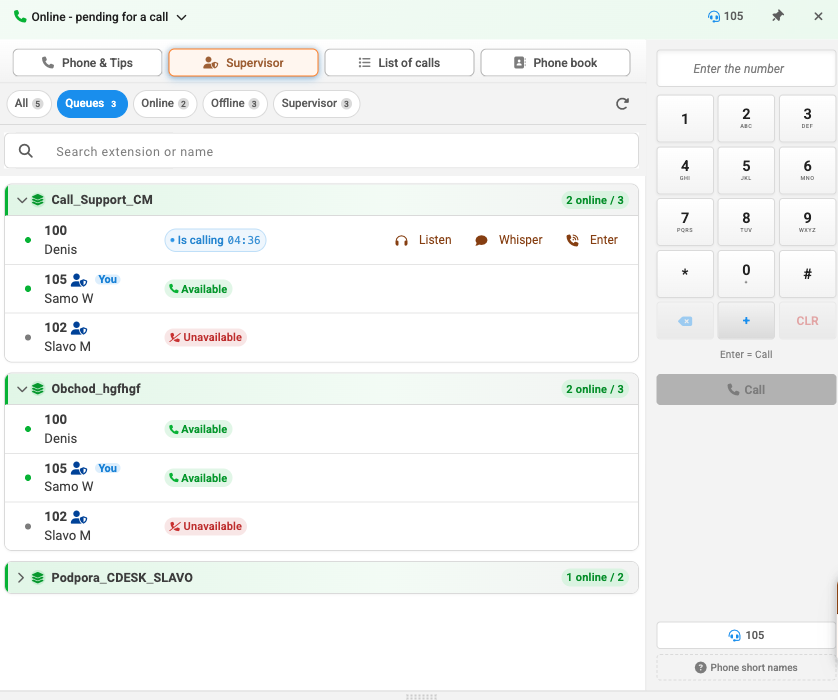
An extension with supervisor mode enabled in the settings can view ongoing calls in the Supervisor tab, listen in on them and provide real-time prompts to the operator. This is particularly useful when training new operators and for quality control.
A supervisor can only join an ongoing call, so the Listen, Whisper and Join buttons are only active for the extension that is currently on the phone – in which case a blue ‘On the phone’ label displaying the call duration appears next to it. It is not possible to join another supervisor’s call; in such cases, the buttons are greyed out with an explanatory tooltip. When the monitored call ends, the supervisor is automatically disconnected within a few seconds and receives an alert.
In the Queues tab, the supervisor can see all queues and the extensions directly assigned to each one; agents are not displayed here. The queue header has a green indicator if at least one agent is available, and a red one showing the quantity of available agents if the entire queue is unreachable. The connection buttons are only displayed beneath the queue through which the call is actually being routed.
For each extension, the list shows its number, the operator’s name and two statuses – a dot indicating the CDESK status and a label showing the VoIP status as Available or Unreachable. Your own extension is selected as ‘You’. The list can be filtered and searched: Filters – All, Teams, Online, Offline and Supervisor – each filter shows the quantity of records, so you can immediately see how many operators are available.
The action buttons are inactive in a number of situations, and CDESK will always explain why:
The connection is established at the switchboard end using tone dialling, so when you press the button, you will hear the Zadarma alert times before the call is connected – this is not an error. When the monitored call ends, the supervisor is automatically disconnected and receives an alert; you can also disconnect manually by pressing the ‘Disconnect’ button.
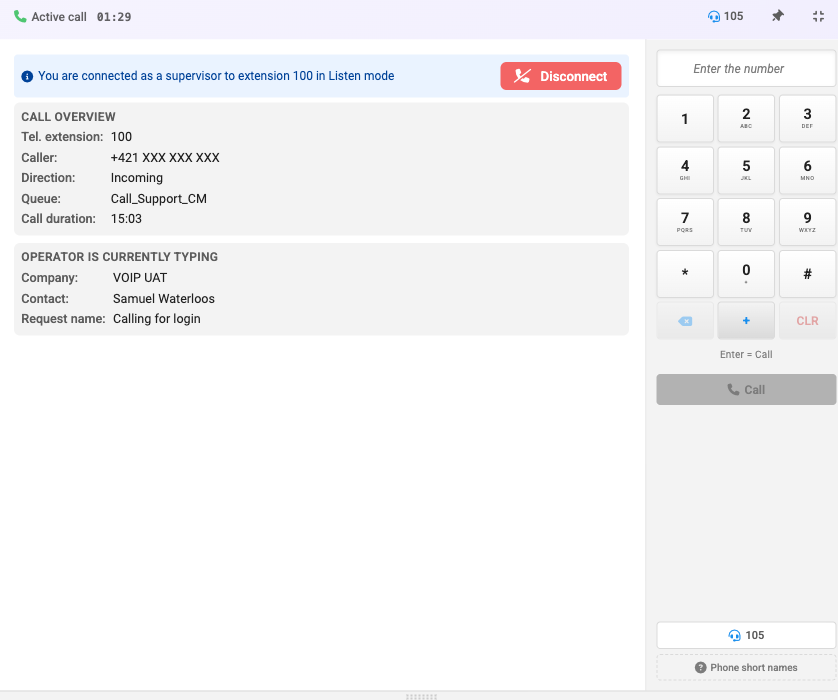
Once connected, the panel switches to the current call and displays in the header which extension you are connected to and in which mode. Below this is an overview of the call – extension number, caller, direction, queue and duration of the call – and a separate section where the supervisor can see in real time what the operator is currently entering: company, contact and the name of the request. This is particularly useful during training, as it shows not only how the operator is conducting the call, but also what they are noting down during it.
Please note: When switching scenarios, CDESK will display a warning detailing the consequences of the change. Saved prompts and the voice response system menu are not deleted – they are simply not applied in the ‘Configuration in Zadarma’ scenario, so they will be available again once you switch back.
Home Automation via API Automation via API Supervisor mode